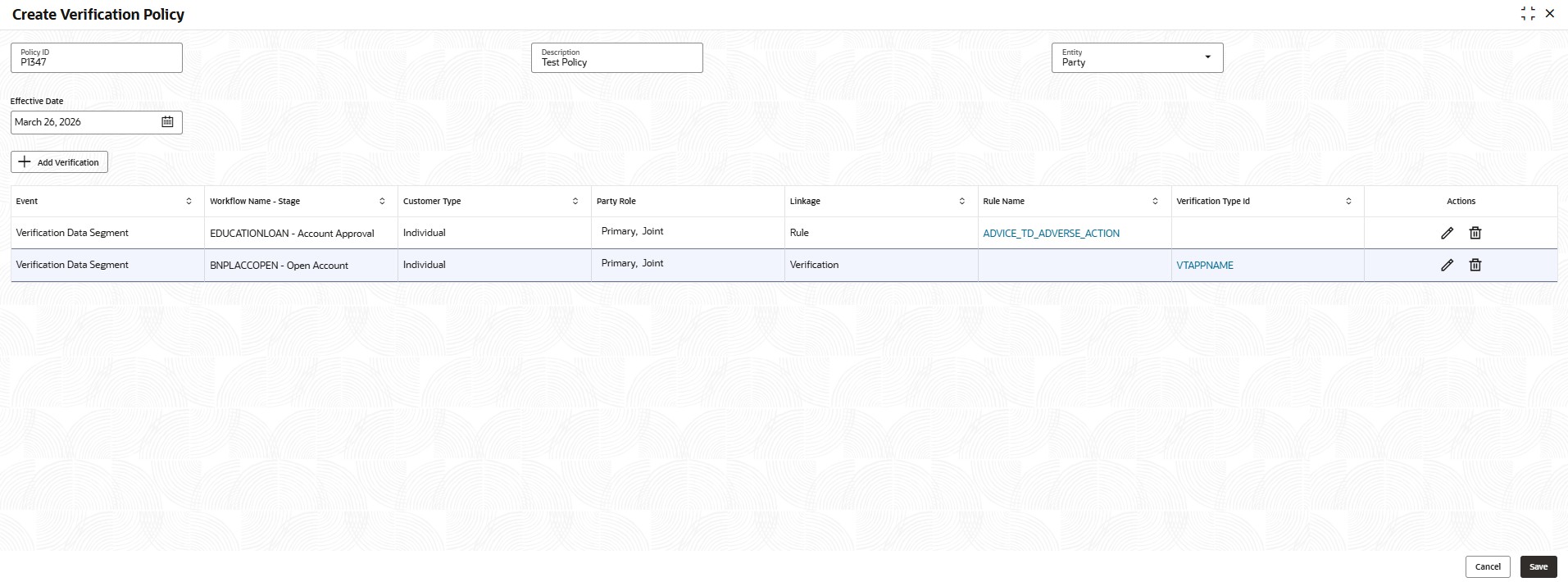
1.9.2.1 Create Verification Policy

This topic provides the systematic instructions to create a verification policy.

The Create Verification policy enables users to define the rules and conditions under each verification type, such as ID Proof, Income Proof, and so on.

To create verification policy

  1. On Homescreen, click Menu, and click Retail Origination, and then click Configurations.
  2. Under Configurations, click Verifications and click Verification Policy and then click Create Verification Policy.

    The Create Verification Policy screen displays.

    Figure 1-117 Create Verification Policy


  3. Specify the fields on the Create Verification Policy screen.

    For more information, refer to the fields description table below.

    Note:

    The fields marked as Required are mandatory.

    Table 1-124 Create Verification Policy – Field Description

    Field Description
    Policy ID Specify the policy ID to define verification policy.

    Note: The maximum length is 16 characters.

    Policy Description Specify the description of verification policy.

    Note: The maximum length is 256 characters.

    Entity Select the entity from the drop-down list.
    The available options are:
    • Party
    • Product
    • Collateral
    Effective Date Select the effective date from the calendar.
  4. Click Add Verification to add verification details.
    The Add Verification screen displays.
  5. Specify the fields on the Add Verification screen.

    For more information, refer to the fields description table below.

    Note:

    The fields marked as Required are mandatory.

    Table 1-125 Verification – Field Description

    Field Description
    Event Select the event from the drop-down list.

    The drop-down options are shown based on the product configuration.

    Workflow Name Select the workflow name from the drop-down list.

    The drop-down options are shown based on the event selected.

    Stage Select the stage from the drop-down list.

    The drop-down options are shown based on the workflow selected.

    Customer Type Select the customer type from the drop-down list.
    The available options are:
    • Individual
    • Small and Medium Business

    This field appears only if entity is selected as Party.

    Party Role Select the party role from the option list.
    The available options are:
    • Primary
    • Joint
    • Guarantor
    • Custodian
    • Guardian
    • Cosigner

    This field appears only if entity is selected as Party.

    Product Category Select the product category from the drop-down list.
    The available options are:
    • Individual
    • Small and Medium Business

    This field appears only if entity is selected as Product.

    Product Type Select the product type from the drop-down list.
    The available options are:
    • Loans
    • Savings Accounts
    • Credit Cards

    This field appears only if entity is selected as Product.

    Collateral Type Select the collateral type from the drop-down list.
    The available options are:
    • Guarantee
    • Vehicle
    • Precious Metal
    • Deposits
    • Bonds
    • Stocks
    • Insurance
    • Accounts Receivable
    • Inventory (Stock of Material)
    • Property

    This field appears only if entity is selected as Collateral.

    Collateral Role Select the collateral role from the drop-down list.
    The available options are:
    • Primary
    • Additional
    • Both

    This field appears only if entity is selected as Collateral.

    Linkage Type Select one of the following linkage types.
    The available options are:
    • Rule
    • Verification
    Rule Name Select the rule name from the drop-down list. The drop-down options are shown based on rules maintained on the Rule Maintenance screen.

    This field appears if the linkage type is selected as Rule.

    View Rule Click this link to view the rule expression and output of selected rule.
    Verification Type ID Select the verification type ID from the drop-down list. The drop-down options are shown based on verification type maintained for the selected entity.

    This field appears if the linkage type is selected as Verification.

  6. After captured the required details, perform one of the following actions on the Add Verification screen:
    • Click Cancel to cancel the added details.
    • Click Save to save the added details.
    The captured details are added in the verification details table on the Create Verification Policy screen.
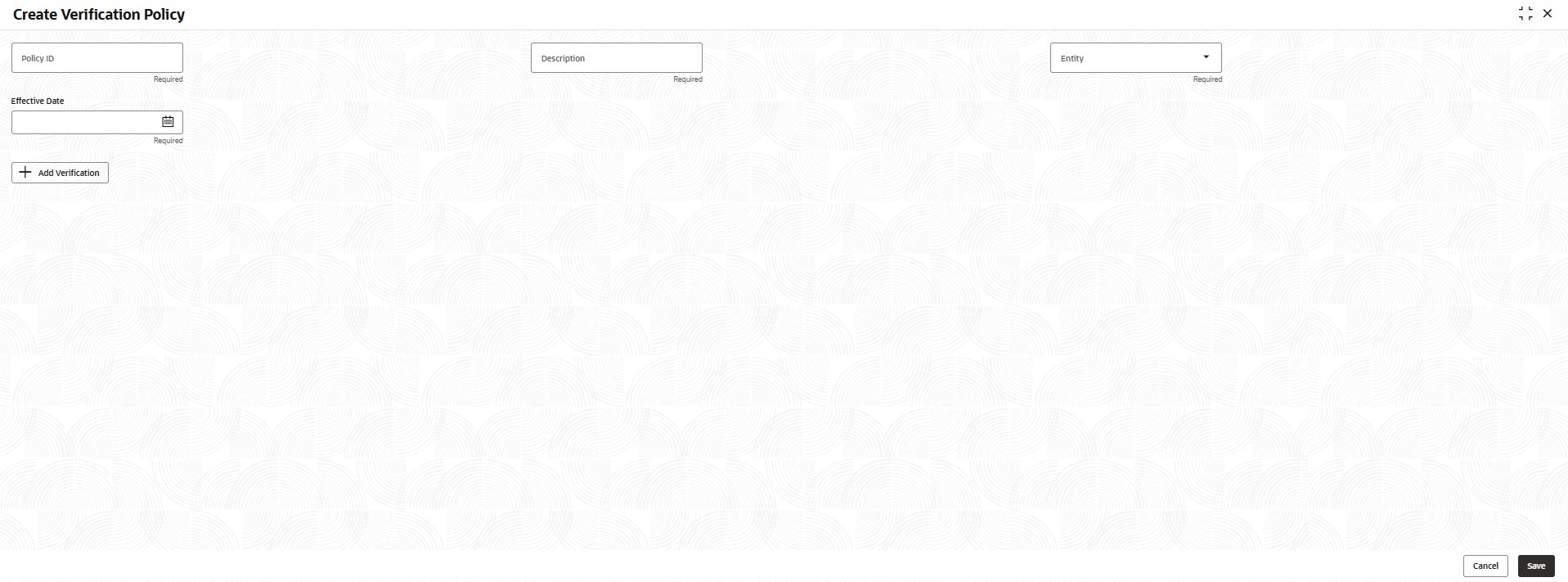
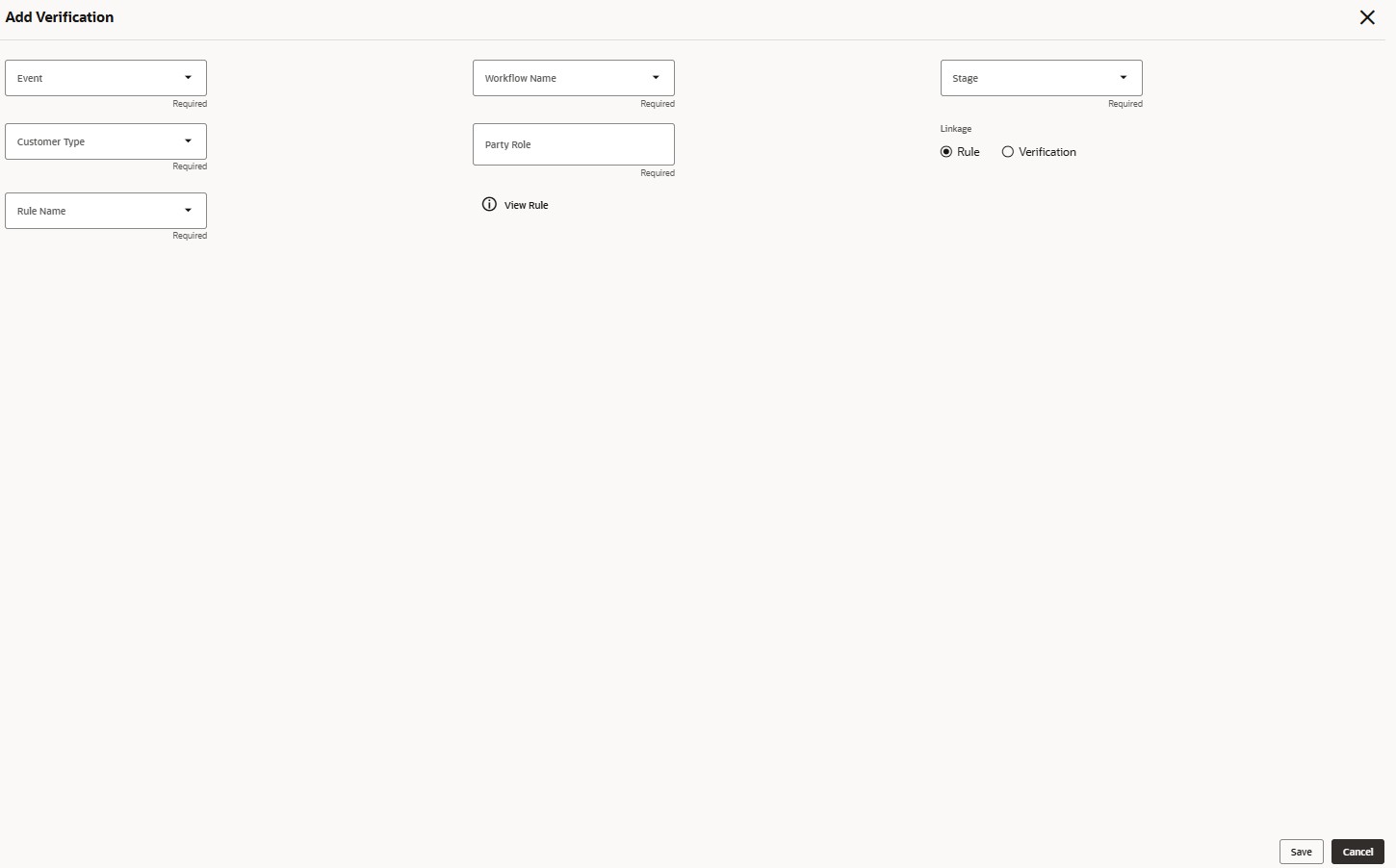
    Figure 1-119 Verification Poilicy


  7. On the verification details table, perform the following actions:
    • Click on the Rule Name link to view the rule expression and its output.
    • Click on the Verification Type ID link to view the Verification Type Name and Verification Type Description in the hover pop-up window.
  8. Perform one of the following actions on this screen:
    • Click Cancel to cancel the added records.
    • Click Save to save the added records and close the screen.
    A new policy tile is created on the View Verification Policy screen.