1.3.2.9 Review
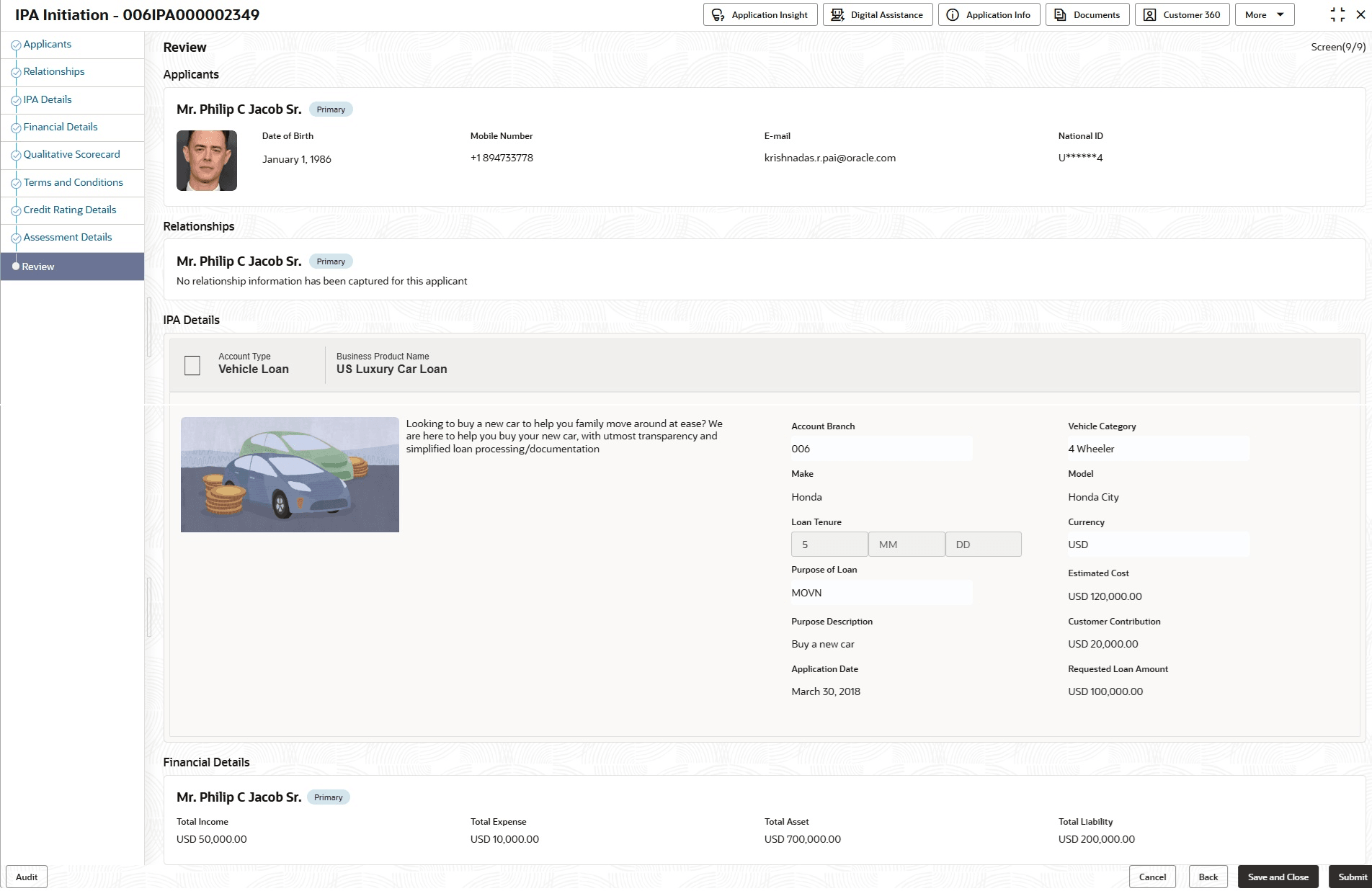
This topic provides the systematic instructions to view the tiles for all the data segments in the IPA Initiation Process.
The Review displays the sections for all the data segments in the IPA Initiation Process. Each section displays the important details captured in the specified data segment.
- Click Next in Assessment Details screen to proceed with the next data segment, after successfully capturing the data.The Summary - IPA Initiation screen displays.
Each of these summary tiles are clickable and the user will have the option to view all the details captured under the given data segment. For more information on fields, refer to the field description table.
Table 1-29 Summary - IPA Initiation – Field Description
Data Segment Description Applicants Displays the applicant details. Relationship Displays the relationship details. IPA Details Displays the IPA details. Financial Details Displays the financial details. Qualitative Scorecard Displays the qualitative scorecard details. Term and Conditions Displays the terms and conditions details. Credit Rating Details Displays the credit rating details. Assessment Details Displays the assessment details. - Click Submit to reach the Stage Movement Submission , where the overrides, checklist, and documents for this stage can be validated or verified.The Stage Movement Submission screen displays.
The Overrides are basically warnings that are raised during the business validations. The user has to accept the overrides to proceed further. Alternatively, the user can go back and correct the data to ensure overrides do not arise.
The Checklist configured in the business process for the business product displays here. Checklist are the check points that the user has to accept having confirmed.
Application De-Dupe:
Based on the configuration set in the Origination Preference screen, the application dedupe serivce is enabled.
If the application dedupe service is enabled, System will check that any application is in progress for same product and customer combination. On Submit, if any duplicate application exists, override will show a message with other in progress application numbers. User can select the override check box and proceed or take appropriate action.
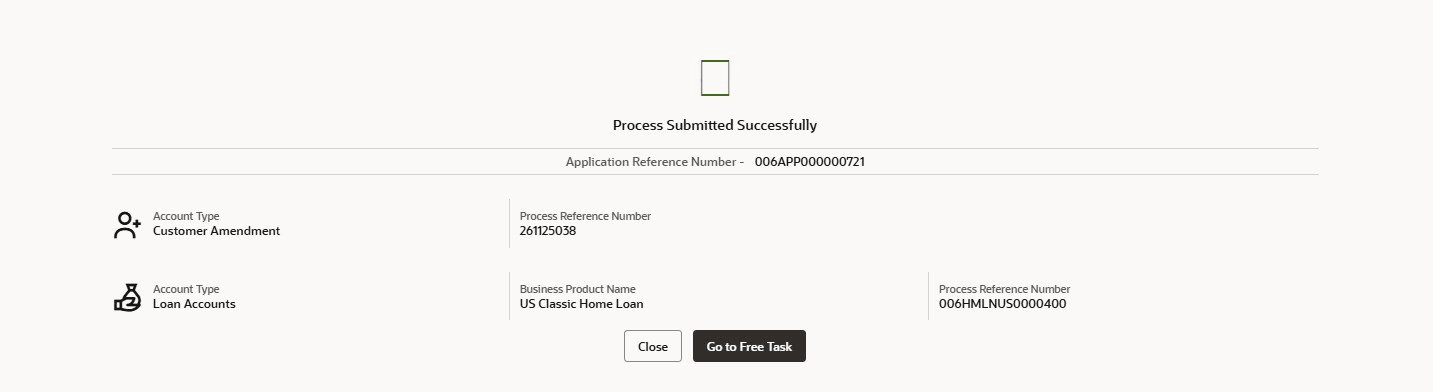
- Click Submit.The Confirmation screen displays.
On successful submission, the above pop-up displays and displays the next stage in which the application has moved. The Application Reference Number and the Process Reference Number is displayed. If the user has access to the next stage, the user can view the Application number and take action on it.
The system generates the advice on submission of the IPA initiation stage.
Post this, the origination of the life cycle of the individual product is triggered. All the child Process Reference Number are linked to the Parent Application Reference Number and can be queried by the Application Reference Number itself.

Parent topic: IPA Initiation