2.1.5 Collateral Details
This topic provides the systematic instructions to capture the collateral which is offered by the customer as security for Overdraft limit.
Collateral details will be sent to the host to be made available under local collateral. The relevant service APIs will be made available for both Push and Pull details of collaterals.
Capturing of Collateral details in Oracle Banking Origination is also enabled with an option to onboard collateral using the Oracle Banking Credit Facility Process Management integration services. In such cases, the collateral details will be sent to the Collateral onboarding systems for performing the Valuation, obtaining the Legal opinion and recording the perfection details. These details will be made available on Oracle Banking Origination in the respective Data segments in read only mode.
The user can acquire the application from Free Tasks list.
To add collaterals details:
- Click Add Collateral to capture the collateral details.
The Collateral Details screen displays.
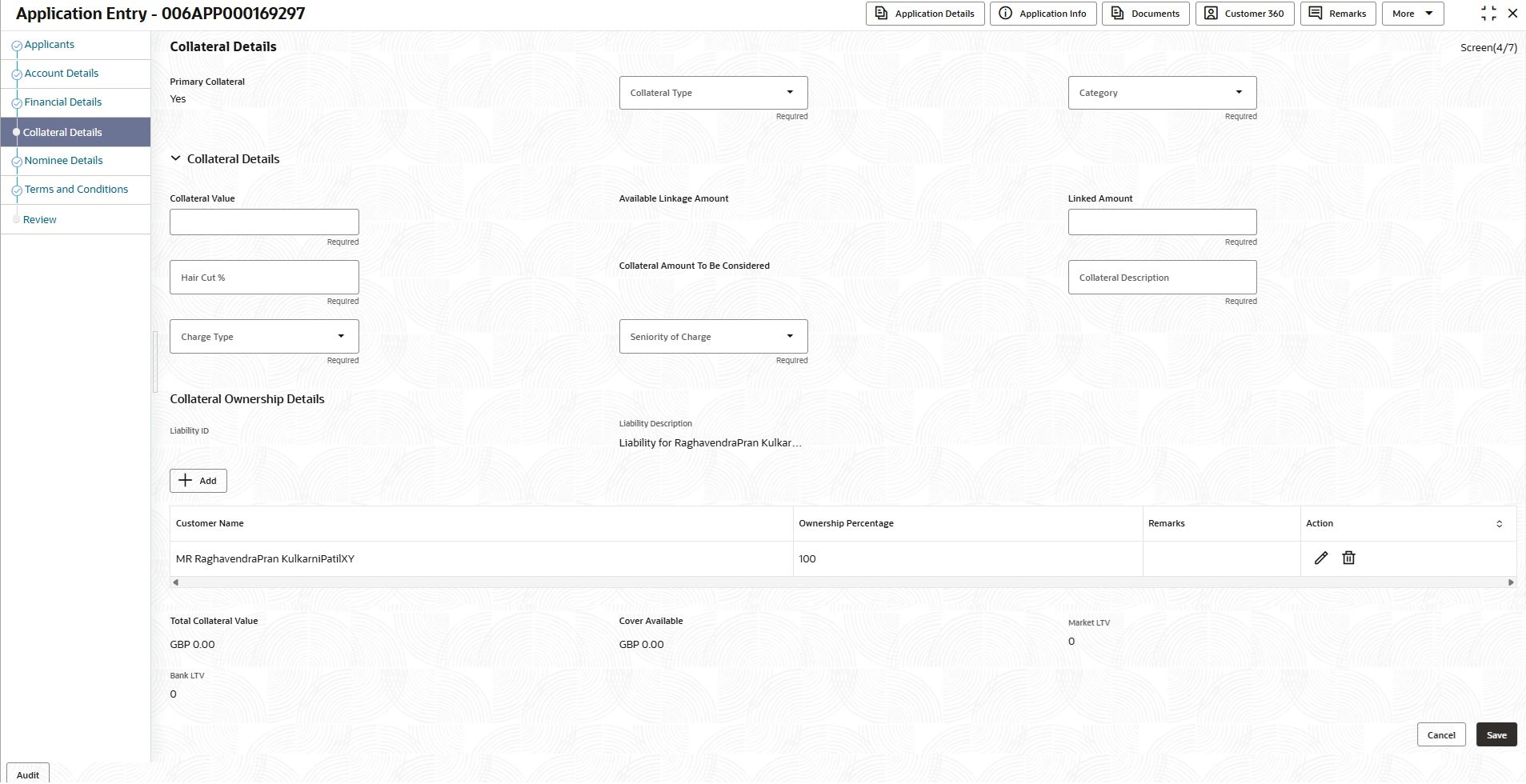
If the Collateral Type is selected as Term Deposit, the warning message displays when the Overdraft Limit expiry date is more than the Maturity Date of the term deposit.
- Specify the details in the relevant data fields.
For more information on fields, refer to the field description table below.
Note:
The fields which are marked as Required are mandatory.Table 2-9 Collateral Details - Field Description
Field Description Add Select the collateral. The available option are: - New Collateral
- Existing Collateral
Note: When Oracle Banking Retail Lending Servicing is the host, the system supports secured loan origination using existing collateral. The existing collateral details of the customer are fetched from the collateral product processor. If sufficient unutilized collateral balance is available, it can be used for a new loan for the customer(s).
Applicant Select the applicant from the drop-down list to fetch existing collateral details. This field appears when the Existing Collateral option is selected.
Primary Collateral Select the primary collateral. The available option are: - Yes
- No
Collateral Type Select the collateral type. Available options are:
- Property
- Guarantee
- Vehicle
- Precious Metal
- Deposits
- Bonds
- Stocks
- Insurance
- Accounts Receivable
- Inventory (Stock of Material)
The above options displays based on the initial setup.
Category Select the collateral category from the drop-down list. Available options are:
If Collateral type is selected as Property
- Residential Property
- Vacant Land
- Under Construction
If Collateral type is selected as Guarantee
- Personal Guarantee
- Guarantee and Indemnity
- Government Guarantee
- Family Guarantee
If Collateral type is selected as Vehicle
- Passenger Vehicle
- Commercial Vehicle
If Collateral type is selected as Precious Metal
- Precious Metal
If Collateral type is selected as Deposits
- Term Deposit
If Collateral type is selected as Bonds
- Secured Bonds
- Unsecured Bonds
- Investment Bonds
If Collateral type is selected as Stocks
- Domestic Stock
If Collateral type is selected as Insurance
- Life Insurance
If Collateral type is selected as Accounts Receivable
- Bill Receivable
- Trade Receivable
If Collateral type is selected as Inventory (Stock of Material)
- Stock of Raw Materials
- Finished Goods
- Packaging Materials
The above options displays based on the initial setup.
Collateral Subcategory Select the collateral subcategory from the drop-down list. The drop-down options are shown based on the configuration.
Vehicle Details This section is used to capture vehicle specific details and appears when the collateral type is selected as Vehicle. Fetch Vehicle Details Click this button to open the panel drawer and specify Vehicle Identification Number. Once captured and save the details, the system will populate the details in the respective fields of vehicle details section. This button appears only if the Enable Fetch Vehicle Details field is set as True on the Origination Preferences screen.
Vehicle Identification Number Specify the vehicle identification number. This field will be defaulted and disabled if the external interface for fetching vehicle details is enabled and data is received.
Vehicle Condition Select the vehicle condition from drop-down list. The available options are:- Used
- New
Make Specify the vehicle manufacturer name. Model Specify the vehicle model. Trim Specify the trim of the vehicle that defines its specific version, feature package, and equipment level. Vehicle Type Select the vehicle type from the drop-down list. Year of Manufacture Specify the year of manufacture for the vehicle. Kilometers/Miles Select the kilometers or Miles for the vehicle. The available options are:- Kms
- Miles
Distance Traveled Specify the distance traveled by the vehicle. This field appears only if the vehicle condition is selected as Used.
Engine Type Select the engine type of the vehicle from the drop-down list. The available options are:- Petrol
- Diesel
- Electric
Engine Number Specify the engine number of the vehicle. Chassis Number Specify the chassis number of the vehicle. Registration Date Select the registration date of the vehicle. Register Number Specify the register number for the vehicle. Registration Authority Specify the registration authority for the vehicle. Passenger Vehicle Details This sub-section appears when the collateral category is selected as Passenger Vehicle. In this section, the user can capture the additional details of passenger vehicle. Sub-Type Select the sub type of the passenger vehicle from the drop-down list. Purpose of Vehicle Specify the purpose of the passenger vehicle. Passenger Vehicle Capacity Specify the capacity of passenger vehicle. Engine Power Specify the engine capacity of the passenger vehicle. Body Type Select the body type of the passenger vehicle from the drop-down list. Commercial Vehicle Details This sub-section appears when the collateral category is selected as Commercial Vehicle. In this section, the user can capture the additional details of commercial vehicle. Sub-Type Select the sub type of the commercial vehicle from the drop-down list. Purpose of Vehicle Specify the purpose of the commercial vehicle. Unit of Capacity Select the unit of capacity of Vehicle from the drop-down list. The available options are:- Grams
- Kilograms
- Tonnes
- Pounds
- Milligrams
Vehicle Classification Specify the vehicle classification that define vehicles by type, weight, height, number of axles and so on. Body Type Select the body type of the commercial vehicle from the drop-down list. Vehicle Capacity Specify the capacity of commercial vehicle. Number of Wheels Specify the number of wheels for the vehicle. Collateral Details In this section, user can capture the collateral details. Based on the collateral type, the below fields are dynamically appears. Term Deposit Number Select the Term Deposit Number from the list.
The Term Deposit which has crossed the maturity date and the Allow Collateral Linkage disabled, will not appear in the list. This field appears only if the collateral type is Deposits.
Maturity Date Select the Maturity Date of the term deposit. This field appears only if the collateral type is Deposits.
Purchase Property Specify whether the collateral property being added is being purchased.
This field appears only if the collateral type is Property.
Collateral Value Specify the collateral value. Estimated Market Value Specify the estimated market value for reusing existing collateral for a new loan. This is the current realizable market value of the collateral, which already exists. This field appears only when an existing collateral is reused.
Available Linkage Amount Displays the available linkage amount. During reuse, the system recalculates as Original available linkage amount + Appreciation (if any). If Estimated Market Value ≤ Original Collateral Value, no appreciation is applied.
Linked Amount Specify the linked amount. Guarantee Type Select the type of guarantee from the drop-down list.
This field appears only if the collateral type is Guarantee.
Hair Cut % Specify the percentage of Hair Cut. Collateral Amount To Be Considered Displays the collateral amount to be considered.
Collateral Amount = (Hair Cut % X Collateral Value)
Mark Collateral For Refinance Specify if an added collateral should be consider for refinance. This field appears when the Refinance is enabled.
Collateral Description Specify the collateral description. Charge Type Select the charge type from the drop-down list. The available options are:- Assignment
- Hypothecation
- Lien
- Pledge
- Mortgage
- Registered Mortgage
- Equitable Mortgage
The above options displays based on the selected valuation rule as configured on the Origination Preferences screen.
Seniority of Charge Select the seniority of charge from the drop-down list. The available options are:- Primary
- Secondary
- Pari Pasu
- Pledge
- Hypothecation
The above options displays based on the selected charge type as configured on the Origination Preferences screen.
Applicants This section displays the applicants name and remarks that are involved in the loan application. These applicants are also related to the added collateral. This field appears only if the collateral type is Guarantee.
Guarantor This section displays the guarantor name. This field appears only if the collateral type is Guarantee.
Property Location In this section, user can enter property address which is added as collateral. This section appears only if user select Property from the Collateral Type list.
Address Specify the address to search already captured address.
Based on configuration, on entering few letters, the system fetches the related address that are already captured.
Based on the selection, the fields are auto populated in the address section.
Address Line 1 Specify the building name. Address Line 2 Specify the street name. Address Line 3 Specify the city or town name. Country Select and search the country code. State/Country Sub Division Specify the state or country sub division. Zip Code/Post Code Specify the zip or post code of the address. Collateral Ownership Details In this section, specify the ownership details of the collateral. This section displays all the customers that are involved in the loan application.
Liability ID Displays the Liability ID. Liability Description Displays the Liability description. Add Click this button to add the collateral ownership details. Customer Name By default, displays the primary customer name. User can add more customer name to include ownership percentage.
Select the customer name from drop-down list if multiple applicants associated with application.
Ownership Percentage By default, displays the percentage of the ownership of the primary customer. Specify the ownership percentage if multiple applicants associated with application.
Remark Specify the remark of the customer.
Action Perform one of the following actions: - Click
 to edit the saved ownership details.
- Click
 to delete the saved ownership details.
- Click
 to save the added ownership details.
- Click
 to cancel the added ownership details.
Total Collateral Value Displays the total value of collateral. This field will be auto updated based on the number of collaterals.
Cover Available Displays the cover available.
This field will be auto updated based on the number of collaterals.
Market LTV Displays the market loan-to-value. Bank LTV Displays the bank loan-to-value. Note:
All the fields are fetched from Oracle Banking Credit Facilities Process Management in read only mode, if integrated with Oracle Banking Credit Facilities Process Management. - After capturing the details, perform one of the following actions on this screen.
- Click Save to save the collateral details.
- Click Cancel to cancel the collateral details.
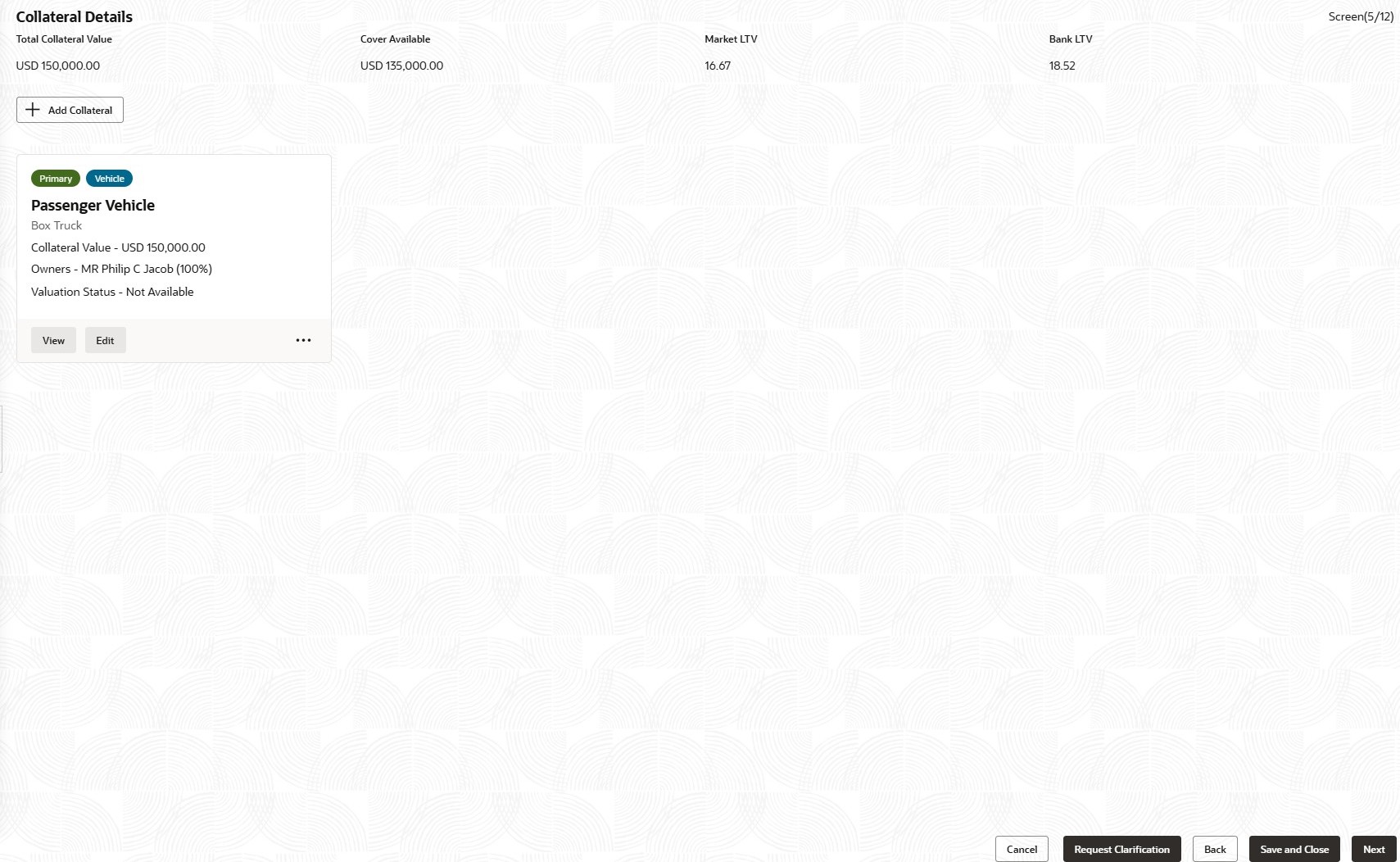
Create a new tile with the collateral summary on the Collateral Details screen. On saving the collateral details, the system runs the valuation rule maintained on the Origination Preferences screen. - On the collateral summary tile, perform the following valuation actions by clicking action button. The valuation actions is enabled only if the Valuation Rule outcome is set to True on the Origination Preferences screen.For more information, refer to the table below.
Table 2-10 Valuation Action
Actions Description Initiate Valuation The Initiate Valuation action appears when Upfront Valuation is enabled for Vehicle collateral and the Valuation Mode is set to External Interface in the Origination Preferences screen.
Click the Initiate Valuation action to initiate the collateral valuation request. Upon successful submission in Credit Facility Process Management, the Refresh Valuation Status action is enabled, and the valuation status is updated to Pending on the collateral summary tile.
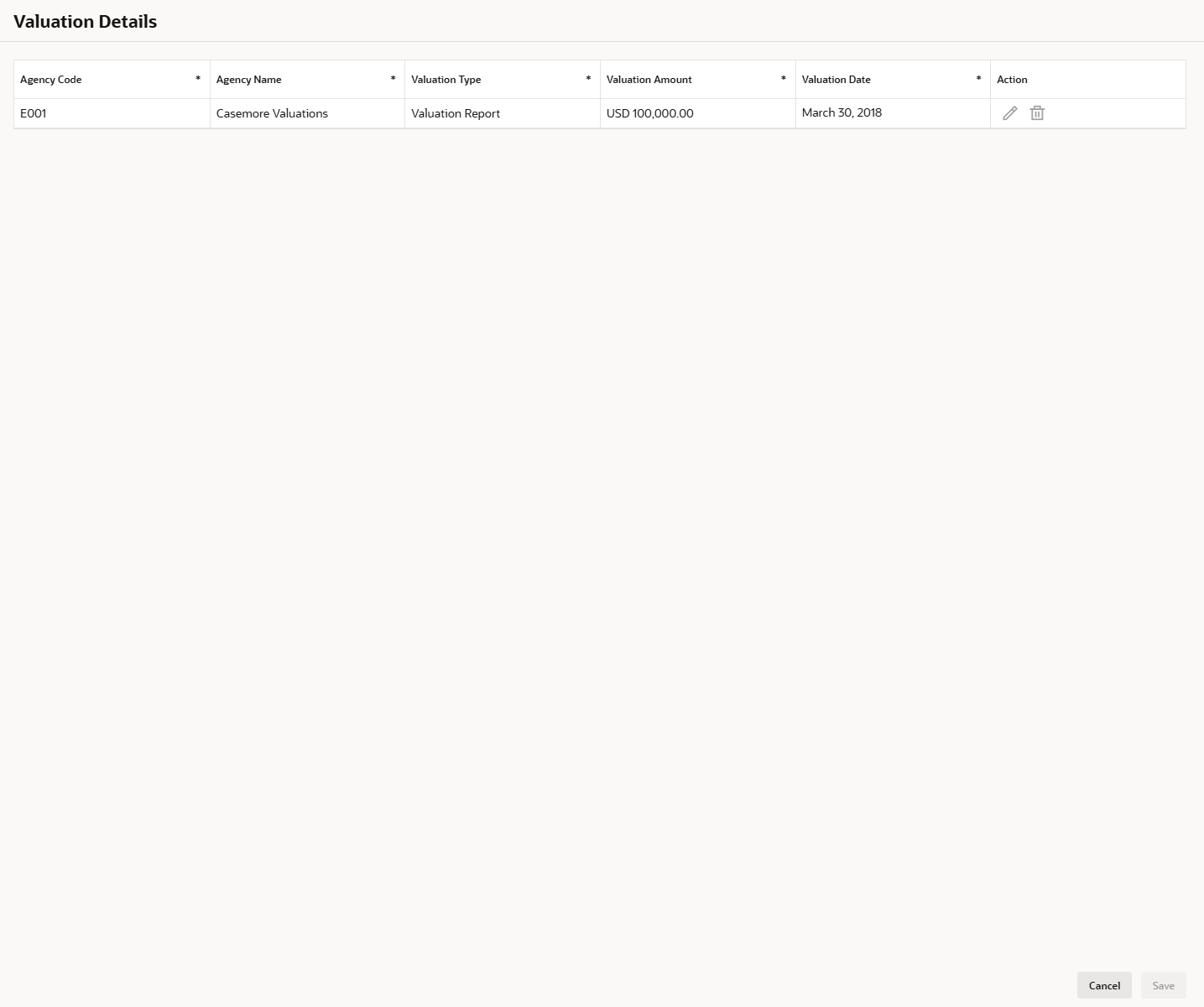
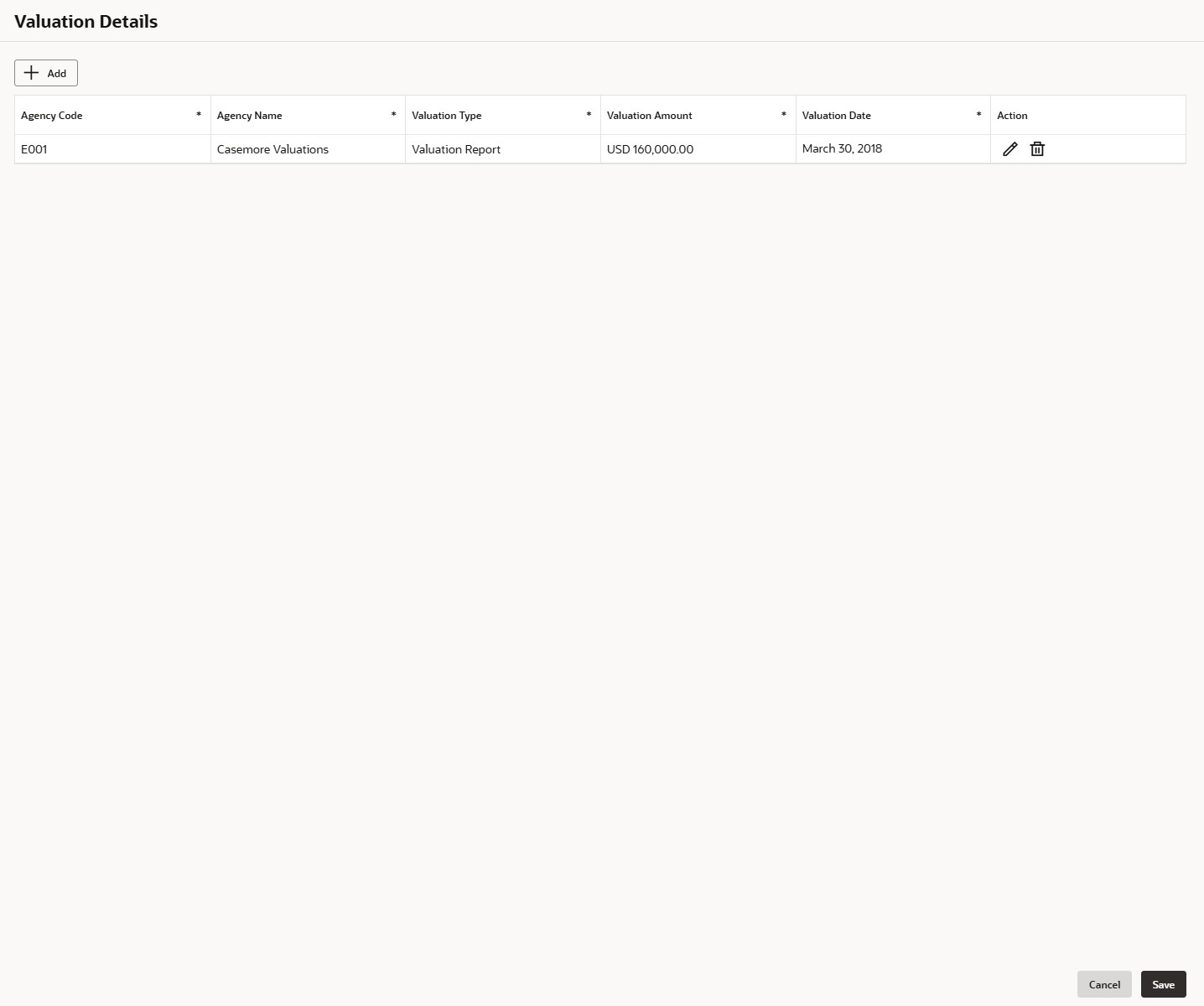
Refresh Valuation Click the Refresh Valuation action to fetch the collateral valuation details. Once the valuation details are successfully retrieved from Credit Facility Process Management, the system enables a View Valuation Details action and updates the valuation status to Available on the collateral summary tile. View Valuation Details Click the View Valuation action to open the Valuation Details screen in read-only mode. For more information, refer to the Valuation Details table below.
Capture Valuation The Capture Valuation action appears when Upfront Valuation is enabled for Vehicle collateral and the Valuation Mode is set to Manual as per the valuation rule outcome.
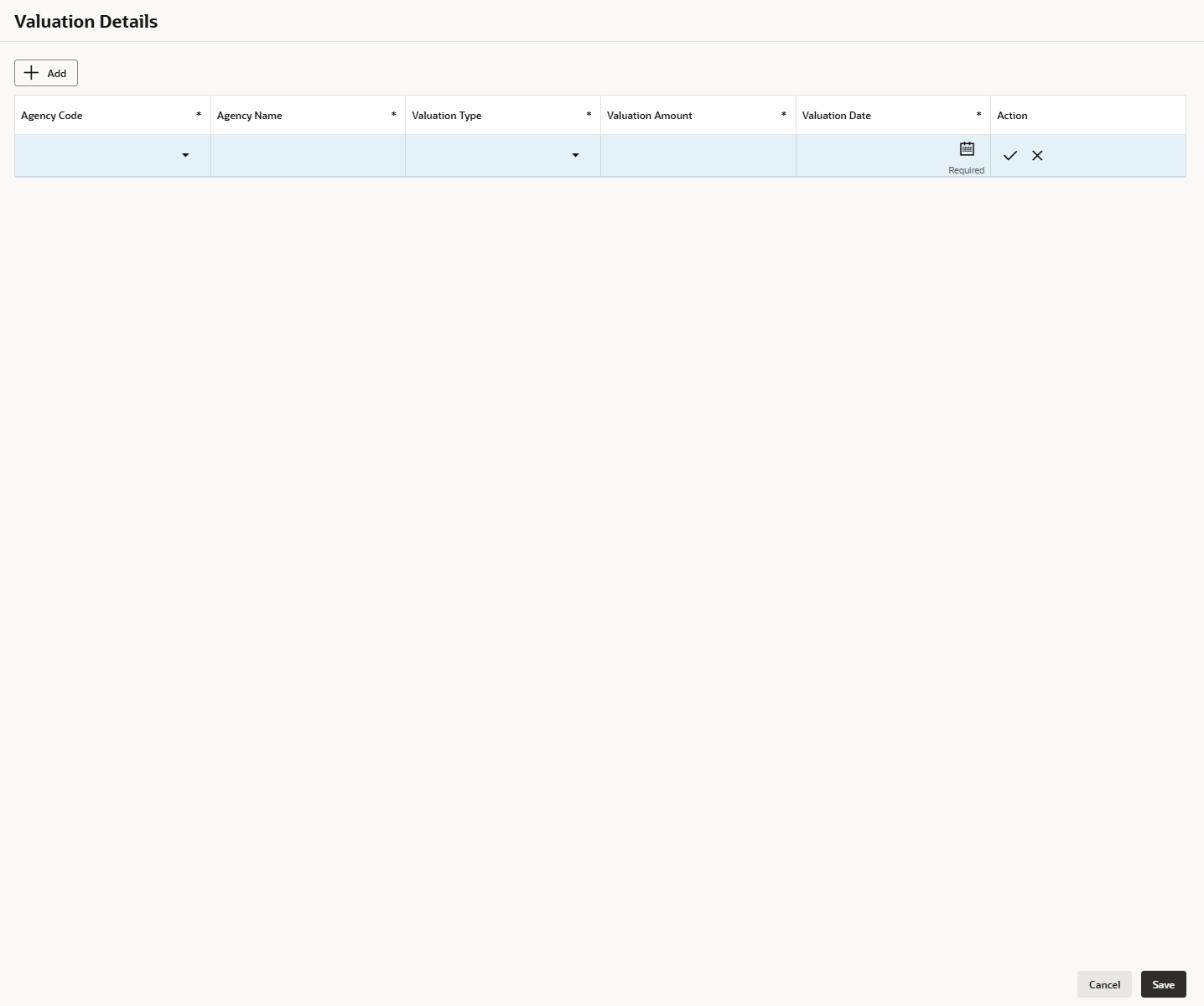
Click the Capture Valuation action to open the Valuation Details screen and capture the valuation details for the vehicle collateral.
On saving the valuation details, the system will enable the View valuation details action and update the valuation status as Available on the collateral summary tile.
Figure 2-15 Valuation Details - View (External)
Figure 2-17 Valuation Details - View (Manual)
Table 2-11 Valuation Details
Field Description Add Click this button to add the valuation details manually. Valuation Type Select the type of valuation from the drop-down list. Valuation Amount Specify the valuation amount. Agency Code Select the valuation agency code from the drop-down list. Agency Name Display the valuation agency name for selected valuation agency code, Valuation Date Select the valuation date. Action Perform one of the following actions: - Click to edit the saved ownership details.
- Click to delete the saved ownership details.
- Click to save the added ownership details.
- Click to cancel the added ownership details.
- Click
Parent topic: Application Entry Stage
Parent topic: Overdraft Limit Details Stage