2.1.1.1 For Individual Customer Type
The topic describes the process to capture or edit customer information of Individual type of customer.
- In the Saving Application Entry stage, update the customer details in the
Applicants data segment based on the respective customer type.
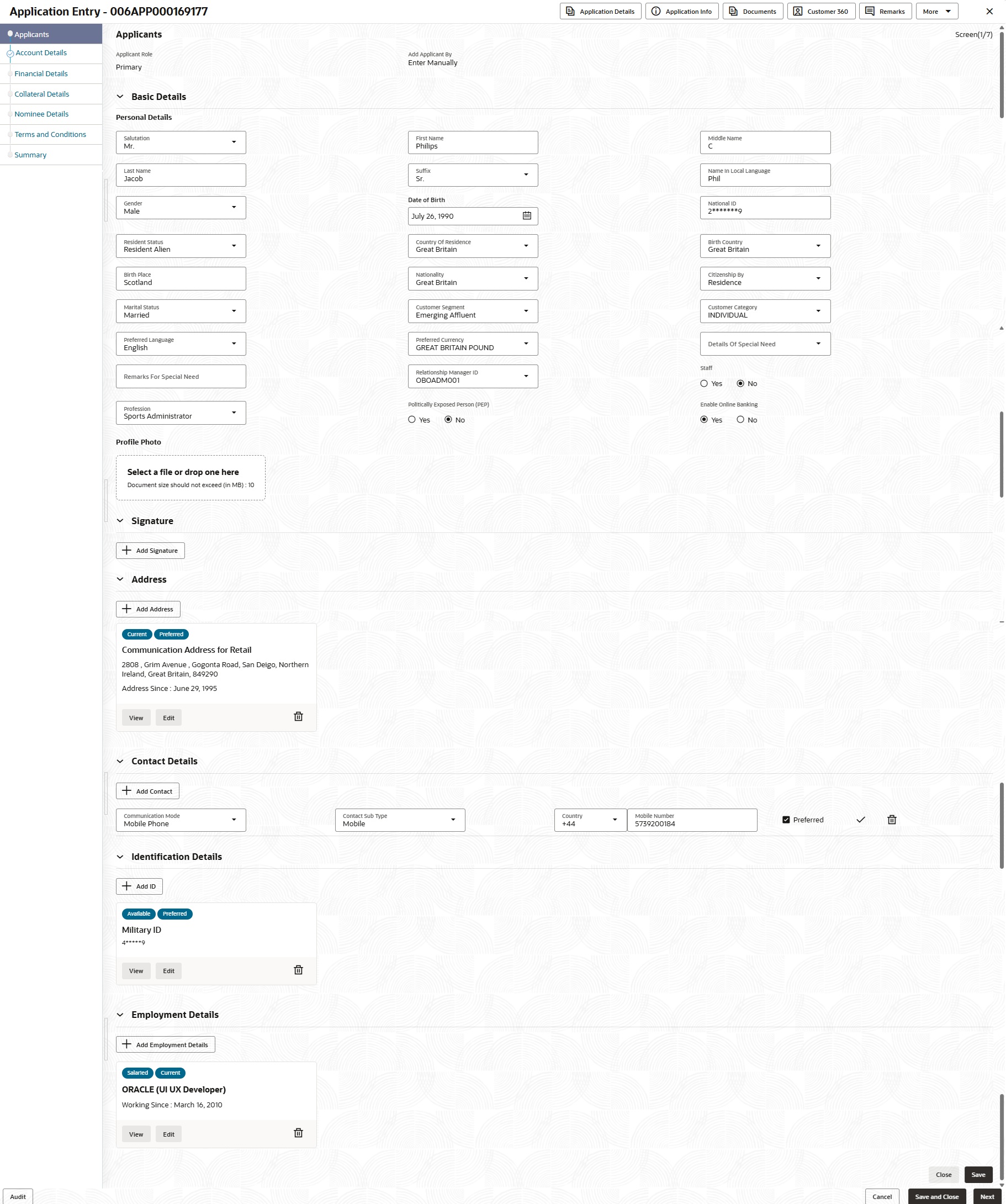
The Applicant - Individual screen displays.
- Specify the relevant details in data fields. For more information on the fields, refer to the field description table below:
Note:
The fields which are marked as Required are mandatory.Table 2-1 Applicant- Individual – Field Description
Field Description Applicant Role Displays the applicant role. By default the Primary role appears in this field.
Select the applicant role (Joint, Guardian, Custodian, Guarantor, etc) in case user add multiple applicant in single application.
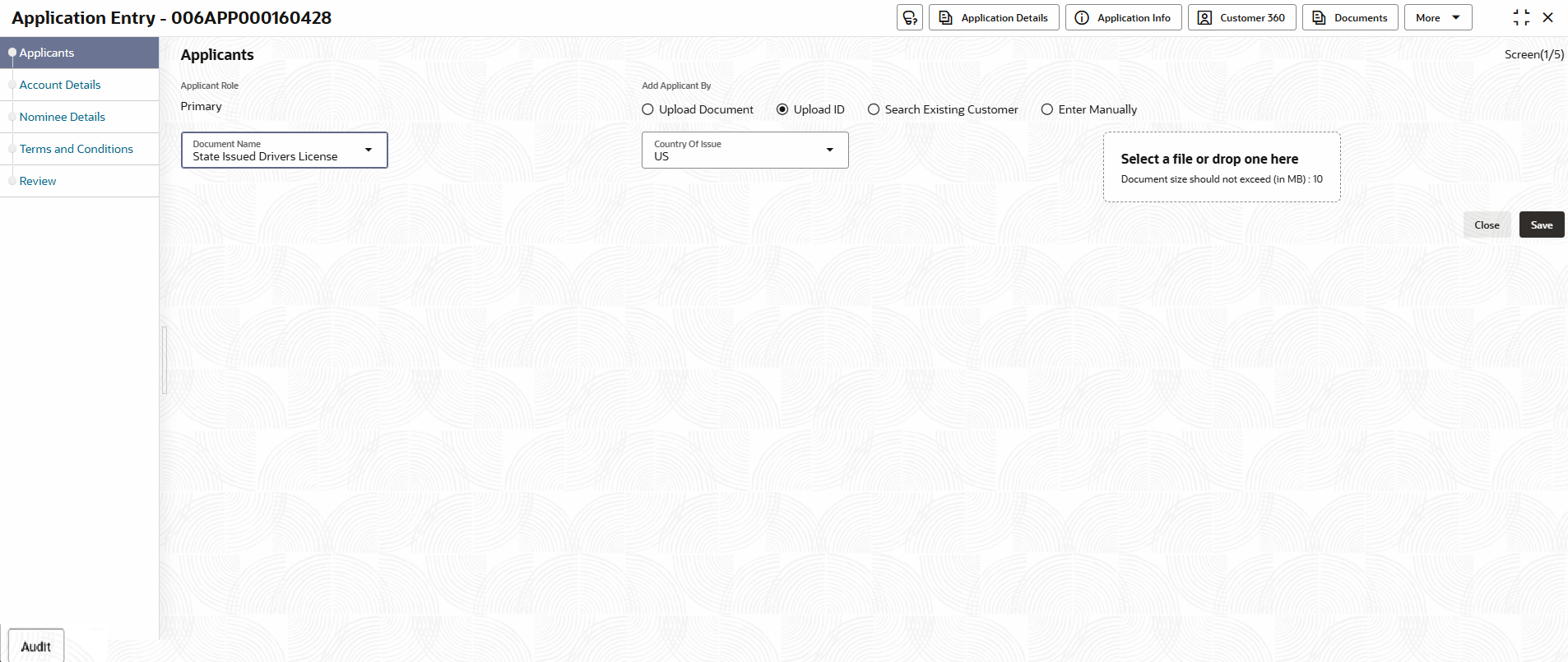
Add Applicant By Select the mode from which the user need to add new applicant. The available options are:- Upload ID - Using this option user can upload identification documents of the application to extract the details.
- Search Existing Customer - This option is used if the applicant is an existing customer of the bank. On selecting the existing customer, the details appears in the respective sections which are already stored.
- Enter Manually - This option is used if user wants to enter all the applicant details manually.
Upload ID Select the document which is used from extracting applicant details. The available options are:
- State Issued Drivers License
- Passport
This field appears if the Upload ID option is selected.
Country of Issue Select the country in which the document is issued. This field appears if the Upload ID option is selected.
Select and Drop here Drag and drop the document file or click on Select or drop files here to browse and upload the document from the local system.
PNG and JPEG file formats are supported.
10MB maximum file size is allowed.
This field appears if the Upload ID option is selected.
CIF Number Search and select the CIF number.
This field appears if the Search Existing Customer option is selected.
The system identifies if the selected CIF number matches the Office of Foreign Assets Control (OFAC) list once it is entered. If response is positive then an error appears stating the selected CIF is of an Invalid Customer Status. The account opening process is not initiated with that customer.
Advanced Search Click this button to perform party search using advance parameters. For more information on advance search, refer to the Advanced Search section below.
This field appears if the Search Existing Customer option is selected.
Basic Details In this section the user can manually capture the basic details of applicant. This section appears if the Enter Manually option is selected from the Add Applicant By drop down list.
Salutation Select the salutation of the applicant from the drop-down list. First Name Specify the first name of the applicant. Middle Name Specify the middle name of the applicant. Last Name Specify the last name of the applicant. Suffix Specify the suffix for the applicant. This options in this list appears based on the configured entity code in the Oracle Banking Party product.
Name In Local Language Specify the applicant's name in their local language. Gender Specify the gender of the applicant from the drop-down list. Date of Birth Select the date of birth of the applicant. National ID Specify the national identification code of the applicant. Resident Status Select the residential status of the applicant from the drop-down list. Available options are:
- Resident Alien
- Non-Resident Alien
- Citizen
Country of Residence Search and select the country code of which the applicant is a resident. Birth Country Specify the birth country of the applicant. Birth Place Specify the birth place where the applicant has born. Nationality Search and select the country code where the applicant has nationality. Citizenship By Search and select the country code for which applicant has citizenship. Marital Status Select the marital status of the customer from the drop-down list. Available options are:
- Married
- Unmarried
- Legally Separated
- Widow
This field appears mandatory based on the product configuration.
Customer Segment Select the segment of the customer. Available options are:
- Emerging Affluent
- High Net worth Individuals
- Mass Affluent
- Ultra HNI
Customer Category Select the category of the customer. Preferred Language Select the preferred language. Preferred Currency Select the preferred currency. Details Of Special Need Select the special need details. Available options are:
- Blindness
- Cerebral Palsy
- Low vision
- Locomotor disability
- Leprosy-cured
- Mental retardation
- Mental illness
- Hearing Impairment
Remarks For Special Need Specify the remarks for the special need selected. Relationship Manager ID Search and select the Relationship Manager ID for the applicant. Staff Select to indicate if the customer is employee of the bank. The available options are:- Yes
- No
Profession Select the profession of the customer. Politically Exposed Person Select whether the customer is a politically exposed person. The available options are:- Yes
- No
Enable Online Banking Select whether the customer requires online banking. The available options are:- Yes
- No
This field displays only to new customers.
Profile Photo Drag and drop the document file or click on Select or drop files here to browse and upload the document from the local system.
PNG and JPEG file formats are supported.
10MB maximum file size is allowed.
Signatures In this section, user can add new signature and view the already added signature of the customer.
Click the Add Signature button to select the file to upload signature.
On submission, the signature will be handed off to Oracle Banking Party.
Upload Signature Drag and drop the signature file or click on Select or drop files here to browse and upload the signature from the local system.
PNG and JPEG file formats are supported.
10MB maximum file size is allowed.
Uploaded Signature Displays the uploaded signature. Remarks Specify the remarks related to the signature. Then perform one of the following actions: - Click Save to save the uploaded file.
- Click Cancel to cancel the uploaded file.
Signature ID Displays the Signature ID for the added signature along with the image and remark. Action Click Edit to edit the added signatures
Click
 to delete the added signatures.
Address This section displays the added address of the applicant. It is mandatory to add communication address of the applicant.
Click Add Address to add address details.
Address Type Select the address type for the applicant from the drop-down list. The options in this drop down appears based on the Common Core maintenance.
Effective Date Select the date when the applicant start residing at the specified address. Make this as preferred address Switch  to prefer the entered address for communication.
Search Address Specify the address to search for the already captured address. Based on the configuration, on entering a few letters, the system fetches the related address that is already captured.
Based on the selection, the fields are fetched in the address section.
Unstructured Address - Switch to display the fields for capturing the unstructured address.
- Switch
 to hide the unstructured address fields.
Address Line 1/Building Name Specify the building name. Note: The maximum length is 105 characters.
Address Line 2/Street Name Specify the street name. Note: The maximum length is 105 characters.
Address Line 3/City/ Town Name Specify the city or town name. Note: The maximum length is 105 characters.
Address Line 4/Landmark Specify the landmark. Note: The maximum length is 105 characters.
Country Select the country from the drop-down list. State/Country Sub Division Select the state from the drop-down list. This field appears based on the selected country code. Zip Code/Pin Code Specify the zip or post code of the address. Note: The maximum length is 16 characters and allows alphanumeric characters, including spaces.
Structured Address - Switch to display the fields for capturing the structured address.
- Switch to hide the structured address fields.
Department Specify the name of department. Note: The maximum length is 70 characters.
Sub Department Specify the name of sub department. Note: The maximum length is 70 characters.
Street Name Specify the street name. Note: The maximum length is 70 characters.
Building Number Specify the building number. Note: The maximum length is 16 characters.
Building Name Specify the name of the building. Note: The maximum length is 35 characters.
Floor Specify the floor number. Note: The maximum length is 70 characters.
Post Box Specify the post box number. Note: The maximum length is 16 characters.
Room Specify the room number. Note: The maximum length is 70 characters.
Zip Code/Post Code Specify the zip or post code of the address. Note: The maximum length is 16 characters and allows alphanumeric characters, including spaces.
Town Name Specify the name of the city or town where the customer is located. Note: The maximum length is 35 characters.
Town Location Name Specify the name of sub-location or area within the city or town. Note: The maximum length is 35 characters.
District Name Select the district from the drop-down list. Country Select the country from the drop-down list. Country Sub Division Select the country sub-division from the drop-down list. Address Line 1 Specify the address in line 1. Note: The maximum length is 105 characters.
Address Line 2 Specify the address in line 2. Note: The maximum length is 105 characters.
Action Perform the following actions on the Address screen:- Click Save to save the applicant details.
- Click Cancel to cancel the applicant details.
<Added record tile> In this tile, user can view the added address details. Below details appears in the tile:- <Current status> this flag appears only if Yes option is selected.
- <Preferred ID status> this flag appears only if Yes option is selected.
- Address Type
- Address dates
- Address line 1,2,3
- Country
- State
Click the Edit to edit the added address details.
Click the View to view the added address details.
Click
to delete the added address details.
Contact Details In this section, user can provide contact details. Add Contact Click Add Contact to add contact details.
Communication Mode Select the communication mode from the drop-down list. The available options are:- Mobile Phone
Contact Sub Type Select the contact type from the drop-down list. -
If the Mobile Phone is selected, the following options are shown in the drop-down:
- Residence
- Business
- Mobile
- Others
-
If the Email is selected, the following options are shown in the drop-down:
- Personal
- Work
Country Select the country along with international subscriber dialing code of the mobile phone from the drop-down list. The drop-down list option consist of Country Code, Country Name and Subscriber Dialing Code.
This field appears only if the Mobile Phone option is selected as communication mode.
Mobile Number Specify the mobile number. This field appears only if the Mobile Phone option is selected as communication mode.
Email Id Specify the email ID. This field appears only if the Email option is selected as communication mode.
Preferred Select the checkbox to indicate if the given record is the preferred one. Action User can perform one of the following actions. - Click
 to save the contact details.
- Click
 to edit the added contact details.
- Click to delete the contact details.
Identification Details User can add, view and edit the identification details in this section.
Click the Add ID button to add Identification details.
ID Type Select the ID type from the drop-down list.
The available options are:- Bank Statement
- Military ID
- Birth Certificate
- SIN
- Permanent Resident Card
- Social Security Card
- Passport
- SSN
- Employment Authorization Card
ID Status Select the status of the selected ID type from the drop-down list.
The available options are:
- Available
- Applied For
Unique ID Specify the unique identification code of the selected type. This field is mandatory, if ID Status is Available.
Place Of Issue Specify the place where the ID is issued to the user. Issue Date Specify the date from which the ID is valid. Expiry Date Specify the date till which the ID is valid. Remark Specify the remark. Preferred Select to indicate whether added ID details are preferred among all others.
The available options are:- Yes
- No
In case of multiple ID details, it is mandatory to mark any one of the ID details as Preferred.
Click the Save button to save the entered ID details.
<Added record tile> In this tile, user can view the added ID details. Below details appears in the tile:- ID Status
- <Preferred ID status> this flag appears only if Yes option is selected.
- ID Type
- Unique ID
Click Edit to edit the added ID details.
Click View to view the added ID details.
Click
to delete the added ID details.
Employment Details In this section user can capture the employment details of the applicant. Employment Type Select the employment type. The available options are:- Salaried
- Self Employed
Salaried Below field appears if the Salaried option is selected from the Employment Type list. In this section user can capture salaried employment details.
The below fields appears if salaried employment details are already captured.
- Employer Code - Name
- Employer Address
- Employer Description
- Employee Type
- Industry Type
- Organization Category
- Demographics
- Current Employer
- Working Since
- Working Till
- Employee ID
- Designation
- Level or Grade
User can edit, view, or delete already added details.
Employer Code - Name Specify the employer code or name or select it from the drop-down list.
Employer Address Specify the employer address. Note: The maximum length is 255 characters.
Employer Description Specify the employer description. Note: The maximum length is 255 characters.
Employee Type Select the employee type from the drop-down list.
The available options are:
- Full Time
- Part Time
- Contract
- Permanent
Note: This field is optional.
Industry Type Select the industry type from the drop-down list.
The available options are:
- IT
- Bank
- Services
- Manufacturing
- Legal
- Medical
- Engineering
- School/College
- Others
Organization Category Select the organization type from the drop-down list.
The available options are:
- Government
- NGO
- Private Limited
Demographics Select the demographics from the drop-down list.
The available options are:
- Global
- Domestic
Current Employer Select whether the applicant currently working in this company.
The available options are:
- Yes
- No
Working Since Select the employment start date. Working Till Select the employment last date. Employee ID Specify the employee ID. Grade Specify the grade. Designation Specify the designation. Self Employed Below field appears if the Self Employed option is selected from the Employment Type list. In this section user can capture self-employment or professional details of customer.
Below fields appears if self-employment or professional details are already captured.
- Professional Name
- Professional Description
- Professional Email ID
- Company /Firm Name
- Registration Number of Company
- Start Date
- End Date
User can edit, view or delete already added details.
Professional Name Select the professional name from the drop-down list. Based on the configuration, the options are shown in the drop-down list. Professional Description Specify the professional description. Professional Email ID Specify the professional email ID. Company /Firm Name Specify the company or firm name. Registration Number of Company Specify the registration number. Start Date Specify or select the start date of company. End Date Specify or select the end date of company. <Added record tile> In this tile user can view the added employment details. Below details appears in the tile:- Employment Type
- <Current Employer> this flag appears only if Yes option is selected.
- Employer Name
- Working Dates
Click Edit to edit the added ID details.
Click View to view the added ID details.
Click
to delete the added ID details.
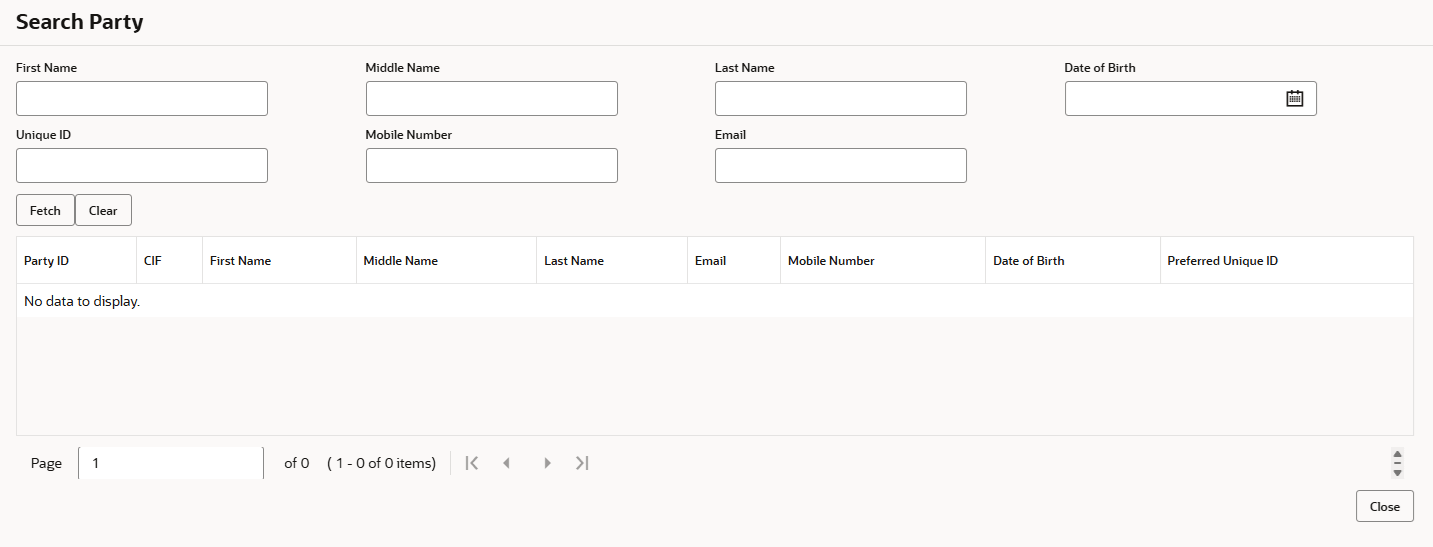
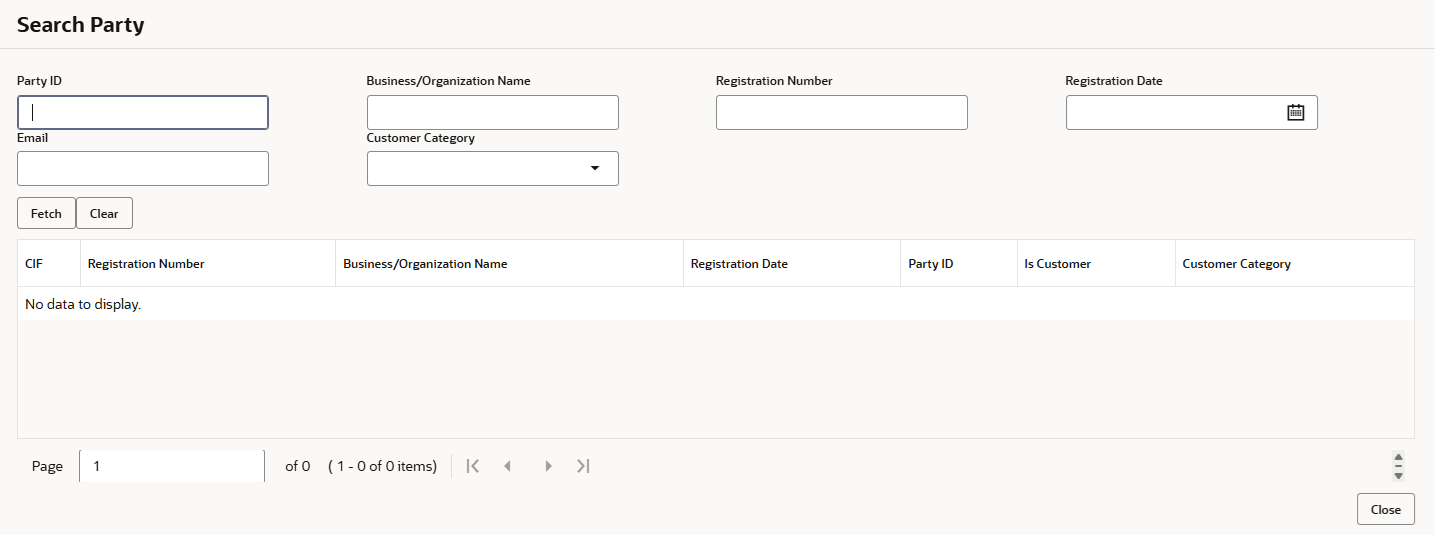
Advanced SearchUser can perform an advanced search for the party by providing additional information. User can perform search on below party types:- For Individual
- First Name
- Middle Name
- Last Name
- Date of Birth
- Preferred Unique ID
- Mobile Number
- For Non- Individual
- Party ID
- Business or Organization Name
- Registration Number
- Registration Date
- Customer Category
To search for a party using the advanced search:- Click the Advanced Search on the Applicants screen.
The Search Party window displays.
Figure 2-3 Advance Search - Small and Medium Business Products
- On the Search Party screen, perform one of the following actions:
- Click Fetch to search all the parties.
All the parties in the system appears in the table.
- Enter the specific search criteria in the respective field and click Fetch.
The search result appears based on the search criteria.
- Click Fetch to search all the parties.
To upload document for fetching customer information:
- Click Upload ID to fetch the customer information from the uploaded documents. The Applicants - Upload ID screen displays.
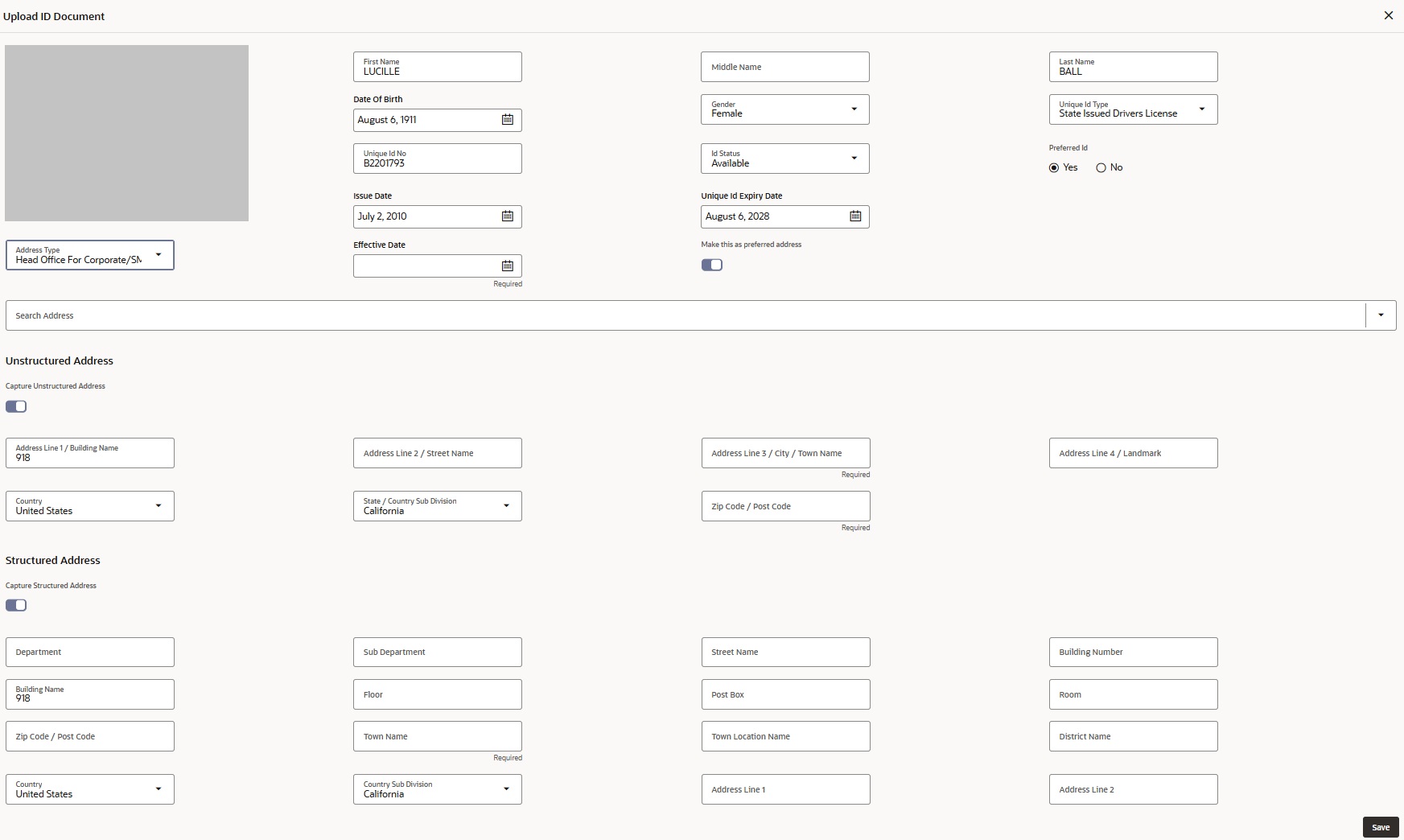
- On uploading the document, the details are fetched and appears in the Upload ID Document screen. The Upload ID Document screen displays.
- On the Upload ID Document screen, the fields are pre-populated with extracted data. For more information on fields, refer to the field description table below.
Table 2-3 Verify Information – Field Description
Field Description Document Image Displays the uploaded document image. First Name The information in this field is automatically populated with the extracted data. User can modify the first name of the applicant if required. Middle Name The information in this field is automatically populated with the extracted data. User can modify the middle name of the applicant if required. Last Name The information in this field is automatically populated with the extracted data. User can modify the last name of the applicant if required. Date of Birth The information in this field is automatically populated with the extracted data. User can modify the date of birth of the applicant if required. Gender The information in this field is automatically populated with the extracted data. User can modify the gender of the applicant if required. Unique ID Type Displays the unique ID type of the applicant based on the document uploaded. Unique ID Number The information in this field is automatically populated with the extracted data. User can modify the Unique ID number of the applicant if required. ID Status The information in this field is automatically populated with the extracted data. User can modify the ID status of the applicant if required. Preferred ID The information in this field is automatically populated with the extracted data. User can modify the preferred ID by clicking Yes or No. Issue Date The information in this field is automatically populated with the extracted data. User can modify the issue date of the driving license, if required. This field appears only if the Document Name is selected as Driving License.
Unique Id Expiry Date The information in this field is automatically populated with the extracted data. User can modify the unique ID expiry date of the applicant if required. Place Of Issue The information in this field is automatically populated with the extracted data. User can modify the place of issue of the applicant if required. Address Type The information in this field is automatically populated with the extracted data. User can modify the address type from the drop-down list if required. When the user uploads a document, the system retrieves the address type from Common Core maintenance. By default, the address type is set to Communication Address, and the address details are displayed in an unstructured format.
Effective Date The information in this field is automatically populated with the extracted data. User can modify the date when the applicant start residing at the specified address. End Date The information in this field is automatically populated with the extracted data. User can modify the date when the applicant last lived at the specified address. Make this as preferred address The information in this field is automatically populated with the extracted data. User can modify the address preference by switch for communication.
Search Address Specify the address to search for the already captured address if required. Based on the configuration, on entering a few letters, the system fetches the related address that is already captured.
Based on the selection, the fields are fetched in the address section.
Unstructured Address The information in this field is automatically populated with the extracted data. System displays the address in unstructured format by default. - Switch to display the fields for capturing the unstructured address.
- Switch to hide the unstructured address fields.
Address Line 1 The information in this field is automatically populated with the extracted data. User can modify the building name if required. Address Line 2 The information in this field is automatically populated with the extracted data. User can modify the street name if required. Address Line 3 The information in this field is automatically populated with the extracted data. User can modify the city or town name if required. Address Line 4/Landmark The information in this field is automatically populated with the extracted data. User can modify the landmark if required. Country The information in this field is automatically populated with the extracted data. User can modify the country from the drop-down list if required. State/Country Sub Division The information in this field is automatically populated with the extracted data. User can modify the state or country sub-division from the drop-down list if required. Zip Code/ Pin Code The information in this field is automatically populated with the extracted data. User can modify the zip or post code of the address if required. Note: The maximum length is 16 characters and allows alphanumeric characters, including spaces.
Structured Address User can add the structured address if required. - Switch to display the fields for capturing the structured address.
- Switch to hide the structured address fields.
Department Specify the name of department. Sub Department Specify the name of sub department. Street Name Specify the street name. Building Number Specify the building number. Building Name Specify the name of the building. Floor Specify the floor number. Post Box Specify the post box number. Room Specify the room number. Zip Code / Post Code Specify the zip or post code of the address. It allows the alphanumeric characters including space.
Town Name Specify the name of the city or town where the customer is located. Town Location Name Specify the name of sub-location or area within the city or town. District Name Select the district from the drop-down list. Country Select the country from the drop-down list. Country Sub Division Select the country sub-division from the drop-down list. Address Line 1 Specify the address in line 1. Address Line 2 Specify the address in line 2. - Switch
Parent topic: Applicant