3.3.2 Interest and Charges
This topic describes systematic instructions to configure loan interest and charges details.
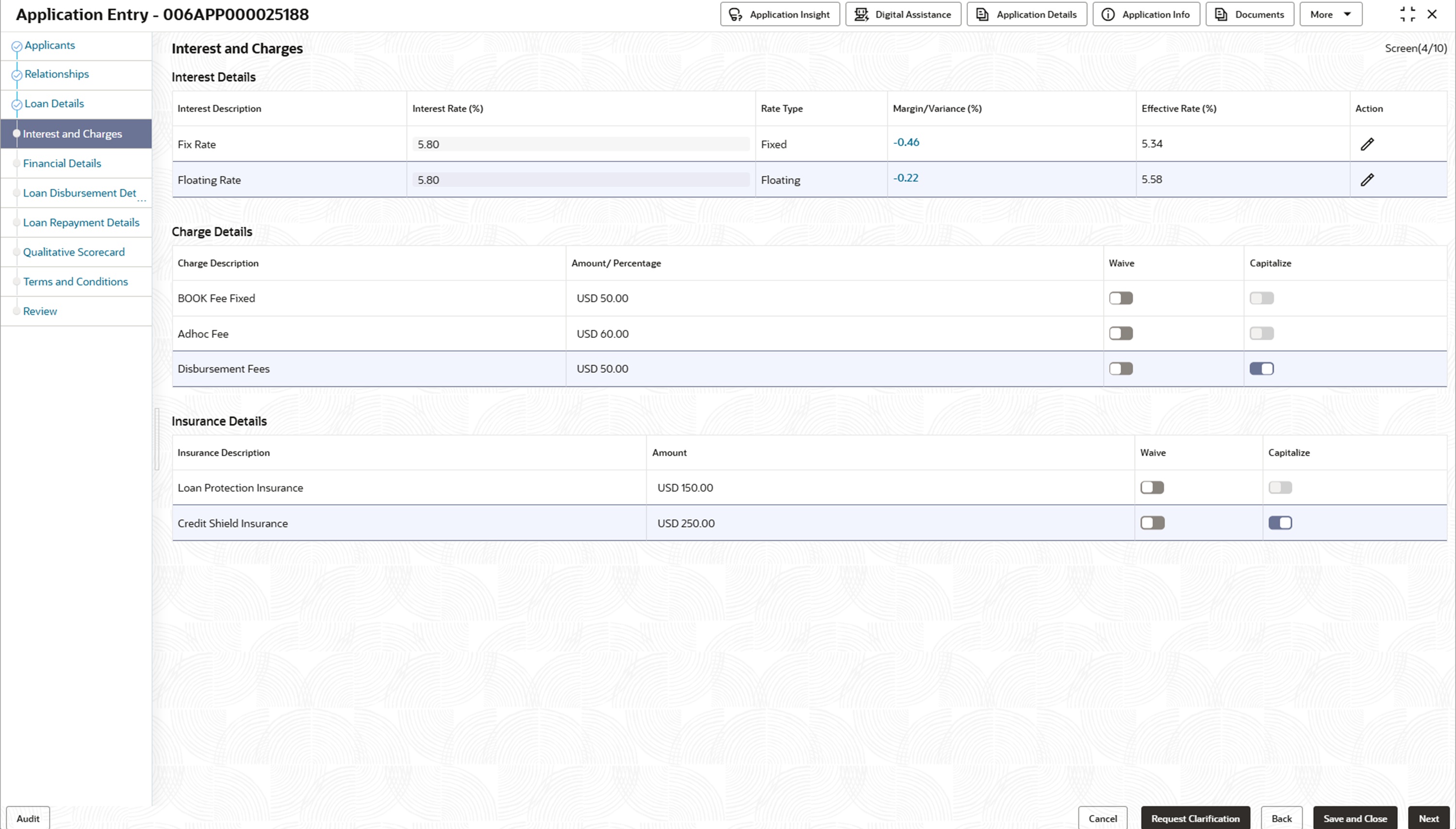
In this data segment the Interest Details section displays all type of interest rates applicable for the account.
The Charge Details section displays all type of charges applicable or levied for this loan application. These charge details are fetched from the Host.
The Insurance Details section displays the all type of insurances applicable for this loan application. These insurance details are fetched from the Host.
To add interest and charges details:
- Click Next in the previous data segment to proceed with the next data
segment, after successfully capturing the data.The Interest and Charges screen appears.
- Specify the fields on Interest and Charges screen.For more information on fields, refer to the field description table.
Table 3-26 Interest and Charges – Field Description
Field Description Interest Details Displays the interest details in this section. Interest Description Displays the interest description of the selected interest rate code. Interest Rate (%) Specify the interest rate. Interest Rate is fetched from host back end product to which this loan account is linked through the Business Product configuration.
The system validates the Floor and Ceiling rates for each interest component.- If the effective rate is less than the floor rate, the system stamps the floor rate for that component.
- If the effective rate is greater than the ceiling rate, the system stamps the ceiling rate for that component.
Rate Type Displays the rate type. The system fetches the rate type from host back end product to which this loan account is mapped through the Business Product configuration.
Margin / Variance ( %) Click the link of margin or variance in percentage. It displays the pop-up list of all margins.- Product Margin
- Risk based Margin
- Discretionary Margin
- Relationship Benefit Margin
- Bundle Margin
The Margin field appears if the Rate Type is selected as Floating.
The Variance field appears if the Rate Type is selected as Fixed.
This field is editable if the Margin Allowed toggle is ON at the product level.
The Bundle Margin is displayed in the drop-down list only if loan is opened as part of a bundle application and bundle margin benefit is applicable.
Effective Rate (%) Displays the effective rate for the loan calculated as + Interest Rate or – Margin/Variance. APR Displays the annual percentage rate value for each applicable interest. Action -
Click
 to edit the added records
-
Click
 to save the records.
-
Click
 to delete the added records.
Charge Details In this section, displays the all charge details. Charge Description Displays the type of charges. The system also displays the total values of capitalized and uncapitalized charges and insurance. Amount/Percentage Displays the charge amount or percentage for the loan application. Rate Displays the rate for the charge component. Waive Switch  to waive all charges or selectively waive a particular type of charge.
Capitalize Switch to capitalize the fees.
The charges cannot be capitalized if the same are waived and this field appears disabled.
This option is enabled only for the fees that are set to capitalize while configuring product.
Insurance Details In this section, displays all insurance details. This section appears only when Oracle Banking Retail Lending Servicing is the host. For more information, refer to the Business Product Host Mapping topic in the Configurations User Guide.
Insurance Description Displays the type of insurances. Amount Displays the amount. Waive to waive all insurances or selectively waive a particular type of insurance.
Capitalize Switch to capitalize the fees.
The insurance cannot be capitalized if the same are waived and this field appears disabled.
This option is enabled only for the fees that are set to capitalize while configuring product.
Parent topic: Application Enrichment Stage