2.2 Quick Assessment
This topic describes the systematic instructions of Quick Assessment.
To enable a Quick Assessment process, select the Quick Assessment toggle in the Business Product Details data segment of the Business Product Configuration screen.
The applicants information that were captured during loan simulation will be carried forward in the quick assessment as part of same loan simulation ID. User has to capture only the additional set of fields during Quick Assessment.
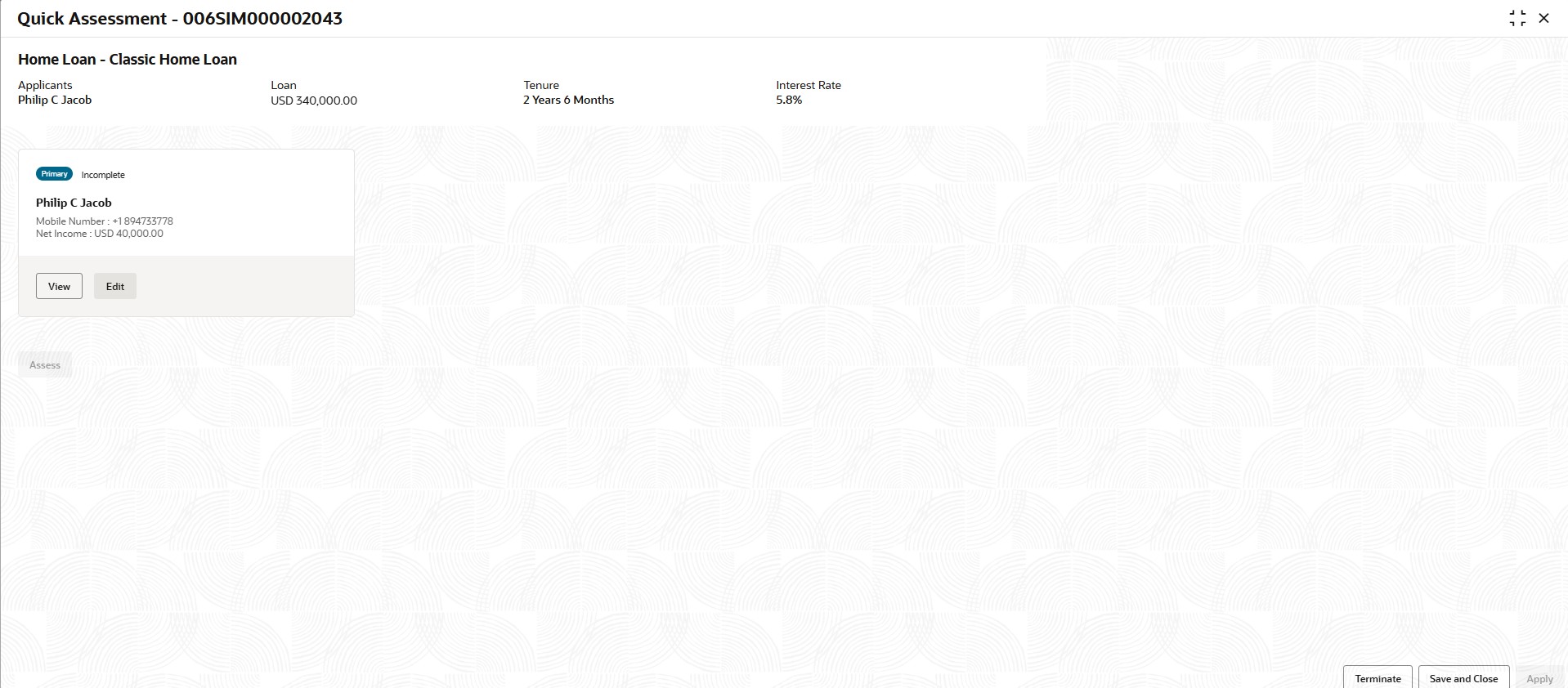
- In Loan Simulation screen, click Quick Assessment.The Quick Assessment screen displays.
- Click Edit to modify the added details.
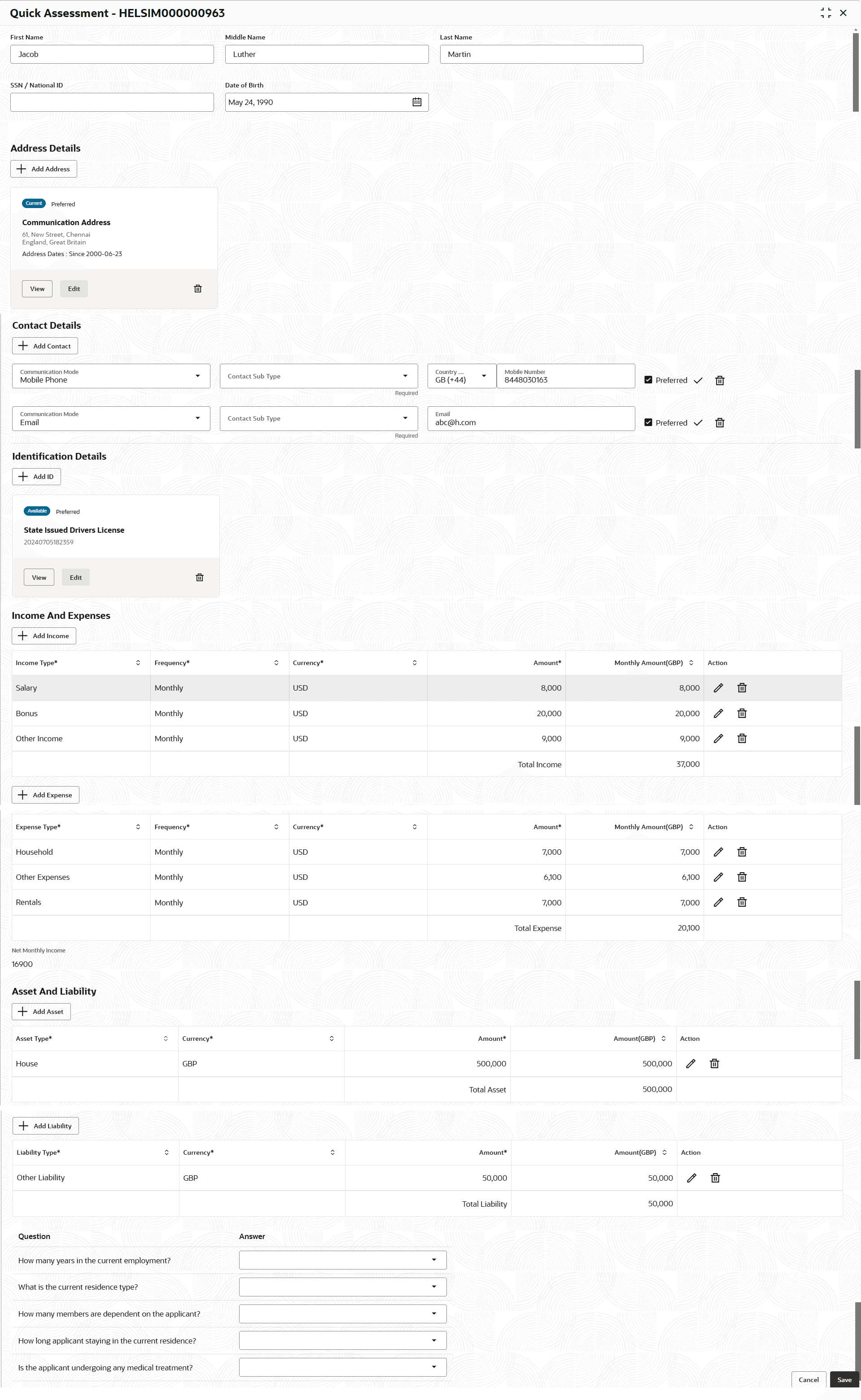
The Quick Assessment - Edit screen displays.
- Specify the relevant details in data fields. The fields which are marked as Required are mandatory. For more information on the fields, refer to the field description table below:
Table 2-4 Quick Assessment
Field Description First Name Specify the first name of the applicant. Middle Name Specify the middle name of the applicant. Last Name Specify the last name of the applicant. SSN/National ID Displays the SSN/National ID of the applicant. Date of Birth Select the date of birth of the applicant. Address Details This section displays the address details of the applicant. Add Address Add the address of the applicant. Address Type Select the address type for the applicant from the drop-down list. The options in this drop down appears based on the Common Core maintenance.
Effective Date Select the date when the applicant start residing at the specified address. Make this as preferred address Switch  to prefer the entered address for communication.
Search Address Specify the address to search for the already captured address. Based on the configuration, on entering a few letters, the system fetches the related address that is already captured.
Based on the selection, the fields are fetched in the address section.
Unstructured Address - Switch to display the fields for capturing the unstructured address.
- Switch
 to hide the unstructured address fields.
Address Line 1 Specify the building name. Note: The maximum length is 105 characters.
Address Line 2 Specify the street name. Note: The maximum length is 105 characters.
Address Line 3 Specify the city or town name. Note: The maximum length is 105 characters.
Address Line 4 Specify the landmark. Note: The maximum length is 105 characters.
Country Select the country from the drop-down list. State / Country Sub Division Select the state or country sub division from the drop-down list. This field appears based on the selected country code. Zip Code/Pin Code Specify the zip or post code of the address. Note: The maximum length is 16 characters and allows alphanumeric characters, including spaces.
Zip +4 Specify the zip extension code of the address. Structured Address - Switch to display the fields for capturing the structured address.
- Switch to hide the structured address fields.
Department Specify the name of department. Note: The maximum length is 70 characters.
Sub Department Specify the name of sub department. Note: The maximum length is 70 characters.
Street Name Specify the street name. Note: The maximum length is 70 characters.
Building Number Specify the building number. Note: The maximum length is 16 characters.
Building Name Specify the name of the building. Note: The maximum length is 35 characters.
Floor Specify the floor number. Note: The maximum length is 70 characters.
Post Box Specify the post box number. Note: The maximum length is 16 characters.
Room Specify the room number. Note: The maximum length is 70 characters.
Zip Code / Post Code Specify the zip or post code of the address. Note: The maximum length is 16 characters and allows alphanumeric characters, including spaces.
Town Name Specify the name of the city or town where the customer is located. Note: The maximum length is 35 characters.
Town Location Name Specify the name of sub-location or area within the city or town. Note: The maximum length is 35 characters.
District Name Select the district from the drop-down list. Country Select the country from the drop-down list. Country Sub Division Select the country sub-division from the drop-down list. Address Line 1 Specify the address in line 1. Note: The maximum length is 105 characters.
Address Line 2 Specify the address in line 2. Note: The maximum length is 105 characters.
Action Perform the following actions on the Address screen:- Click Save to save the applicant details.
- Click Cancel to cancel the applicant details.
<Added record tile> In this tile, user can view the added address details. Below details appears in the tile:- <Current status> this flag appears only if Yes option is selected.
- <Preferred ID status> this flag appears only if Yes option is selected.
- Address Type
- Address dates
- Address line 1,2,3
- Country
- State
Click the Edit to edit the added address details.
Click the View to view the added address details.
Click
 to delete the added address details.
Contact Details In this section, user can provide the contact details. Add Contact Add the contact details of the applicant. Communication Mode Select the communication mode from the drop-down list. The available options are:- Mobile Phone
Contact Sub Type Select the contact type from the drop-down list. -
If the Mobile Phone is selected as Communication Mode, the following options are shown in the drop-down:
- Residence
- Business
- Mobile
- Others
-
If the Email is selected as Communication Mode, the following options are shown in the drop-down:
- Personal
- Work
Mobile Number Select the country code and specify the mobile number. Email Specify the email address. Preferred Select the checkbox to indicate if the given record is the preferred one. Action - Click
 to save the contact details.
- Click
 to edit the contact details.
- Click to delete the contact details.
Identification Details This section displays the identification details. Add ID Click Add ID to add identification details of the applicant. ID Type Select the ID type from the drop-down list. ID Status Select the ID status from the drop-down list. The available options are:- Available
- Applied For
Unique ID Specify the unique identification code of the selected type. Place of Issue Specify the place where the ID is issued to the user. Issue Date Specify the date from which the ID is valid. Expiry Date Specify the date till which the ID is valid. Remarks Specify the remarks. Click the Save button to save the entered ID details.
Preferred ID Select the preferred ID from the drop-down list. The available options are:- Yes
- No
Income and Expenses Displays the total Income and Expenses of the applicant. Add Income Add the income details of the applicant. Add Expense Add the expense details of the applicant. Asset and Liability Displays the total Asset and Liability of the applicant. Add Asset Add the asset details of the applicant. Add Liability Add the liability details of the applicant. Question Displays the question configured for the question code. Answer Select the answer from the drop-down values available. The answers are populated based on the Answers configured in the questionnaire code. - Switch
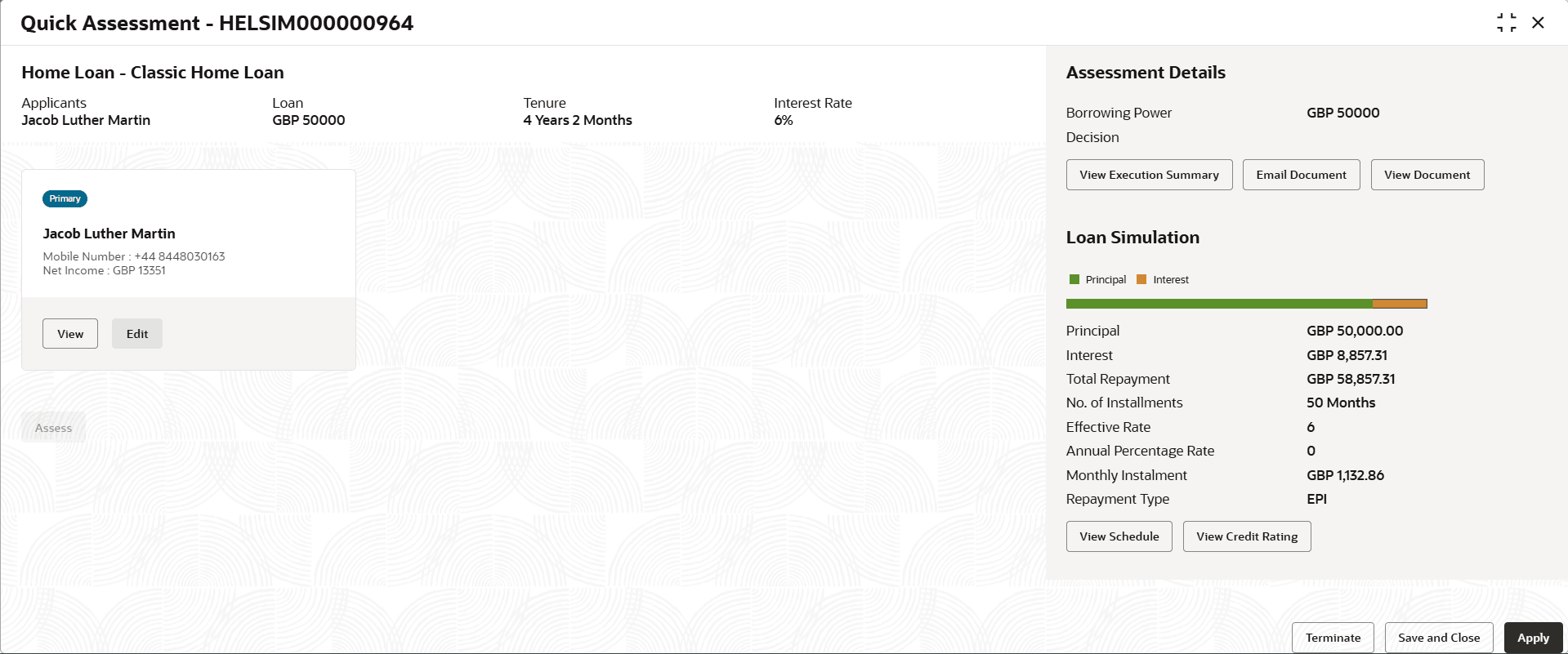
- Click Assess, the following screen displays.
Figure 2-13 Quick Assessment -Applicant Details
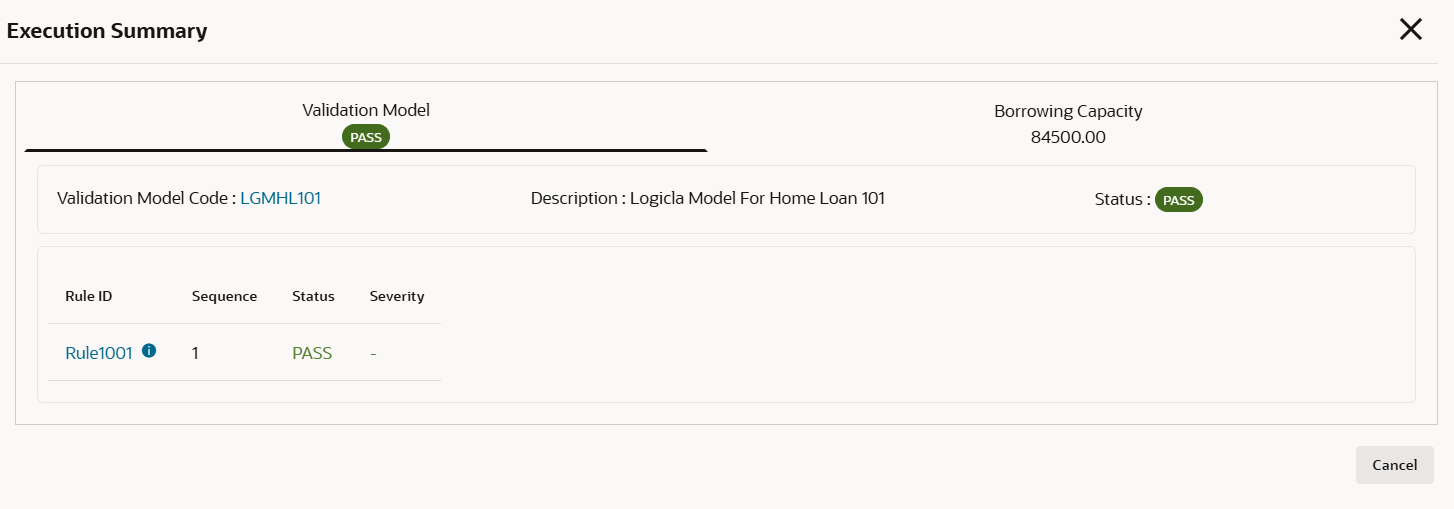
Using validation model, validations such as gender-based or minor-related eligibility checks are performed during Quick Assessment.
- Click View Execution Summary. The summary screen window appears.
The selective PDS components such as Score or Decision or Pricing or All to call Pricing and Decision service can be controlled as per the configuration in the Business product configuration for the loan business product.
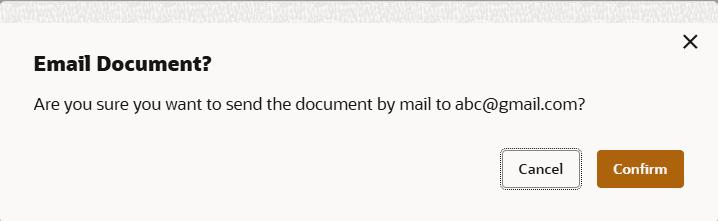
- Click Email Document. The pop-up window appears.
Parent topic: Loan Simulation and Quick Assessment