3.2.7 Verification Details
This topic provides the systematic instructions to capture the verification details.
- Click Next in the previous data segment to proceed with the next data segment, after successfully capturing the data.
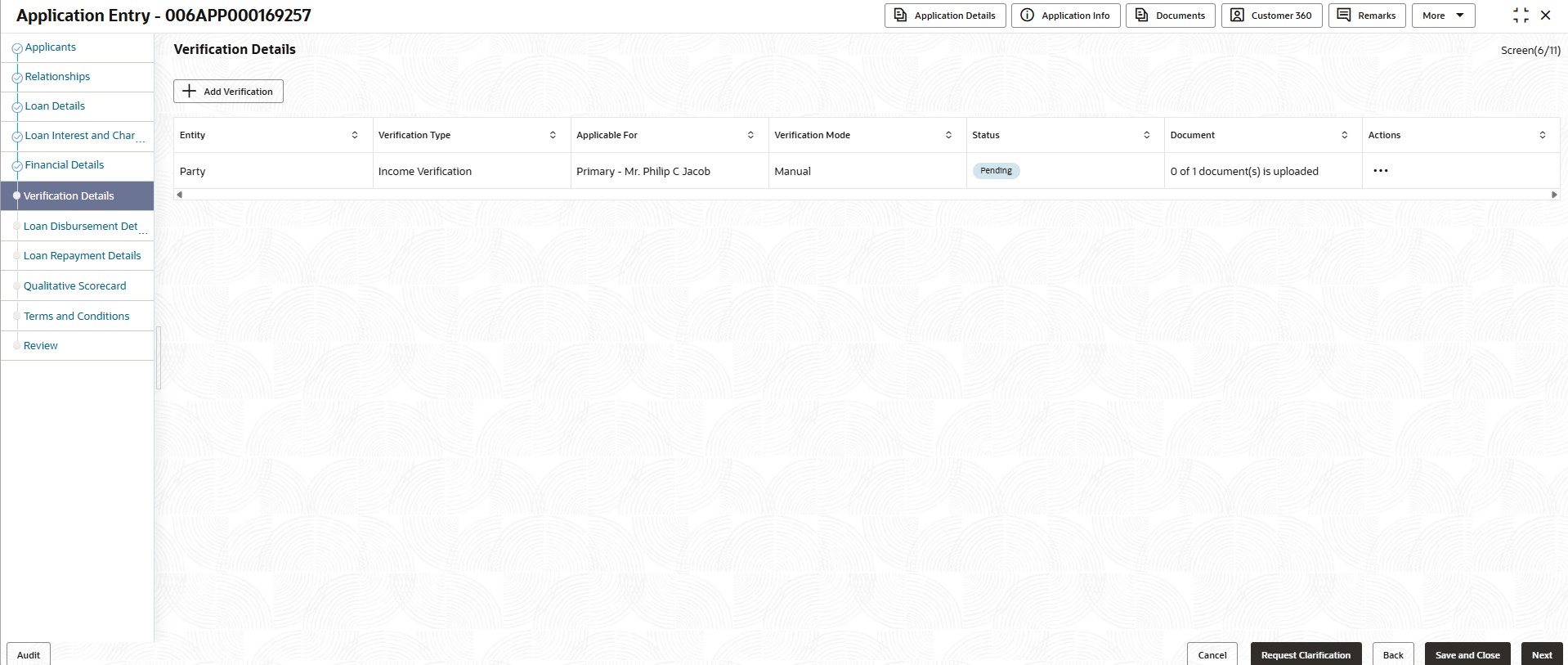
The Verification Details screen displays with the list of pre-defined verifications. However, user can add a new verification on this screen.
Note:
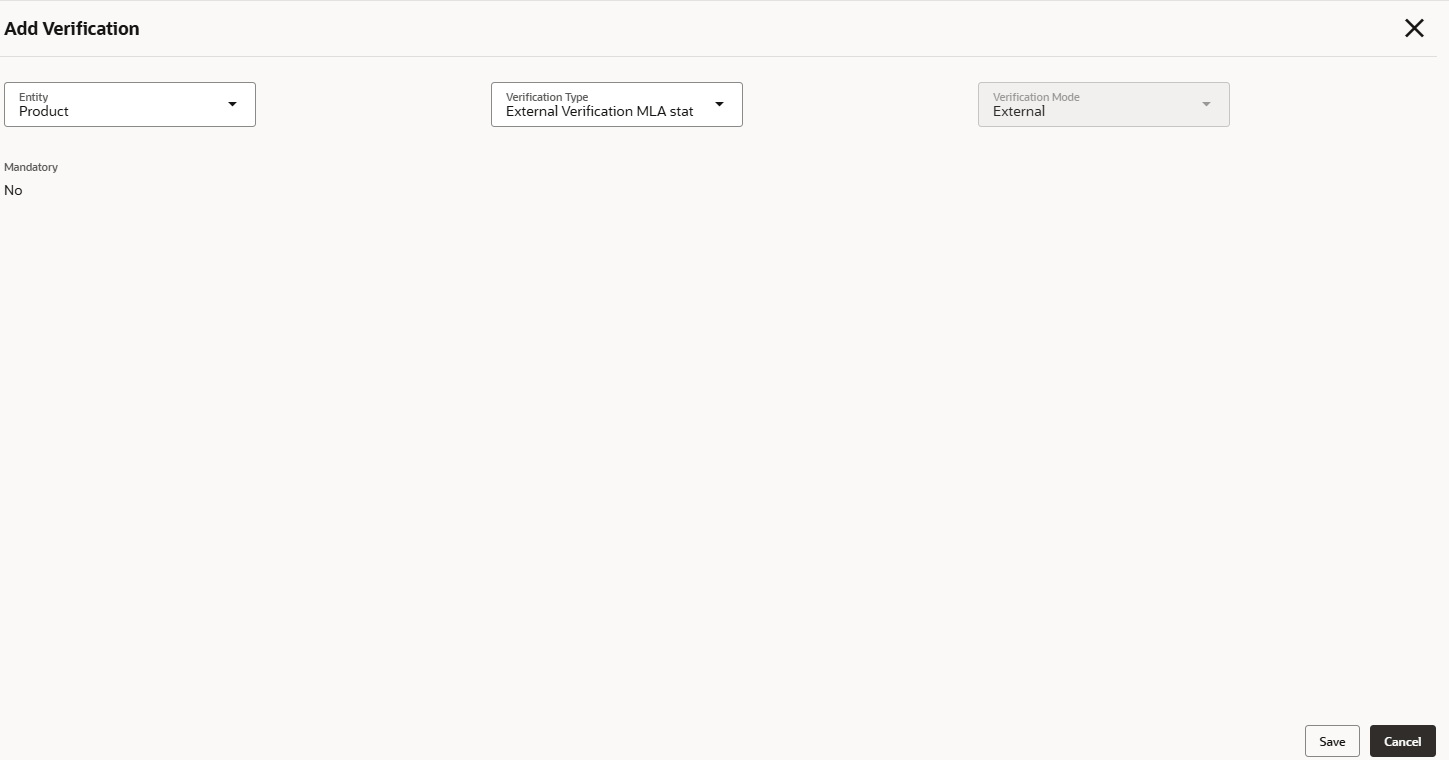
For Home Loans, the verification will appear as a standalone process stage before the Underwriting stage. - Click Add Verification to add new verification details.The Add Verification screen displays.
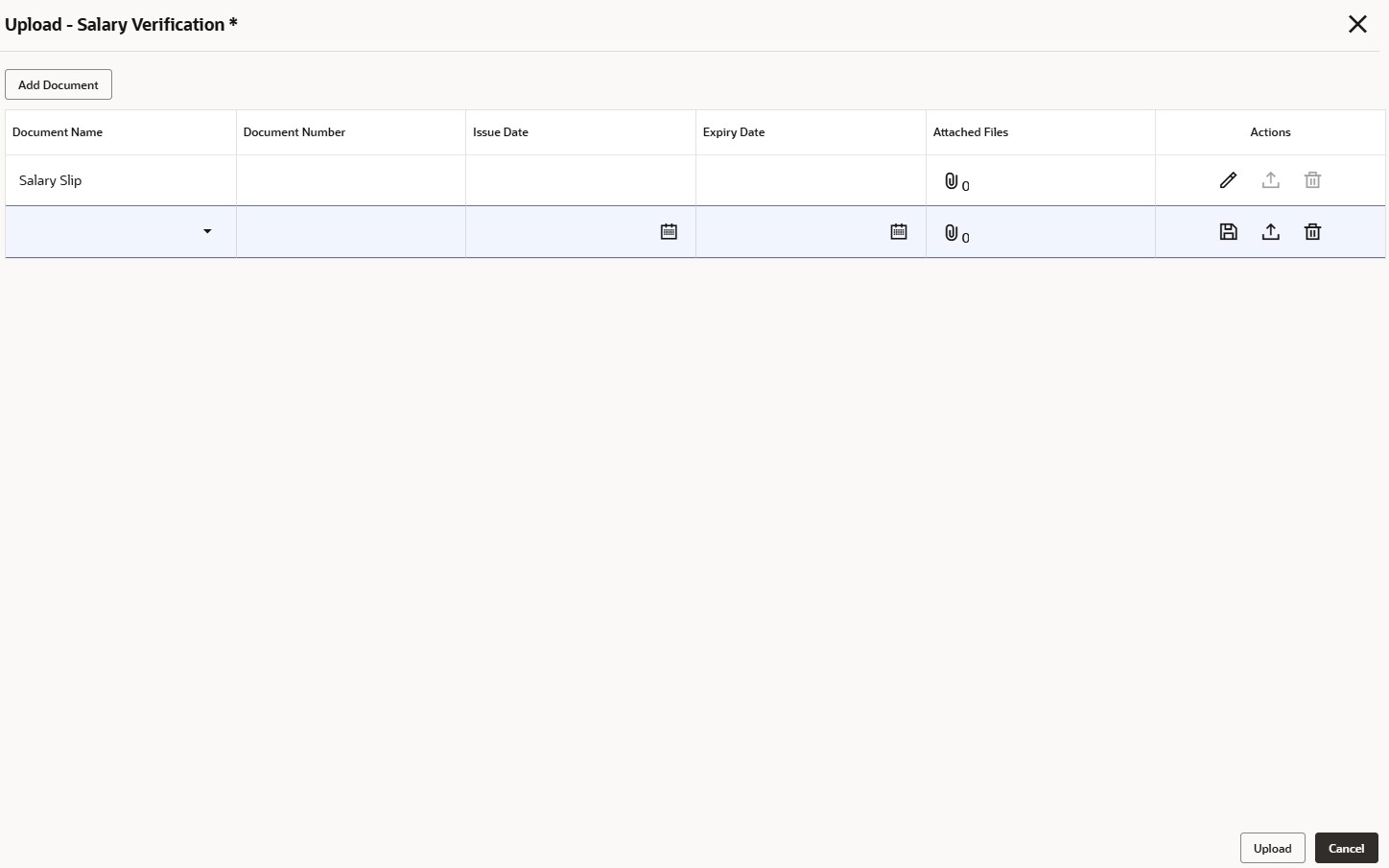
- In the verification table, click the three-dot icon and select Upload to add the supporting documents for the verification type.The Upload - <Verification Type> screen displays.Specify the document details in the data fields.
Table 3-20 Upload Documents
Field Description Add Document Click this button to add the supporting document details. Document Name Select the document from the drop-down list. Document Number Specify the document number. Issue Date Select the issue date. Expiry Date Select the expiry date. Attached Files Click the attachment icon to open the Add Document screen and upload the document from the local folder. Once uploaded, the number of attached files is shown as hyperlink. Click on the hyperlinked number to view all attached files on the Document screen. Actions Perform the below actions on the added record: - Click
 to save the added document details in the row.
- Click
 to edit the added document details.
- Click
 to select the document from machine to upload.
- Click
 to delete the added document details in the row.
- Click
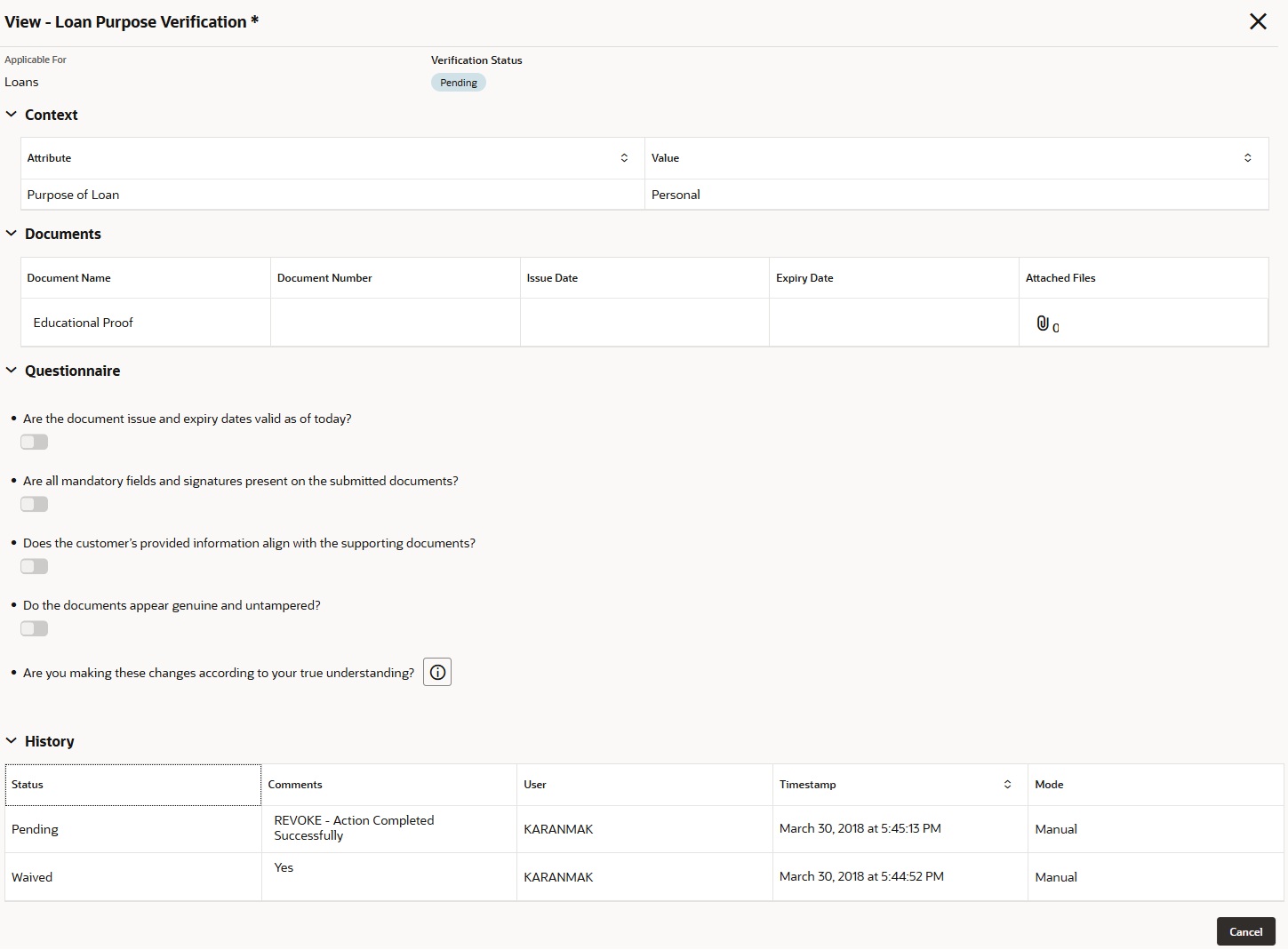
- In the verification table, click the three-dot icon and select View to view the verification details.The View - <Verification Type> screen displays.
Displays the relevant details on the View - <Verification Type> screen.
For more information, refer to the field description table below.
Table 3-21 View - Verification Type
Field Description Applicable For Displays the applicant name. Applicant Role Displays the role of applicant. This field appears if the entity is selected as Party.
Collateral Type Displays the collateral type. This field appears if the entity is selected as Collateral.
Verification Status Displays the status of verification. Context This section appears if the Context Applicable is set to Yes on the Verification Type configuration screen. Attribute Displays the attribute associated with the verification type. Value Displays the value of the verification type. Document This section appears if the Document Applicable is set to Yes on the Verification Type configuration screen. Document Name Displays the name of document type. Document Number Displays the document number, Issue Date Displays the issue date. Expiry Date Displays the expiry date. Attached File Displays the number of file attached for this verification type. Questionnaire This section appears if the questionnaire code is configured for the Manual mode. List of Questions Configured Displays the list of questions configured for the verification type. 
Click this icon to display the additional guidance, explanations, or definitions to assist users to fill their answers. This icon appears, when the comment is provided to the question on the Questionnaire Maintenance screen.
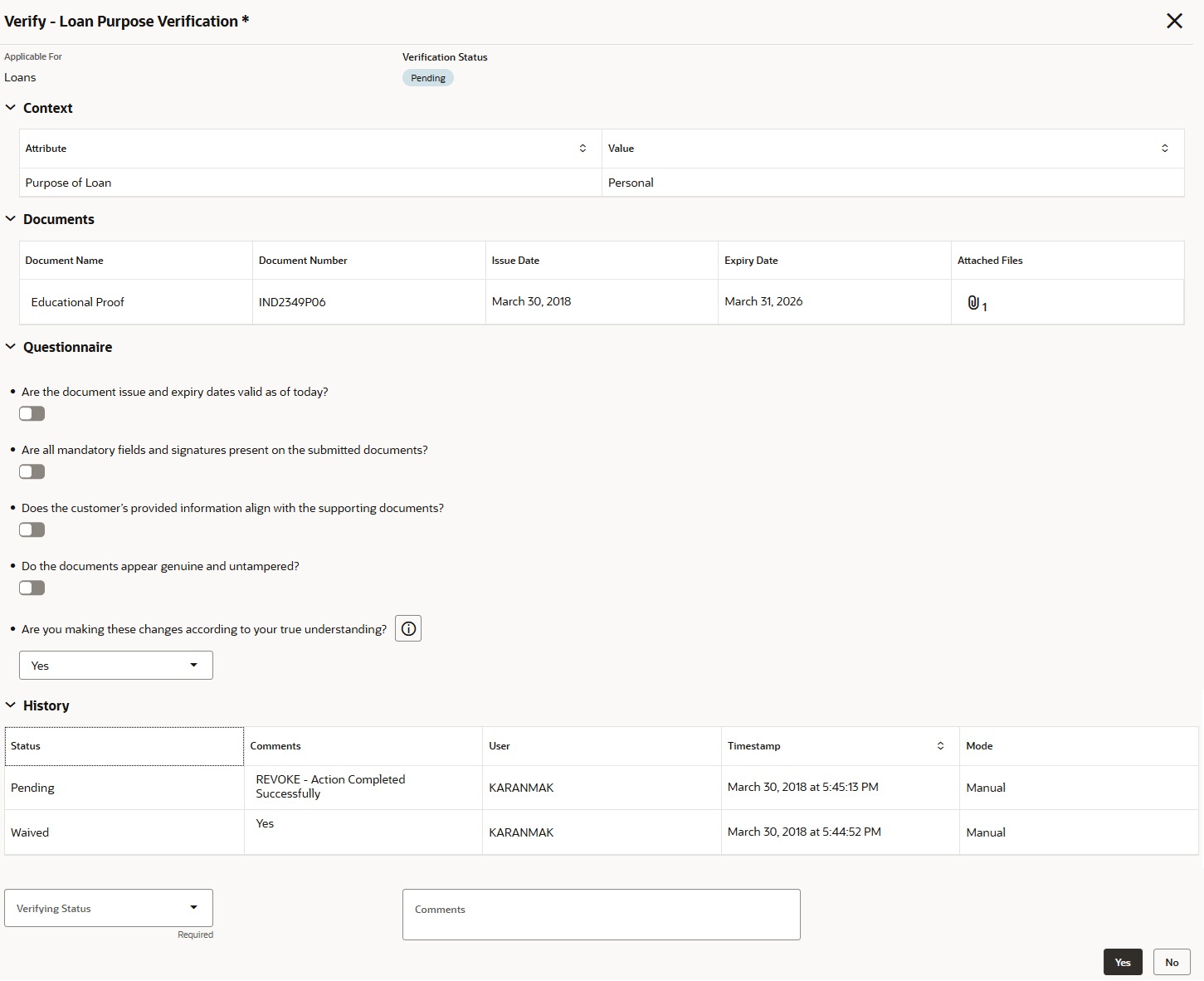
History This section displays the history of records that have been completed. The most recently completed verification will be displayed at the top of the list. Status Displays the status of the verification. Comments Displays the comments provided by the verifier. User Displays the user who performed the verification. Timestamp Displays the exact date and time when the verification has been completed. Mode Displays the verification mode. - In the verification table, click the three-dot icon and select Verify to view the verification details.The Verify - <Verification Type> screen displays.
Specify the relevant details on the Verify - <Verification Type> screen.
For more information, refer to the field description table below.
Note:
The fields which are marked as Required are mandatory.Table 3-22 Verify - Verification Type
Field Description Verifying Status Select the verification status drop-down list. The available options are:- Successful
- Unsuccessful
- Require More Information
- Waive
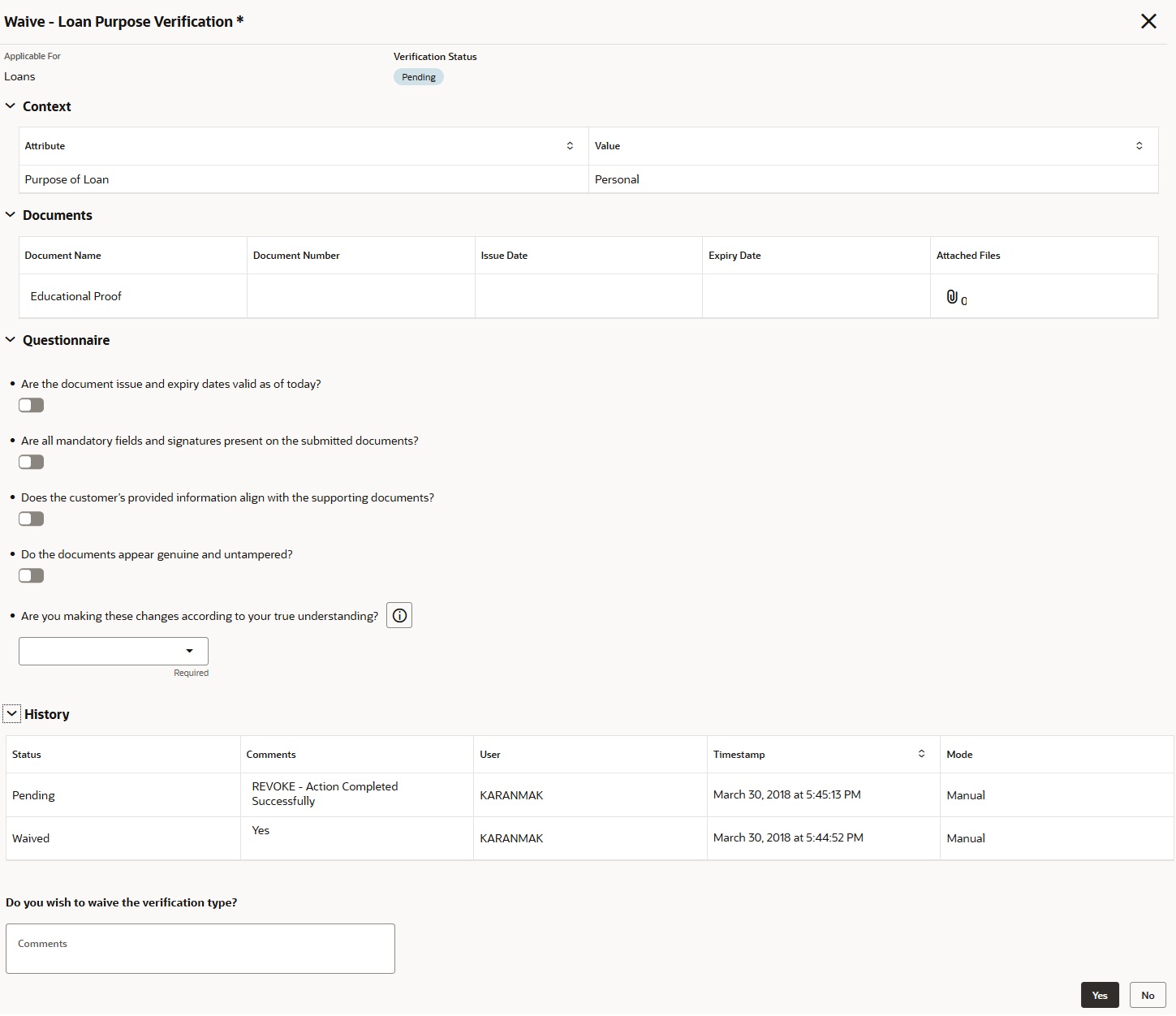
Comments Specify the comment if required. - In the verification table, click the three-dot icon and select Waive to waive the verification type.The Waive - <Verification Type> screen displays.
Specify the relevant details on the Waive - <Verification Type> screen.
For more information, refer to the field description table below.
Note:
The fields which are marked as Required are mandatory.Table 3-23 Waive - Verification Type
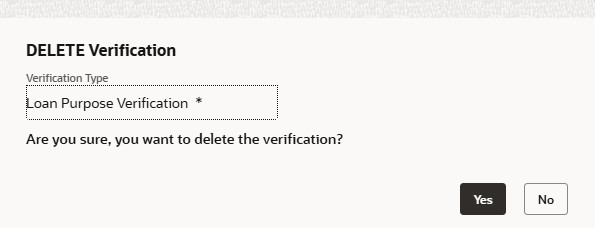
Field Description Do you wish to waive the verification type? Specify the comment if required. - In the verification table, click the three-dot icon and select Delete to delete the verification type.The Delete Verification screen displays.
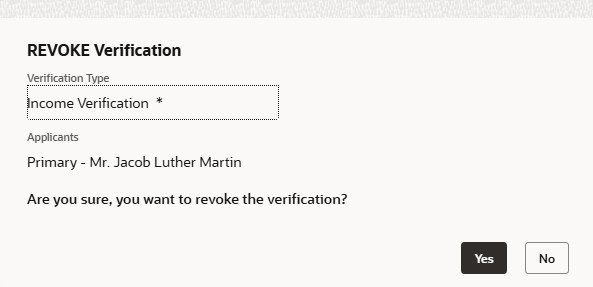
- In the verification table, click the three-dot icon and select Revoke to cancel or withdraw a previously verified or Waived verification type.The Revoke Verification screen displays.
Parent topic: Application Entry Stage