2.2.2 Review

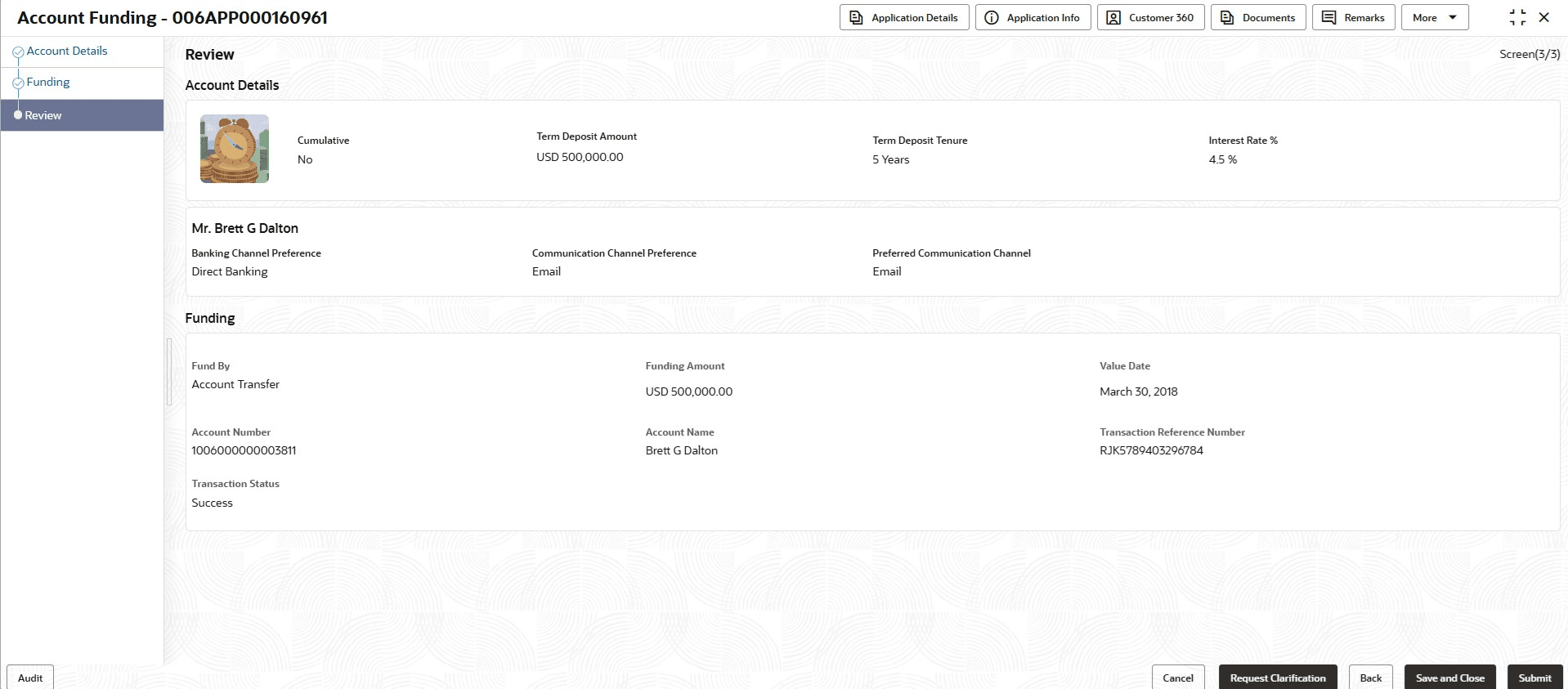
This topic provides the systematic instruction to view all the data segments in the Account Funding stage.

The system displays the summary of each of the data segments in the given stage.

To view the summary of all the data segments:

  1. Click Next from the previous data segment to proceed with the next data segment, after successfully capturing the data.
    The Review screen displays.

    Note:

    The fields, which mentioned as Required, are mandatory.
    For more information on fields, refer to the field description table.

    Table 2-13 Review - Field Description

    Data Segment Description
    Account Details Displays the account details.
    Funding Displays the initial funding details.
  2. Click Submit to reach the Stage Movement Submission screen, where the overrides, checklist and documents for this stage are verified.
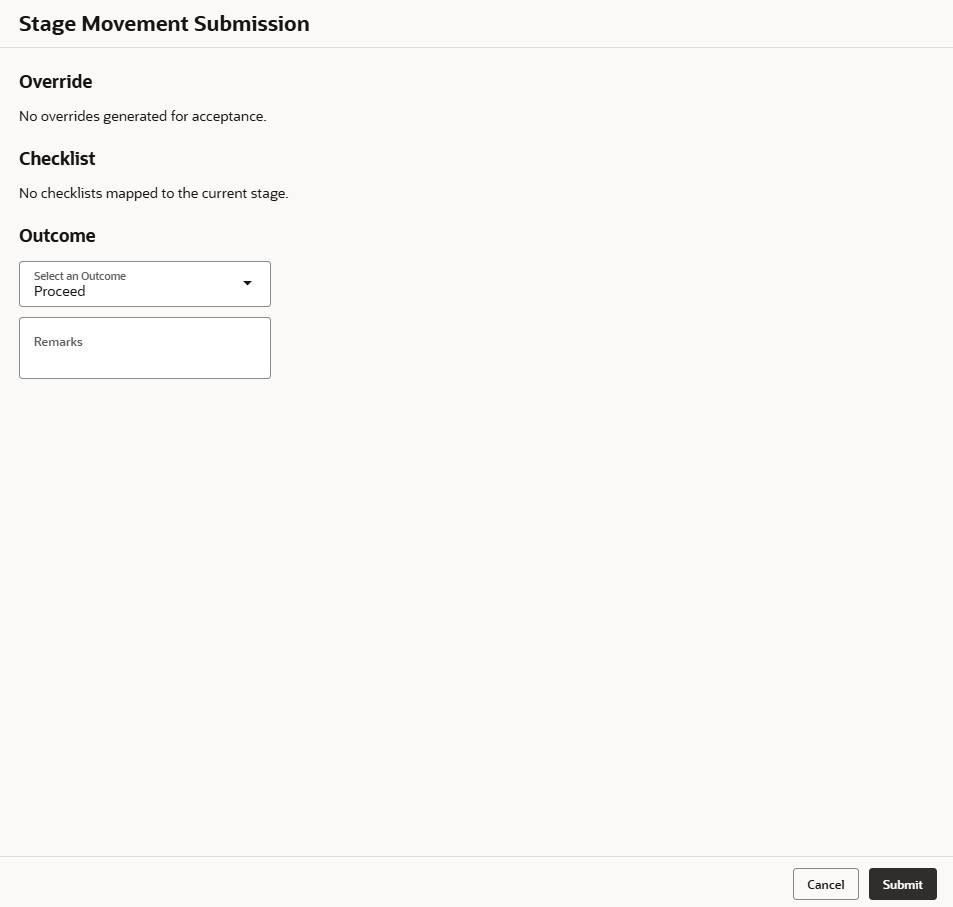
    The Stage Movement Submission screen displays.

    Figure 2-21 Stage Movement Submission


    In this screen, the message appears in case there is any override. Overrides are basically warnings that are raised during the business validations. User has to accept the overrides to proceed further. Alternatively, user can go back and correct the data to ensure overrides do not arise.
  3. In case of override, click Accept Overrides & Proceed to proceed or click Proceed.
    The Checklist screen appears.
  4. In the Checklist screen the system displays the error message if document checklist is not verified. Click Proceed Next to proceed to Stage Movement Submission screen.
  5. In the Stage Movement Submission screen, select appropriate option from the Select to Outcome field.
    • Select the Proceed to proceed with the application. By default this option is selected. By default this option is selected. If the Proceed option is selected, then the application proceeds based on the assessment decision.
    • Select the Return to Application Entry Stage to make application entry stage available in free task for edit.
    • Select the Reject by Bank to reject the submission of this application. The application is terminated, and an email is sent to the borrower or customer with a rejection advice.
  6. Click Submit to submit the Application Enrichment stage.
    The confirmation screen appears with the submission status, the Application Reference Number and the Process Application Reference Number.
  7. Click Close to close the window.
    OR
    Click Go to Free Task.

    After the Host creates the Term Deposit Account successfully, the response is sent back to the Oracle Banking Originations Cloud Service with the Term Deposit Account Number.

    The details of all the applications which have logically completed all their stage movements, (Rejected/Account Created) will be made available in Completed tasks for query purpose only.

    If the system fails, the Free Task generates the Handoff Retry task. With the necessary access rights, the user can pick up such tasks, take the necessary action on the Failure reason, and then resubmit to the Host.