2.6.5 Documents
This topic provide systematic instructions to view, upload, or modify documents related to the applicant and product required for the application process.
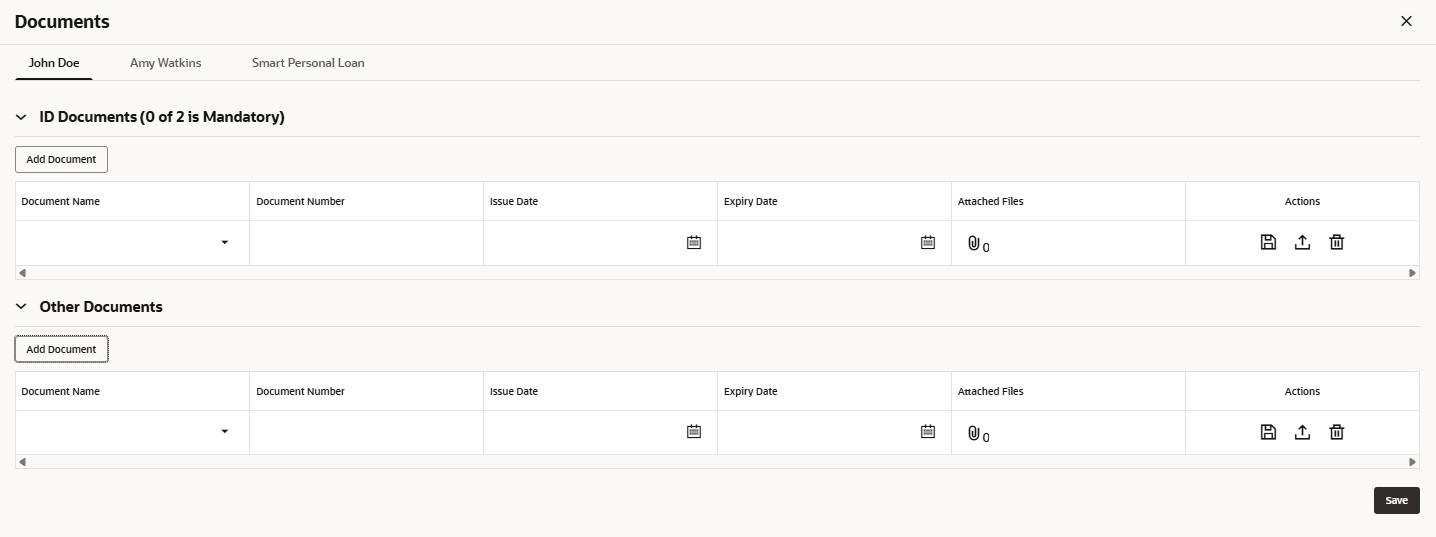
- Click Documents button to upload the documents linked for the stage.The Documents - Applicants screen displays.
- Specify the details in the relevant data fields.
For more information on fields, refer to the field description table.
Note:
The fields which are marked as Required are mandatory.Table 2-22 Upload Document – Field Description
Field Description Category Title Displays the category name configured on the Document Category screen. Add Document Click this button to add the document details in the table. Document Name Select a document from the drop-down list. Once a document is selected in any row it will not be shown in the drop-down to avoid duplication.
Document Number Specify the document number. Issue Date Select the issue date of the document from the calendar. Expiry Date Select the expiry date of the document from the calendar. Attached Files Click the attachment icon to open the Add Document screen and upload the document from the local folder. Once uploaded, the attached files count will be shown as hyperlink. Click on the hyperlinked number to view all attached files on the Document screen.
Actions Perform the below actions on the added record: - Click
 to save the added document details in the row.
- Click
 to edit the added document details.
- Click
 to select the document from machine to upload.
- Click
 to delete the added document details in the row.
- Click
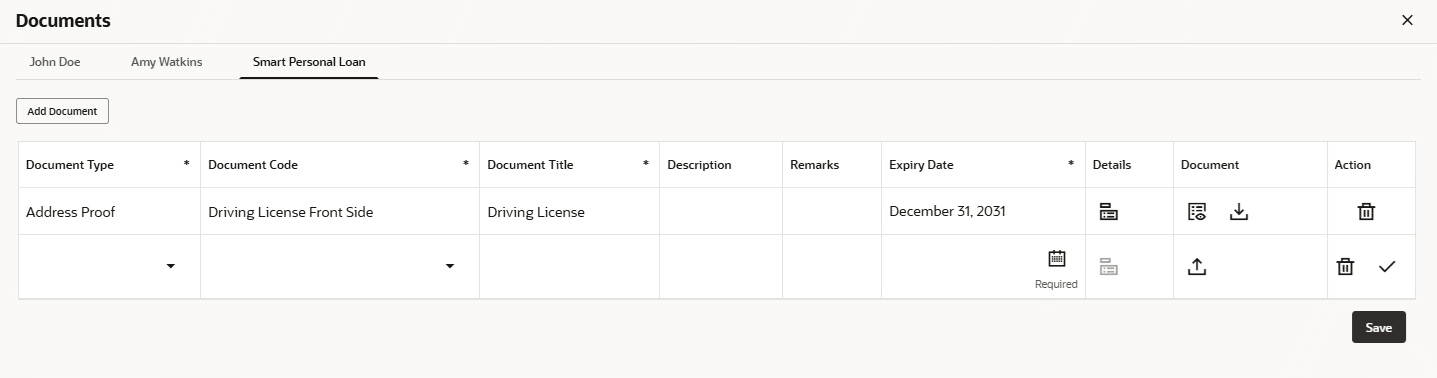
- Click on the <product type> tab. The Documents - Application screen displays.
- Specify the details in the relevant data fields.
For more information on fields, refer to the field description table.
Note:
The fields which are marked as Required are mandatory.Table 2-23 Upload Application Document – Field Description
Field Description Document Type Select the document type. Document Code Select the document code. Document Title Specify the document title. Document Description Specify the description for the document. Remarks Specify the remarks for the document. Expiry Date Select the document expiry date. Details Click the details icon to view below details of the documents: - Uploaded Time: Displays the uploaded date and time of the document in hours and mins.
- Uploaded By: Displays the user name who uploaded the document .
- Stage Uploaded: Displays the stage name on which the document is uploaded.
Document Click
to select the document from machine to upload.
User can remove the uploaded document before saving the record from the Action column. Post saving the record user can delete the record to remove the document.
Below actions are perform on the uploaded document- Click Preview icon to preview already uploaded document.
- Click Download to download already uploaded document.
Actions Perform the below actions on the added record: - Click
 to save the record.
- Click to delete the record.
Note:
- Ensure that mandatory documents are uploaded, as the system will validate the same during the stage submission.
- Mandatory documents can only be deleted in the same stage where it is uploaded.
- Non-mandatory documents can be deleted in any stage.
Parent topic: Global Actions