2.1.6 Beneficiary Details
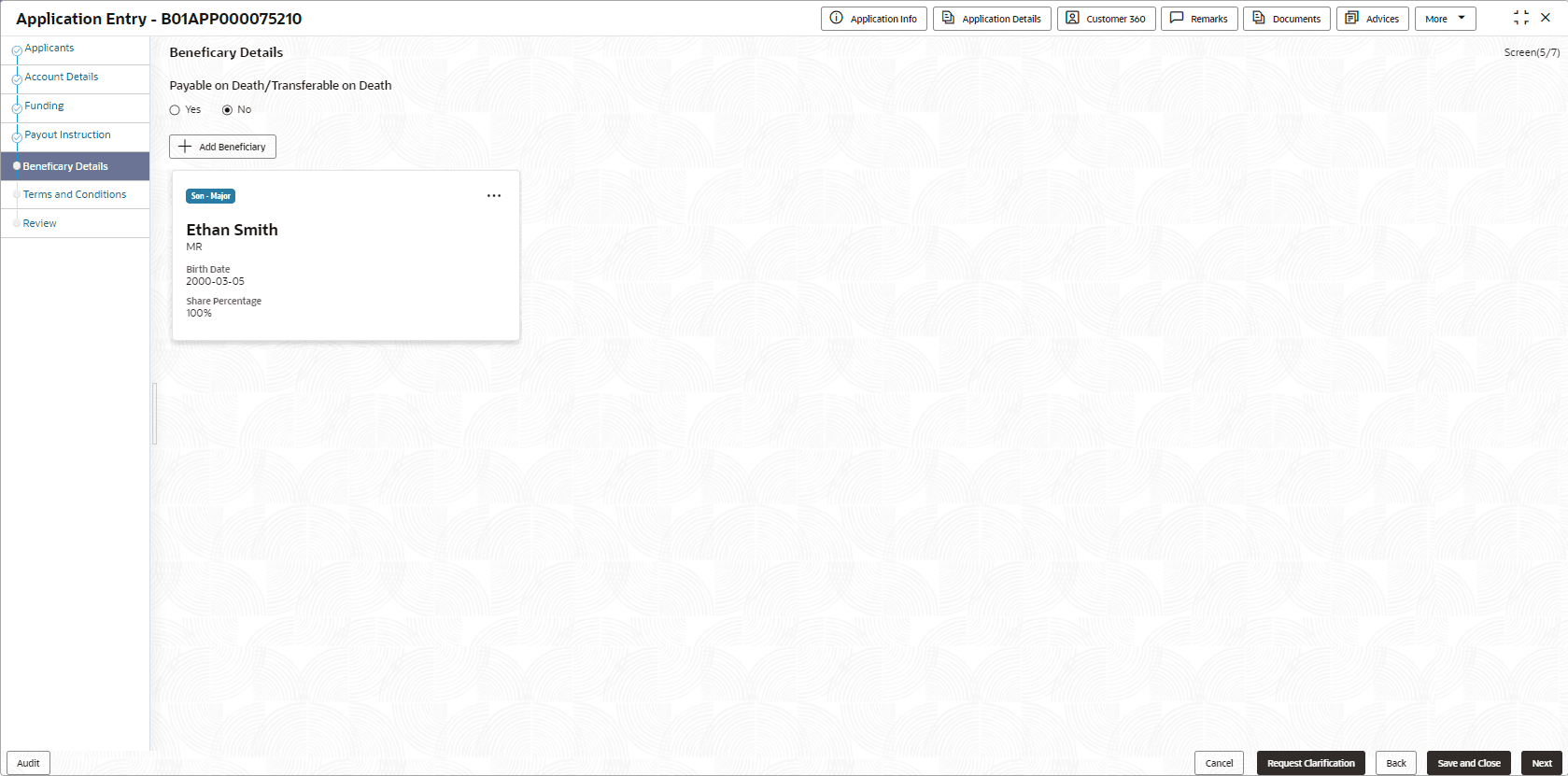
This topic provides the systematic instructions to capture the nominee details related information for the application.
The Beneficiary Details is a non-mandatory data segment. If required, It allows capturing multiple nominees for the account. Beneficiary can be a minor, in that case, it is mandatory to provide details of the guardian. For SMB Customer, Beneficiary Details are allowed only for Proprietary type of Business Accounts.
To add beneficiary details:
- Click Next from the previous screen to proceed with next
data segment, after successfully capturing the data.The Beneficiary Details screen displays.
- Specify the fields on Beneficiary Details screen.
Table 2-9 Details - Field Description
Field Description Title Select the title of the applicant. First Name Specify the first name of the applicant. Middle Name Specify the middle name of the applicant. Last Name Specify the last name of the applicant. Suffix Specify the suffix for the applicant. This options in this list appears based on the configured entity code in the Oracle Banking Party product.
Date of Birth Select the applicant's date of birth. Minor Select to indicate if beneficiary is minor.
Relationship Select the relationship of the beneficiary with the applicant.
Percentage Specify the percentage to be considered for distribution of the account balance in case of uneventful death of the applicant. Address Details In this section user can add address of the beneficiary. It is mandatory to add communication address of the applicant.
Same as Applicant Select this checkbox to indicate the beneficiary shares the same address of the applicant.
The system automatically fills the applicant’s address into this section.
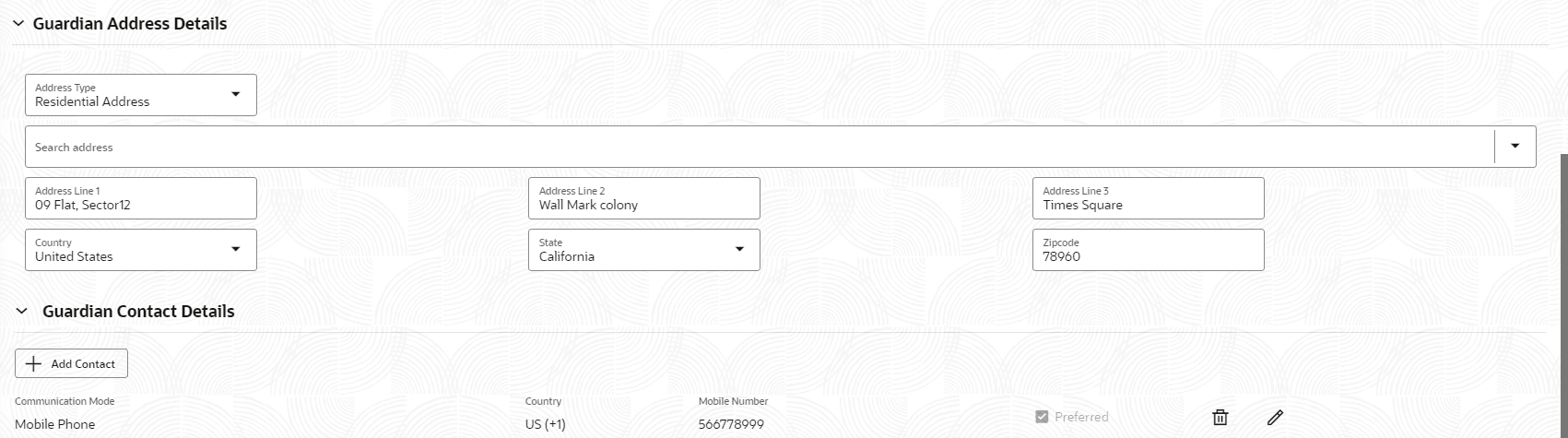
Address Type Select the address type for the applicant from the drop-down list. Based on the configuration, the options are shown in the drop-down.
Search Address Specify the address to search for the already captured address. Based on the configuration, on entering a few letters, the system fetches the related address that is already captured.
Based on the selection, the fields are fetched in the address section.
Address Line 1 Specify the building name. Address Line 2 Specify the street name. Address Line 3 Specify the city or town name. Country Select and search the country code. State/Country Sub Division Specify the state or country sub division. This field appears based on the selected country code. Zip Code/Post Code Specify the zip or post code of the address. Contact Details In this section user can provide digital contact details. Add Contact Click Add Contact to add contact details.
Communication Mode Select the communication mode from the drop-down list. The available options are:- Mobile Phone
Country Select the country along with international subscriber dialing code of the mobile phone from the drop-down list. The drop-down list option consist of country code, country name and subscriber dialing code.
This field appears only if the Mobile Phone option is selected as communication mode.
Mobile Number Specify the mobile number. Email Id Specify the email ID. This field appears only if the Email option is selected as communication mode.
Preferred Select the checkbox to indicate if the given record is the preferred one. Action User can perform one of the following actions. - Click
 to save the contact details.
- Click
 to edit the added contact details.
- Click
 to delete the contact details.
Guardian Details
This screen allows to capture details of the guardian of the minor beneficiary.
To add guardian details:
- Click Add Guardian Details on Beneficiary Details screen.
The Guardian Details screen is displayed
Parent topic: Application Entry