2.1.4 Payout Instructions
This topic provides the systematic instructions to capture the payout instructions details for Certificate of Deposit account.
In this data segment you can capture the payout instructions after the maturity of the Certificate of Deposit account.
To capture the payout instructions:
- Click Next in previous data segment screen to proceed
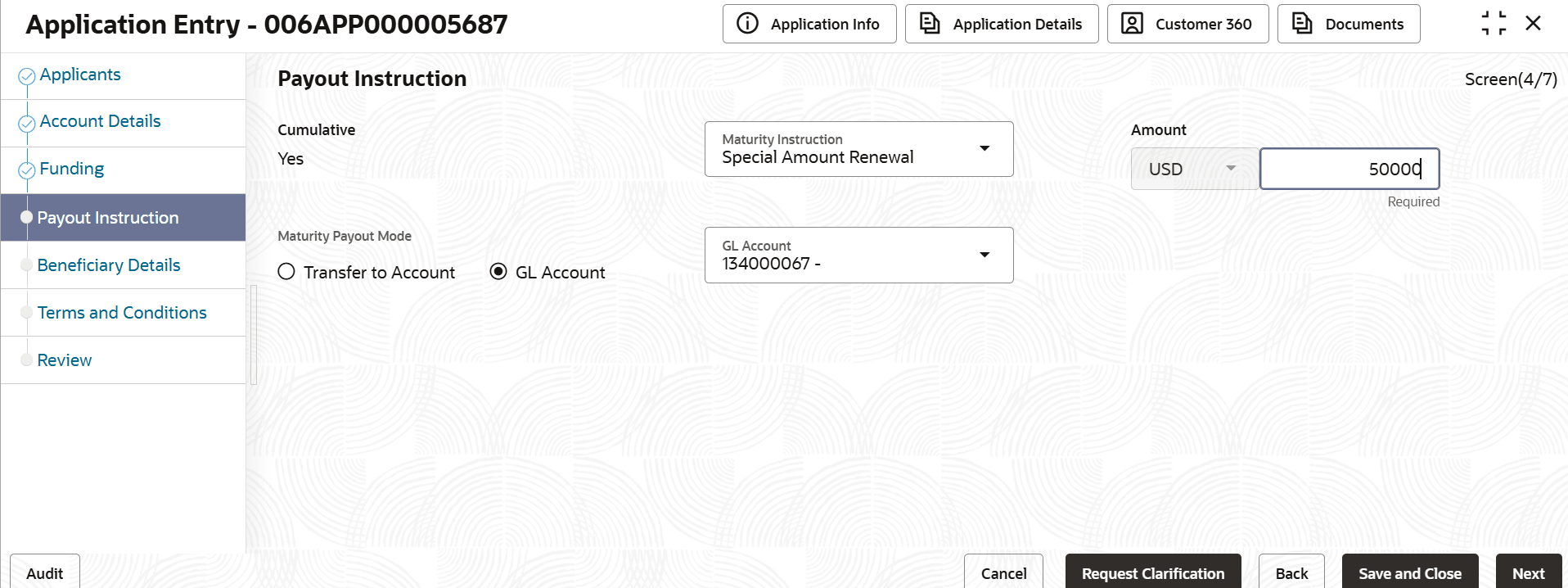
with the next data segment, after successfully capturing the data.If the Cumulative is selected as Yes in the Account Details data segment, the following Payout Instruction screen appears.
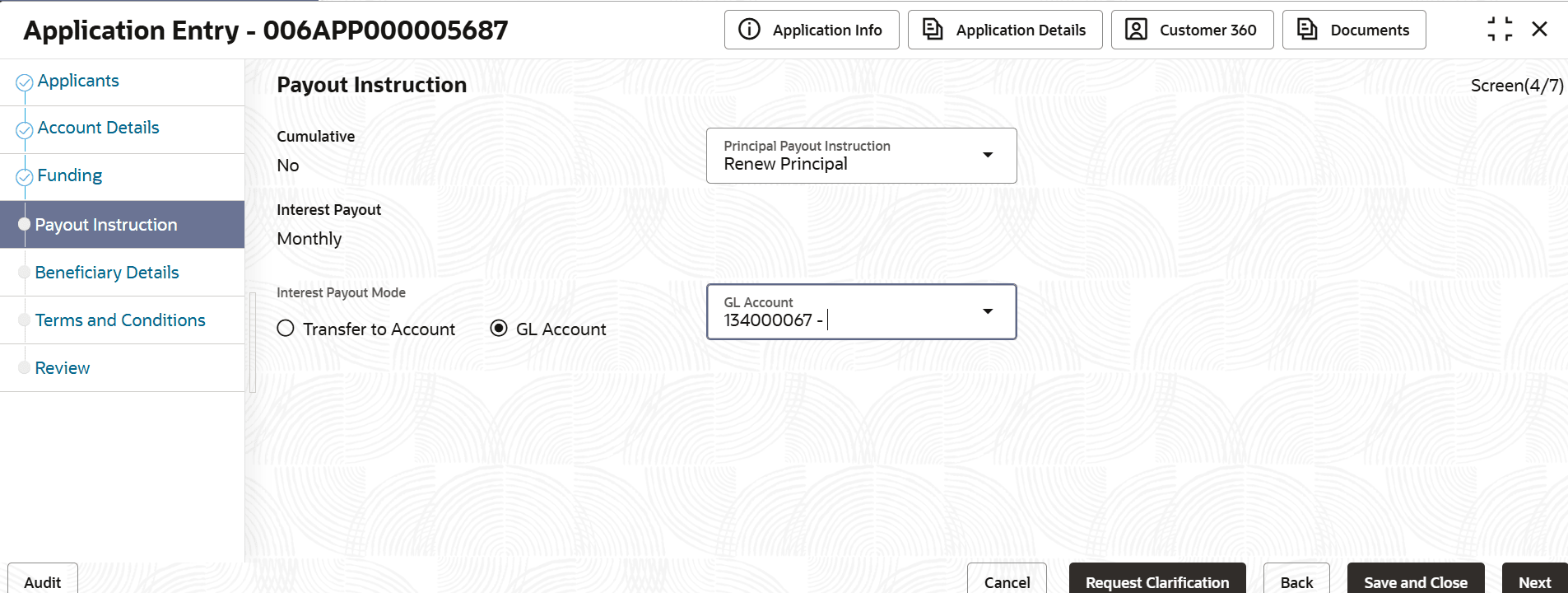
If the Cumulative is selected as No in the Account Details data segment, the following Payout Instruction screen appears.
- In the Payout Instructions screen, specify the required details.For more information on fields, refer to the field description table.
Note:
The fields marked as Required are mandatory.Table 2-7 Payout Instructions
Field Name Description Cumulative Displays whether the account is cumulative. The value in this field appears based on the option selected in the Account Details data segment. If the Cumulative value is Yes then the user can set the payout instructions based on the selected maturity option in the below fields:
- Maturity Instruction
- Maturity Payout Mode
If the Cumulative value is No then the user can set principal payout instructions based on the selected option in the below fields:.- Principal Payout Instruction
- Principal Payout Mode
Maturity Instruction Select the maturity type from the drop-down list. The available options are:
- Renew Principal and Interest
- Special Amount Renewal
- Renew Principal and Redeem Interest
- Redeem Principal and Interest
This field appears if the Cumulative value is Yes.
Maturity Payout Mode Select the maturity payout mode from the drop-down list.
The available options are:- Transfer to Account
- GL Account
The options in this drop-down list appears based on seed maintenance.
This field is not applicable if the Renew Principal and Interest is selected in the Maturity Instruction list.
This field appears if the Cumulative value is Yes.
Principal Payout Instruction Select the principal payout instruction type from the drop-down list.
The available options are:
- Renew Principal
- Special Amount Renewal
- Redeem Principal
The options in this list appears based on the Business Product Configuration screen.
This field appears if the Cumulative value is No.
Principal Payout Mode Select the principal payout mode from the drop-down list.
The available options are:- Transfer to Account
- GL Account
The options in this drop-down list appears based on the Business Product Configuration screen.
This field is not applicable if the Renew Principal is selected in the Principal Payout Instruction list.
This field appears if the Cumulative value is No.
Amount Specify the amount for renewal. The default set currency appears in the list. This field appears if the Special Amount Renewal is selected in the Maturity Payout Instruction/Principal Payout Instruction drop-down list.
Interest Payout Displays the interest payout frequency configured at product level. This field appears if the Cumulative value is No.
Interest Payout Mode Select the payout mode for the interest amount.
The available options are:- Transfer to Account
- GL Account
The options in this drop-down list appears based on seed maintenance.
This field appears if the Cumulative value is No.
The interest amount is redeemed based on the selected payout mode and set frequency.
Amount Specify the amount for renewal. The default set currency appears in the list. This field is appears if the Special Amount Renewal is selected in the Maturity Instruction list.
Account Select the account number in which the maturity amount should be transferred.
This field appears only if the payout mode is selected as Transfer to Account.
The list populates only the saving accounts of the applicants who are involved in the application.
GL Account Select the account number in which the maturity amount should be transferred.
This field appears only if the payout mode is selected as GL Account.
The list populates only the Saving or GL accounts respectively of the existing applicants who are involved in the application.
- Click Next to navigate to the next data segment, after successfully capturing the data. The user is required to provide all mandatory data segments and data fields for the system to validate. If any mandatory details are missing, the system displays an error message for the user to correct the information. Users must capture the mandatory data before they can proceed to the next data segment.
Parent topic: Application Entry