2.8.1 Create Restructure Plan
This topic describes the instructions to capture the hardship restructure as distinct programs.
- From Home screen, click Retail Lending. Under Retail Lending, click Maintenance.
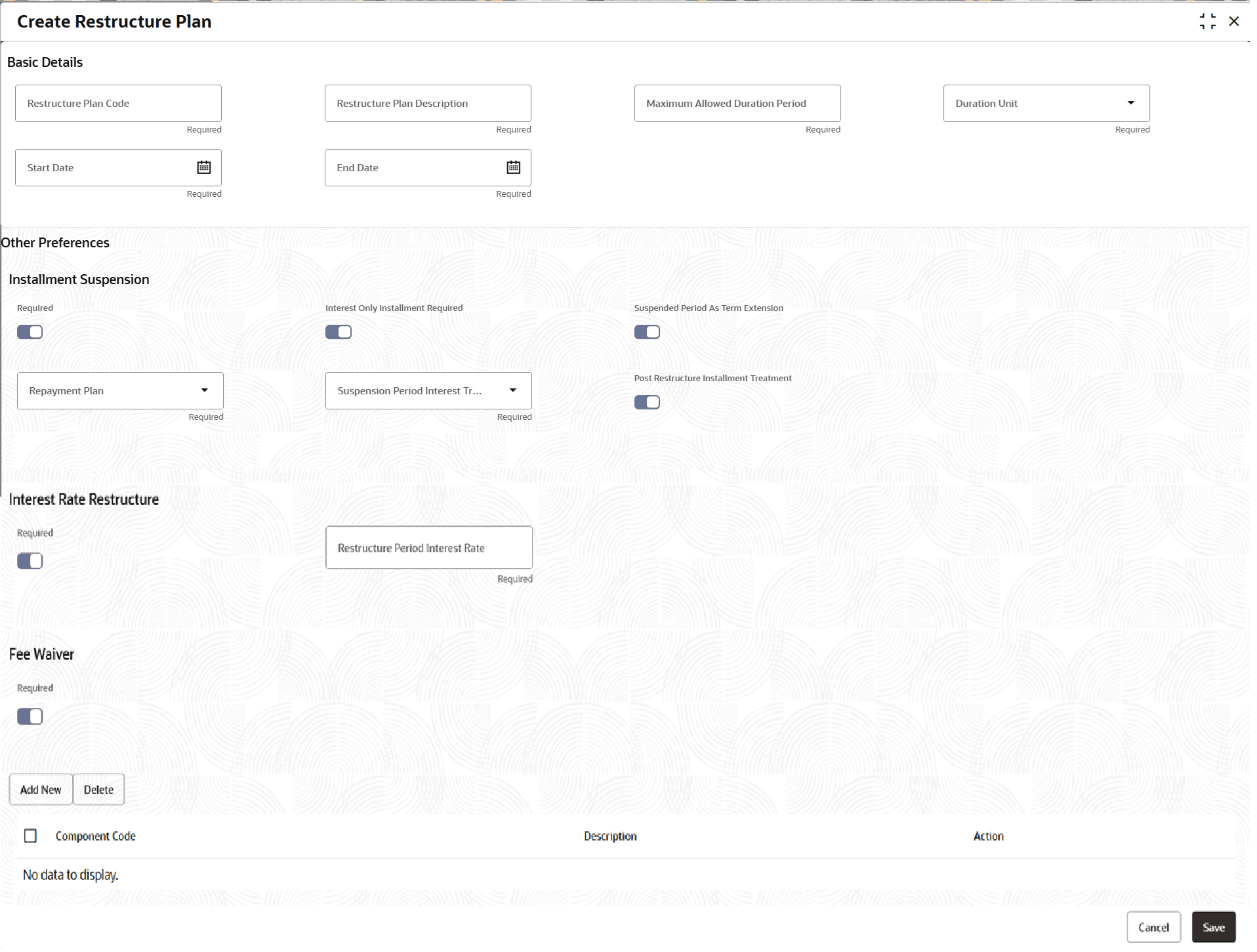
- Under Maintenance, click Restructure Plan, then click Create Restructure Plan.The Create Restructure Plan screen is displayed.
- Specify the fields on Create Restructure Plan
screen.For more information on fields, refer to the field description table.
Note:
The fields marked as Required are mandatory.Table 2-58 Create Restructure Plan - Field Description
Field Description Restructure Plan Code Specify the unique plan code. Restructure Plan Description Specify the description for plan code defined. Maximum Allowed Duration Period Specify the maximum allowed period for benefit plan to a lending account. The benefit plan can be applied to a Lending Account multiple times, but the total cumulative period cannot exceed the specified limit. Duration Unit Select the units from the drop-down list. The available options are:- Months
Start Date Specify the start date for the benefit plan. End Date Specify the end date for the account condition to effect. Installment Suspension The fields under Installment Suspension are described below: Required Click the toggle status to indicate the installment suspension is required. When enabled, following additional details to be captured. Interest Only Installment Required Click the toggle status to indicate if installment suspension period to be treated as Interest Only Installment. Borrower will need to pay only the interest during suspension period. This is for future use. Suspension Period as Term Extension Click the toggle status to indicate if loan term to be extended by the term of installment suspension. When not enabled, maturity date of loan remains same and installment amount on maturity date will balloon up. Note: Loan term extension is the default option supported on installment suspension.
Repayment Plan This refers to the repayment options at the end of installment suspension period. Following options are supported. - Payment Deferral refers to deferring the missed payment until the maturity date of loan. Deferred amount is paid at the end of the loan term along with final installment. The allowed values are defined by look up type REPAYMENT_PLAN.
Note: The other options of the look up are for future use.
Suspension Period Interest Treatment This refers to the treatment of interest post the installment suspension period. Following options are supported. - Carry Forward to First Installment -The interest amount of suspended period is carried forward to first installment due after the suspension period. If this interest amount is more than the installment amount, then the additional interest is carried forward to subsequent installment. The allowed values are defined by look up type RESTR_SUSP_INT_BEHAVIOUR.
Note: The other options of the look up are for future use.
Post Restructure Installment Treatment This field is for future use.
Interest Rate Restructure The fields under Interest Rate Restructure are described below: Required Click the toggle status to indicate whether interest rate restructure is required. When enabled, the system will capture the reduced interest rate or period value from the servicing layer and apply it to the lending account. Restructure Period Interest Rate Specify the net interest rate considered during restructure period. Fee Waiver The fields under Fee Waiver are described below: Required Click the toggle status to indicates whether a fee waiver (for any fees not linked to installments) is required. When enabled, the system will capture the component values and waiver details from the servicing layer and apply them to the lending account. Add New Click this icon to add fee waiver details. Component Code Select the component code from the drop-down list. The system to fetch from Business Component Maintenance - Fee Type Component (Active and Open Records ). Component Code Description Displays the description of the component code selected. - Click Save to save the details.The Lookups is successfully created and can be viewed using the View Restructure Plan screen.
Parent topic: Restructure Plan