3.7.3.2.1.2 Paying by Pay Advance Option
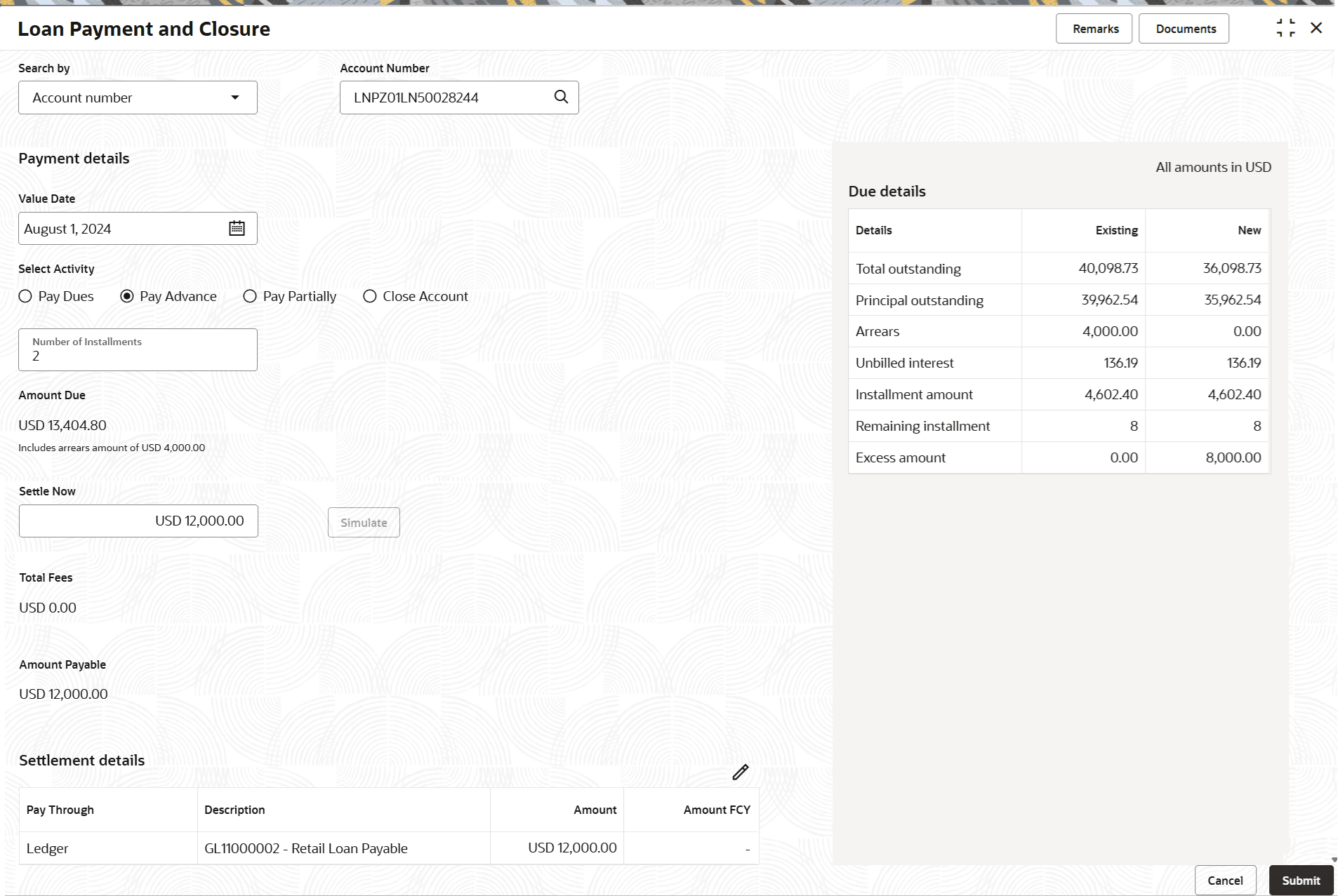
User can pay by submitting the advance amount. The Pay Advance option will not be accessible if the loan account is past the maturity date.
- From the Select Activity field, select Pay
Advance option.The fields related to Pay Advance option are displayed.
- On Loan Payment and Closure screen, specify the fields. For more
information on fields, refer to field description table below:
Table 3-77 Pay Advance - Field Description
Field Description Select Activity Select the Pay Advance for paying the payment. Note:
For details on additional choices, refer Paying by Pay Due Option, Paying by Partially Pay Off Option, and Paying by Close Account Option.Number of Installments Specify the number of installments for payment. Amount Due Displays the total loan amount to be paid. The arrear inclusion amount is displayed below in this field.
Settle Now Displays the amount to be paid and it is editable. Once the amount is modified, the Simulate option becomes available, and when it is clicked on, the due details are updated and shown.
Total Fees Displays the fees amount to be paid. Fees Treatment There are two options to select the payment, that is Pay Now, and Waive. If Waive is selected, the total fees is updated as 0.
Amount Payable Specify the total payment loan amount. Note:
An amount that is less than or equal to the total dues needs to be specified by the user to move forward successfully.Settlement Details It displays the settlement details. Click
 to edit the settlement details.
Parent topic: Payment and Closure Details for Non-Billing Accounts