3.9.6 Interest Rate Inquiry
User can view the interest rate history with individual details using the Interest Rate Inquiry screen.
To perform interest rate inquiry:
Note:
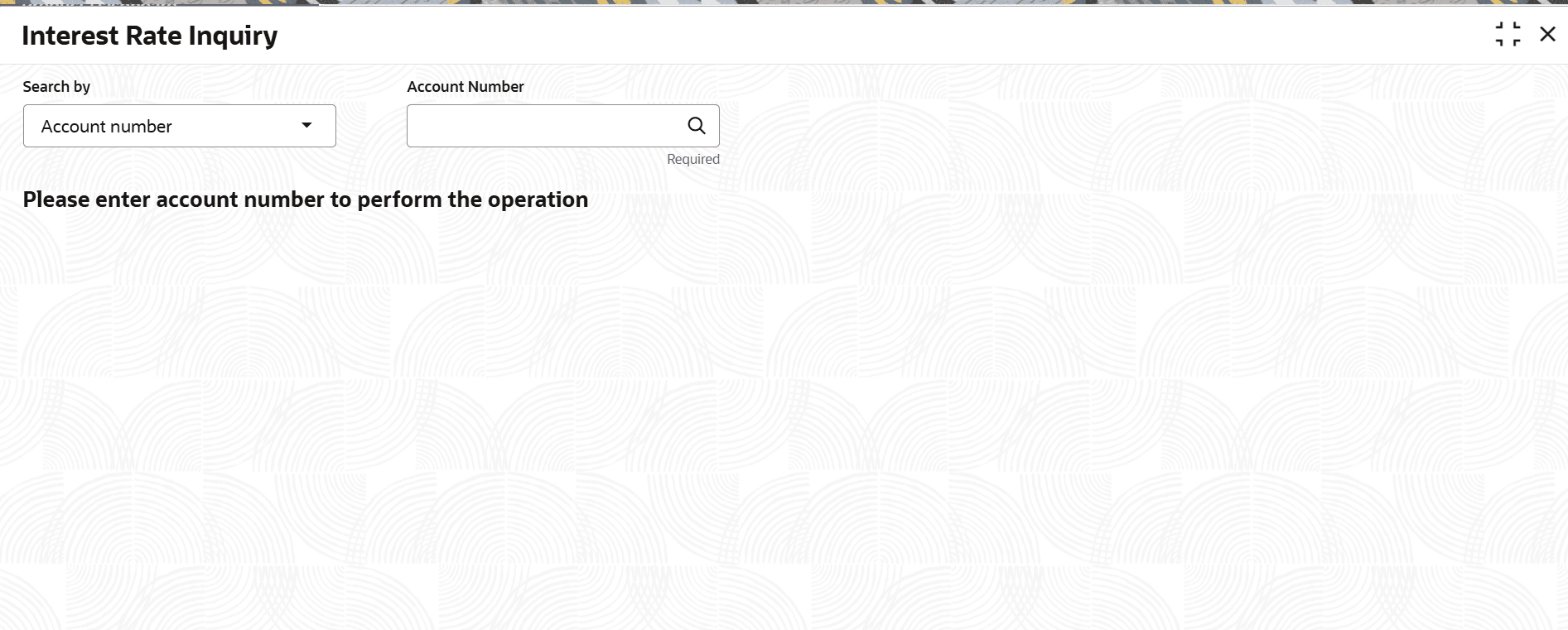
The fields marked as Required are mandatory.- On the Home screen, from Retail Lending Services mega menu, under Schedule, click Interest Rate Inquiry. User can also open the screen by specifying Interest Rate Inquiry in the search icon bar and selecting the screen.The Interest Rate Inquiry screen is displayed.
- Perform the required action, based on the option selected from the
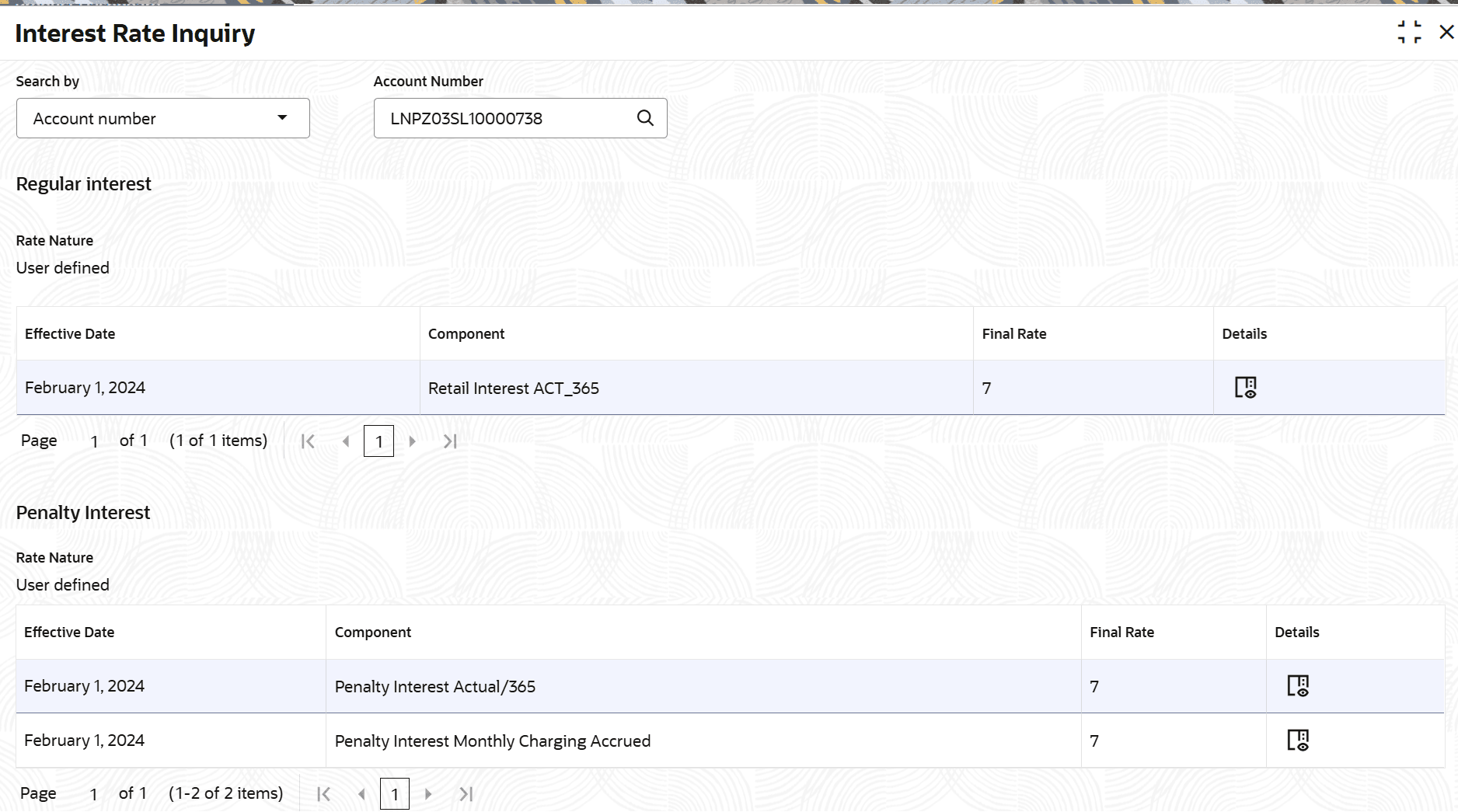
Search by field.The interest rate details are displayed.
- On the Interest Rate Inquiry screen, view the interest rate details. For more information on fields, refer to field description table below:
Table 3-115 Interest Rate Inquiry – Field Description
Field Description Search by Users can search for an account number by using any of the available search criteria. The account number is set as the default search option. Users can specify the account number directly in the adjacent field or search for an account number by clicking the Search icon. Users can also search for the specific account number by providing customer ID, account number, or account name.
Other search options available in the Search by field are Customer ID, Tax Identification Number, Mobile Number, and Email.A specific customer ID can be searched by providing the customer name or customer ID. If Tax Identification Number, mobile, or email IDs are chosen to find an account number, the respective IDs have to be input entirely in the adjacent field for the system to display the account number. For a given search criteria, multiple account numbers may be linked.
For example, two or more account numbers can be linked to a single mobile number. In such cases, the system displays all the account number matches and the user can select the relevant account number on which to perform a servicing operation.Note: The label of the field adjacent to the Search by field changes dynamically. For example, if the Account number is chosen as the search criteria, the label of the adjacent field is displayed as the Account Number. If Tax Identification Number is chosen as the search criteria, then the adjacent field would display the label as Tax Identification Number.
Regular Interest This section displays the regular interest details. Rate Nature Displays the nature of interest. The possible options are: - Rate Code
- User Defined
Effective Date Displays the date from which the interest was effective. Component Displays the component for the interest rate. Rate Code Displays the interest rate code. This field is displayed if the Rate Nature is displayed as Rate Code.
Rate Type Displays the rate type for the interest. This field is displayed if the Rate Nature is displayed as Rate Code.
Final Rate Displays the final rate for the interest rate. Details Click  to view more details on the regular interest.
Penalty Interest This section displays the penalty interest details. Effective Date Displays the date from which the interest was effective. Component Displays the component for the interest rate. Rate Code Displays the interest rate code. This field is displayed if the Rate Nature is displayed as Rate Code.
Rate Type Displays the rate type for the interest. This field is displayed if the Rate Nature is displayed as Rate Code.
Final Rate Displays the final rate for the interest rate. Details Click to view more details on the penalty interest.
- To view more details on the regular or penalty interest:
- In the Regular interest section, click from the Details field.
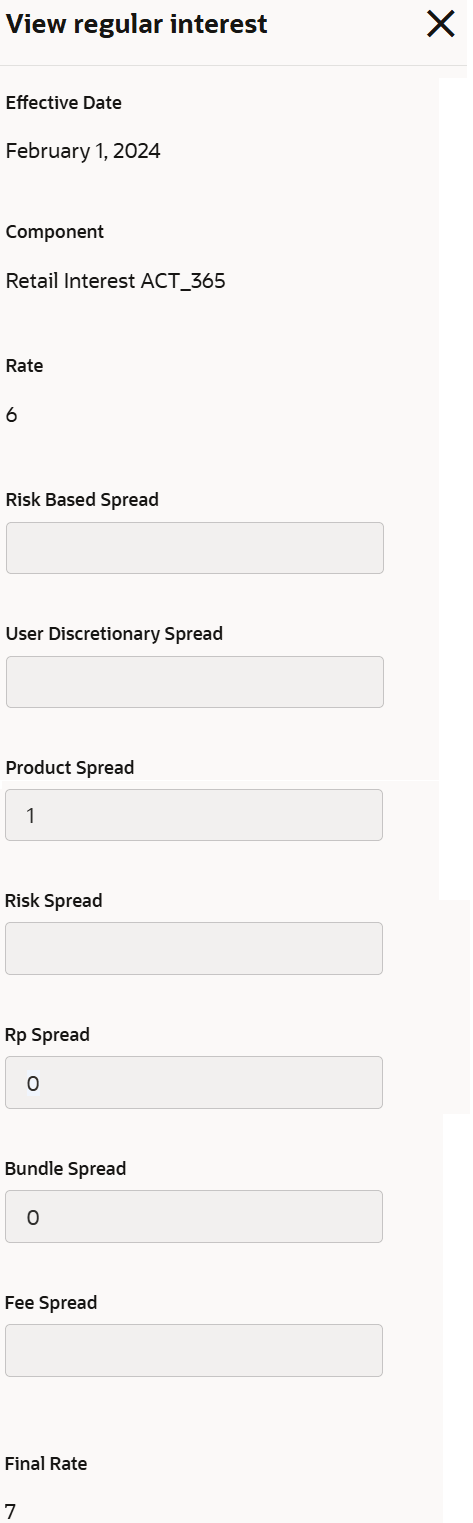
The View regular interest section is displayed to the right of the screen.
- In the Penalty interest section, click from the Details field.
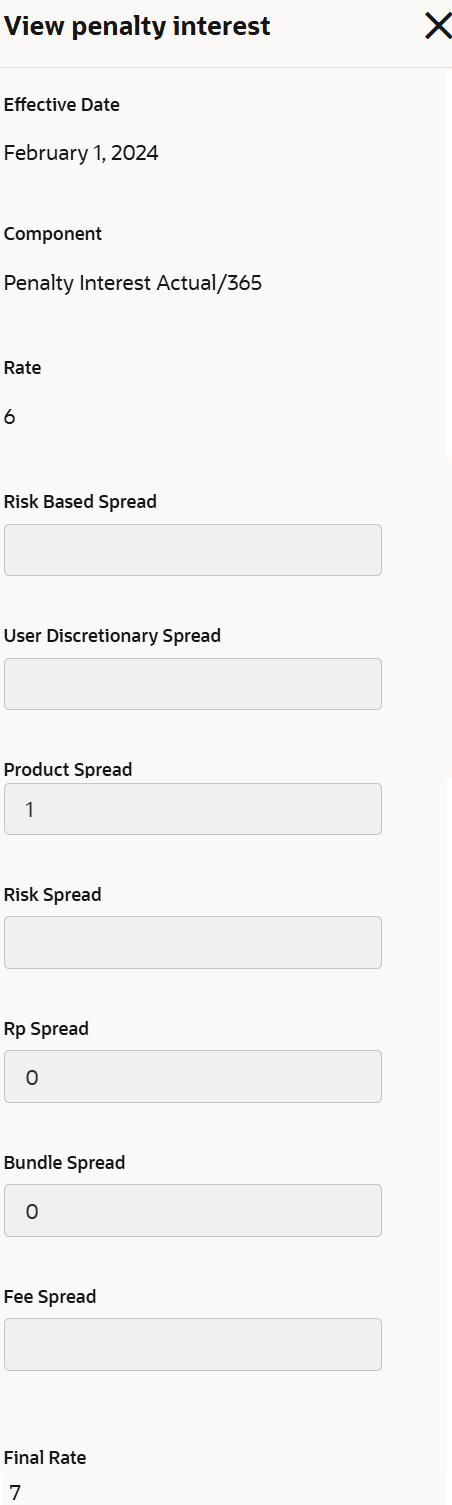
The View penalty interest section is displayed to the right of the screen.
- In the View regular interest or View penalty interestsection, view the details. For more information on fields, refer to field description table:
Table 3-116 View Interest Details - Field Description
Field Description Effective Date Displays the date from which the interest was effective. Component Displays the component for the interest rate. Rate Displays the rate of interest. Risk Based Spread Displays the portion of the interest rate offered to borrowers that specifically compensates the bank for the borrower’s credit risk or other risks inherent in lending. User Discretionary Spread Displays the interest rate margin that is applied to a loan or financial product at the discretion of the relationship manager, lender, or bank officer. Product Spread Displays the specific margin or interest rate differential added to the base rate for a particular banking product. Risk Spread Displays the portion of the interest rate charged on a loan, that specifically compensates the bank or lender for taking on credit risk or other borrower-related risks. Rp Spread Displays the risk premium spread Bundle Spread Displays the total interest rate margin or spread that is the sum of multiple individual pricing components, or spreads, bundled together to form the overall price offered to a customer. Fee Spread Displays the margin or difference between the fees collected from customers and the underlying expenses or costs the bank incurs to provide those services. Final Rate Displays the total interest rate that a customer is ultimately charged or receives on a loan, after all relevant pricing components and adjustments have been applied.
- In the Regular interest section, click
Parent topic: Schedule