| Date |
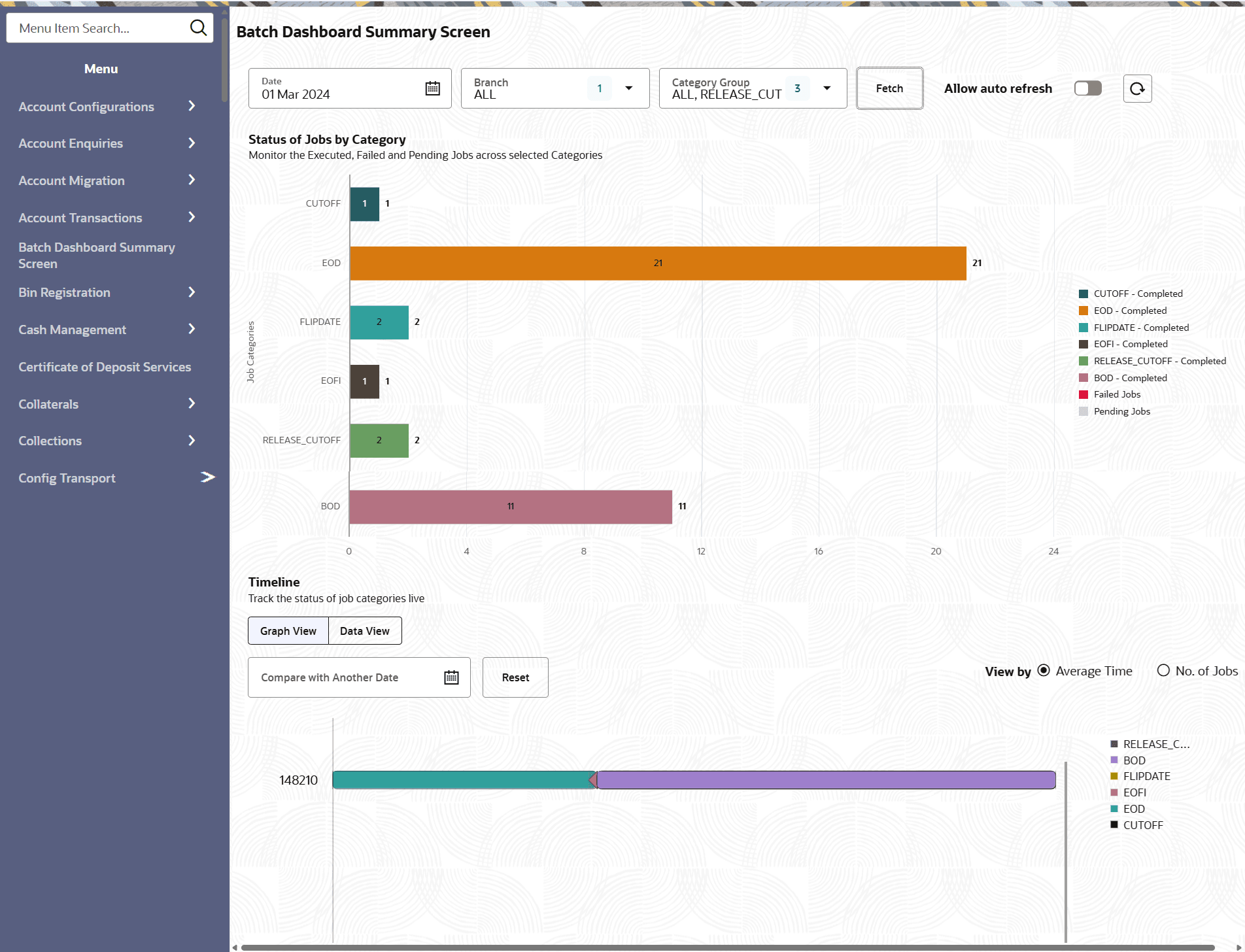
Specifies the business date for which batch execution details are to be viewed. Only jobs executed for the selected date are displayed. |
| Branch |
Specifies the branch or branches whose batch execution details are to be displayed. Multiple branches can be selected, if supported. |
| Category Group |
Specifies the batch category group to be monitored. One or more category groups can be selected to view the corresponding job status and execution metrics. |
| Allow Auto Refresh |
Enables automatic refresh of dashboard data at predefined intervals to display the latest batch execution status. |
| Status of Jobs by Category |
Displays the execution status of jobs grouped by category. The chart shows completed, failed, and pending jobs for each selected category. |
| Job Categories |
Represents the batch processing categories such as BOD, EOD, EOFI, FLIPDATE, RELEASE_CUTOFF, and CUTOFF. |
| Completed Jobs |
Indicates the number of jobs that have completed successfully within a category. |
| Failed Jobs |
Indicates the number of jobs that have failed during execution within a category. |
| Pending Jobs |
Indicates the number of jobs that are yet to start or are currently waiting for execution. |
| Timeline |
Displays the execution timeline of selected job categories, enabling users to monitor batch progression and duration. |
| Graph View |
Displays timeline and status information in graphical format. |
| Data View |
Displays timeline and status information in tabular format. |
| Compare with Another Date |
Allows comparison of batch execution metrics and timelines with another business date. |
| View By – Average Time |
Displays the average execution time for each batch category in the timeline view. |
| View By – No. of Jobs |
Displays the number of jobs executed for each batch category in the timeline view. |
| Category Legend |
Provides a color-coded reference for the batch categories displayed in the charts and timeline. |
| Chart Legend and Descriptions |
Displays legend and descriptions.
- BOD- Beginning of Day batch processing jobs.
- EOD- End of Day batch processing jobs.
- EOFI- End of Financial Input batch processing jobs.
- FLIPDATE- Batch process responsible for business date transition.
- RELEASE_CUTOFF- Batch jobs executed during release cutoff processing.
- CUTOFF- Batch jobs executed as part of cutoff processing activities.
- Completed- Jobs that completed successfully.
- Failed Jobs- Jobs that terminated with errors.
- Pending Jobs- Jobs that are waiting for execution or completion.
|
 icon to refresh the details displayed on the screen.