5 Configure Weblogic Console
After the user creates the domain, the SSL needs to be enabled in the WebLogic admin server.
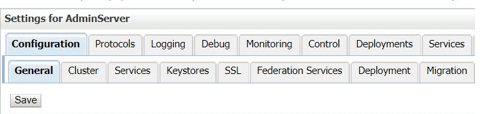
- Select Admin Server to enable SSL options.
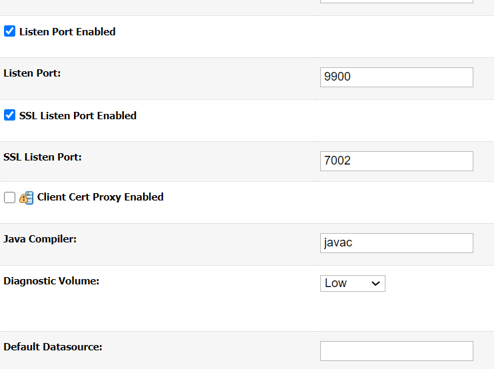
- In the General tab, follow the steps below:
- Select SSL Listen Port Enabled, Client Cert Proxy Enabled, and then Weblogic Plug-In Enabled.
- Click Save.
- Select SSL Listen Port Enabled, Client Cert Proxy Enabled, and then Weblogic Plug-In Enabled.
- In the Keystores tab, follow the below steps:
- In the Keystores tab, specify the details. For more information on fields, refer to the field description table.
Table 5-1 Keystores - Field Description
Field Description Custom Identity Keystore and Custom Trust Keystore
Specify the value as same as the Keystore Name created in the above steps with full path.
Custom Identity Keystore Type and Custom Trust Keystore Type
Specify the value as jks.
Custom Identity Keystore Passphrase, Confirm Custom Identity Keystore Passphrase, Custom Trust Keystore Passphrase, and Confirm Custom Trust Keystore Passphrase
Specify the value as same as the Store Password entered in the above steps.
- Click Save.
- In the Keystores tab, specify the details. For more information on fields, refer to the field description table.
- In the SSL tab, follow the below steps:
- In the SSL tab, specify the details. For more information on fields, refer to the field description table.
Table 5-2 SSL - Field Description
Field Description Private Key Alias
Specify the value as same as the alias name entered in the above steps.
Private Key Passphrase and Confirm Private Key Passphrase
Specify the value as same as the Private Key Password entered in the above steps.
Hostname Verification
Change the value to None.
- Click Save.The screen with the Hostname Verification option is displayed.
- Repeat steps (a) thru (d) for all the managed servers.The admin server and managed servers are SSL enabled.
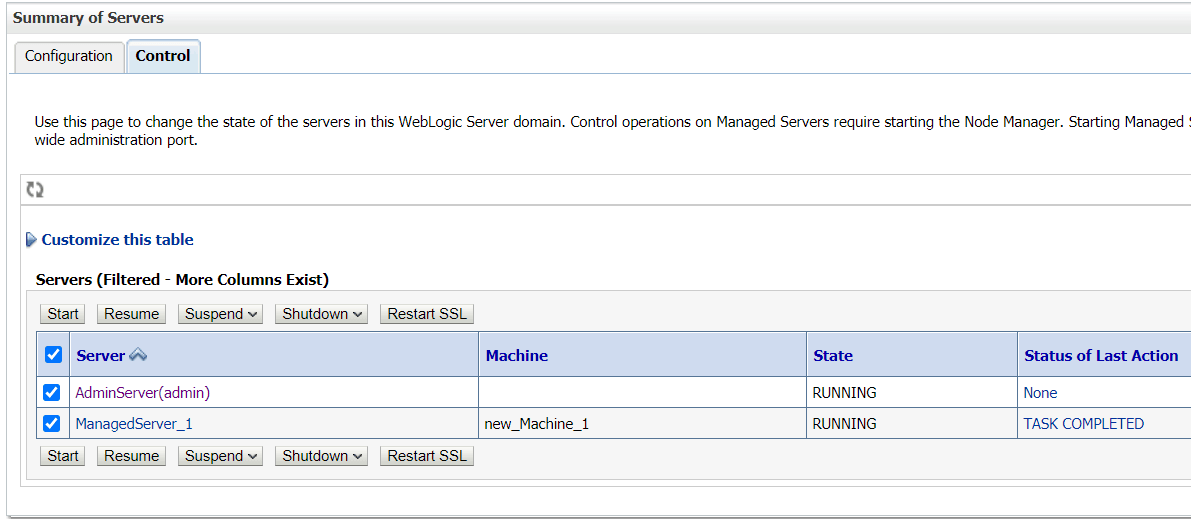
- Restart all the servers.
- In the SSL tab, specify the details. For more information on fields, refer to the field description table.