7 Setting SSL Attributes for Managed Servers

User needs to configure the SSL attributes of the private key alias and password for the managed servers.

Prerequisiste: Log in to the Homepage of the Oracle Weblogic Server Admin Console.
To configure the private key alias and password:
  1. On the Homepage, under Change Center, click Lock and Edit.
  2. Expand the Servers node.
  3. Select the name of the server, to configure keystores.
    For example, exampleserver.
  4. Navigate to Configuration and select the SSL tab.
  5. From Identity and Trust Locations, select Keystores.
  6. In the Identity section, specify the details. For more information on fields, refer to the field description table.

    Table 7-1 Identity Section - Field Description

    Field Description

    Private Key Alias

    Set this attribute to the alias name defined for the key pair when creating the key pair in the Identity keystore.

    Private Key Passphrase

    The password is defined for the key pair (alias_password), at the time of its creation. Confirm the password.

  7. Click Save.
  8. Under Change Center, click Activate changes.
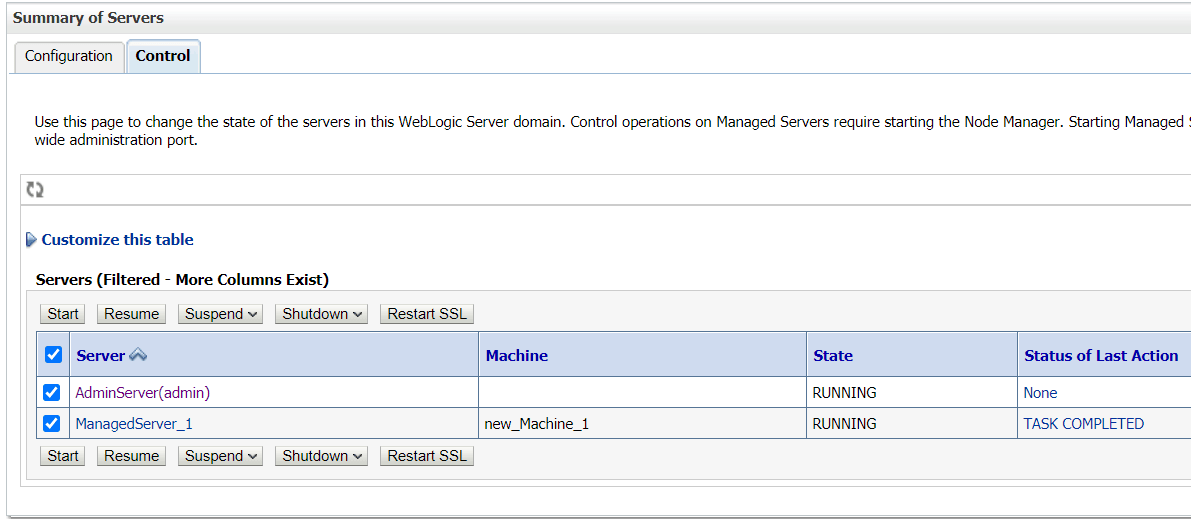
  9. Navigate to the Controls tab, check the appropriate server, and click Restart SSL.
  10. Click Confirm, when it prompts.
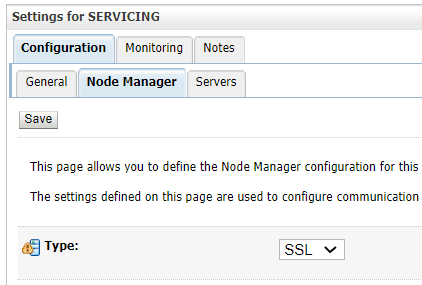
    The screen with settings is displayed as shown in the figures.
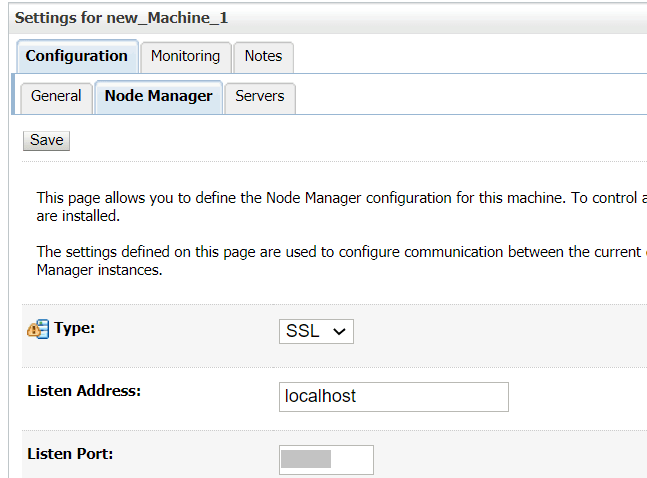
    Figure 7-1 Settings for New Machine


    Figure 7-2 Settings for Servicing