7.2 Charge Inquiry
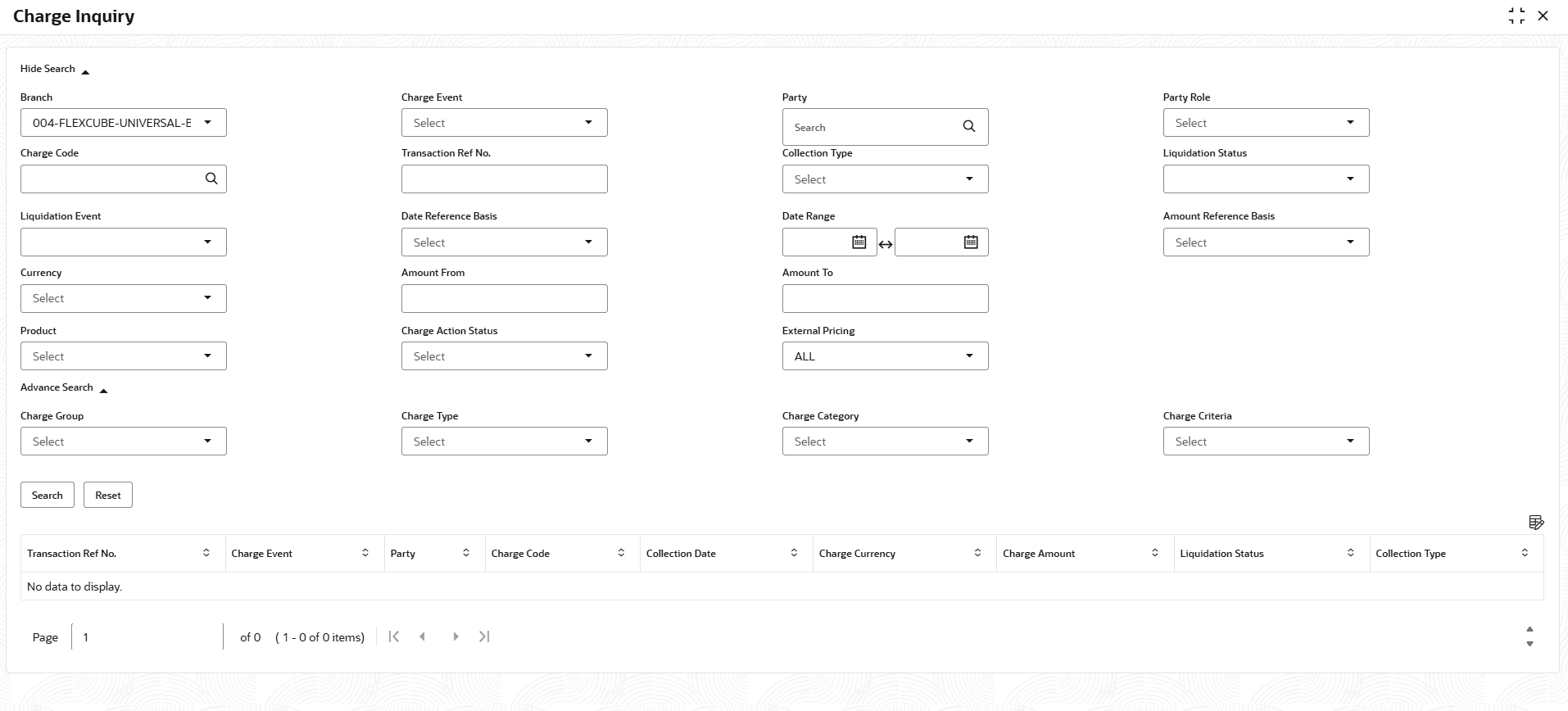
This topic describes the systematic instruction to search for charges based on various criteria such as Branch, Event, Party, Party Role, Product, Charge Type, and so on.
- On Home screen, click Supply Chain Finance. Under Supply Chain Finance, click Inquiry.
- Under Inquiry, click Charge
Inquiry.The Charge Inquiry screen displays.
- Specify the fields on Charge Inquiry screen.
Note:
The fields marked as Required are mandatory.For more information on fields, refer to the field description table.
Table 7-2 Charge Inquiry - Field Description
Field Description Branch Select the required branch to proceed further. By default, the branch of the logged-in user is selected. Charge Event Select the event to which the charge is applicable.
The available options are:- Amendment
- Disbursement
- Disbursement Reversal
- Settlement
- Settlement Reversal
Party Click the Search icon and select the party that has been charged. Party Role Select the role of the party.
The available options are:- Buyer
- Import Factor
- Insurance Party
- Supplier
Charge Code Click the Search icon and select the charge code to inquire for. Transaction Ref No. Specify the reference number or charge reference number to inquire for. Collection Type Select collection type from the drop-down. The available options are: - Periodic
- Deferred
- Online
Liquidation Status Select liquidation type from the drop-down list. The available options are: - Liquidated
- Not Liquidated
- Partially Liquidated
Liquidation Event Select liquidation event from the drop-down list. The available options are: - Amendment
- Amendment Reversal
- Disbursement
- Disbursement Reversal
- Settlement
- Settlement Reversal
Date Reference Basis Select the type of date range to be applied for search.
- Calculation Date – To list all relevant charges only on the basis of calculation irrespective of its posting details.
- Posting Date – To list all relevant charges only on the basis of posting irrespective of when it was calculated.
Date Range Click the Calendar icon and select the start date and end date of the date range. Amount Reference Basis Select amount reference basis from the drop-down list. The available options are: - Charge Amount
- Charge Liquidation Amount
- Charge Outstanding Amount
Currency Select the currency from the drop-down list. Amount From Specify the start of the amount-range within which the payment needs to be searched. Amount To Specify the end of the amount-range within which the payment needs to be searched. Product Select the product to which the charge is applicable. Charge Action Status Select the value to specify the status of charge.
The available options are:- Auto Waived
- Modified
- Overridden
- Waived
External Pricing Select the value to specify whether external pricing is applied.
The available options are:- ALL
- Yes
- No
Charge Group Select the group to which the charge code belongs.
The available options are:- Commission
- Fees
- Rebates
- Tax
Charge Type Select the value to specify whether the type of charge is Debit or Credit. Charge Category Select the value to specify whether the category of charge is Standard or Tax. Charge Criteria Select charge criteria from the drop-down. The available options are: - Assignment Amount
- Base Invoice Amount
- Base PO Amount
- Finance Amount
- Invoice Acceptance Amount
- Net Invoice Amount
- Parent Charge Code
- PO Acceptance Amount
- Net PO Amount
- Total Invoice Amount
- Total PO Amount
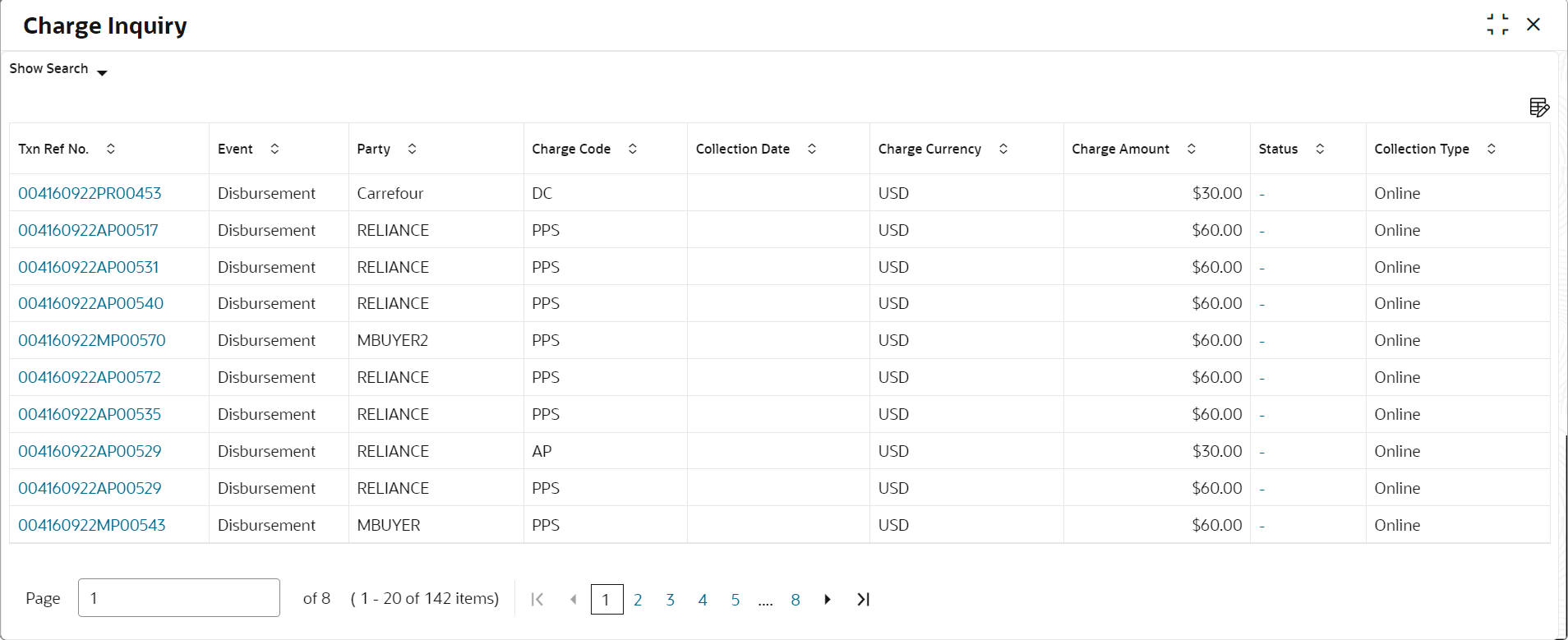
- Click Search to view the search results.The Charge Inquiry - Search Results screen displays.
Figure 7-4 Charge Inquiry - Search Results
- Click on the hyperlink data in the Txn Ref No. column to view more details of the record.
Parent topic: Inquiries