3.3.5 Additional Details
This topic provides the systematic instructions to capture the additional details
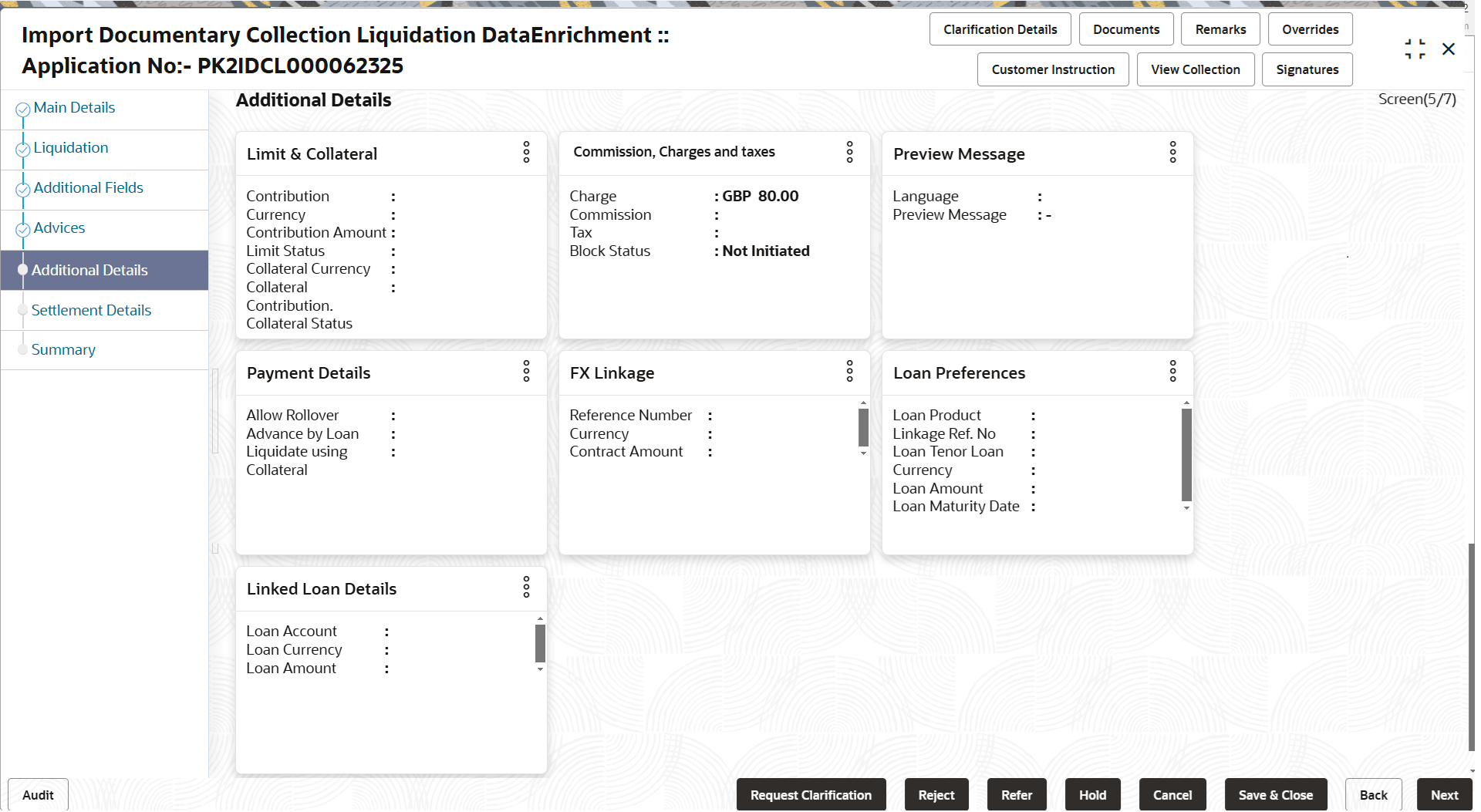
- On Additional Details screen, click the 3 dots on any
Additional Details tile to view the details.
Commission, Charges and Taxes
This section displays Commission, Charges and Tax details.
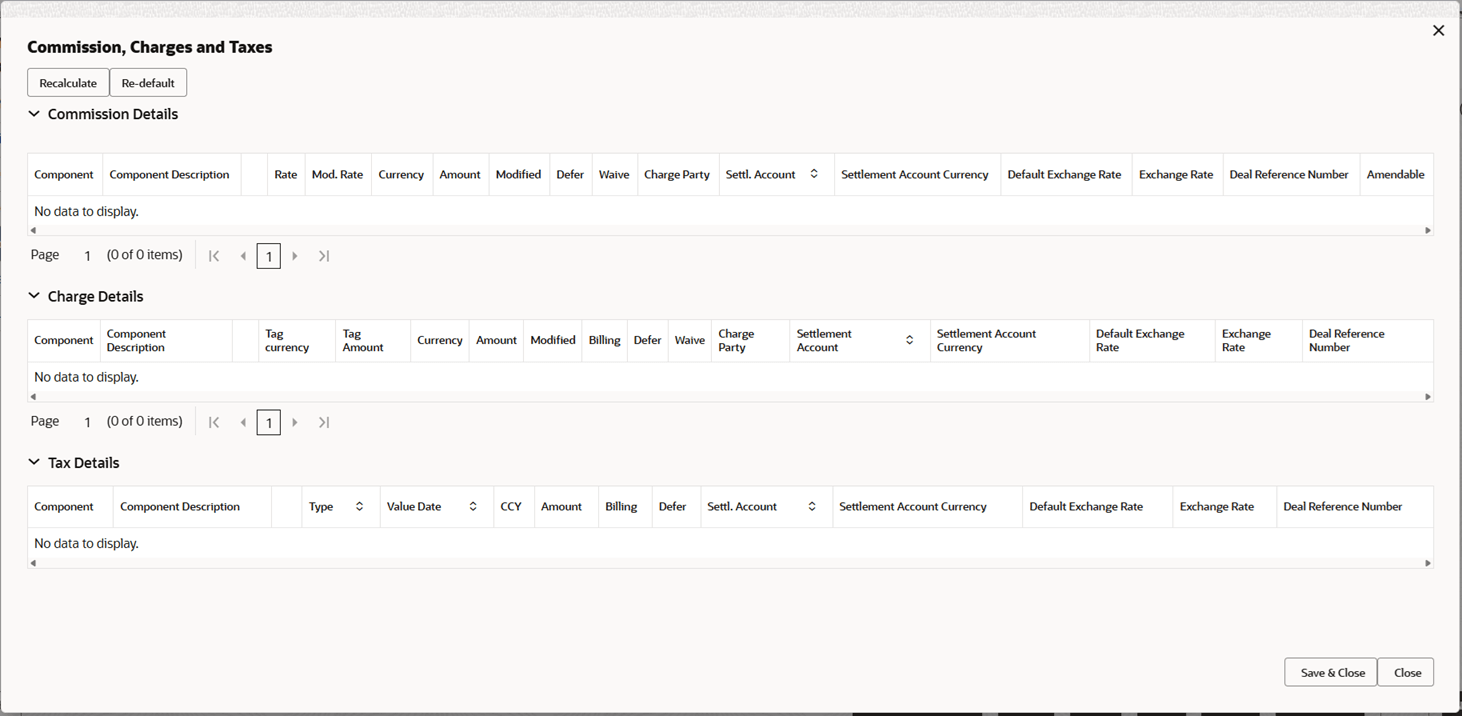
Description of the illustration dechargedetails.pngFor more information on fields, refer to the field description table below.
Table 3-18 Commission, Charges and Taxes - Field Description
Field Description Commission Details This section displays the commission details. By default, all the charges, commission and margin are collected from the counter-party.
Component Displays the commission component. Click the link to view the commission component details.
Component Description Displays the commission component description. Rate Displays the rate that is defaulted from product. The commission rate, if available in Back Office defaults in OBTFPMCS. The user is able to change the rate.
If flat commission is applicable, then commission amount defaulted from back office is modifiable by the user. Rate field will be blank and the user cannot modify the Rate field.
Mod. Rate From the default value, if the rate is changed the value gets updated in this field. Currency This field displays the currency in which the commission have to be collected. Amount Displays the amount that is maintained under the product code. The commission rate, if available in Back Office defaults in OBTFPMCS. The user is able to change the rate, but not the commission amount directly. The amount gets modified based on the rate changed and the new amount is calculated in back office based on the new rate and is populated in OBTFPMCS.
If flat commission is applicable, then commission amount defaulted from back office is modifiable by the user. Rate field will be blank and the user cannot modify the Rate field.
Modified From the default value, if the rate is changed or the amount is changed, the value gets updated in the modified amount field. Defer Switch to  for charges/commissions has to be deferred and
collected at any future step.
for charges/commissions has to be deferred and
collected at any future step.
On simulation of charges/commission from Back Office, if any of the Charges/Commission component for the customer is AR-AP tracking enabled, ‘Defer’ toggle for that component should be automatically checked in OBTFPMCS.
Waive Switch to to waive the charges/commissions.
Based on the customer maintenance, the charges/commission can be marked for Billing or Defer.
If the defaulted Commission is changed to defer or billing or waive, system must capture the user details and the modification details in the ‘Remarks’ place holder.
Charge Party Charge party will be applicant by defaultt. User can change the value to beneficiary.
Settlement Account Click Search to search and select the settlement account. Settlement Account Currency Read only field. This field displays the settlement account currency defaulted by the system.
Default Exchange Rate Read only field. This field displays the maintained exchange rate when the component currency differs from the settlement account currency.
Exchange Rate Specify Exchange Rate upto 4 decimal places, if applicable. System rounds off values beyond 4 decimals.- Do not specify Exchange Rate for
deferred charges, commission, and tax components
under AR-AP.
System restricts input for these components.
- Specify Exchange Rate within the
allowed range.
System allows save without any message.
- If Exchange Rate exceeds the
allowed range but is within the override band.
Click Save and Close.
System displays the override message - "Exchange Rate has exceeded Override Limit"
Proceed after accepting the override.
- If Exchange Rate exceeds the stop
limit. Click Save and Close.
System displays the error message - "Exchange Rate has exceeded Stop Limit"
System does not allow the transaction to proceed.
Note: In Payment Details section, except for liquidation components (e.g., BILL_LIQ_AMTEQ and LCGCLM_LIQD), settlement account currency, exchange rate, default exchange rate, and deal reference number fields are not editable for all other components.
Deal Reference Number Deal Reference Number allows up to 30 characters. Entries longer than 30 characters are not allowed.
Deal Reference Number can be specified only when Exchange Rate has a value. If Exchange Rate is blank and a Deal Reference Number is specified, the system displays: “Cannot add Deal Reference without specifying the Exchange Rate value.”
Amendable The value is auto-populated as the commission can be amended or not. Charge Details This section displays the charge details. Component Displays the charge component type. Tag Currency Displays the tag currency in which the charges have to be collected. Tag Amount Displays the tag amount that is maintained under the product code. Currency This field displays the currency in which the charges have to be collected. Amount This field displays the amount that is maintained under the product code. Modified From the default value, if the rate is changed or the amount is changed, the value gets updated in the modified amount field. Billing Switch to to make the details available for billing engine for
further processing, if charges are handled by separate
billing engine.
On simulation of charges/commission from Back Office, if any of the Charges/Commission component for the customer is ‘Billing’ enabled, ‘Billing’ toggle for that component should be automatically enabled in OBTFPMCS.
The user can not enable/disable the option, if it is de-selected by default.
This field is disabled, if ‘Defer’ toggle is enabled.
Defer Switch to to defer the charges and collect at any future
step.
On simulation of charges/commission from Back Office, if any of the Charges/Commission component for the customer is AR-AP tracking enabled, ‘Defer’ toggle for that component should be automatically checked in OBTFPMCS.
The user can enable/disable the option the check box. On de-selection the user has to click on ‘Recalculate’ charges button for re-simulation.
Waive Switch to to waive the charges.
Based on the customer maintenance, the charges should be marked for Billing or for Defer.
This field is disabled, if Defer toggle is enabled.
Charge Party Read only field. Displays the charge party. By default the charge party is ‘Applicant’.
Settlement Account System defaults the Settlement Account. User can change the settlement account.
Settlement Account Currency Read only field. This field displays the settlement account currency defaulted by the system.
Default Exchange Rate Read only field. This field displays the maintained exchange rate when the component currency differs from the settlement account currency.
Exchange Rate Specify Exchange Rate upto 4 decimal places, if applicable. System rounds off values beyond 4 decimals.- Do not specify Exchange Rate for
deferred charges, commission, and tax components
under AR-AP.
System restricts input for these components.
- Specify Exchange Rate within the
allowed range.
System allows save without any message.
- If Exchange Rate exceeds the
allowed range but is within the override band.
Click Save and Close.
System displays the override message - "Exchange Rate has exceeded Override Limit"
Proceed after accepting the override.
- If Exchange Rate exceeds the stop
limit. Click Save and Close.
System displays the error message - "Exchange Rate has exceeded Stop Limit"
System does not allow the transaction to proceed.
Note: In Payment Details section, except for liquidation components (e.g., BILL_LIQ_AMTEQ and LCGCLM_LIQD), settlement account currency, exchange rate, default exchange rate, and deal reference number fields are not editable for all other components.
Deal Reference Number Deal Reference Number allows up to 30 characters. Entries longer than 30 characters are not allowed.
Deal Reference Number can be specified only when Exchange Rate has a value. If Exchange Rate is blank and a Deal Reference Number is specified, the system displays: “Cannot add Deal Reference without specifying the Exchange Rate value.”
Tax Details This section displays the tax details. The tax component is calculated based on the commission and defaults if maintained at product level. User cannot update tax details and any change in tax amount on account of modification of charges/ commission will be available on click of Re-Calculate button or on hand off to back-end system.
Component Read only field. This field displays the tax component type.
Currency Read only field. This field displays the currency in which the tax have to be collected.
The tax currency is the same as the commission.
Amount Read only field. This field displays the tax amount based on the percentage of commission maintained.
Billing Switch to to make the details available for billing engine for
further processing, if taxes are handled by separate billing
engine.
This field is disabled, if ‘Defer’ toggle is enabled.
Defer Switch to to defer the taxes and collect at any future step.
Switch to
 if you do not want to defer the taxes.
On disabling the user has to click on ‘Recalculate’ charges button for re-simulation.
Settlement Account System defaults the Settlement Account. Click Search to search and select the settlement account.
Settlement Account Currency Read only field. This field displays the settlement account currency defaulted by the system.
Default Exchange Rate Read only field. This field displays the maintained exchange rate when the component currency differs from the settlement account currency.
Exchange Rate Specify Exchange Rate upto 4 decimal places, if applicable. System rounds off values beyond 4 decimals.- Do not specify Exchange Rate for
deferred charges, commission, and tax components
under AR-AP.
System restricts input for these components.
- Specify Exchange Rate within the
allowed range.
System allows save without any message.
- If Exchange Rate exceeds the
allowed range but is within the override band.
Click Save and Close.
System displays the override message - "Exchange Rate has exceeded Override Limit"
Proceed after accepting the override.
- If Exchange Rate exceeds the stop
limit. Click Save and Close.
System displays the error message - "Exchange Rate has exceeded Stop Limit"
System does not allow the transaction to proceed.
Note: In Payment Details section, except for liquidation components (e.g., BILL_LIQ_AMTEQ and LCGCLM_LIQD), settlement account currency, exchange rate, default exchange rate, and deal reference number fields are not editable for all other components.
Deal Reference Number Deal Reference Number allows up to 30 characters. Entries longer than 30 characters are not allowed.
Deal Reference Number can be specified only when Exchange Rate has a value. If Exchange Rate is blank and a Deal Reference Number is specified, the system displays: “Cannot add Deal Reference without specifying the Exchange Rate value.”
- Do not specify Exchange Rate for
deferred charges, commission, and tax components
under AR-AP.
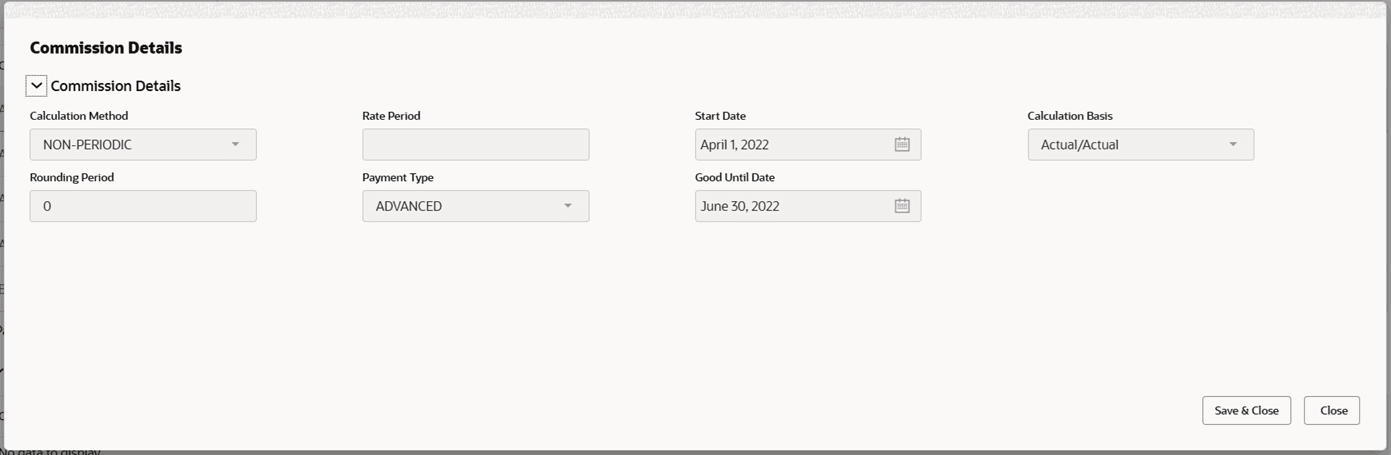
- Click the required listed Component to open
Commission Details sub-screen.
Commission, Charges and Taxes
For more information on fields, refer to the field description table below.
Table 3-19 Commission, Charges and Taxes - Field Description
Field Description Commission Details Specify the commission details. Calculation Method Select the Calculation Method for commission from the following: - Non-Periodic
- Flat
This field defines how the commission amount is calculated.
Rate Period This field displays the Rate Period for the commission component. Start Date Specify the date from which commission calculation starts. Calculation Basis Select the day count basis for commission calculation. This field determines how the number of days are calculated for computing commission.
Rounding Period This field displays the Rounding Period defined for the commission. This field indicates how commission values are rounded during calculation.
Payment Type This field displays the commission collection type for the contract. This field indicates whether the commission is collected in advance or in arrear based on the selected collection method.
Good Until Date This field displays the end date for commission calculation. This field indicates the date up to which commission is applicable, typically the bill maturity date.
- Click Save and Close to save the details and close the
screen.Preview Message
The bank user can view a preview of the outgoing SWIFT message and advise simulated from back office.
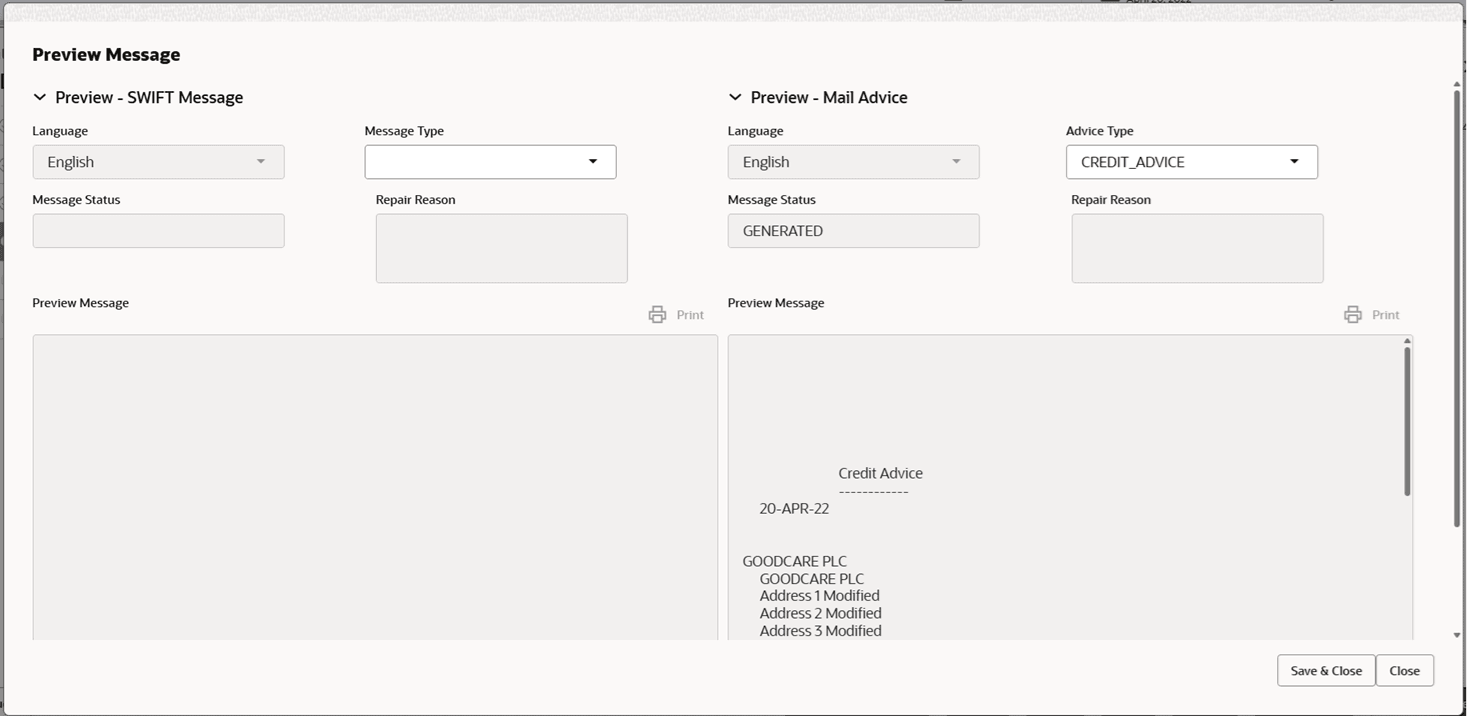
Description of the illustration deadditionaldetailspreview.pngFor more information on fields, refer to the field description table below.
Table 3-20 Preview Message - Field Description
Field Description Preview SWIFT Message This section displays the preview of SWIFT Messages fields. Language Read only field. English is set as default language for the preview.
Message Type Select the message type from the drop down. User can choose to see preview of different message like MT 700, MT 740 and MT 701. Message Status Read only field. Display the message status of draft message of liquidation details.
Repair Reason Read only field. Display the message repair reason of draft message of liquidation details.
Preview Message This field displays a preview of the draft message. Preview Mail Advice This section displays the preview of Mail Advice fields. Language Read only field. English is set as default language for the preview.
Advice Type Select the advice type. Message Status Read only field. Display the message status of draft message of liquidation details.
Repair Reason Read only field. Display the message repair reason of draft message of liquidation details.
Preview Message This field displays a preview of the draft message. Print (SWIFT messages) If the required SMS rights are available, user can print SWIFT message previews and enquiry views, and Mail advice previews and enquiry views.
Printed output matches the back-office format and includes a watermark based on context: DRAFT MESSAGE/DRAFT ADVICE for previews and midoffice enquiries, and COPY MESSAGE/COPY ADVICE for back-office enquiries.Note: If printing fails due to a technical issue (for example, printer, workstation, or connectivity issues), the system displays the error message: “Unable to Print. Try again later !”
Print (Mail advices) If the required SMS rights are available, user can print Mail advice previews and enquiry views. Printed output matches the back-office format and includes a watermark based on context: DRAFT MESSAGE/DRAFT ADVICE for previews and midoffice enquiries, and COPY MESSAGE/COPY ADVICE for back-office enquiries. Note: If printing fails due to a technical issue (for example, printer, workstation, or connectivity issues), the system displays the error message: “Unable to Print. Try again later !”
- Click Save and Close to save the details and close the
screen.
Payment Details
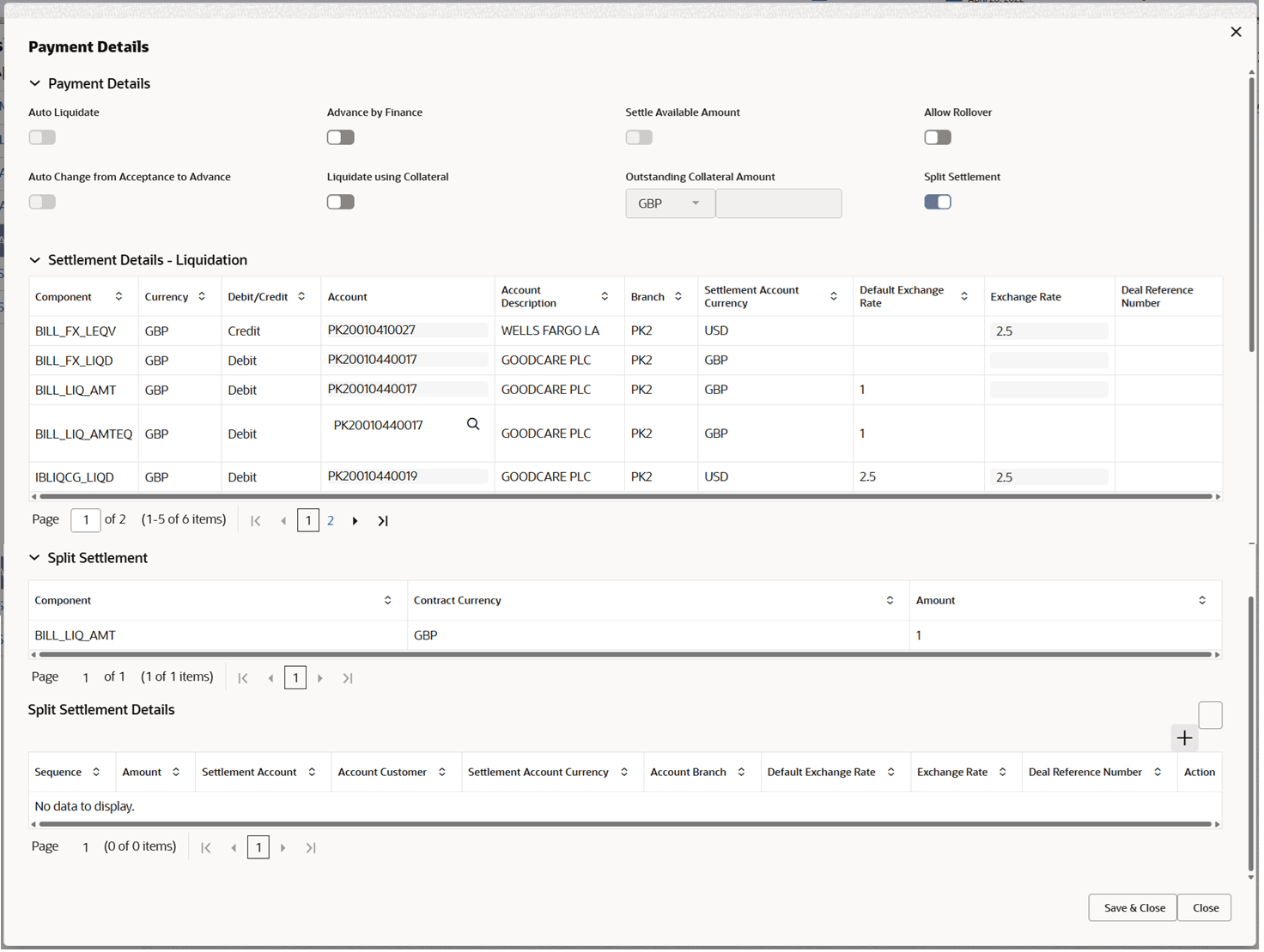
Description of the illustration depaymentdetails.pngFor more information on fields, refer to the field description table below.
Table 3-21 Payment Details - Field Description
Field Description Payment Details Specify the payment details based on the description in the following table: Auto Liquidate Read only field. Auto Liquidation enables liquidation of the bill on the due date automatically from the back office system.
Advance by Loan Switch to to enable the creation of loan at the time of final
liquidation.
System defaults the value as per the value available in contract in back office. User can change value.Note:
Bill product should support Advance by loan, for enabling Advance by loan at contract level.Settle Available Amount Switch to , if during settlement, the amount as available in
the CASA account of the customer has to be utilized and for
the balance if a loan has to be availed.
Allow Rollover Switch to , if rollover is allowed.
Auto Change from Acceptance to Advance Read only field. Thisoption indicates whether an Acceptance type of
bill should be automatically converted into an Advance
type of bill on its liquidation date.
Note:
This option is applicable only for the bills that are co-accepted by the bank.Liquidate using Collateral Switch to , if liquidation is done using collateral.
Outstanding Collateral Amount Read only field. The outstanding collateral amount along with the currency.
Split Settlement Switch to , to select more than one account for settlement
(Split Settlement) for the liquidation of an import or
export drawing or collection bill.
Switch to
to disable the user to select more than one
account for settlement (Split Settlement) for the
liquidation of an import or export drawing or collection
bill.
Settlement Details - Liquidation This section displays the Settlement Details - Liquidation details. When Advance by loan option is selected, system simulate and display the settlement details along with split settlement detail for loan component and settlement account as Loan GL as defined at product level. If contract currency and Debit account currency is different system defaults card rate. User can change Exchange rate if there any specific Exchange Rate If FX contract linked, system considers the linked FX for the conversion.
Component This field displays the component based on the product selected. Currency This field displays the currency for the component. Debit/Credit This field displays the debit/credit indicators for the components. Account This field displays the account details for the components. The user can change the account number.
Account Description This field displays the description of the selected account. Branch This field displays the branch of the selected account. Settlement Account Currency Read only field. This field displays the settlement account currency defaulted by the system.
Default Exchange Rate Read only field. This field displays the maintained exchange rate when the component currency differs from the settlement account currency.
Exchange Rate Specify Exchange Rate upto 4 decimal places, if applicable. System rounds off values beyond 4 decimals.- Do not specify Exchange Rate for
deferred charges, commission, and tax components
under AR-AP.
System restricts input for these components.
- Specify Exchange Rate within the
allowed range.
System allows save without any message.
- If Exchange Rate exceeds the
allowed range but is within the override band.
Click Save and Close.
System displays the override message - "Exchange Rate has exceeded Override Limit"
Proceed after accepting the override.
- If Exchange Rate exceeds the stop
limit. Click Save and Close.
System displays the error message - "Exchange Rate has exceeded Stop Limit"
System does not allow the transaction to proceed.
Note: In Payment Details section, except for liquidation components (e.g., BILL_LIQ_AMTEQ and LCGCLM_LIQD), settlement account currency, exchange rate, default exchange rate, and deal reference number fields are not editable for all other components.
Deal Reference Number Deal Reference Number allows up to 30 characters. Entries longer than 30 characters are not allowed.
Deal Reference Number can be specified only when Exchange Rate has a value. If Exchange Rate is blank and a Deal Reference Number is specified, the system displays: “Cannot add Deal Reference without specifying the Exchange Rate value.”
Split Settlement This section displays the Split Settlement details. Component Components gets defaulted based on the product selected. Contract Currency This field displays the default currency for the component. Amount This field displays the amount for each component. This is populated from the transaction details of the drawing. Split Settlement Details Specify the Split Settlement details based on the description in the following table: The user can click + to add multiple Split Settlement Details.
Sequence Indicates the sequence of the settlement details. Amount Specify the amount for the split settlement. Settlement Account Click Search to search and select the settlement account. Account Customer This field displays customer account based on the selected settlement account. Settlement Account Currency Read only field. This field displays the settlement account currency defaulted by the system.
Account Branch This field displays branch of the customer’s account. Default Exchange Rate Read only field. Click the Fetch Exchange Rate button, the field displays the exchange rate for the split settlement.
This field displays the maintained exchange rate when the component currency differs from the settlement account currency.
Exchange Rate Specify Exchange Rate upto 4 decimal places, if applicable. System rounds off values beyond 4 decimals.- Do not specify Exchange Rate for
deferred charges, commission, and tax components
under AR-AP.
System restricts input for these components.
- Specify Exchange Rate within the
allowed range.
System allows save without any message.
- If Exchange Rate exceeds the
allowed range but is within the override band.
Click Save and Close.
System displays the override message - "Exchange Rate has exceeded Override Limit"
Proceed after accepting the override.
- If Exchange Rate exceeds the stop
limit. Click Save and Close.
System displays the error message - "Exchange Rate has exceeded Stop Limit"
System does not allow the transaction to proceed.
Note: In Payment Details section, except for liquidation components (e.g., BILL_LIQ_AMTEQ and LCGCLM_LIQD), settlement account currency, exchange rate, default exchange rate, and deal reference number fields are not editable for all other components.
Deal Reference Number Deal Reference Number allows up to 30 characters. Entries longer than 30 characters are not allowed.
Deal Reference Number can be specified only when Exchange Rate has a value. If Exchange Rate is blank and a Deal Reference Number is specified, the system displays: “Cannot add Deal Reference without specifying the Exchange Rate value.”
Action Click Edit icon to edit the Split Settlement. Click Delete icon to delete the Split Settlement.
- Do not specify Exchange Rate for
deferred charges, commission, and tax components
under AR-AP.
- Click Save and Close to save the details and close the
screen.FX Linkage
This section enables the user to link the existing FX contract(s) to the Bill. User can link one or more FX deals to a bill. The linked value of an FX deal(s) must not exceed the value of the bill.
FX contract linkage with the Bill booking can happen only for immediate liquidation of sight payment or for Usance. For manual sight payment, the user needs to link the FX contract on the date of liquidation of the bill.
Following are the features of FX Linkage in BC.- FX linkage cannot be linked at Bills at initial stage.
- When a bill is drawn under LC, the details of forward contract linked as a part of the LC, will be defaulted at bill.
- Linked amount will be defaulted against the corresponding FX sequentially.
- User can delink or modify the defaulted FX details at in the Bill.
- Bill maturity date should be greater than or equal to FX Value date.
- Sum of Linked amount will not be greater than Bill contract amount.
- Linked amount will not be greater than the available amount for linkage.
- Current Utilized amount will display the liquidated/purchased/discounted/negotiated amount of Bill contract. It cannot go beyond the linked FX amount.
- When a bill is drawn under LC, delink of FX at BC is allowed only if the linked FX is not utilized by the bill.
- Multiple forward FX contract could be linked and exchange rate of FX contract vary from each. Hence, effective exchange rate for bill would be arrived using weighted average method and it is utilized during purchase/negotiation/discount or liquidation of the bill. The same will be populated in the Average FX Rate.
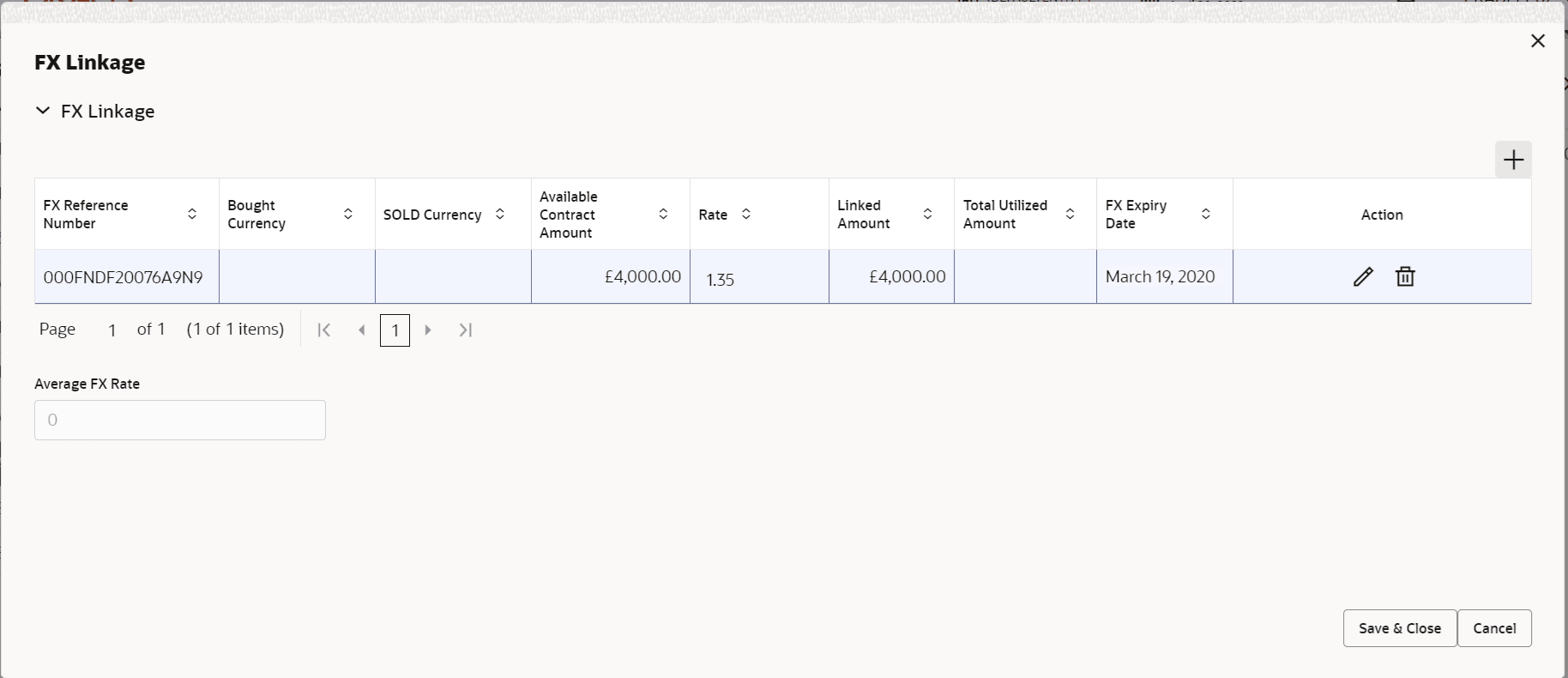
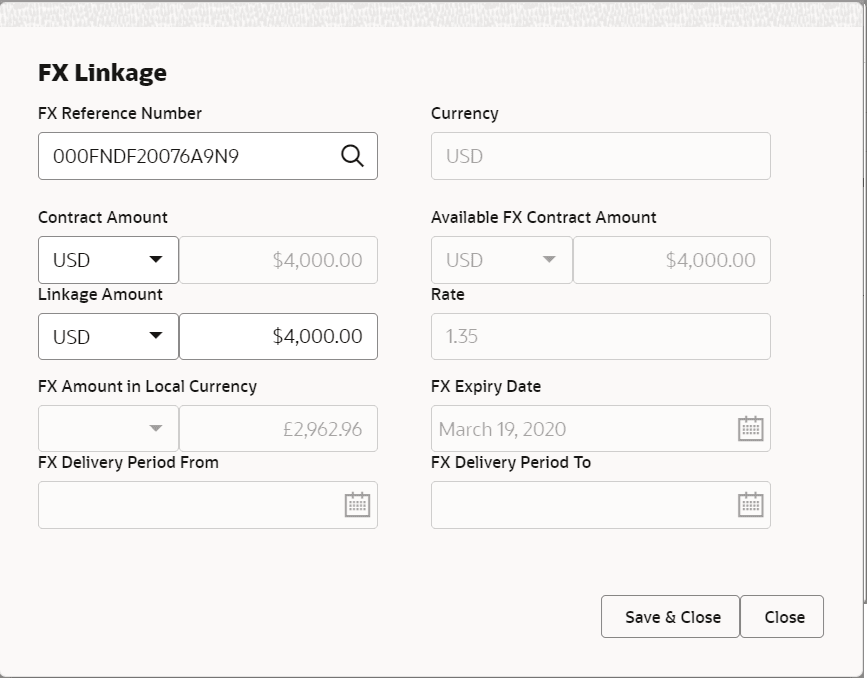
Description of the illustration fxlinkagedetails.pngFor more information on fields, refer to the field description table below.
Table 3-22 FX Linkage - Field Description
Field Description 
Click + to add multiple FX Details. Below fields are displayed on the FX Linkage pop-up screen, if the user clicks the plus icon.
FX Reference Number Click Search to search and select the FX contract reference number. On select and save and close, system defaults the available amount, bot currency, sold currency and rate. Forward FX Linkage available for selection at bill would be as follows,- Counterparty of the FX contract should be the counterparty of the Bill contract.
- Active Forward FX transactions authorized not marked for auto liquidation.
Bill contract currency should be BOT currency of the FX transaction in case of an export Bill or the SOLD currency in case of an Import Bill.
Currency Read only field. This field displays the FX SOLD currency from the linked FX contract.
Contract Amount This field displays the FX SOLD currency and Amount. The user can change the currency. Available FX Contract Amount Read only field. This field displays the available FX contract amount.
The value is from the “Available Amount” in FXDLINKG screen in OBTR.
Available Amount SOLD currency and Amount is displayed.
Linkage Amount System defaults the amount available for linkage. The Linkage amount should default the LC Contract Currency and allowed to change the linkage amount alone.
The validation “Sum of Linked amount will not be greater than contract amount” or “Linkage amount will not be greater than the available amount for linkage” should be triggered on save of the FX linkage screen when trying to link the single FX or multiple FX.
Rate Read only field. This field displays the rate at which the contract is booked.
FX Amount in Local Currency Read only field. This field displays the FX amount in local currency.
The value is defaulted as FX BOT currency and Amount from FXDTRONL
FX Expiry Date Read only field. This field displays the expiry date from the linked FX contract.
FX Delivery Period - From Read only field. This field displays the date from which the contract is valid for utilization.
FX Delivery Period - To Read only field. This field displays the date to which the contract is valid for utilization.
FX Linkage grid Below fields appear in the FX linkage grid along with the above fields. Bought Currency Read only field. This field displays the currency from the linked FX contract.
Sold Currency Read only field. This field displays the currency from the linked FX contract.
Available Contract Amount Read only field. Available amount will be FX contract amount minus the linked amount. Available amount for linkage should be greater than Zero.
Linked Amount Sum of Linked amount will not be greater than LC contract amount. Linked amount will not be greater than the available amount for linkage.
Total Utilized Amount Read only field. This field displays the total amount utilized against the corresponding linked FX.
On query, both Utilized and Total Utilized amount holds the amount of latest version.
The value is Total Utilized Amount SOLD currency and Amount for Import LC/Guarantee Issuance from FXDLINKG .
Average FX Rate Read only field. Multiple forward FX contract could be linked,and exchange rate of FX contract vary from each. Hence, effective exchange rate for bill would be arrived using weighted average method and it is utilized during purchase/negotiation/discount or liquidation of the bill. This will be populated in the Average FX Rate.
Action Click Edit icon to edit the FX details. Click Delete icon to delete the FX details.
- Click Save and Close to save the details and close the
screen.Loan Preferences
This section enables the user to link a loan to liquidate the document under collection. This section will be enabled based on the product selected for documents under collection.
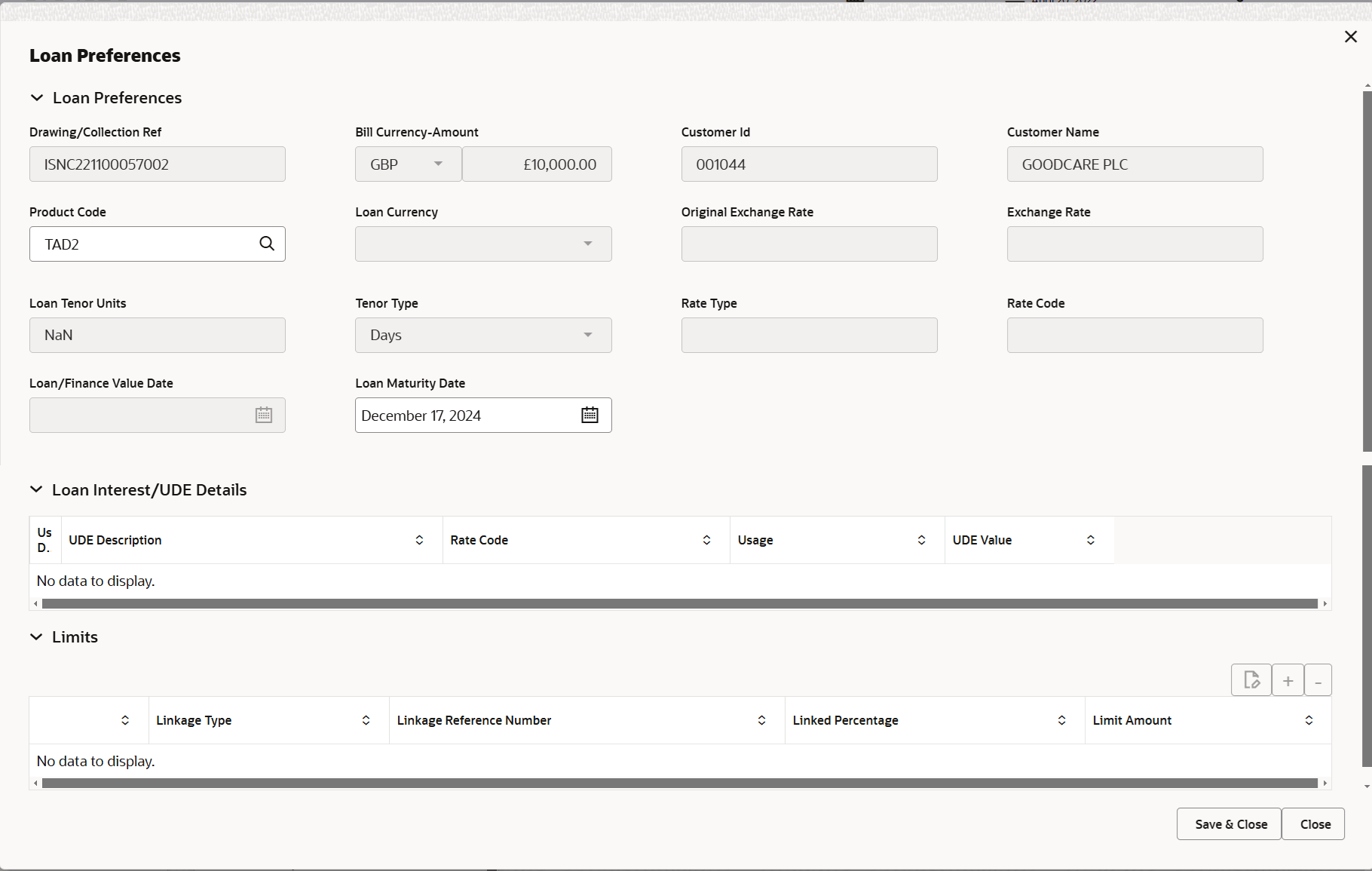
Description of the illustration deloanpreference.pngFor more information on fields, refer to the field description table below.
Table 3-23 Loan Preferences
Field Description Drawing/Collection Ref Defaults from the underlying task. User cannot change the value.
Bill Currency-Amount Outstanding Drawing/ Collection Currency and Amount, defaults from the underlying task. User cannot change the value.
Customer Id Customer Id defaults from the underlying task. User cannot change the value.
Customer Name Applicant/ Drawee Name defaults from the underlying task. User cannot change the value.
Product Code Product Code defaults from the underlying Collection/ Drawing Product maintenance. User can change the value.
Loan Currency-Amount Loan currency is defaulted from the bill currency. System should displays an error message on tab out if the currency is not a Bill currency or Local Currency. If collateral amount is linked to the underlying drawing/ collection bill, the Loan Currency- amount to be utilized for liquidation to be input by the user here.
Original Exchange Rate This field displays the original exchange rate applicable for Local Currency. System displays the Exchange rate from maintenance. User cannot change the value. System validates the exchange rate is within the allowed range.
Exchange Rate The exchange rate. Loan Tenor Units Indicates the period of loan defaults from the underlying task. The numerical value for Days or months or Years is applicable.
Tenor Type System defaults the tenor type. User cannot change the value. Values are Days, Months and Years. The numerical value for Days or months or Years is applicable.
Rate Type Defaults from the underlying task. User cannot change the value.
Rate Code Defaults from the underlying task. User cannot change the value.
Loan/Finance Value Date This field displays the branch date as Value date. User cannot change the value.
Loan Maturity Date Loan maturity date defaults based on Tenor type and Tenor units. Loan Interest/UDE Details User Defined Element ID This field displays the UDE Element ID as part of simulation. UDE Description This field displays the UDE description as part of simulation. Rate Code This field displays the Rate code as part of simulation. Usage This field displays the details as part of simulation. UDE Value This field displays the UDE value as part of simulation. Limits Specify the limit details. Click + to add limits. Clicking the plus icon displays a pop windows and allows the user to select the line code.
Serial Number This field displays the serial number. Linkage Type This field displays the linkage type as “Facility” from back office. Linkage Reference Number This field displays the Linkage reference as part of simulation. User can change the value. Linkages available for the customer should be displayed for selection.
Linked Percentage Specify the value for linked percentage. Maximum value is 100. User cannot enter negative values.
Limit Amount This field displays the value for limit amount. System populates the value based on the contribution percentage.
- Click Save and Close to save the details and close the
screen.Linked Loan Details
The bank user can view the details of linked loan accounts.
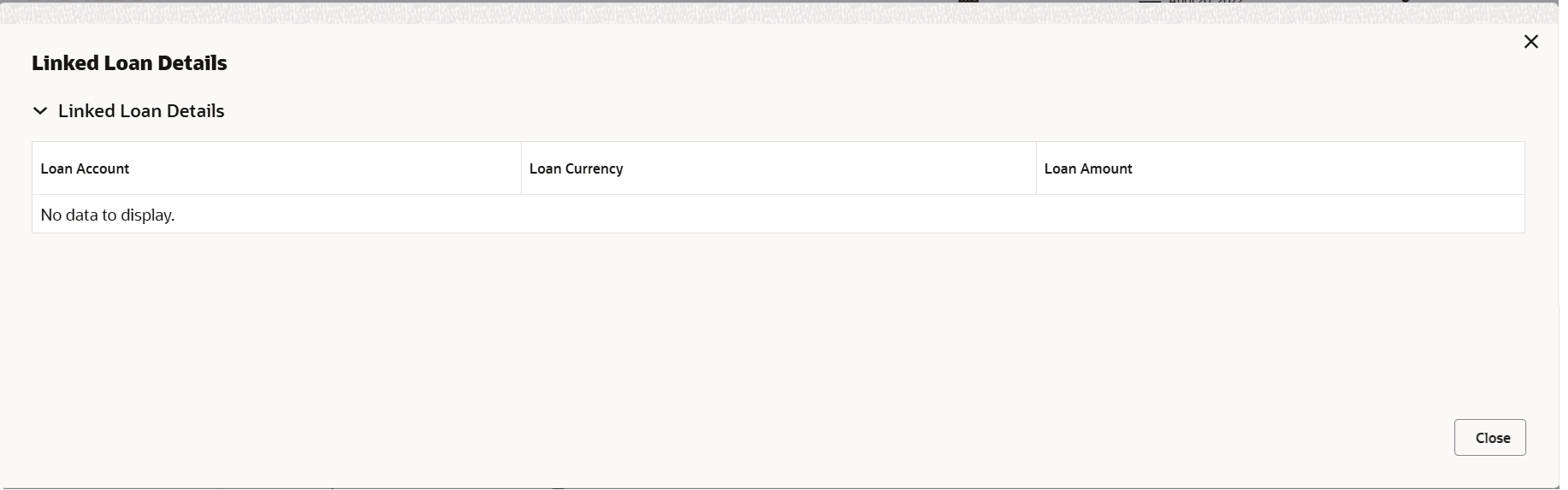
Description of the illustration delinkedloandetails.pngFor more information on fields, refer to the field description table below.
Table 3-24 Linked Loan Details - Field Description
Field Description Linked Loan Details Loan Account This field displays the loan account number. Loan Currency This field displays the currency of the loan account. Loan Amount This field displays the loan amout. - Click Save and Close to save the details and close the
screen.
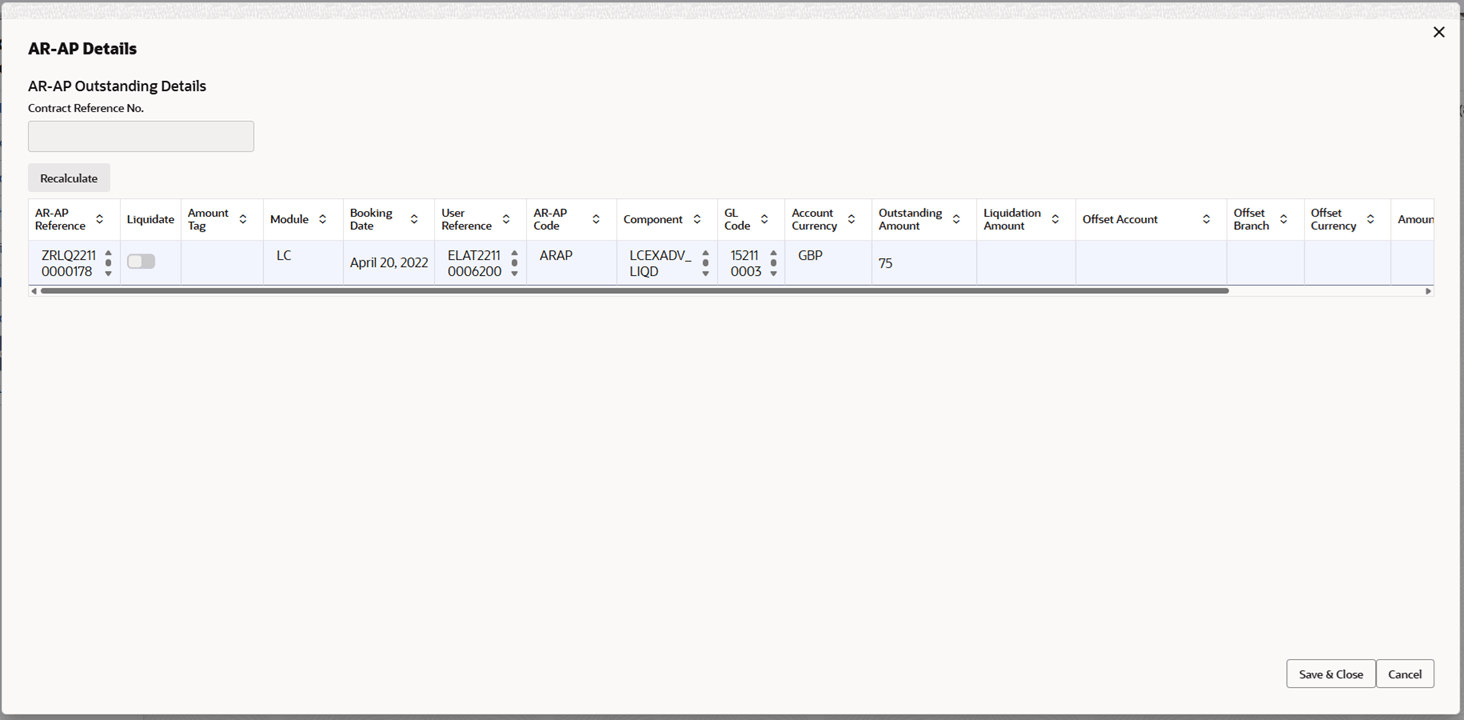
This section displays the account receivable and account payable (AR/AP) records for the contract, using the data elements defined for the tile.
Table 3-25 AR-AP Outstanding Details - Field Description
Field Description Contract Reference System displays the Contract Reference. Recalculate Click Recalculate to apply updated values such as Negotiated Rate or charge changes. System recalculates all amounts and refreshes the Settlement and related details accordingly. AR-AP Reference System displays the reference number of the Account Receivable. Liquidate Select the toggle to mark the Account Receivable component for liquidation. Amount Tag System displays the Amount Tag associated with the receivable component. Module System displays the Module from which the Account Receivable is generated. Booking Date System displays the date on which the Account Receivable was created. User Reference System displays the User Reference number associated with the receivable entry. AR-AP Code System displays the AR-AP Code defined for the receivable component. Component System displays the charge or Component component for which the receivable is generated. GL Code System displays the General Ledger account associated with the receivable component. Account Currency System displays the currency of the receivable component. Outstanding Amount System displays the Outstanding Amount available for liquidation. Liquidation Amount Specify the amount to be liquidated for the selected receivable component. Offset Account Specify the account to be debited for liquidation of the receivable amount. Offset Branch System displays the branch associated with the selected offset account. Offset Currency System displays the currency of the selected offset account. Amount System displays the debit amount calculated based on the liquidation amount and exchange rate. Exchange Rate System displays the system derived exchange rate between receivable currency and offset account currency. Negotiated Rate Specify a negotiated exchange rate to override the system derived rate for the transaction.
Parent topic: Data Enrichment