1.10 Maintain Roles
This topic explains systematic instructions to maintain the role profiles.
Note:
The fields which are marked in asterisk are mandatory.- On Homescreen, type SMDROLDF in the text box, and click Next.The Role Maintenance screen displays.
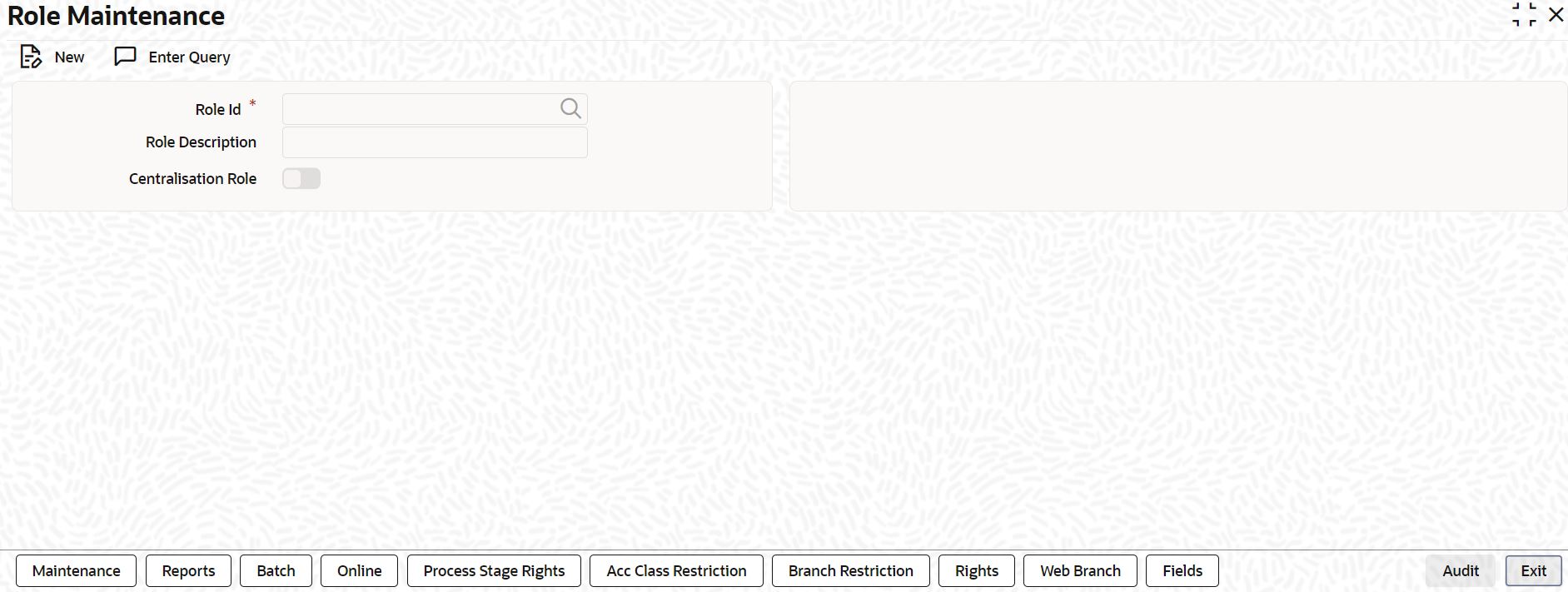
- On Role Maintenance screen, specify the fields.
For more information on fields, refer to the field description table.
Table 1-19 Role Maintenance - Field Description
Field Description Role ID Select the Role ID from the list of values. Role Description The system displays the description of the selected Role ID. Centralization Role Select this flag to centralize the role. After defining the basic attributes of a role profile, define the functions to which the role profile has access. Check the Centralization Role box to specify that the role is applicable for centralized users. The role is automatically associated with all accessible branches if the multi-branch operational parameter is enabled. The various functions in the system fall under different categories.
To assign a function to a role in the Role Maintenance screen, click the function categories to which the function belongs. In the Role Maintenance screen, the following are the function categories:Table 1-20 Role Maintenance - Function Category
Function Category Description Maintenance Functions related to the maintenance of static tables Reports Functions related to the generation of reports in the various modules Batch Functions related to automated operations (like automatic liquidation of contracts, interest, etc.) Online Functions related to contract processing Process Stage Rights Functions related to workflow Acc Class Restriction Functions related to restricting the role from using certain account classes Branch Restriction Functions related to restricting the association of roles to certain branches Rights Functions related to giving necessary rights for perform various operations in respect of incoming and outgoing messages Web Branch Functions related to the Teller module for the role of branch users Fields Functions related to User Defined Fields - To create a Role profile that closely resembles an existing one, follow the below given steps:
- Select Copy from the application toolbar to copy the existing profile onto the new one.A list of existing role profiles displays.
- Click on the existing role profile that is to be copied.All the details of the profile except the Role ID are copied and displayed.
- Enter a unique Role ID and change any of the details of the profile before saving it.
- Select Copy from the application toolbar to copy the existing profile onto the new one.
- To delete an existing role profile, follow the below given steps:A Role Profile should be closed only if there are no users linked to it. Thus, before closing a role profile, modify each user profile attached to it and delete the link to the role.
- Select Close from the application toolbar to delete an existing role profile.If the role is linked to any user, a warning message displays.
Note:
- This message will bring your attention to the fact that the user profile to which the role is linked will not be the same if the role profile is closed.
- The Role Profile will be closed only if the closure is confirmed.
- Select Close from the application toolbar to delete an existing role profile.
- Click Exit to end the transaction.
Parent topic: Security Management
