1.22 Maintain User Creation Screen
This topic describes how to create a user using the User Creation screen.
Note:
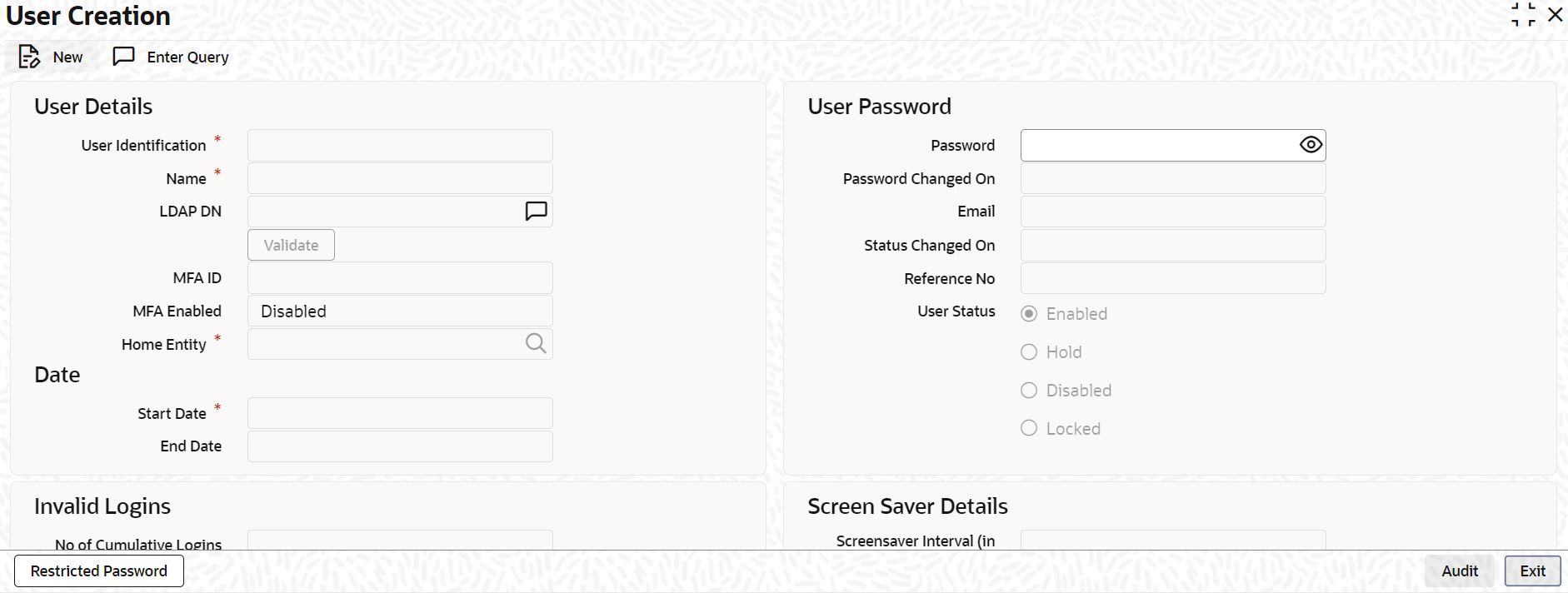
The fields which are marked in asterisk are mandatory.- On Homescreen, type SSDUSRDF in the text box, and click Next.The User Creation screen displays.
- On the User Creation screen, specify the fields.
For more information on fields, refer to the field description table.
Table 1-32 User Creation - Field Description
Field Description User Identification Select the User ID from the list of values. The user must select the User ID created in OBMA.
This User ID is unique for all branches. The User ID must be at least five characters long and can be up to 320 characters. A User ID can also be an email address.
LDAP DN Specify the LDAP details that have been maintained in the Single Sign-On screen. Click Validate to validate the LDAP details entered in the Single Sign-On. The application will verify if only one user ID in Oracle FLEXCUBE Universal Banking is mapped to the subject (DN) while authentication via SSO. Name System defaults the name of the user based on the selected User ID. Email System defaults the email address of the user based on the selected User ID. Start Date System defaults the start date based on the selected User ID.
This date indicates when the user becomes valid in the system.
End Date System defaults the end date based on the selected User ID.
This date indicates until when the user is valid in the system.
Status Changed On System defaults this field and displays the date and time when the status of the user was last changed. User Status System displays the status of the user and the options include. - Enabled
- Hold
- Disabled
- Locked
For a user to be able to log in to Oracle FLEXCUBE Universal Banking, the status must be set as Enabled.
User Password This section displays the User Password details. Password Specify the user's password. This is a hidden field. The password set must not be a restricted word. It should also be governed by the parameters set in the SMS Banks Parameters table like Maximum and Minimum length, Number of Alphabetic and Numeric characters, etc. Note:
If the application level parameter which indicates the auto-generation of the password is required or not is set to Y (Yes), then this field will be disabled and the system will create a random password by the parameters maintained at the level of the bank. The new password will be sent to the respective user via mail.Reference Number Specify the Reference Number. Invalid Logins This section displays the Invalid Logins details. Number of Cumulative Logins The number of cumulative invalid login attempts allowed for a user before the user status gets disabled is specified in the SMS Banks Parameters screen. The actual attempts that a user makes when he logs into Oracle FLEXCUBE Universal Banking get displayed here. Number of Successive Logins The number of successive invalid login attempts allowed for a user before the user status gets disabled is specified in the SMS Banks Parameters screen. The actual attempts that a user makes while he logs into Oracle FLEXCUBE Universal Banking get displayed here. Last Signed On The system displays the Date and Time of the user's last login. Screen Saver Details This section displays the Screen Saver Details details. Screensaver Interval (in seconds) The system defaults the screen saver interval based on the screen saver details maintained in the SMS Banks Parameters screen. Entity Mapping This section displays the Entity Mapping. Home Entity Click Search and specify the Home Entity. Entity ID Click Add to add new records. On the Entity ID field, click Search and specify the entity ID. Description The system displays the description of the entity ID. Restrictions on User Profile Administration - A branch administrator can create, modify or delete user profiles only in the Head Office, the Home Branch of the administrator, or in those branches that are allowed for the restriction type USRADMIN, in the Common Branch Restrictions.
When the administrator of a branch attempts to create a new user in the User Creation screen, the branches available in the Home Branch field on the screen are only those allowed branches maintained in the Common Branch Restrictions for restriction type USRADMIN. For details about the Common Branch Restrictions, refer to the topic Maintain Branch Restrictions.
For example, suppose that the following branch restrictions are created:Table 1-33 Branch Restrictions
Home Branch Restriction Type Allowed Branches 000 USRADMIN 000, 001, 002, 005 001 USRADMIN 001, 006 The administrator of branch 000 can perform user administration for branches 000, 001, 002, and 005, but not for 006.
When the administrator of branch 000 attempts to create a new user in the User Profile screen, the branches available in the Home Branch field on the screen will be 000, 001, 002, and 005.
Parent topic: Security Management