3.1.11 Authorizing a Product
The creation and modification of a product to be authorized before it can be used to specify a contract.
- Click authorize icon on the Toolbar
A user cannot authorize an event input by that same user. Another user with authorization access rights must perform the authorization.
When authorizing changes, the new value and old value of the fields are displayed.
The Authorization screen appears with the modification number.
Select View Changes to view the changes made to the record.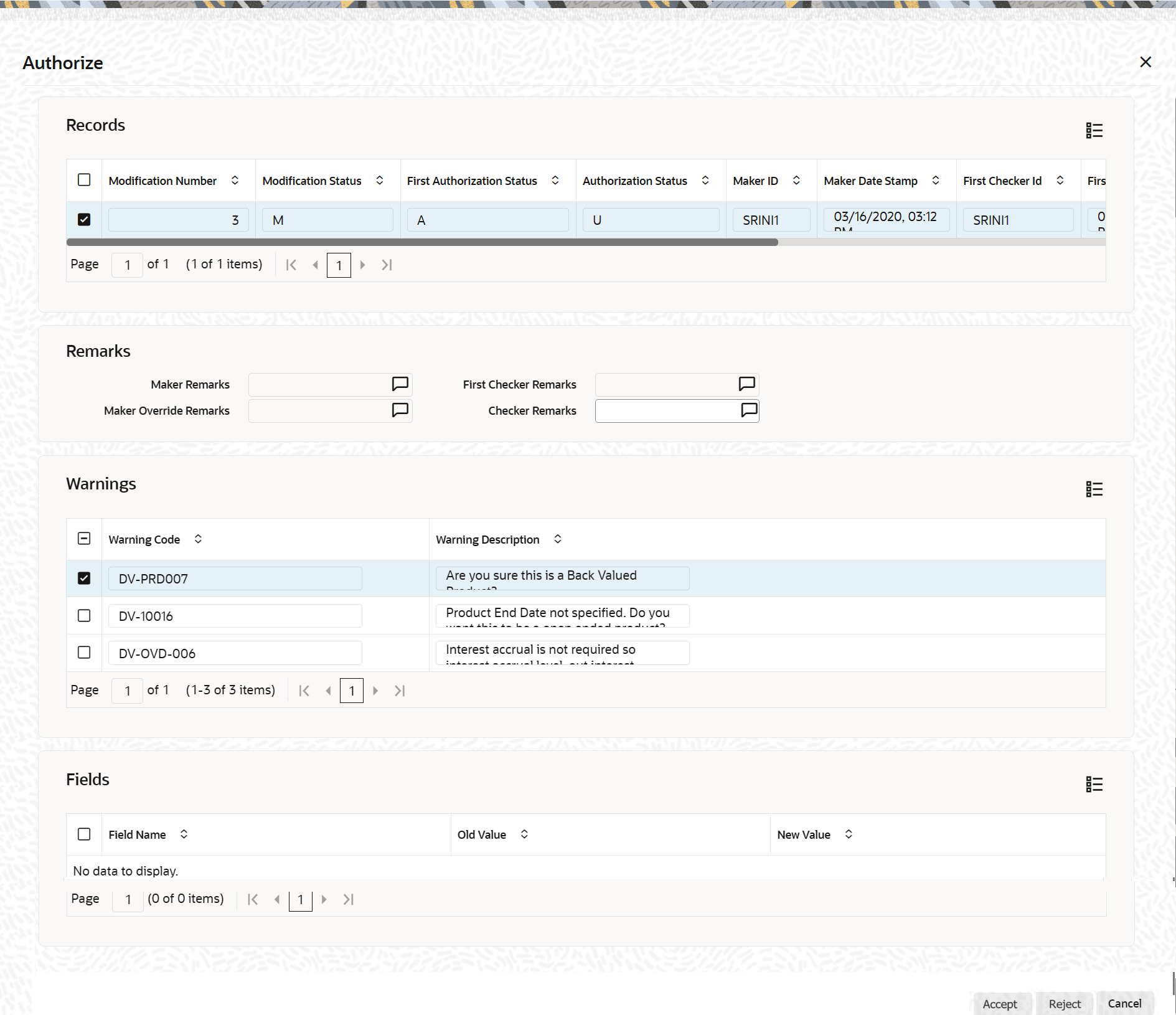
Description of the illustration 4.1.11_authorizing-product.png
Check the records to authorize, then select Accept to approve the changes and authorize the record. Or select the Reject to decline. After authorization, the Maker ID and Maker Date Stamp fields at the top display the authorizing user ID, date, and time. The record status updates to Authorized.
If the Reject is selected, the selected modification numbers are marked as Rejected. If the authorizer selects a specific modification number and selects Reject, all subsequent modification numbers are also marked as Reject. The authorizer can specify remarks in the Checker Remarks column. Once all modifications are rejected, the record is marked as Reject.
Note:
Modifications to a maintenance record can be rejected only if the record belongs to a function ID where Tanking Required is selected.The maker remarks, override remarks and warnings are displayed during authorization. The first level authorizer can specify remarks against ‘First Checker Remarks’ and the next level authorizer can specify remarks against ‘Checker Remarks’.
Click View Changes to view the modification. The following
screen is displayed.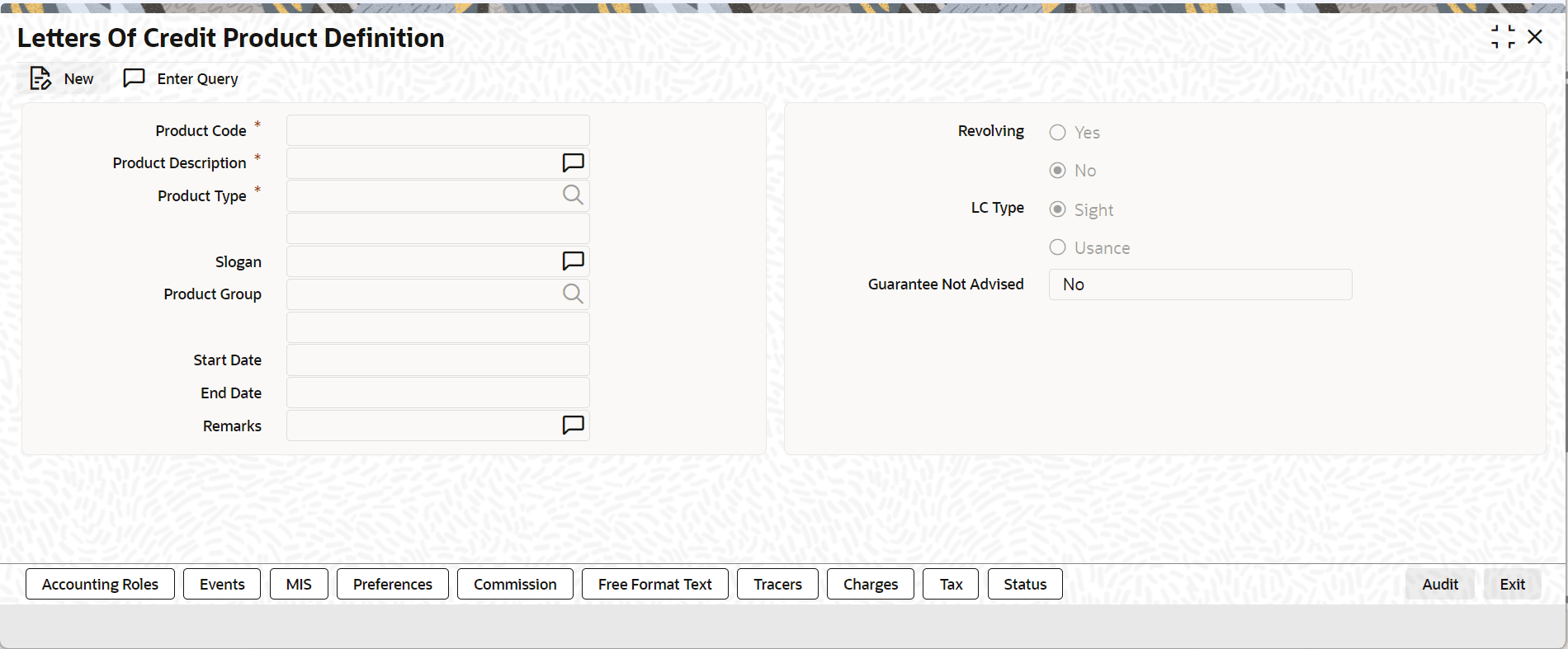
Description of the illustration 4.1.11_2_authorizing-product.png
The changed details are highlighted.
Click Exit to go back to Authorization screen. Select the modification that needs to be authorized and click Ok to authorize the transaction.
To cancel the authorization, select Exit. The system returns to the Tax Summary View. The record remains unauthorized.
Parent topic: Product Group ID