3.7 Copy Parameterization Data
This topic provides the systematic instructions to copy parameterization data.
Copy parameterization data from Oracle Banking Trade
Finance environment to any other environment and vice versa. The data from Oracle Banking Trade
Finance can be exported into an
excel sheet or an XML format.
Specify the User ID and Password, and login to Homepage.
- If Excel Export Required option is checked for a
function Id in the Function Description Maintenance
(SMDFNDSC) screen then an
Export button is enabled in the summary screen of
that function Id.
In the Summary screen, query records based on the query parameters available and then select the required records to be exported and click Export. On clicking Export, system exports the data into an excel sheet and opens the excel sheet with data populated. User can then save the excel sheet.Note:
The records can be exported either in .XLS or .XLSX format. The format of the export file to be maintained in ‘CSTB_PARAM’ against the parameter ‘EXCEL_FORMAT’.Import data into Oracle Banking Trade Finance environment using the Excel Import screen. User can load this screen by typing the function id CSDXLUPD in the field at the top right corner of the Application tool bar and clicking on the adjoining arrow button.
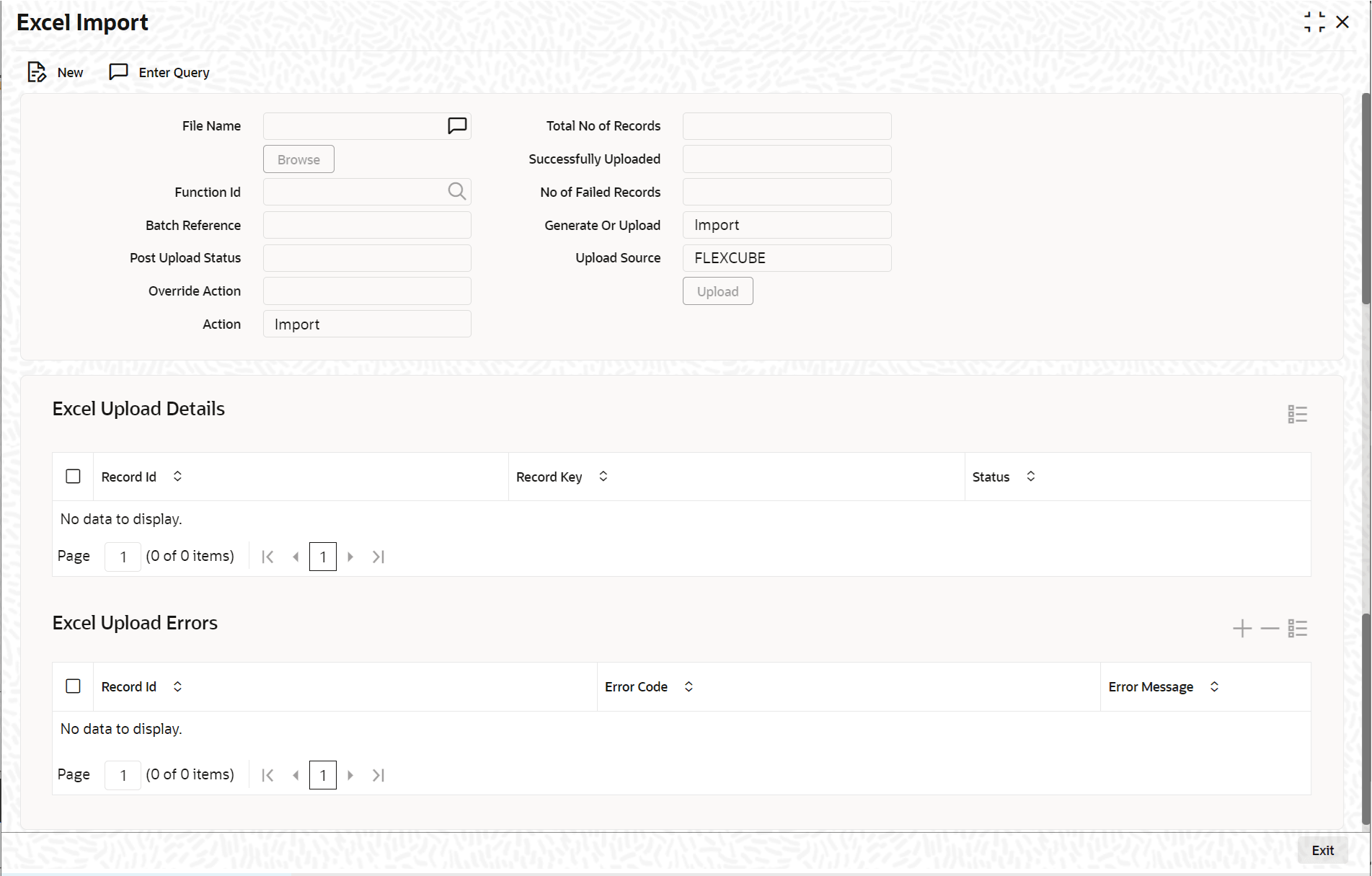
Description of the illustration 4.7_csdxlupd_excel-import.png - On Excel Import screen, specify required details.For information on fields, refer to:
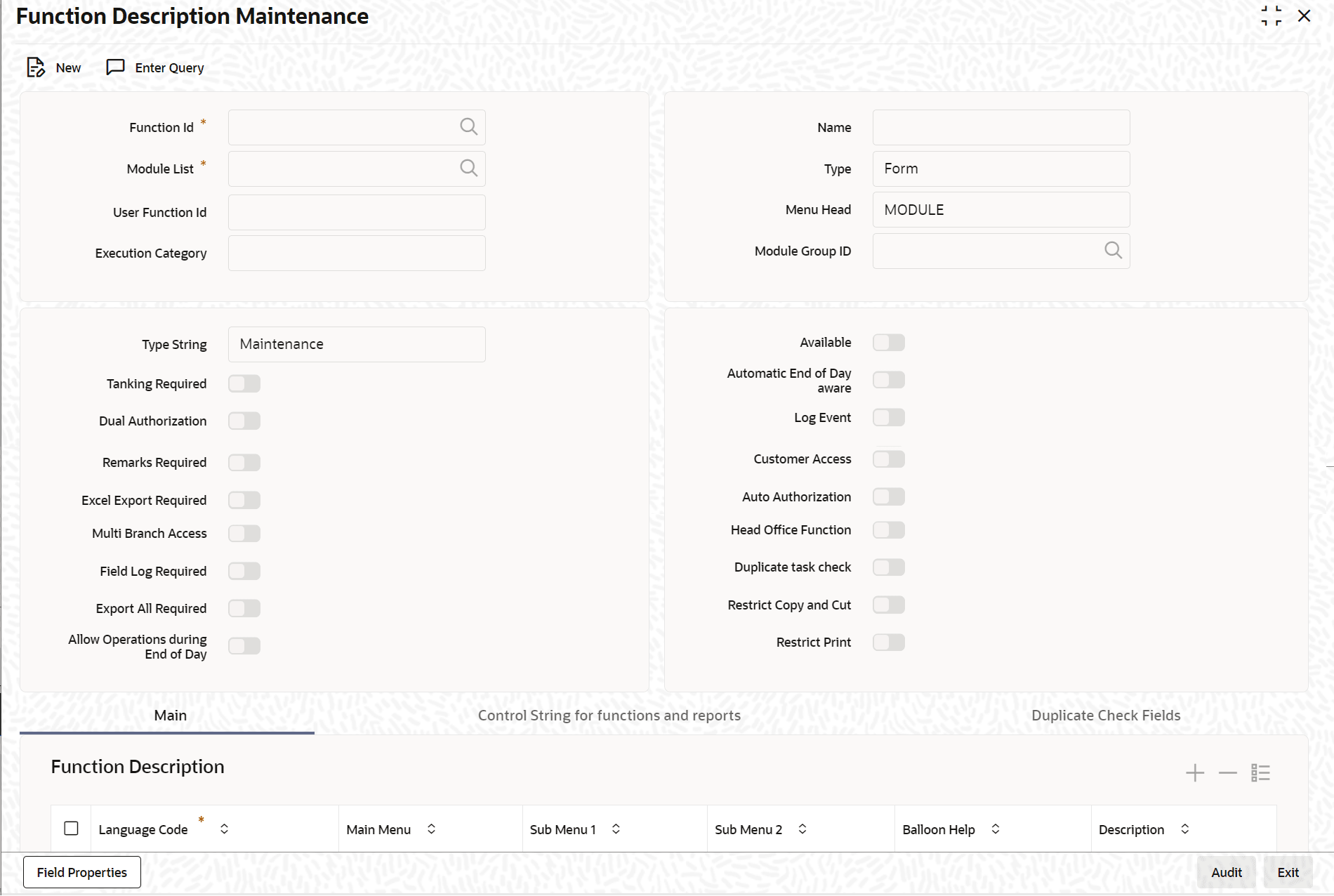
Table 3-1 Excel Import - Field Description
Field Description File Name Select the excel file to be imported by clicking Browse. Total No of Records The total number of records to be uploaded is displayed here. Function Identification The function id mentioned in the excel file selected is displayed. Batch Reference The unique reference number generated for an upload is displayed. Post Upload Status Select the status to be set for the file post upload, from the drop-down list. The following statuses are available in the drop-down list: - Authorized
- Unauthorized
- Hold
Override Action Select the action to be taken if an override message is encountered, from the drop-down list. The following options are available: - Ignore
- Error
Action The Action is displayed. No of failed records The total number of records which failed to get uploaded is displayed. Generate or Upload Select the action to be taken for importing the file, from the drop-down list. The following options are available for selection: - Generate - Select this option if an XML has to be generated from the imported file.
- Upload - Select this option if the data has to be uploaded as an excel file itself.
Note:
To start the upload process, click Upload. After clicking this button, system starts importing the data from the excel file.Source Specify the Source code of the file to be used for generating the XML file. Specify the source if user have selected Generate option in the Generate or Upload field. Excel File Upload Details The following details are captured:
Record Id The unique number of the record uploaded is displayed. Record Key The Record Key is displayed. Status The upload Status of the record is displayed. Excel Upload Errors Record Id The unique number of the record, that encountered error while uploading, is displayed. Error Code The Error Code corresponding to the error encountered during upload is displayed. Error Message The Error Message corresponding to the error code displayed is defaulted.
Parent topic: Common Operations
