Using The Setup Wizard
Running the Setup wizard is similar across all platforms. These steps are from Microsoft Windows, but should be easily used as a guideline in other environments.
Note:
On Linux and Solaris systems, to optionally run the installation in GUI mode you must have an X11 server running and have the DISPLAY environment variable set to point to the X11 server, otherwise it will run in a console mode. For more information, see Installing from the UNIX Command Line section .From the directory into which you downloaded the Oracle Documaker Connector media pack, unzip the media pack, locate and double click/run the executable,:
ODC[MajorA#.MajorB#.Minor#.Patch#.Build#Platform].executable example: ODC13.0.0.0.40736W64.exe
The installation wizard starts. Follow these steps to install Documaker Connector:
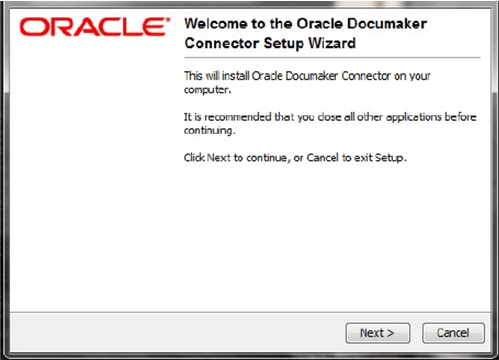
- When the Welcome window appears, click Next.
The Select Destination Directory window lets you choose the installation target directory.
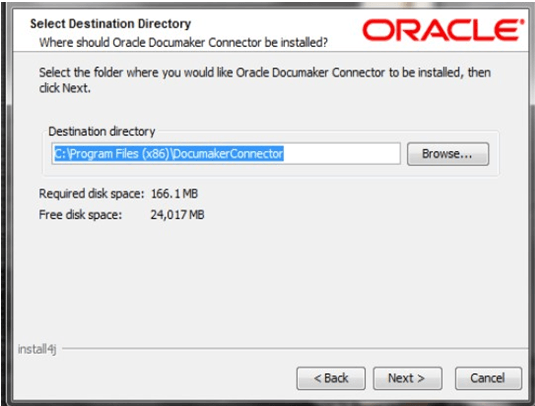
- Enter a directory or click Next to accept the default directory. On Windows, the default directory is under the Program Files directory. The directory you choose is referred to throughout this document as the installation target directory. Once you click Next, the Setup wizard begins to install Documaker Connector. As part of this process, the Setup wizard...
- Puts a Java run-time environment (JRE) in a subdirectory of the target directory called jre. On Microsoft Windows, the Setup wizard installs the Visual C++ 2022 run time if it is not already on the machine.
- Sets the service.path in the dm_connector.svc.properties file to the JRE that was installed.
- (On Windows) Runs the dm_connector_svc.exe program with an install parameter to install the Windows Service. Running this program later with a parameter of uninstall removes the Windows Service.
This window shows its progress:
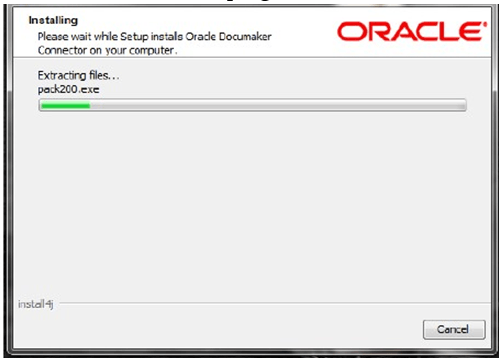
When finished, this window appears:
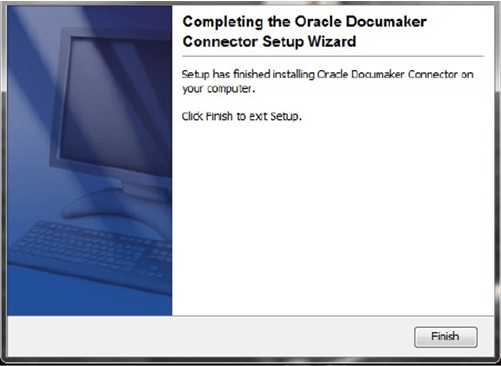
- Click Finish to complete the installation.