11.3 Depreciation Calculator

This topic provides information on the depreciation calculator.

The Depreciation Calculator screen facilitates user to simulate depreciation calculation of an asset based on asset acquisition cost and using specific depreciation method, frequency and term. Further, user can view the depreciation amortization schedule based on calculation.
Depreciation Calculator is a standalone tab and information calculated here can only be viewed. They cannot be copied to the application / contract.

If user want to clear (or “refresh”) the Depreciation Calculator at any time, click Initialize in the Parameters section.

To calculate an asset depreciation

  1. On the Tools, click Tools. Under Tools, click Depreciation Calculator.
    The Depreciation Calculator screen displays.
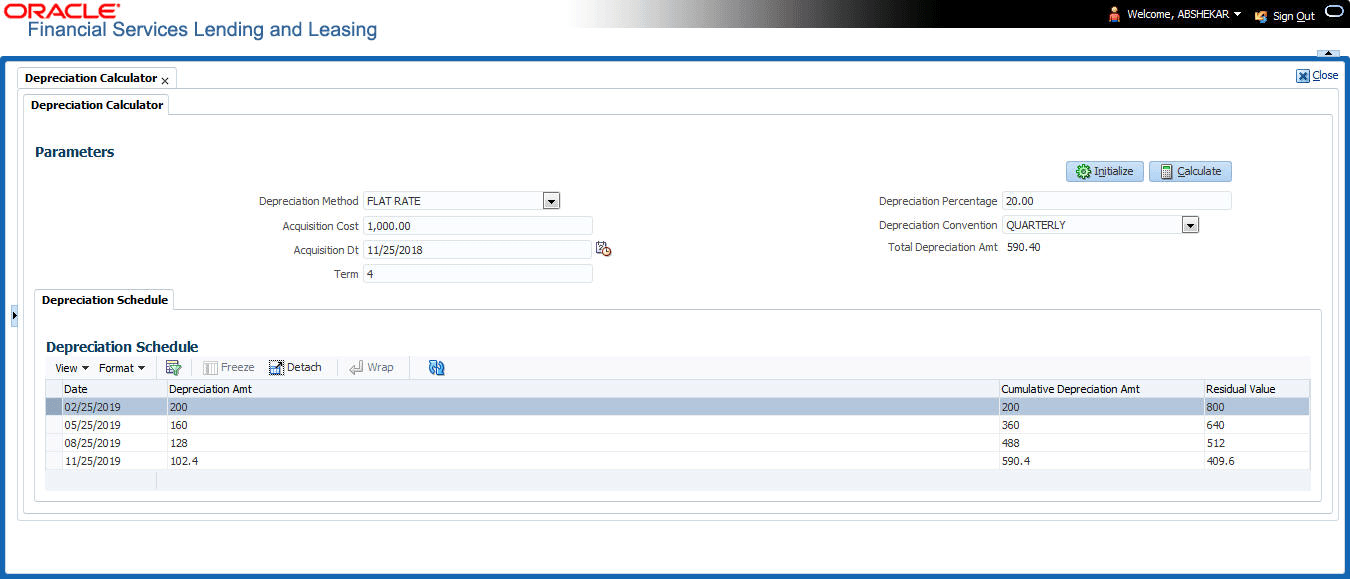
    Figure 11-3 Depreciation Calculator


  2. In the Parameters section, complete the following fields:

    Table 11-12 Parameters

    Field Description
    Depreciation Method Select the asset depreciation method to be used for calculation as one of the following from the drop-down list.
    • FLAT RATE: This method is used to depreciate the asset over a fixed time using a fixed rate. This method of calculation is similar to Written Down Value Method (Diminishing Balance Method / Reducing Installment Method).
    • LIFE BASED: This method is used to depreciate the asset over a fixed time using the specified rates. This method of calculation is similar to Straight Line Method (Original Cost Method / Fixed Installment Method). On selecting this option, Depreciation Rate Schedule sub tab is enabled to define depreciation rates slab.
    Acquisition Cost Specify the asset acquisition cost.
    Acquisition Dt By default, current system date is selected as the asset acquisition date. User can modify the same using the adjoining calendar. Based on this date depreciation accounting is done and is calculated till the term specified.
    Term Specify the total term for depreciation calculation.
    Depreciation Percentage Specify the percentage of depreciation to be calculated during the above term. This option is not available for life based depreciation method.
    Depreciation Convention Select the frequency at which the asset depreciation is to be calculated from the drop-down list.
    Total Depreciation Amt The total depreciation amount is auto calculated and displayed on clicking Calculate button.
  3. In the Parameters section, click Calculate to view the results. System displays the total depreciation amount for the simulation values along with the Depreciation Schedule in below sub tab.
  4. The Depreciation Schedule sub tab displays the following details:
    • Date - depreciation date for the selected cycle
    • Depreciation Amt - calculated depreciation amount for the cycle
    • Cumulative Depreciation Amt - calculated depreciation amount till date
    • Residual Value - residual value for the corresponding cycle calculated by Acquisition Cost - Cumulative Depreciation Amt
  5. If user have selected LIFE BASED depreciation method, the Depreciation Rate Schedule sub tab is enabled to define depreciation rates slab. For more information, refer to Depreciation Rate Schedule section in setup guide.