3.4.5 Parked Transactions
This topic provides information on parked transactions. It explains how to view and manage incomplete or pending job activities within a selected time frame.
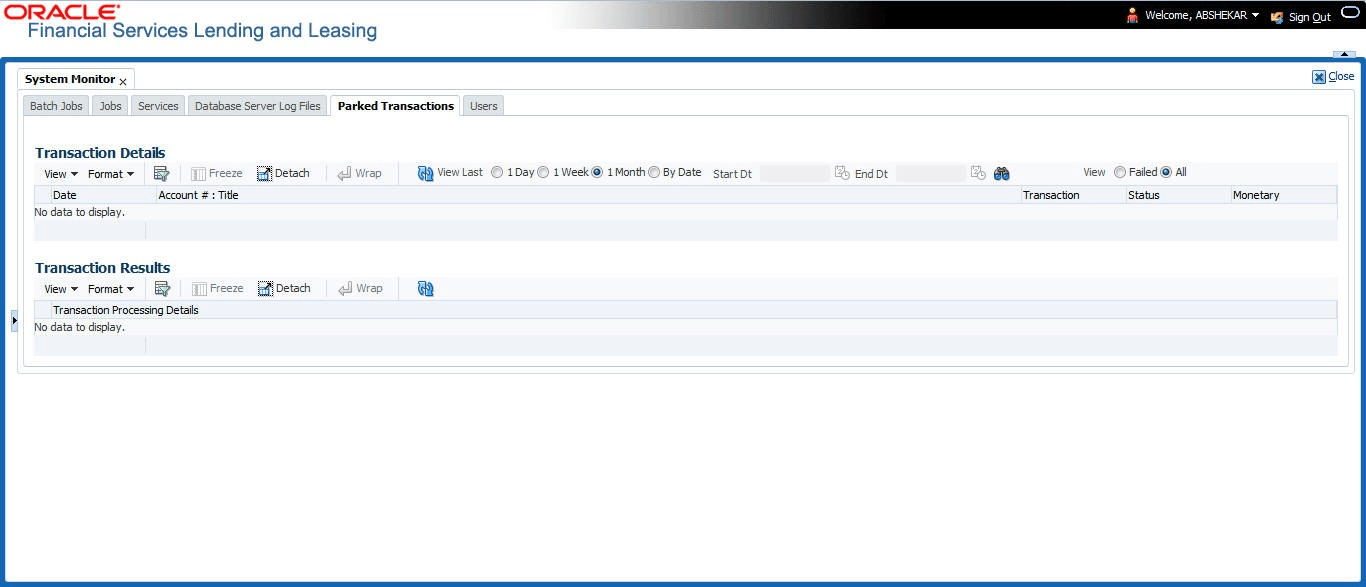
Transactions which are posted when the end of day (EOD) batch job process is running, receive a temporary status of HOLD. Once the EOD batch process is complete, the system posts the transactions on hold. These transactions can be thought of as parked transactions. They are waiting to be processed after the EOD batch process. The status of such transactions can be viewed in the Parked Transaction screen.
- On the Dashboard click
Dashboard, under Dashboard
click System Monitor, under System
Monitor click Parked Transactions.
The Parked Transactions screen displays.
- In the Parked Transactions section, select
the time frame based on elapsed days. User can select any of the following
options:
Table 3-18 Parked Transactions
Select System Displays 1 Day All the types of jobs selected in Jobs Type section in last one-day. 1 Week All the types of jobs selected in Jobs Type section in last one-week. 1 Month All the types of jobs selected in Jobs Type section in last one-month. By Date All the types of jobs selected in Jobs Type section for specific duration. User can specify a date range (within 3 months) in Start Dt and End Dt fields using the adjoining calendar. - If user select Failed in the View section, system displays the failed transactions of the time frame user have selected.
- In the Transaction Details section, user can view the
following information about the parked transactions meeting the criteria of the
View Last and Failed sections.
A brief description of the fields is given below:
Table 3-19 Transaction Details
Field Description Date Displays the transaction date. Account #: Title Displays the account number and title. Transaction Displays the transaction Status Displays the status of transaction Monetary Displays if the transaction is a monetary transaction or not. - In the Transaction Results section, view the results of transaction in Transaction Processing Details field.
Parent topic: System Monitor