8.12 Contract Tab
This topic provides information on the contract section, which records and manages contractual details to ensure compliance with funding requirements.
The screens associated with the Contract link are the core of the funding process. They allow user to perform the important task of completing the truth-in-lending details. These screens include information mandated by Regulation Z; information about the financed amount, the payment schedule, the total of these payments, the finance charge, the resulting annual percentage rate (calculated according to Federal/Central bank guidelines; that is, within 125% of the Treasury OCC calculated APR) for the conventional Line of credit, and internal rate of return for Islamic Line of credit. Use the Line of credit packet to supply the required information.
In completing the truth-in-lending details on the Contract link, user will enter Line of credit information. The truth-in-lending details must be completed before a Line of credit can be funded.
- Contract (2)
- Repayment
- Itemizations
- Trade-In
- Subvention
- Insurances
- ESC
- Escrow
- Proceeds
- Disbursement
- Fees
- ACH
- Coupons
- References
- Real Estate
- PDC
While working with the Contract tab for Line of credit applications, user can either enter the contract details manually or make use of the Suggest option which auto populates the contract details.
- System loads the details of 1st instrument available in Instrument drop-down list.
- Populates decision level contract parameters and Verified By field with User Code.
Since in one click all the required contract information is populated to fund the application, this option helps to improve operational efficiency. But however, this option is not available if the contact instrument is already loaded.
- On the Origination, click Origination. Under Origination, click Funding.
- Under Funding, click Funding tab.
Under Funding tab, click
Contract.
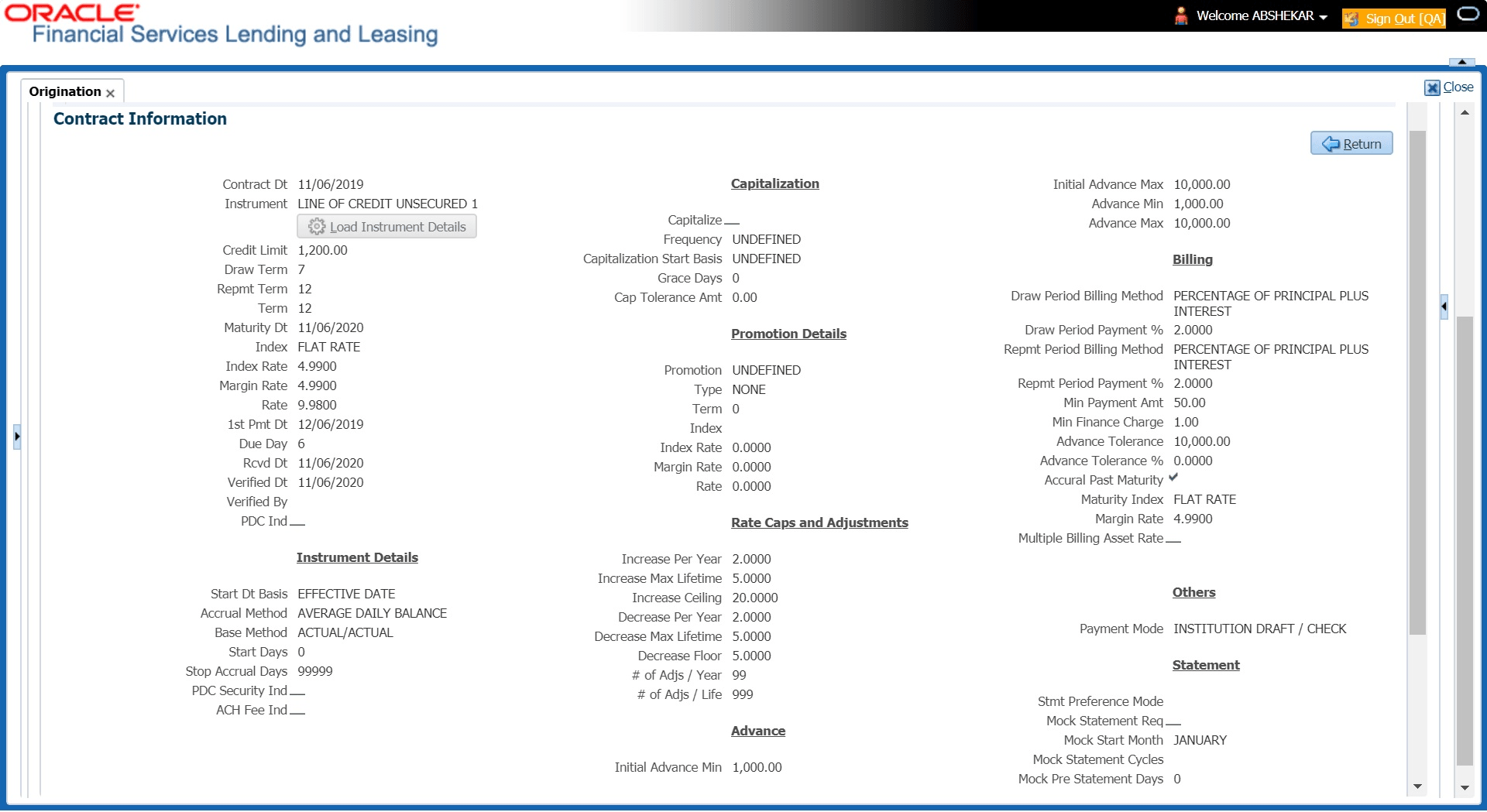
- If the application user opened is for a Islamic Line of credit, the Line of credit screen appears.
- Using the information in the contract packet, complete the Contract
section.
(The system calculator may used when completing this section. For more information, see the Tools chapter).
- In this section, user can perform any of the Basic Operations mentioned in Preface.
A brief description of the fields is given below:
Table 8-1 Contract Information
Field Description Contract Displays the contract section. Contract Dt Specify the contract date. Credit Limit Specify the credit limit. Draw Term Enter the draw term. This is the period of time during which user can receive advances. Repmt Term Enter the repayment term. This is the period of time during which user must pay the outstanding balance of user account, with accrued interest, but may not request further advances. The repayment period begins at the end of the draw period. Term Enter the term. Maturity Dt Enter the maturity date. Index Select the index. Index Rate Displays the index rate. Margin Rate Specify the margin rate. Rate Displays the interest rate. 1st Pmt Dt Specify the first payment date. Due Day Specify the due day. Rcvd Dt Enter the contract received date. Verified Dt Enter the contract verification date. Verified By Displays the user id who verified the contract. PDC Ind If selected, indicates that the customer has opted for PDC. Instrument Details An instrument is a contract with specific rules tied to it. An instrument associated with the application indicates OFSLL of the type of contract being used for the approved loan. Items defined in the contract are locked in when user select the instrument from drop down list and click on Load Instrument Details. These values cannot be changed on the funding screen. Any changes to the instrument in account will be handled by monetary/non-monetary transactions.
The system loads all the rules established by the company that are required at the time of funding; for example, the accrual method, billing method, type of billing, tolerance, due dates, extensions and so on.
Start Dt Basis Displays the accrual start basis. Accrual Method Displays the accrual calculation method. Base Method Displays the accrual base method. Start Days Displays the accrual start days. Stop Accrual Days Displays the accrual stop days. PDC Security Ind If selected, indicates that the customer has submitted the PDC as a security. ACH Fee Ind Indicates that the ACH fee should be applied or not. Depending on the status of check box, the ACH fee is applied based following conditions- When the check box is selected and the fee amount is ZERO, system will not apply the ACH fee.
- When the check box is selected and the fee amount is BLANK, system will apply the ACH fee from Contract setup.
- When the check box is selected and the fee amount is specified, system will apply the specified amount and overrides the ACH fee amount mentioned in Contract Setup.
- When the check box is not selected, system will apply the ACH fee amount mentioned in Contract Setup.
Capitalization This section displays the capitalization parameters pre-defined at Setup, click Contract screen and allows user to modify only the Grace Days value for balance capitalization. Capitalize If selected, indicates that the capitalization of balances is enabled while funding the application. Frequency Displays the capitalization frequency defined at Contract level. After funding, all the account balances are capitalized to principal in the same frequency except for Balance Frequency where different frequency may be defined for each balance type.
Capitalization Start Basis Displays the capitalization start date as either Contract Date or First Payment Date on which capitalization next date is calculated. Grace Days Displays or Modify the grace days allowed in the frequency (minimum 0, maximum 31) before capitalizing the balances to account. This is also the deciding factor for executing the capitalization batch job which is based on Capitalization Frequency + Grace Days. However, note that Grace Days are not accounted for Month End type of capitalization frequency and is ignored even if specified.
Cap Tolerance Amt Displays the capitalization tolerance amount which is the minimum amount to qualify for capitalization. Promotion Details If applicable, enter information regarding any promotion associated with the application in the Promotion section. Promotion Select the promotion. Type Displays the promotion type. Term Displays the term. Index Displays the promotion index (displays only). Index Rate Displays the promotion index rate (displays only). Margin Rate Displays the promotion margin rate (displays only). Rate Displays the promotion rate. Rate Caps & Adjustments Displays the rate caps & adjustments section. Increase Per Year Displays the maximum rate increase allowed in a year. Increase Max Lifetime Displays the maximum rate increase allowed in the life of the Line of credit. Increase Ceiling Displays the rate cap (maximum). Decrease Per Year Displays the maximum rate decrease allowed in a year. Decrease Max Lifetime Displays the maximum rate decrease allowed in the life of the Line of credit. Decrease Floor Displays the rate decrease allowed. # of Adjs / Year Displays the maximum number rate changes allowed in a year. # of Adjs / Life Displays the maximum number of rate changes allowed in the life of the Line of credit. Initial Advance Min Amt Displays the minimum initial advance amount. Initial Advance Max Amt Displays the maximum initial advance amount. Advance Min Displays the minimum subsequent advance amount. Advance Max Displays the maximum subsequent advance amount. Billing Displays the billing section. Draw Pre Bill Days This is the number of days before the first payment is due that accounts funded with this Loan instrument will be billed for the first payment. Thereafter, the accounts will be billed on the same day every month. If an account has a first payment date of 10/25/2003 and Pre Bill Days is 21, then first payment due will be on 10/04/2003, and then 4th of every month.
Draw Period Payment % Displays the percentage of draw period payment allowed. Repmt Period Billing Method Displays the repayment period billing method allowed. Repmt Period Payment % Displays the percentage of repayment period payment allowed. Min Payment Amt Displays the minimum payment amount. Min Finance Charge Displays the minimum finance charge. Advance Tolerance Displays the advance tolerance amount. Advance Tolerance % Displays the advance tolerance percentage. Accural Past Maturity Displays the accural past maturity. Maturity Index Displays the maturity index rate. Margin Rate Displays the margin rate. Multiple Billing Asset Rate Check this box to indicate if multiple asset rates are applicable for one billing period. System considers billing period from current due date to the next due date. Multiple rates are fetched only when rate end date (rate start date + rate frequency) ends one or more cycle(s) before the next due date i.e. current rate record does not cover the entire billing period.
Others Displays the others section. Payment Mode Select the type of repayment mode to indicate if it is Autopay/ Direct Debit or not using any of the following option from the drop-down list. The list is populated from REPAYMENT_PMT_ MODE_CD lookup code.- INSTITUTION DRAFT / CHECK (default)
- AUTOPAY (ACH)
- AUTOPAY (CREDIT CARD)
- AUTOPAY (DEBIT CARD)
- POST DATED CHECKS
For an AUTO PAY type of Payment Mode, ensure that at least one active ACH record exist and for CHECK type of Payment Mode, there are NO active ACH records.
Statement This section allows to define the preferences for Mock Statement generation at Master Account level. Generating a Mock Statement helps to mock the asset billing process with a future date and to get an upfront statement indicating future dues of Master and Associated Accounts. In Vacation Ownership industry, such statements are required to forecast future dues based on current Timeshare holdings. The default populated preference here are propagated from Setup, click Administration under Administration, click Products under Products, click Contract screen when the instrument is loaded.
Note: These fields are enabled only for Master Account, i.e. only if the Master Account check box is selected in Origination, click Master Account tab. If the option is unchecked even at a later point, system refreshes these fields making them as Read-Only.
Stmt Preference Mode Select the account statement preference mode as either Email or PHYSICAL from the drop-down list. Mock Statement Req Select this check box to indicate if the account is to be included in Mock statement Generation.
Note: Based on this selection, others fields related to Mock Statement below are enabled and becomes mandatory for providing details.
Mock Start Month Select the start month of Mock Statements period from the drop-down list. Mock Statement Cycles Select the total number of billings (between 1-12) that are to be generated post Mock Statement Start Date. Mock Pre Statement Days Specify the number of Pre bill days for Mock Statements generation. Agreement Details Displays the agreement details section. Agreement Number Specify the agreement number which is to be associated to the application. Note: On funding, this agreement number is also associated to the account and in-turn helps to group all those accounts with a particular agreement number.
- Perform any of the Basic Actions mentioned in Preface.
This section consists of the following topics:
- Contract (2) Sub Tab
This topic provides information on the contract section. - Repayment Sub Tab
This topic provides information on the Repayment section, which records and manages repayment details such as due dates, amounts, and completion status to support financial oversight. - Itemizations Sub Tab
This topic provides information on the itemizations section, which records and manages line‑by‑line details of financial transactions for clarity and accountability. - Trade-In Sub Tab
This topic provides information on the Trade‑In section, which records and manages details of items returned or exchanged, along with their assessed value and impact on agreements. - Subvention Sub Tab
This topic provides information on the Subvention section, which records and manages subsidies or financial support allocations, ensuring transparency and accountability in funding processes. - Insurance Sub Tab
This topic provides information on the insurance section, which records and manages insurance policies, coverage terms, and claims to ensure risk mitigation and compliance. - ESC Sub Tab
This topic provides information on the extended service contracts section, which records and manages service agreements offering extended coverage for repairs and maintenance after the manufacturer’s warranty expires. - Escrow Sub Tab
This topic provides information on the escrow section, which records and manages details of funds or property placed in trust, released only when agreed conditions are met. - Proceeds Sub Tab
This topic provides information on the proceeds section, which records and manages revenue or funds received from sales, contracts, or financial arrangements to ensure accurate tracking and reporting. - Disbursement Sub Tab
This topic provides information on the disbursement section, which records and manages details of fund releases, payment schedules, and statuses to support transparency and accountability. - Fee Sub Tab
This topic provides information on the fee section. - ACH Sub Tab
This topic provides information on the ACH section. - Coupon Sub Tab
This topic provides information on the coupon section, which records and manages promotional codes or credits that reduce costs or provide benefits during financial transactions. - References Sub Tab
This topic provides information on the references section, which records and manages external or internal reference numbers, documents, and source details to maintain accuracy and accountability. - Real Estate Sub Tab
This topic provides information on the Real Estate section, which records and manages property‑related data such as asset details, valuations, and associated agreements to ensure transparency and compliance. - PDC Sub Tab
This topic provides information on the PDC section, which records and manages post‑dated cheques used to facilitate deferred payments, ensuring proper tracking of obligations and settlement timelines.
Parent topic: Funding