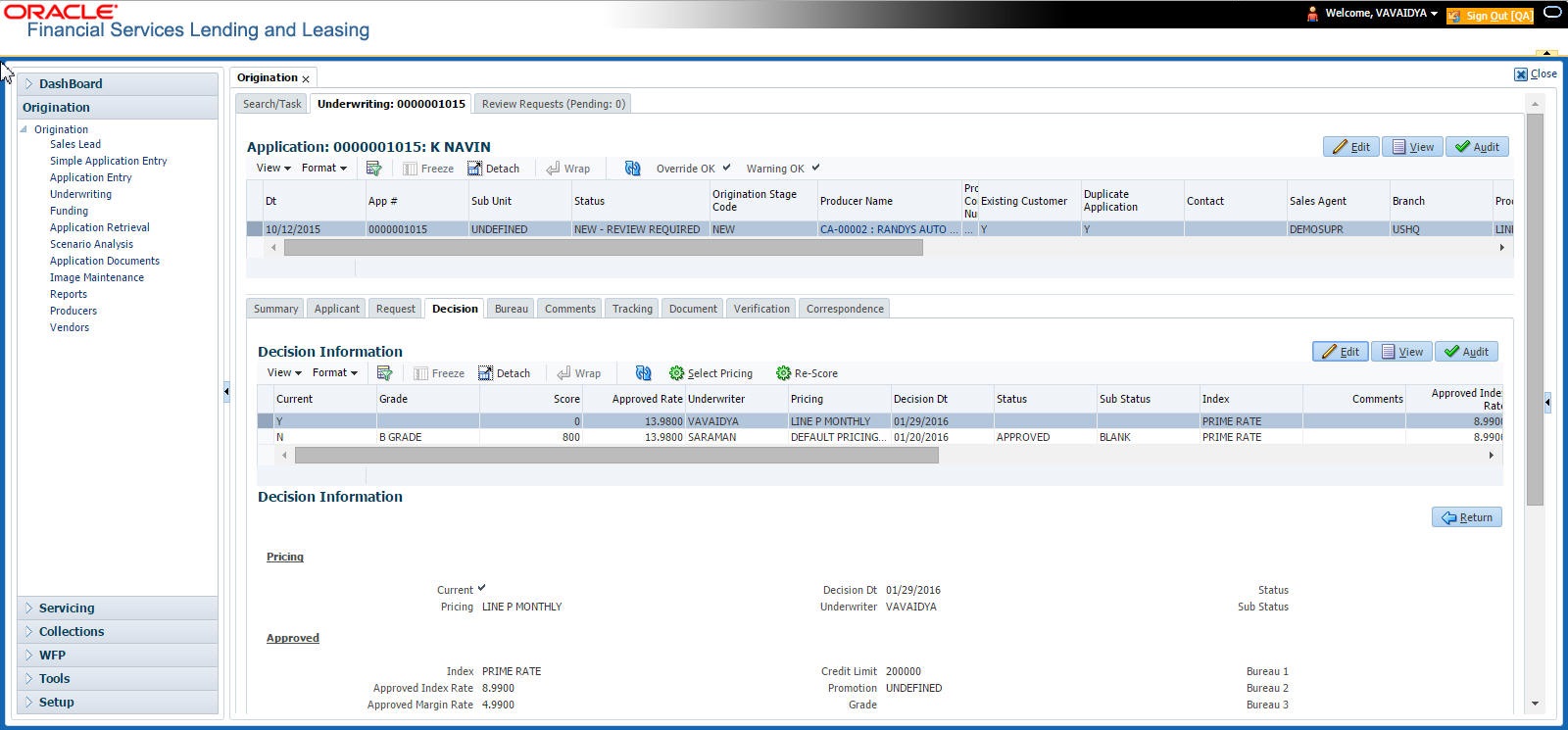
7.8 Decision Tab
This topic provides information on the decision section. It enables users to view and manage decision details.
If the application was initially approved automatically, the system displays its recommendations on the Decision tab’s Approved section.
If the application was initially rejected automatically, the system displays its reasons on the Decision link’s Stipulation sub tab.
- If the data meets user approval, change the status of the application to either APPROVED or REJECTED and enter any stipulations.
- If user reject the application, change the status to REJECTED and
enter the reasons for the adverse action on the Stipulations sub screen.
- On the Origination, click Origination. Under Origination, click Underwriting.
- Under Underwriting, click
Decision.
The Decision displays.
- Perform any of the Basic Operations mentioned in Preface chapter.
A brief description of the fields is given below:
Table 7-28 Decision
Field Description Pricing Display the pricing section. Current Check this box to indicate that this is the current decision. Pricing View the pricing. Decision Dt View the decision date. Underwriter View the underwriter id. Status View the application status. Sub Status View the application sub-status. Approved Display the approved section. Index Specify the index type. Approved Index Rate Specify the approved index rate. Approved Margin Rate Specify the approved margin rate. Approved Rate Specify the approved rate. Maturity Index Select the approved maturity index. Maturity Margin Rt Specify the maturity margin rate. Credit Limit Specify the credit limit. Promotion Select the promotion. Grade Select the credit grade. Score Specify the credit score. Draw Term Specify the draw term. Repmt Term Specify the repayment term. Bureau 1 Specify the Bureau 1. Bureau 2 Specify the Bureau 2. Bureau 3 Specify the Bureau 3. Comments Specify comments, if any. - Perform any of the Basic Actions mentioned in Preface.
- Click Select Pricing.
The system determines the best pricing match of all enabled Line of credit pricing strings in the Setup menu and displays the results in the Pricing and Approved sections.
- Re-Score
A Re-Score button is available next to Calculate. Whenever any sensitive Financial or Collateral information is amended in the Application, OFSLL displays a warning message Scoring sensitive information is changed. Re-score the application. User need to click on Re-Score to re-validate the grade and pricing accordingly.
The display of the warning message to Re-score the application can be controlled using the respective System parameter. If the defined System Parameter is flagged Y, only then the message is displayed.
If user are underwriting a Line of credit, record the following information on the Decision tab:
- If user are approving the application, complete the Approved section with the values user want to approve as an underwriter. User can update the default values that appeared when user selected the pricing string in Step 3. (The system calculator may be of use when completing this section. For more information, refer the Tools chapter).
- System Recommendation
This topic provides information on the System Recommendation section. It enables users to view automated recommendations generated by the system based on predefined rules, data analysis, and eligibility criteria within the request. - Stipulations Sub Tab
This topic provides information on the stipulations sub tab. - Itemization Sub Tab
This topic provides information on the Itemization section. - Trade-In Sub Tab
This topic provides information on the trade-in section. It enables users to capture, view, and manage trade-in details. - Rate Schedule Sub Tab
This topic provides information on the rate schedule section. - Subvention Sub Tab
This topic provides information on the Subvention sub tab. It enables users to capture, view, and manage detailed subvention entries such as subsidies, discounts, or financial support applied within the request.
Parent topic: Underwriting