7.5 Applicant Tab
This topic describes the information about the applicant tab.
Having selected and loaded an application, user can view the information about applicant in the Applicants tab. This is information that was recorded on the Application Entry screen or gathered during the credit pull. User can edit data from the Application Entry screen at anytime in the following steps. Remember to save user work with each change. Information from the credit bureau pull is available to view only.
- Address
- Employments
- Telecoms
- Summary
- Credit Scores
- Duplicate Applicant
- Existing Accounts
- Tracking Attributes
Primary Applicant details are required for SME applications also. The system uses information on the Financial and Liabilities sub tabs in determining the applicant’s net worth. The system uses information on the Employments screen and Other Incomes sub screen to calculate the applicant’s debt-to-income ratio.
- On the Origination, click Origination. Under Origination, click Underwriting. Under Underwriting, click Underwriting tab.
- Under Underwriting tab, click
Applicant. Under Applicant,
click Applicant.
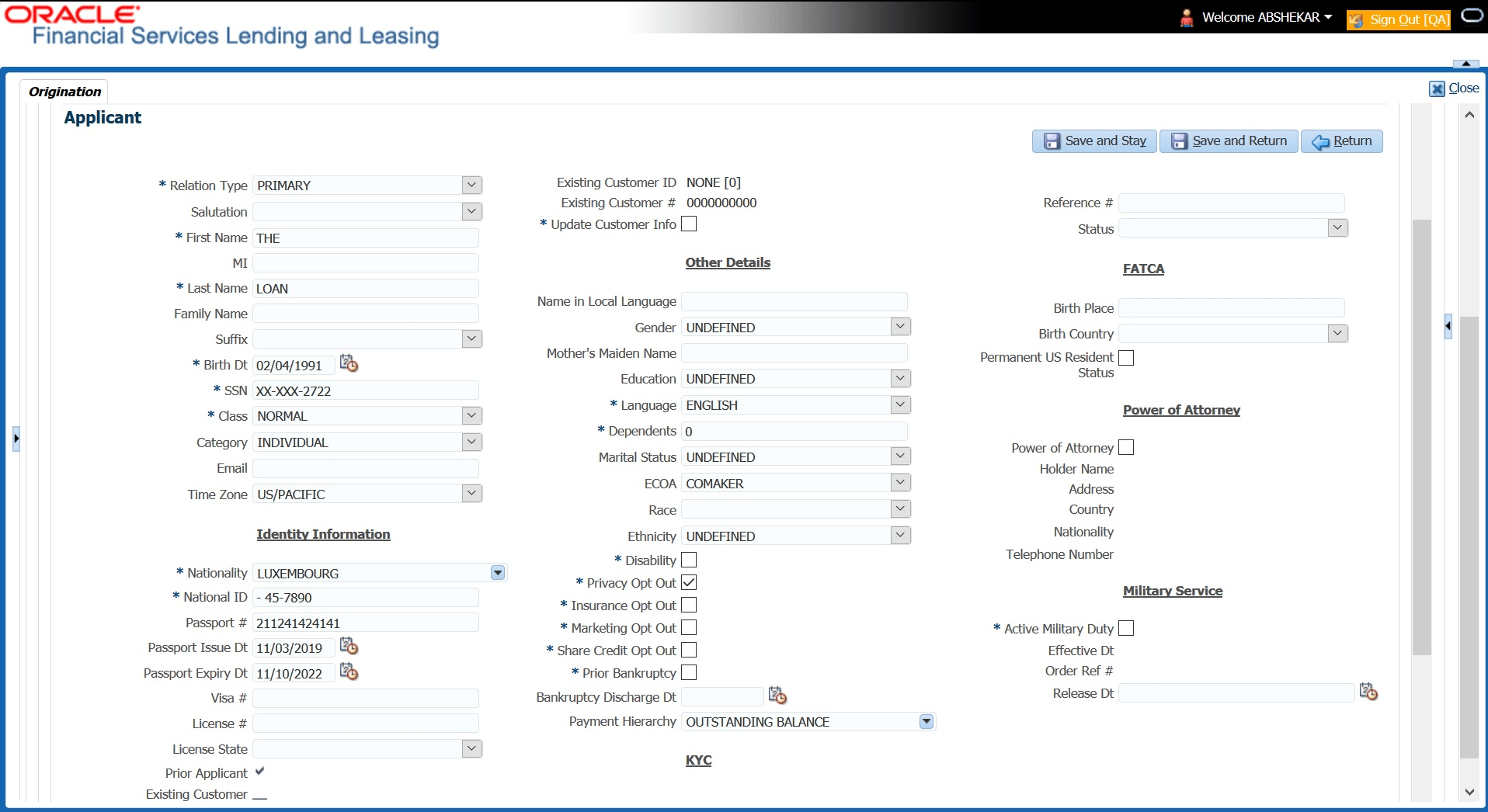
The Applicant screen displays.
- In this section, user can perform any of the Basic Operations mentioned in Preface.
A brief description of the fields is given below:
Table 7-2 Applicant
Field Description Relation Type Select the relationship type from the adjoining drop-down list. For example, primary, spouse, secondary, or cosigner. Salutation Select the salutation from the adjoining drop-down list. First Name Specify the applicant’s first name. MI Specify the applicant’s middle name. Last Name Specify the applicant’s last name. Family Name Specify the applicant’s family name. Suffix Select the name suffix/generation from the adjoining drop-down list. Birth Dt Specify the applicant’s date of birth. SSN Specify the applicant’s social security number. Class Select the classification of the applicant from the adjoining drop-down list. For example, NORMAL or EMPLOYEE. The system uses this information to restrict access to the database by recognizing employees as secured applications.
User can create a SME (Small Medium Enterprise) application by selecting SMALL BUSINESS. When user select SMALL BUSINESS and save user entry, the Business Applicants link on the Applicants link is available. (required).
Email Specify the personal Email ID of the applicant. Time Zone Specify the time zone to which the applicant belongs. This information appears when user enter and save the zip code for the primary applicant’s current home address on the Address sub screen. User can also manually complete this field. Identity Information Displays the identity information section. Nationality Select the applicant’s nationality from the adjoining drop-down list. National ID Specify the national identification number. Passport # Specify the passport number. Passport Issue Dt Select the date on which passport was issued. Passport Expiry Dt Select the passport’s expiration date. Visa # Specify the applicant’s visa number. License # Specify the applicant’s license number. License State Select the state where the license was issued, from the adjoining drop-down list. Prior Applicant Check this box to indicate that the customer is an existing customer. Existing Customer Check this box to indicate that this applicant has a previous account. Existing Customer ID Specify the customer ID if the applicant is an existing customer. Existing Customer # Specify the customer number, if the applicant is an existing customer. On saving the applicant details, the data in Existing Customer # is displayed as a link in Applicant section header and clicking on the same will display the customer details in Search Results section of Servicing module.
Update Customer Info Check this box to indicate, if system can override the existing customer information and create the record with latest address and communication details of the customer. Other Details Displays the other details section. Name in Local Language Specify the applicant’s name in local language. Gender Select the gender of the applicant from the adjoining drop-down list. Mother’s Maiden Name Specify the mother’s maiden name. Education Select the education of the applicant from the adjoining drop-down list. Language Select the applicant’s native language from the adjoining drop-down list. Dependents Specify the number of dependents. Marital Status Select the marital status of the applicant from the adjoining drop-down list. ECOA Select the ECOA (Equal Credit Opportunity Act) code, from the adjoining drop-down list. This defines the various possibilities on who is liable; individual, joint, cosigner and so on. Race Select the applicant’s race from the adjoining drop-down list. Ethnicity Select the applicant’s ethnicity from the adjoining drop-down list. This is the information the Home Mortgage Disclosure Act requires to be reported. Disability Check this box if the application has a disability. Privacy Opt Out Check this box to indicate that the applicant has elected to refrain from the non-public sharing of information. Insurance Opt Out Check this box to indicate that the applicant has elected to refrain from insurance related inquiries. Marketing Opt Out Check this box to indicate that the applicant has elected to refrain from marketing related inquiries. Share Credit Opt Out Check this box to indicate that the applicant has elected to refrain from financial information and share credit related inquiries. Prior Bankruptcy Check this box, if prior bankruptcy exists. Bankruptcy Discharge Dt Enter the discharge date of prior bankruptcy (if one exists). Payment Hierarchy Select the required Hierarchy Definition to be used for payment appropriation from the drop-down list. The list is populated with all the predefined and enabled hierarchy definitions maintained on the Setup, click Administration. Under Administration, click Users. Under Users, click Payment Hierarchy screen.
The Hierarchy Definition selected here is propagated to Servicing, click Customer/Business details. If an existing hierarchy is modified and the Update Customer/Business info option is enabled, then the Payment Hierarchy in Servicing click Customer/Business details are also updated.
KYC Displays the KYC Section. Reference # Specify the reference number. Status Select the status of the applicant from the adjoining drop-down list. FATCA Display the FATCA section. Birth Place Specify the birth place of the applicant. Birth Country Select the country of birth of the applicant. Permanent US Resident Status Check this box if the applicant has permanent US resident status. Power of Attorney Display the Power of Attorney section. Power of Attorney Check this box if user hold a power of attorney. Holder Name Specify the holder name of the power of attorney. Address Specify the address of the holder. Country Specify the country of the power of attorney holder. Nationality Specify the nationality of the power of attorney holder. Telephone Number Specify the telephone number of the power of attorney holder. Military Service This section can be used to capture applicant’s Active Military Duty details and can be validated with applicant Bureau Details. Active Military Duty Check this box to indicate if applicant is on Active Military Duty. Effective Dt Select the date from when the applicant is on Active Military duty using adjoining calendar. Order Ref # Specify the Order Reference number which indicates the applicant’s Active Military duty service. Release Dt Select the date from when the applicant was released from Active Military duty using adjoining calendar. - Perform any of the Basic Actions mentioned in Preface.
- User can verify the personal information about the applicant. Two check boxes indicate if this is an existing customer or a prior applicant. The Existing Customer field enables user to select the existing customer.
This section consists of the following topics:
- Address Sub Tab
This topic provides information on Address Sub. It enables users to enter, view, and maintain address details associated with collateral substitution records. - Employments Sub Tab
This topic provides information on employments. It enables users to view and maintain employment details. - Telecoms Sub Tab
This topic provides information on telecoms. It outlines the process of capturing, managing, and tracking telecoms details within the system for reference and validation. - Summary Sub Tab
This topic provides information on summary. - Credit Score Sub Tab
This topic provides information on the credit score. It enables users to view and manage credit score details, including bureau results, scoring factors, and updates within the request. - Duplicate Applicant Sub Tab
This topic provides information on the duplicate applicant. It enables users to identify, review, and manage duplicate applicant records within the request. - Existing Account Sub Tab
This topic provides information on the existing account. It enables users to view and manage details of accounts already linked to the applicant, including account type, status, and key financial information. - Tracking Attributes Sub Tab
This topic provides information on tracking attributes. It enables users to define, monitor, and manage key attributes that support tracking and reporting within the request. - Customer Search Tab
This topic provides information on the customer search. It enables users to search, view, and access customer records using various criteria such as name, ID, or account details.
Parent topic: Underwriting