7.17.1 Correspondence Sub Tab
This topic provides information on the correspondence.
To generate an ad hoc correspondence
- On the Origination, click Origination. Under Origination, click Underwriting. Under Underwriting, click Underwriting tab.
- Under Underwriting, click
Correspondence. Under
Correspondence, click
Correspondence.
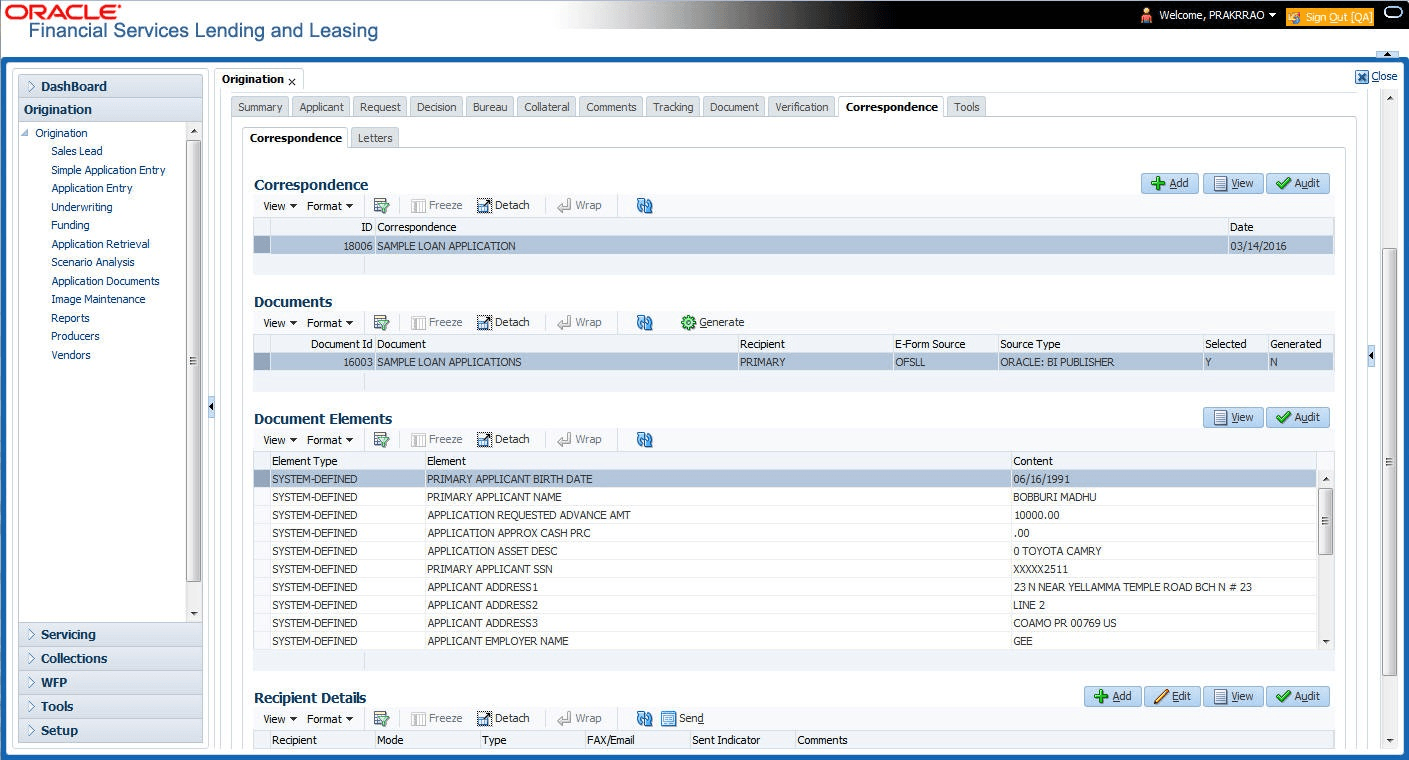
The Correspondence screen displays.
- Perform any of the Basic Operations mentioned in Preface.
A brief description of the fields is given below:
Table 7-67 Correspondence
Field Description Correspondence Select the correspondence user want to generated. ID System displays the correspondence ID. Date System displays the correspondence generation date. - Perform any of the Basic Actions mentioned in Preface.
The Documents section displays all the types of documents available for the type of correspondence user selected.
- In the Documents section, view the following information for each
document:
Table 7-68 Documents
Field Description Document ID Displays the document ID. Document Displays the document description. Recipient Displays the recipient description. E-Form Source Displays the e-form source. Source Type Displays the source type. Selected If selected, indicates that this document is selected to be included in the correspondence. Generated If selected, indicates that the system generated the document. - In the Documents section, select the correspondence user want to view.
- The Document Elements section displays the elements the system used to
generate the correspondence. User view the following information:
Table 7-69 Document Elements
Field Description Element Type View the element type. Element View the element description. Content Specify/view the value of the element. - Click All to view all elements in
the correspondence.
-or-
- Click User Defined, to view user-defined elements in the correspondence.
- Click All to view all elements in
the correspondence.
- In the Document Elements section, click User Defined and complete the Content fields for the Document Element fields user want to include in the correspondence.
- In the Document Elements section, click Save.
- In the Documents section, click Generate.
The system locks the information included in the correspondence and prevents it from being changed.
- In the Document Elements section, click View.
The system displays a PDF of the ad hoc correspondence.
This section consists of the following topic:
- Recipient Details Sub Tab
This topic provides information on the recipient details, which displays recipient information and associated details.
Parent topic: Correspondence Tab