16.4 Follow-up Tab
This topic provides details of follow-up, reminders, and related actions for a record, helping users track pending activities and next steps within the system.
The Work Orders link lists the work orders that are not complete and hence require follow-up.
- On the Origination, click
Origination. Under Origination, click
Vendors. Under Vendors, click
Follow-up.
The Follow-up screen displays.
- On the Work Order Follow-up section, Perform
any of the Basic Operations mentioned in Preface except for creating a new record.
A brief description of the fields is given below:
Table 16-11 Follow-up
Field Description Company Displays the vendor company. Branch Displays the vendor branch. Followup Dt Specify the next follow-up date. User can even select the date from adjoining Calendar icon. Work Order # Displays the work order number. Dt Displays the work order date. Account Displays the account associated with the work order. Vendor Displays the vendor associated with the work order. Status Select the work order status from the drop-down list. Status Dt Displays the last work order status change date. Work Order Displays the work order section. Currency Displays the currency for the work order. Estimated Displays the estimated amount, which is the sum of all the services added to the work order. Billed Amt Displays amount billed by the vendor for the work order. Paid Displays amount paid to the vendor for the work order. Vendor Information Displays the vendor information section. Contact Displays the vendor contact name. Phone Displays the vendor contact phone number. Extn Displays the vendor contact phone number’s extension. Comment Specify a comment. - Perform any of the Basic Actions mentioned in Preface.
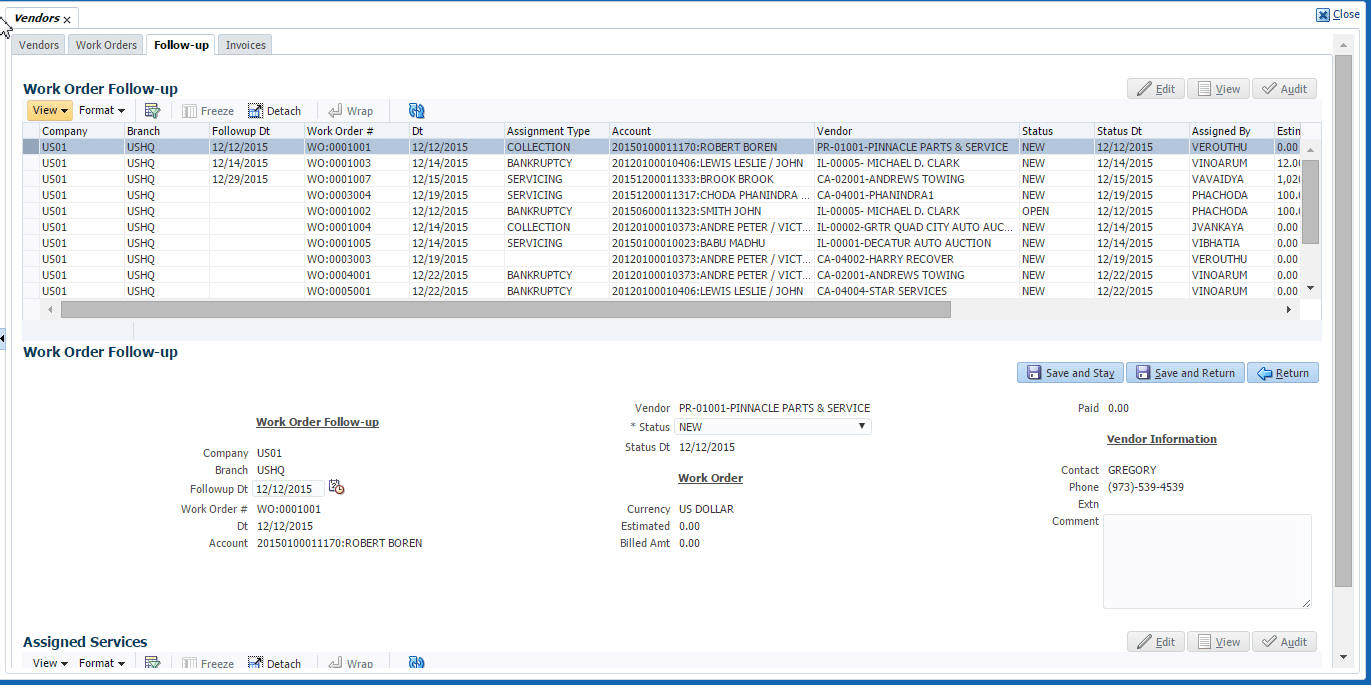
This section consists of the following topic:
- Assigned Services
This topic provides details of the services assigned to a specific record, case, or account, including service type, status, and related information within the system.
Parent topic: Vendors