4.4 Maintenance Tab
This topic provides information on Maintenance. It supports reassignment of sales leads and status updates.
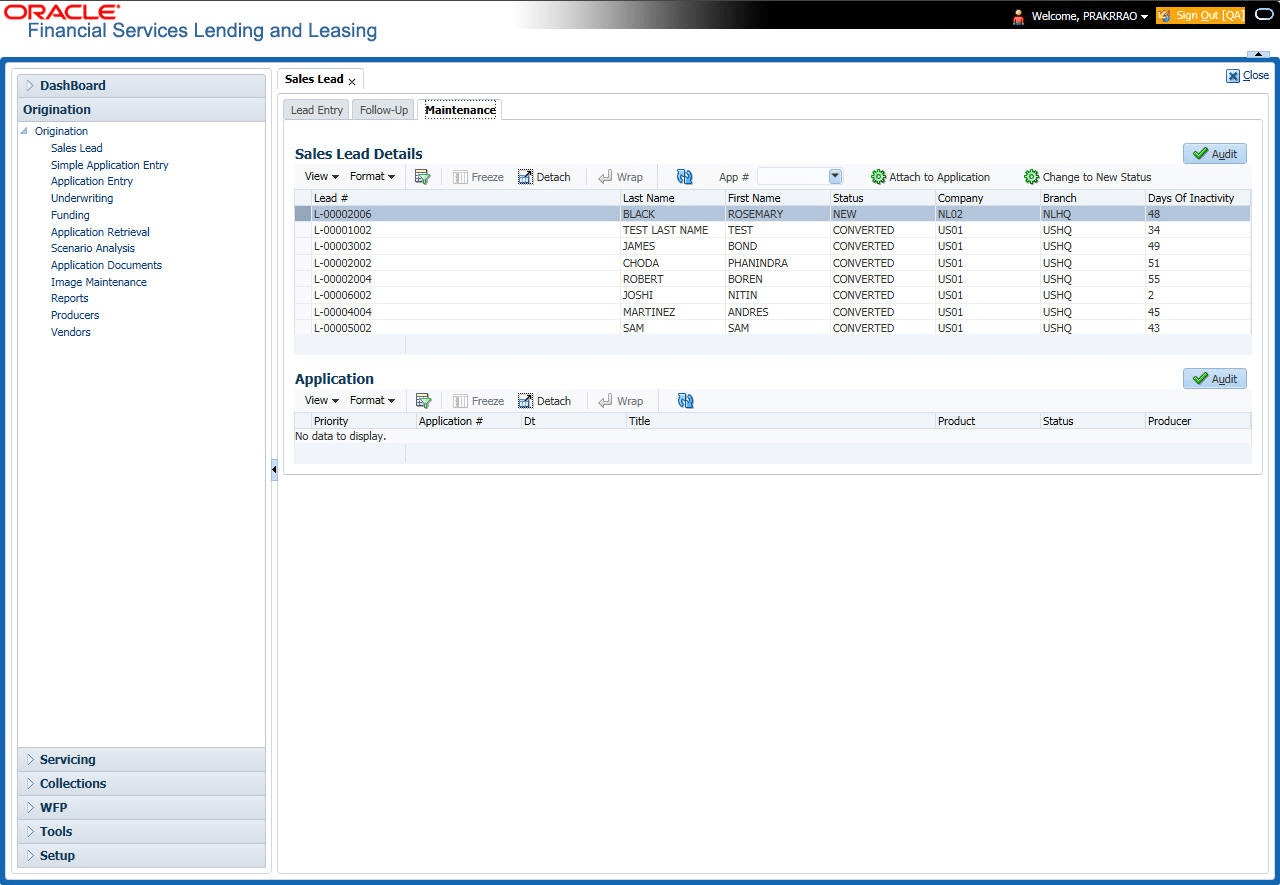
The Maintenance tab enables user to attach a sales lead to a different or missed application or change status of lead as NEW.
- On the Origination, click
Origination. Under Origination,
click Sales Lead. Under Sales
Lead, click
Maintenance.
The Maintenance screen displays.
A brief description of the fields is given below:Table 4-7 Maintenance
Field Description Lead # View the sales lead number. Last Name View the last name of the sales lead. First Name View the first name of the sales lead. Status View the status of the sales lead. Company View the company of the sales lead. Branch View the branch of the sales lead. Days of Inactivity View the number of days of inactivity regarding the sales lead. To attach a sales lead to an application
- In the Sales Lead Details section, select the sales lead user want to attach to the application.
- In the header section, select the application number from the App # drop-down list.
- Click Attach to an Application button.
- On attaching a sales lead to an application, user can view the following details of
the application:
Table 4-8 Application
Field Description Priority Displays the priority of the sales lead. Application # Displays the application number of the sales lead. Date Displays the date of the application. Title Displays the title of the application. Product Displays the product of the application. Status Displays the status of the application. Producer Displays the producer of the application. However, If a wrong Sales Lead was attached to an application, user can detach it from the existing application by clicking Change to New Status button in the header section. The Sales Lead status is set back to NEW. User can then attach it to the required application as described above.
Parent topic: Sales Lead