7.19.5 Reassign Review Request
This topic provides information on the reassign review request function, which enables users to redirect requests to a different reviewer for assessment.
While reviewing a request, system also facilitates user to reassign (i.e.
forward) the review request to another user for review. In such a case, user become the
Sender and the assigned user will be the reviewer of the request. The request
can further move to other reviewers if required.
When the request is reassigned or forwarded to another reviewer, the actual
originator can still track the status of request by selecting user ID in Query section.
As a Sender, user can view the reassigned review requests by selecting the
Forwarded Only check box in Query section. Also, on
reassigning or forwarding a review request, system automatically posts a comment in
Comment History section in the format - REVIEW REQUEST: <Request #>
FORWADED FROM <first assigned user id> TO <next assigned user id> with Sub
Type as SYSTEM GENERATED and Comment By as INTERNAL.
Note:
It is recommended to limit the reassignment of review request since tracking the request status becomes difficult.To reassign review request
- In the Review Request section, select the record that user have reviewed and
click Edit.The Review Requests screen displays.
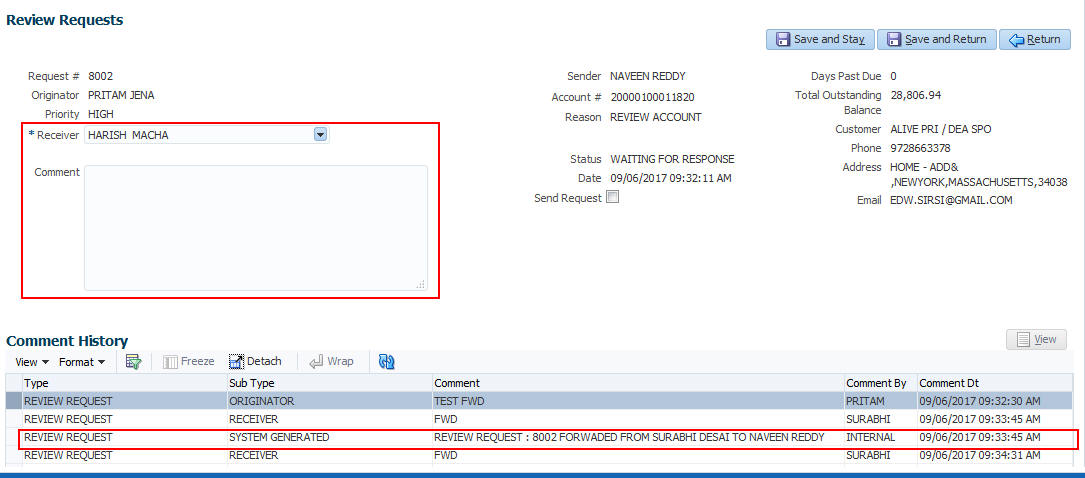
The details are updated in Review Request tab and status of request is updated as WAITING FOR RESPONSE.
Parent topic: Review Request