1.51.1 Create Customer Address
This topic describes the systematic instructions to configure the customer address.
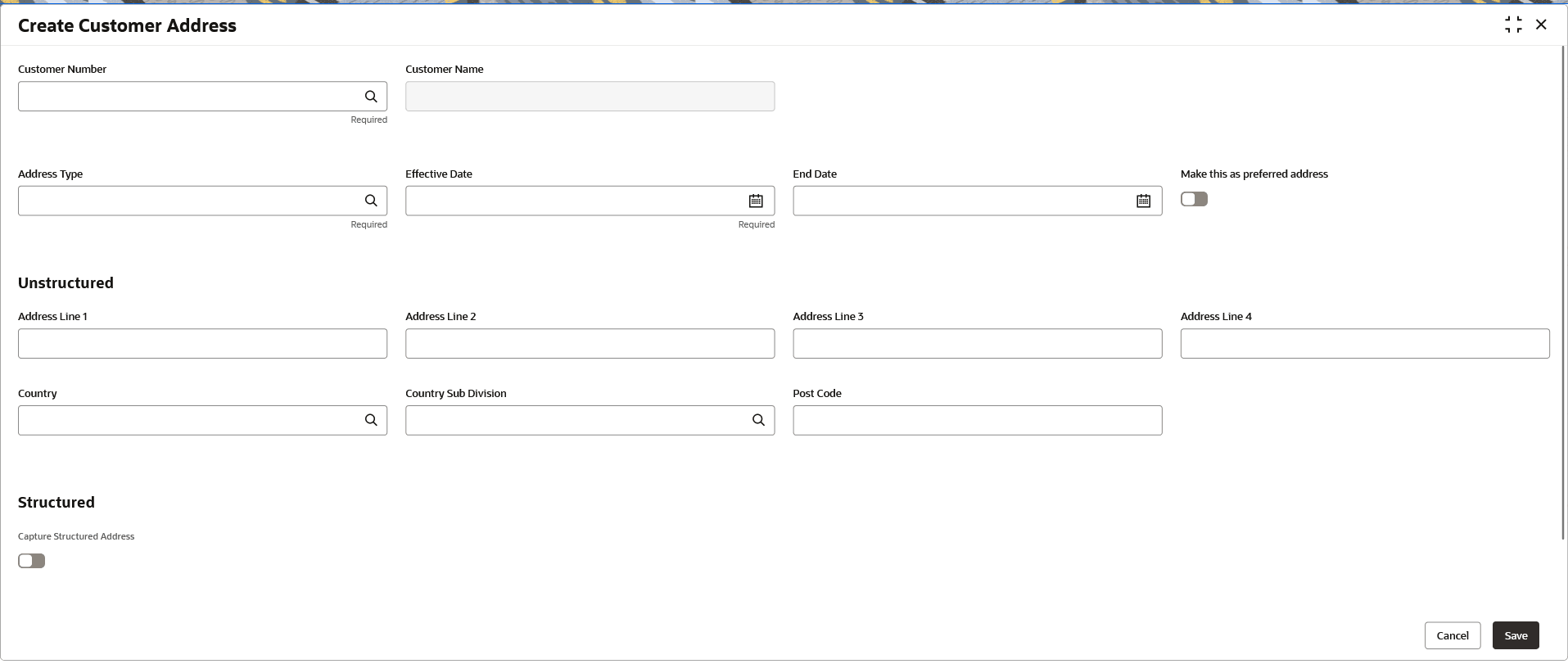
- Specify the fields on the Create Customer Address screen. For more information on fields, refer to the field description table.
Note:
The fields marked as Required are mandatory.Table 1-121 Create Customer Address – Field Description
Field Description Customer Number Click Search icon to view and select the required customer number. Customer Name Displays the customer’s name based on the selected Customer Number. Address Type Click Search icon to view and select the required Address Type. Effective Date Select the date from which the address becomes effective from the calendar. End Date Select the date until which the address is valid. Make this as preferred address Toggle to make address, the default/preferred address for communication. Unstructured Section to capture details of unstructured address. Address Line 1 Specify the primary address information of the customer or entity. It typically includes the street address, apartment number, suite, or any other pertinent details necessary to locate the physical location.
Address Line 2 Specify the supplementary address details such as building name, floor, or unit number to further refine the primary location provided in Address Line 1. Address Line 3 Specify the landmarks or delivery instructions to further specify the customer's address. Address Line 4 Specify the delivery instructions, reference points, or other pertinent information that helps clarify the customer's location. Country Select the standardized Country Code linked to the address. Click Search icon to view and select the required country.
Country Sub Division Select from the list of State Codes mapped to the country. Click Search icon to view and select the required country sub division.
Post Code The postal or ZIP code associated with the address. It helps in identifying the precise location of the address and facilitates accurate sorting and routing of mail and packages.
Structured Capture Structured Address
Toggle to capture the address of the party in a standardized (ISOcompliant) structured format. Switch the toggle to ON to enable the configuration section below.
Department Specify the name of a division of a large organization or building. Sub Department Specify the name of a sub-division of a large organization or building. Street Name Specify the name of a street or thoroughfare. Building Number Specify the number or the number that identifies the position, of a building on a street. Building Name Specify the name of the building or house. Floor Specify the floor within a building. Post Box Specify the designated post office box number assigned to a person or organization, where letters are kept until called for (P.O. Box Number). Room Specify the specific room or suite number associated with the address. Post Code Specify the numerical or alphanumeric code assigned to a specific geographic area for the efficient mail delivery. It helps in identifying the precise location of the address and facilitates accurate sorting and routing of mail and packages.
Town Name Specify the name of a built-up area, with defined boundaries, and a local government. Town Location Name Specify the town, locality, or neighborhood where the address is situated. District Name Specify the district or administrative division where the provided address is located. Country Specify the standardized code representing the country linked to the address. Click Search icon to view and select the required country.
Country Sub Division Specify the state, province, or region of the provided address. List of states is populated based on selected country. Click Search icon to view and select the required country sub division Address Line 1 Specify the primary address information of the customer or entity. It typically includes the street address, apartment number, suite, or any other pertinent details necessary to locate the physical location. Address Line 2 Specify the supplementary address information, such as building name, floor, unit number, or additional details that further specify the location indicated in address line 1.
Parent topic: Customer Address Details