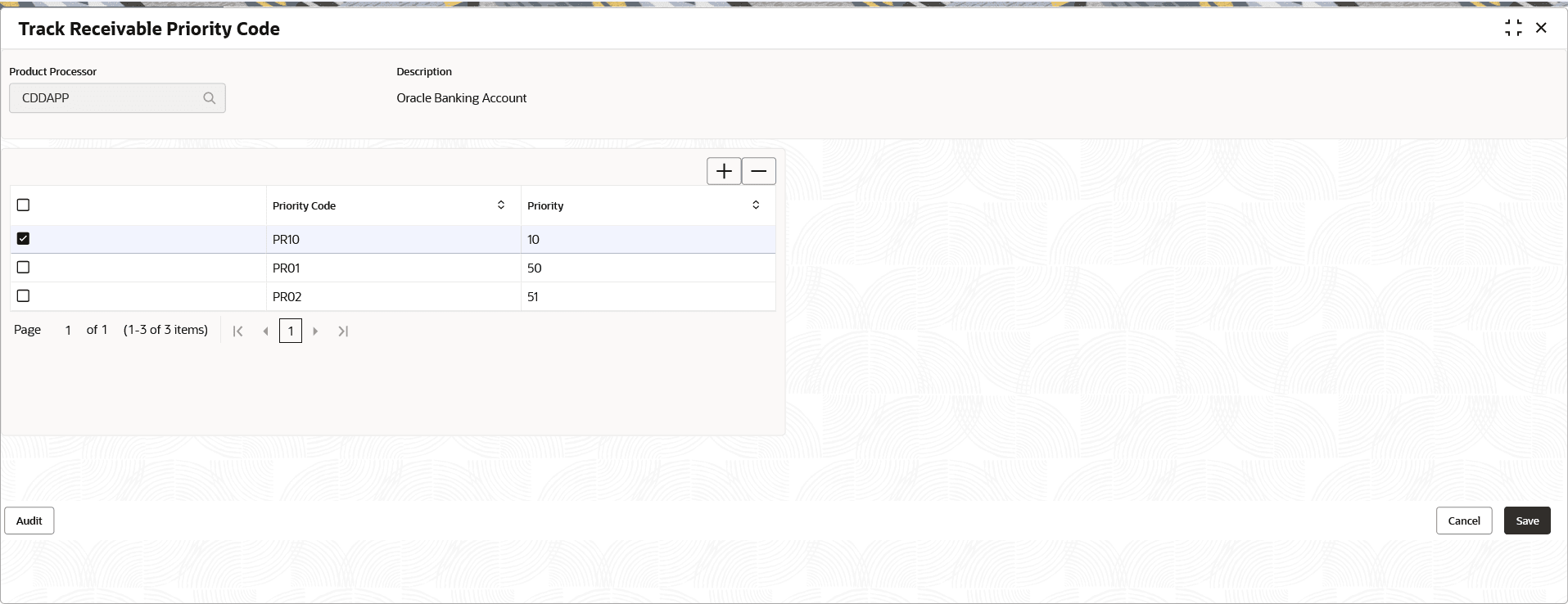
1.50.1 Create Track Receivable Priority Code

This topic describes the systematic instructions to configure Priority Code.

  1. From Home screen, click Core Maintenance. Under Core Maintenance, click Track Receivable Priority Code.
  2. Under Track Receivable Priority Code, click Create Track Receivable Priority Code.
    The Create Track Receivable Priority Code screen is displayed.

    Figure 1-112 Create Track Receivable Priority Code


  3. Specify the fields on the Create Track Receivable Priority Code screen.

    Note:

    The fields marked as Required are mandatory.
    For more information on fields, refer to the field description table.

    Table 1-113 Create Track Receivable Priority Code – Field Description

    Field Description
    Product Processor Select the product processor from the drop-down list.

    Each product processor (example, OBCL, OBRL, TF) is responsible for associating the relevant priority codes to their respective: Products, Components, or A combination of both.

    Description Displays the description of the selected product processor.
    Priority Code Specify the unique priority code for the selected product processor.

    Note: A single priority code can be linked to multiple products (example, PR02 can be linked to Interest and Charges).

    Priority Specify the priority for the Priority Code.

    Note : This allows value between 00 to 99. And a lower numerical value denotes a higher settlement priority (example, '01' is processed before '10').

  4. Perform one of the following action:
    • Click Save to save the details.

      The priority code is successfully created and can be viewed using the View Track Receivable Priority Code screen.

    • Click Cancel to discard the changes and close the screen.