Create BIC Directory
This topic describes the systematic instructions to configure a BIC directory for a customer.
- From Home screen, click Core Maintenance. Under Core Maintenance, click BIC Directory.
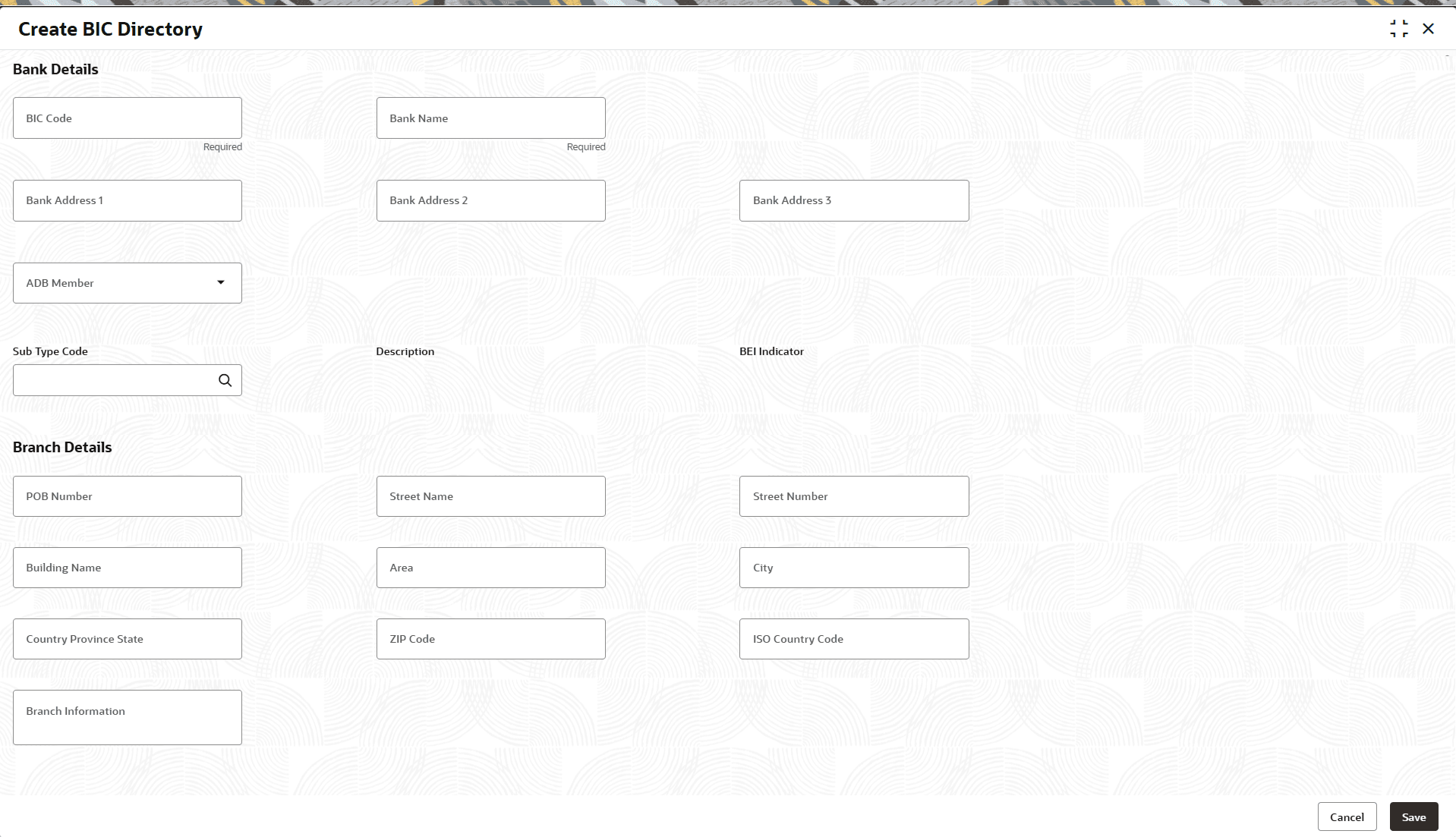
- Under BIC Directory, click Create BIC Directory.The Create BIC Directory screen is displayed.
- Specify the fields on the Create BIC Directory screen.For more information on fields, refer to the field description table.
Note:
The fields marked as Required are mandatory.Table 1-15 Create BIC Directory – Field Description
Field Description BIC Code Specify the unique BIC Code by which the bank is identified by SWIFT. Bank Name Specify the name for the bank. Bank Address 1-3 Specify the bank address information 1-3. ADB Member Selects whether the bank is an Asian Development Bank (ADB) member or not from the drop-down list. The available options are:- Yes
- No
- Not Applicable
Sub Type Code Click Search icon to view and select the required sub-type code. Description Displays the description for the selected subtype code. BEI Indicator Displays BEI Indicator based on the selected Sub-type Code. Branch Details POB Number Specify the post office box number for the branch. Street Name Specify the branch street name. Street Number Specify the branch street/building number. Building Name Specify the name of the building where the branch is located. Area Specify the locality, district, or area of the branch. City Specify the city where the branch is located. Country Province State State, province, or region of the branch. ZIP Code Specify the postal or ZIP code for the branch address. ISO Country Code Specify the standard ISO country code for the branch location (for example, US, IN). Branch Information Specify additional branch-specific details. - Perform one of the following action:
- Click Save to save the details.
The BIC directory is successfully created and can be viewed using the View BIC Directory screen.
- Click Cancel to discard the changes and close the screen.
- Click Save to save the details.