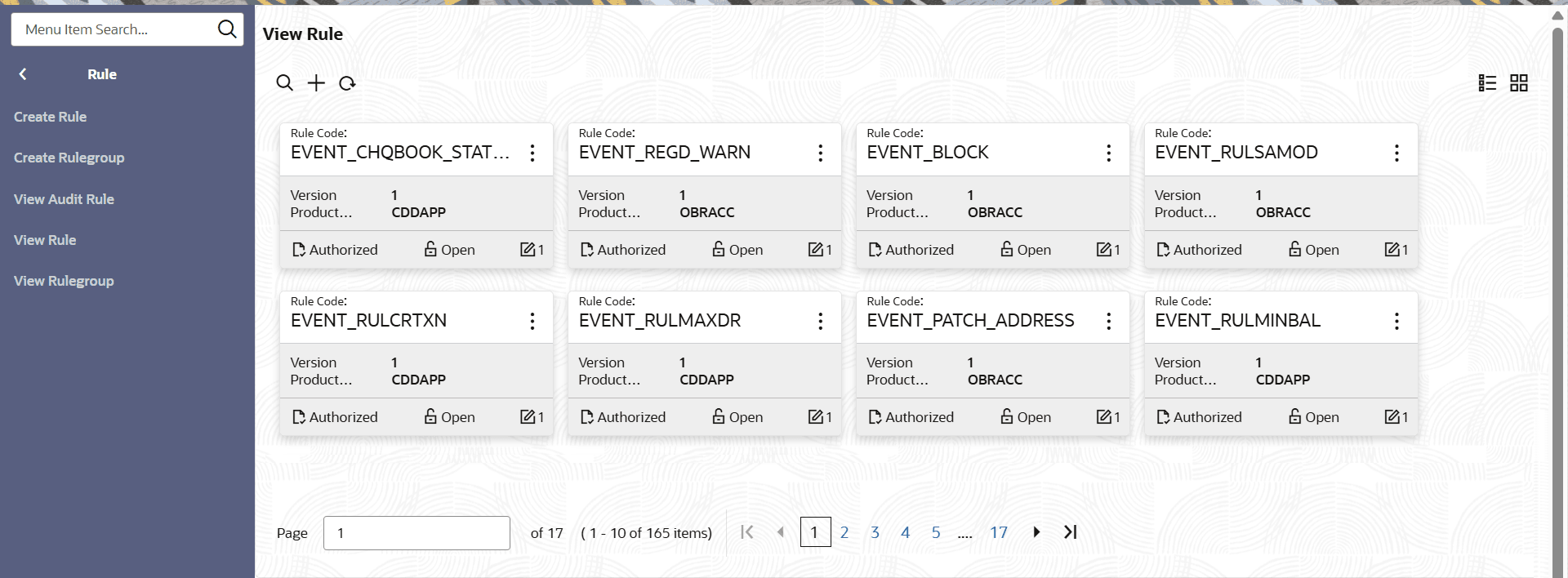
View Rule
This topic describes the systematic instructions to view the list of rule.
The user can configure fact using Create Rule screen.
- Under Rule, click View
Rule.The View Rule screen is displayed.
For more information on fields, refer to the field description table.
Table 7-4 View Rule – Field Description
Field Description Rule Code Displays unique identifier of the rule. Version Displays the current version number of the rule. Product Processor Displays the product processor. Authorization Status Displays the authorization status of the record. The options are:- Authorized
- Rejected
- Unauthorized
Record Status Displays the status of the record. The options are:- Open
- Closed
Modification Number Displays the number of modification performed on the record.