8.2.8 Appendix
This topic provides the systematic instructions to view the current Oracle Managed Access and Create & update an Approval Template
- Viewing Oracle Managed Access Settings
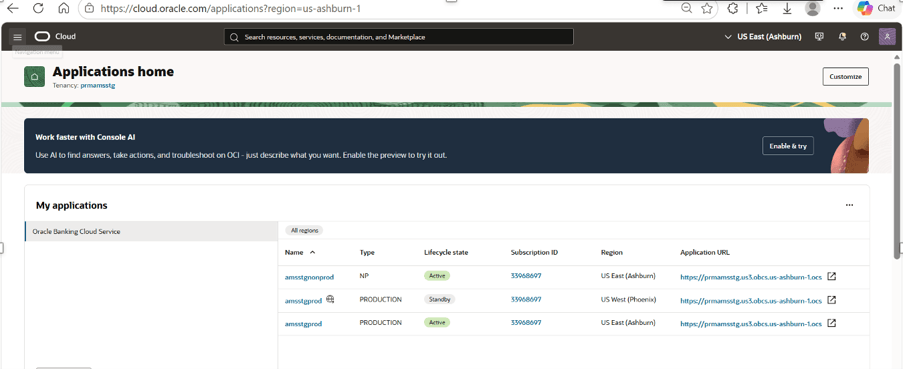
- Sign in to the Oracle Cloud Console as an Account Administrator or Identity Domain Administrator.
Figure 8-26 Application Home
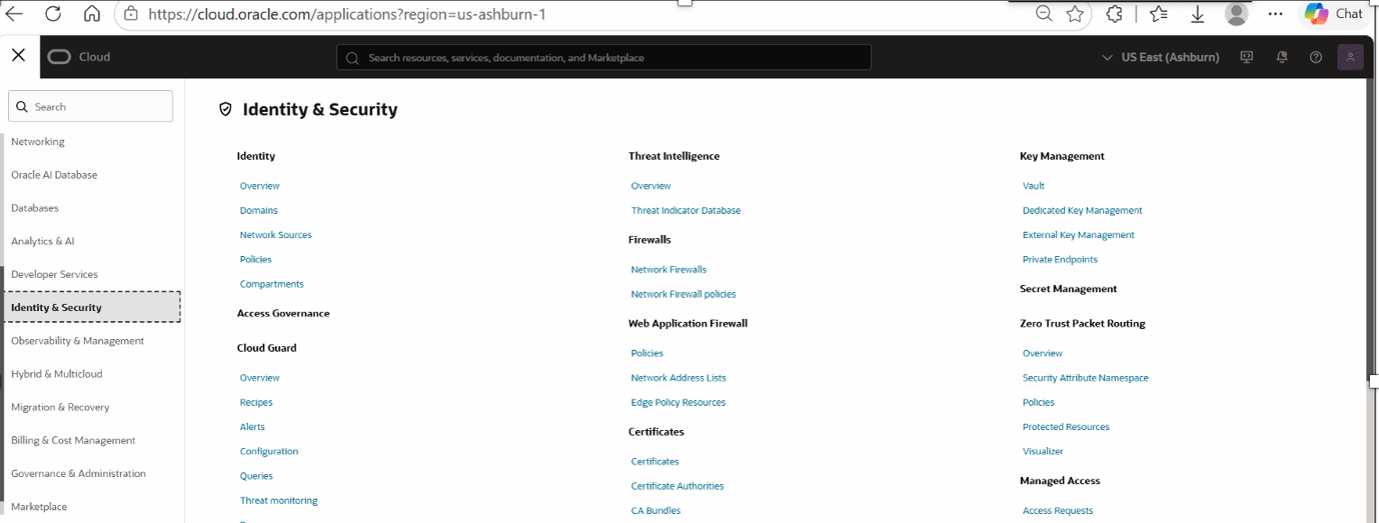
- From the Navigation menu, search for Identity & Security and select Managed Access.
Figure 8-27 Identity & Security
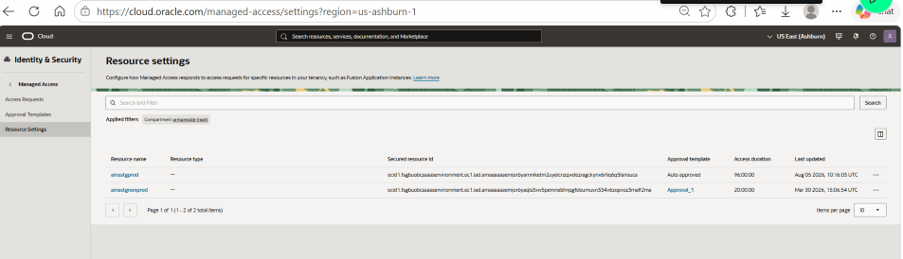
- Under Managed Access, select Resource settings.
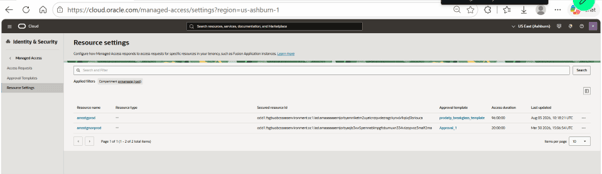
All environments in the compartment and their associated access settings are listed in a table.
Figure 8-28 Resource settings
- Sign in to the Oracle Cloud Console as an Account Administrator or Identity Domain Administrator.
- Creating an Approval Template
- Sign in to the Oracle Cloud Console as an Account Administrator or Identity Domain Administrator.
- From the Navigation menu, search for Identity & Security and select Managed Access.
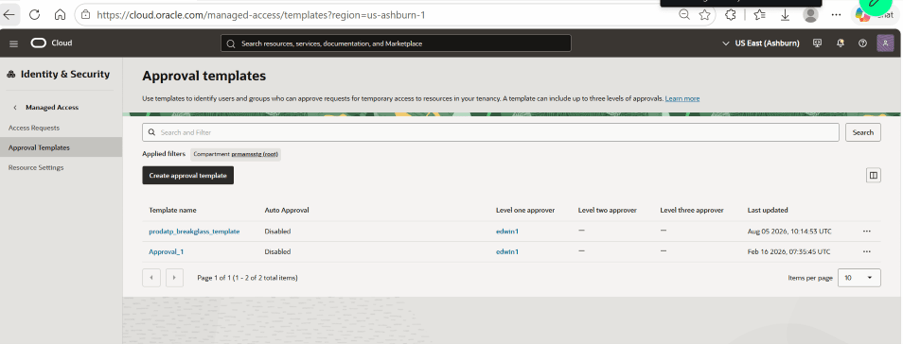
- Under Managed Access, select Approval templates.
Figure 8-29 Approval templates
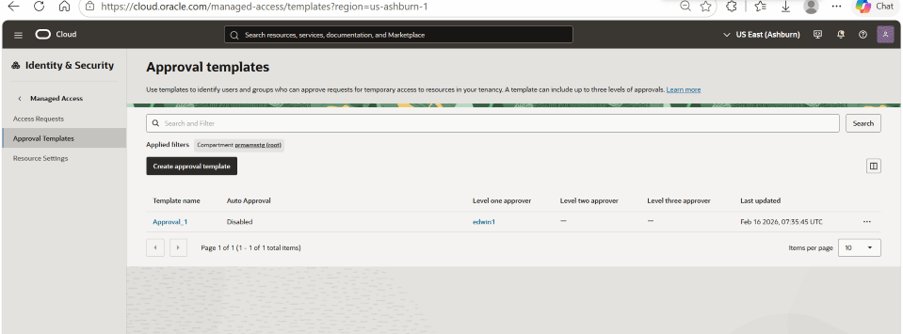
- On the Approval templates list page, select Create approval template.
- Enter a name for the template.
Figure 8-30 Create approval template
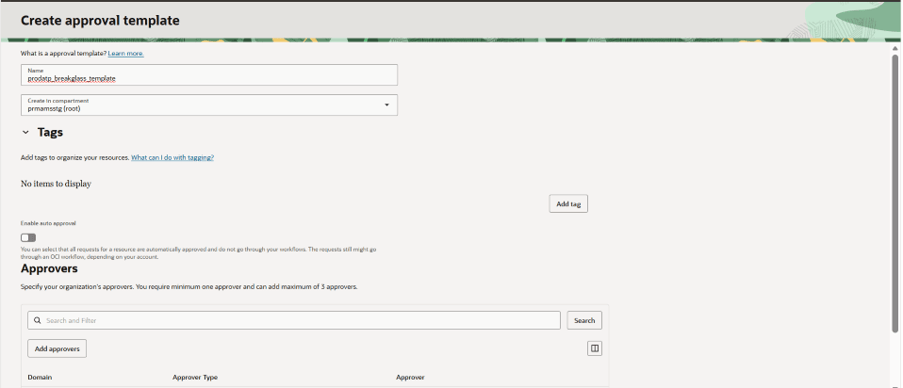
- To specify users or groups to approve the request, select Add approvers and specify the following:
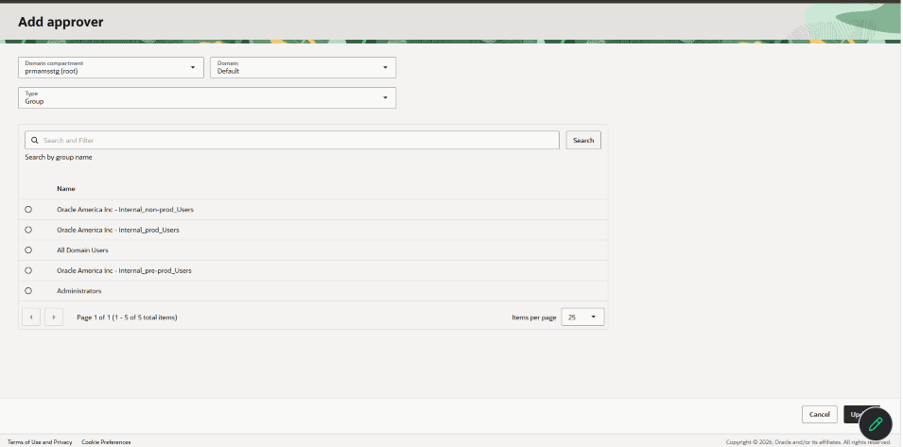
- Domain compartment: Select the compartment of the domain.
- Domain: Select the managed domain.
- Type: Select user or group.
- Name: Specify the user or group that will receive notifications.
- Select Update.
Figure 8-31 Add Approver
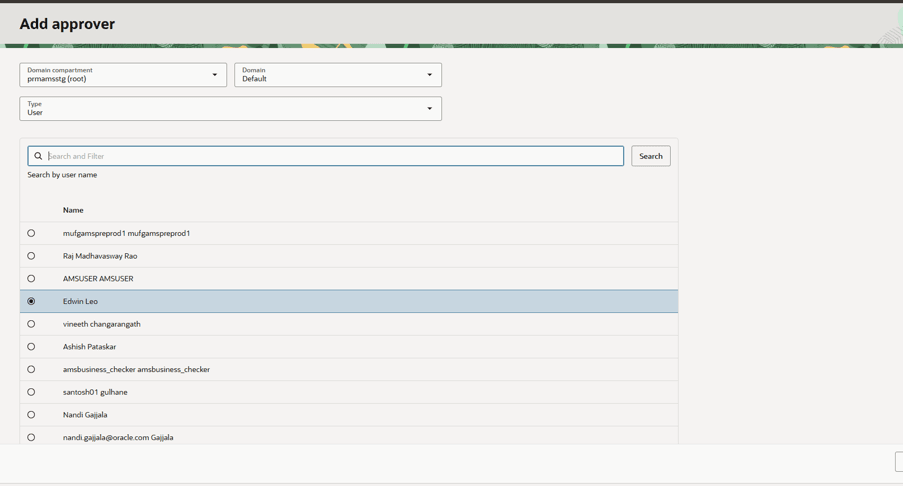
Figure 8-32 Add approver
- Select Create approval template.
Figure 8-33 Create approval template
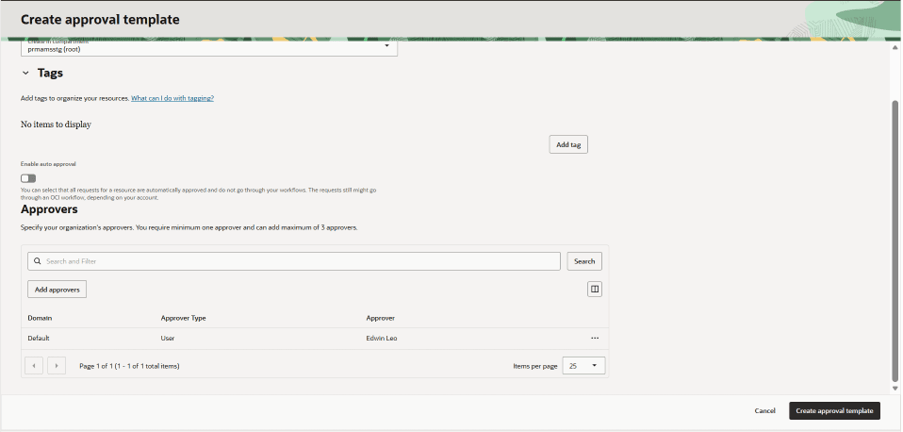
Approval template created.
Figure 8-34 Approval template
- Enter a name for the template.
- Assigning a Template to an Environment
- Under Managed Access, select Resource Settings.
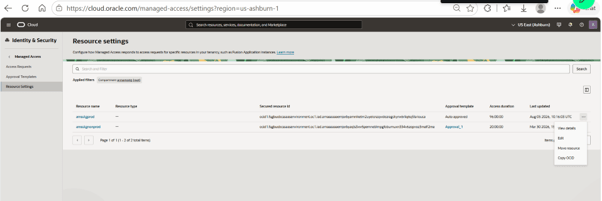
- On the Resource settings list page, select the Actions menu (three dots) for the resource that you want to edit a setting for.
Figure 8-35 Resource settings
- Select Add approval template to assign the newly created approval template to this environment.
- Update the Access duration, if required.
Figure 8-36 Edit resource settings
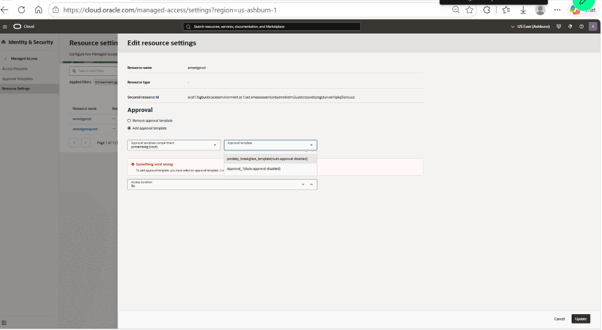
Figure 8-37 Edit resource settings
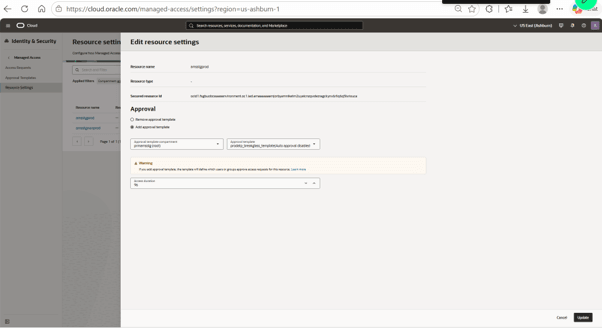
Approval template assigned to environment.
Figure 8-38 Approval template assigning
- Approving access requests
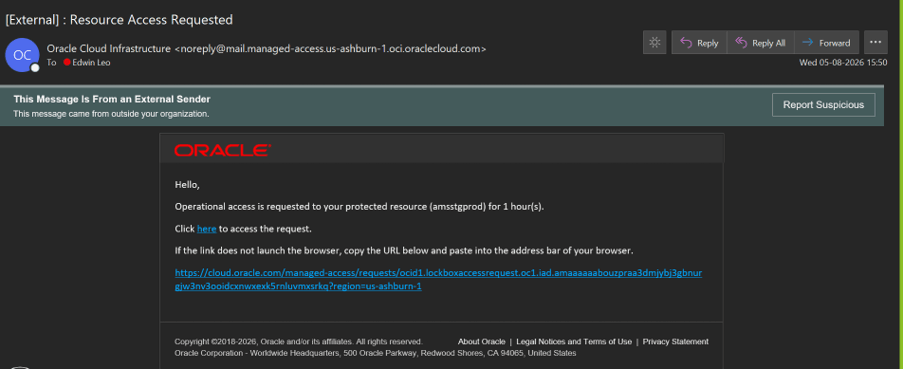
When an Oracle operator requests access to an environment, Managed Access sends an email notification to designated approvers. You can select the link in the email to review the request in the Oracle Cloud Console. If you configure multiple approval levels, approvers at each level receive notifications, and each level must approve the request.
Access Request Email
The access request email includes:
- The environment that is requested to be accessed.
- The requested access duration.
- A URL to review the request in the Oracle Cloud Console.
You can click the link to review and approve the access request.
Figure 8-39 Resource access request email
When you open the URL, you are taken to Managed Access.
- Open the Actions menu (three dots) for the request.
- Select Approve, Decline, or Revoke.
You can also use the Access Requests page to audit and track all access requests.
Figure 8-40 Access Requests
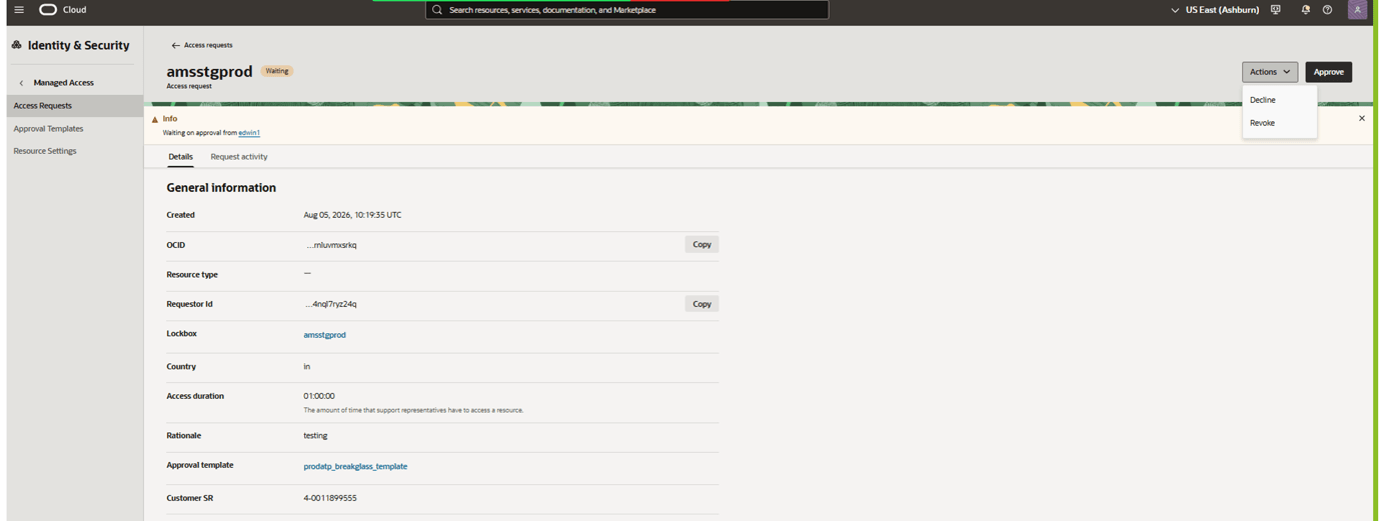
Figure 8-41 Access Requests
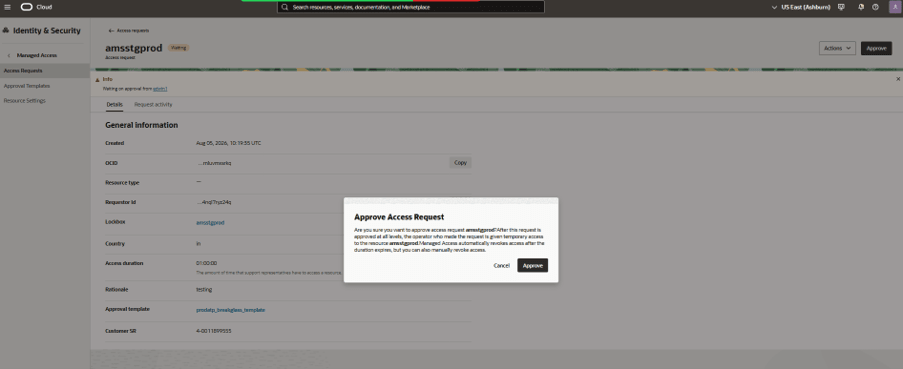
The request is approved.
Figure 8-42 Approved Request

Parent topic: Oracle Managed Access/Break Glass