5.6.1 Creating a Custom Domain

This section provides step-by-step instructions for creating and configuring a custom Domain in Oracle Cloud Infrastructure (OCI). Custom domains allow you to manage users, groups, authentication policies, and integrations within your OCI environment.

To create a custom domain, follow these steps:
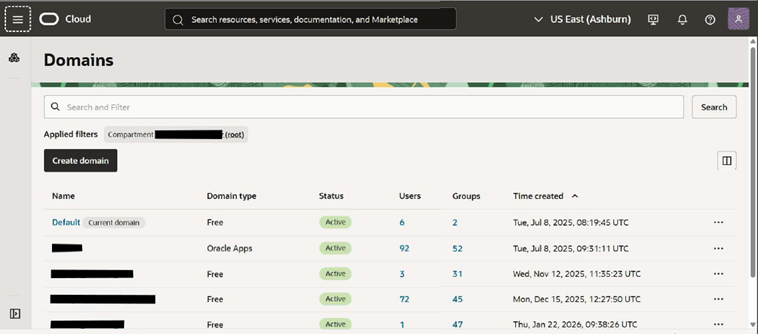
  1. Navigate to Identity & Security and select Domains. The Domains page displays all existing identity domains.

    Figure 5-5 Domains

    Domains

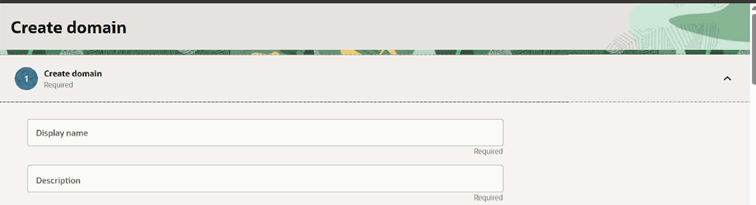
  2. Click Create Domain. The Domain Creation window is displayed. It consists of three stages:
    • Create Domain
    • Remote Region Disaster Recovery
    • Review and Create

    Figure 5-6 Create Domain

    Create Domain

  3. Under the Create Domain section, enter the following details.
    • Display Name- A unique and descriptive name for the domain.
    • Description- Administrative context describing the purpose of the domain. This field is optional.
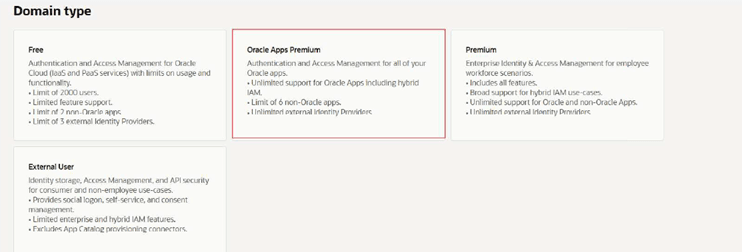
  4. Select the Domain Type from the available list.
    • Free Domain
    • Oracle Apps Premium Domain
    • Premium Domain
    • External User Domain

    Figure 5-7 Domain Type

    Domain Type

    Note:

    For Oracle application environments (AFCS), users must select the domain type as Oracle Apps Premium Domain.
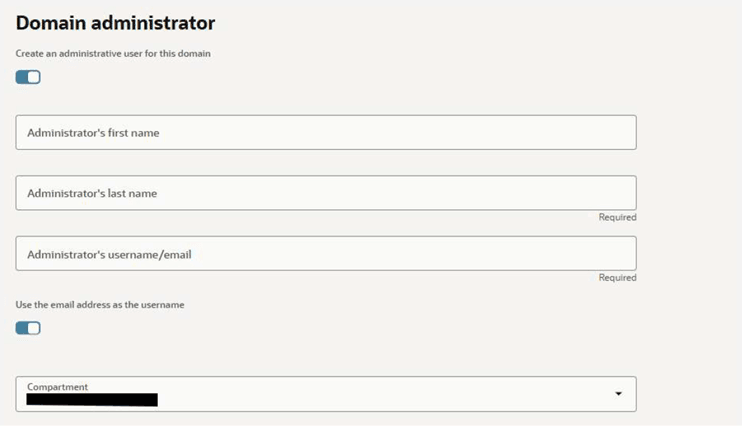
  5. Create an Administrative user during the domain provisioning.

    Figure 5-8 Domain Administrator

    Domain Administrator

  6. Enable the Create an administrative user for this domain toggle to configure the domain administrator.
  7. Enter the following details.
    • First Name
    • Last Name
    • Username or Email
    • Use the email address as the username: This account will receive the domain administrative privileges once provisioning is completed.
    • Select the compartment from the drop down list where the domain is created.
  8. Tags (Optional but Recommended): Tags help to organize and govern the OCI resources.
  9. Enter the Namespace, Key and Value details.
    Common tagging use cases are Cost tracking, Ownership identification and Environment classification (Dev/Test/Prod).
  10. Under Remote region disaster recovery section, enable the Remote region disaster recovery toggle to replicate the domain to a secondary region for a higher availability.

    Figure 5-9 Remote Region Disaster Recovery
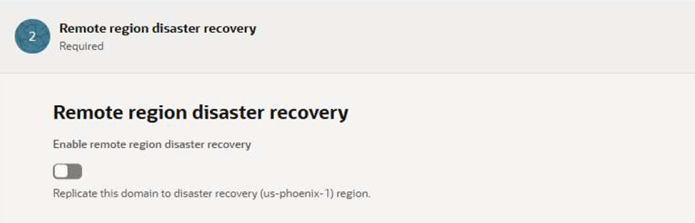

    Remote Region Disaster Recovery

  11. Confirm the target recovery region.
  12. Under Review and create section, review the configuration.

    Figure 5-10 Review and Create Domain
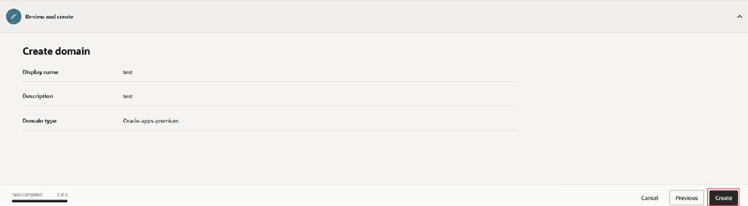

    Review and Create Domain

  13. Click Create to create a custom domain.
    Once the Domain has been created, the domain status is set to Active, and users can Add and manage users and groups, Configure authentication policies, Integrate applications and Apply governance and security controls.