17.5.3.1 Creating a Run Pipeline in the New User Interface
- Click the Create button in the Process Modeler Summary page.
- Enter a Process Name , Process
Code and Process Description. The
Process ID is a unique system-generated value.
Note:
When you enter the Process Name and try to enter the Process Code value, the Process Name (removing spaces and special characters) is auto-populated in the Process Code field, by default. You can update the auto-populated value in the Process Code field. - Select the appropriate package from the App Package ID drop-down.
- Select Run Pipeline from the Process Type
drop-down list.
Note:
Enable Singleton option is only available if the Process Type is selected as Run Pipeline. - Select the service that you want to connect to from the Service ID
Workspace drop-down list.The list displays all the services that are mapped to the AFCS Service.
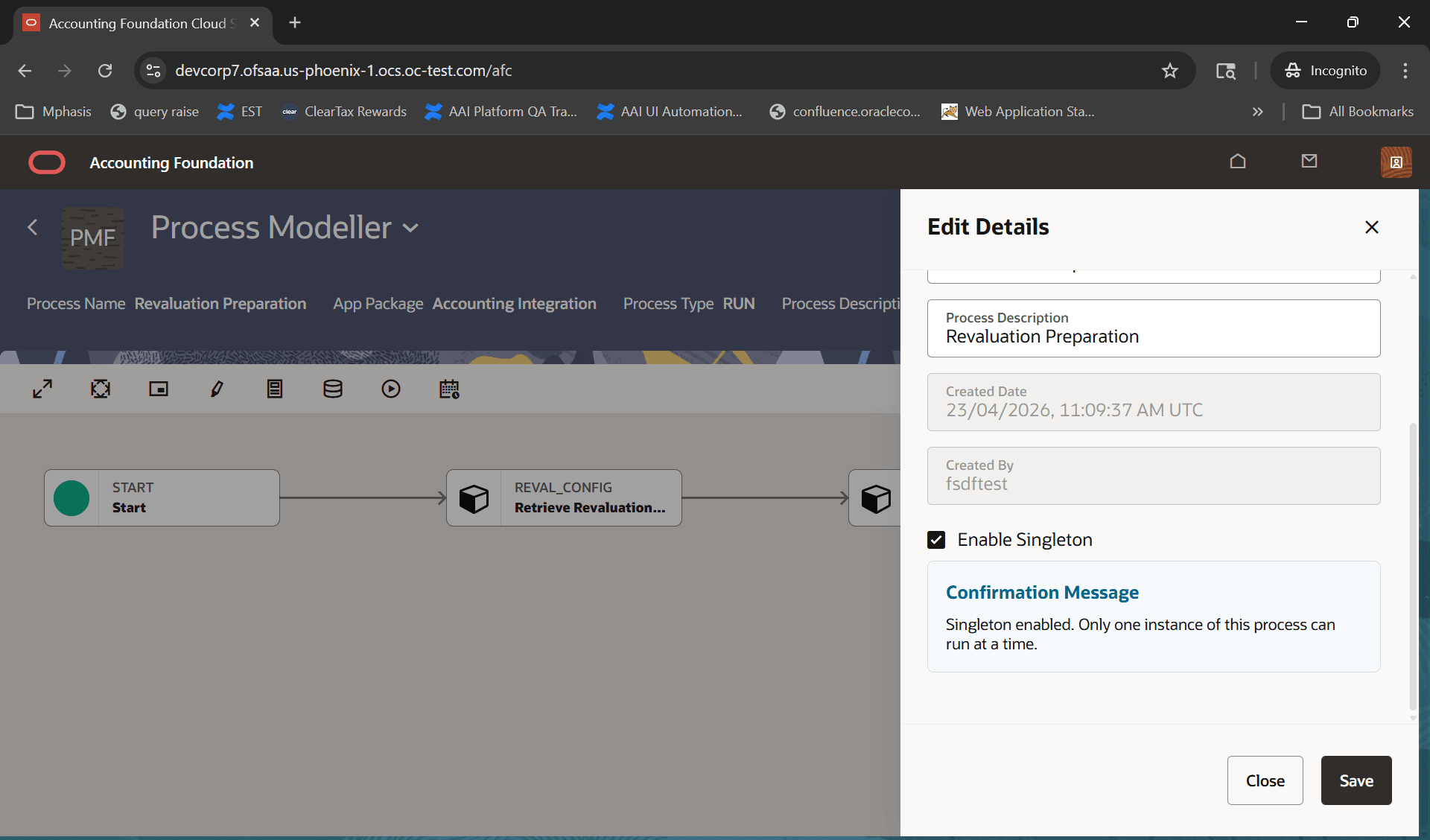
- Select the Enable Singleton option to run only one
instance of this run pipeline during execution.A confirmation message such as "Singleton enabled. Only one instance of this process can run at a time" is displayed.
- Click the Create button to save the entered
details.The Process Flow canvas is displayed.
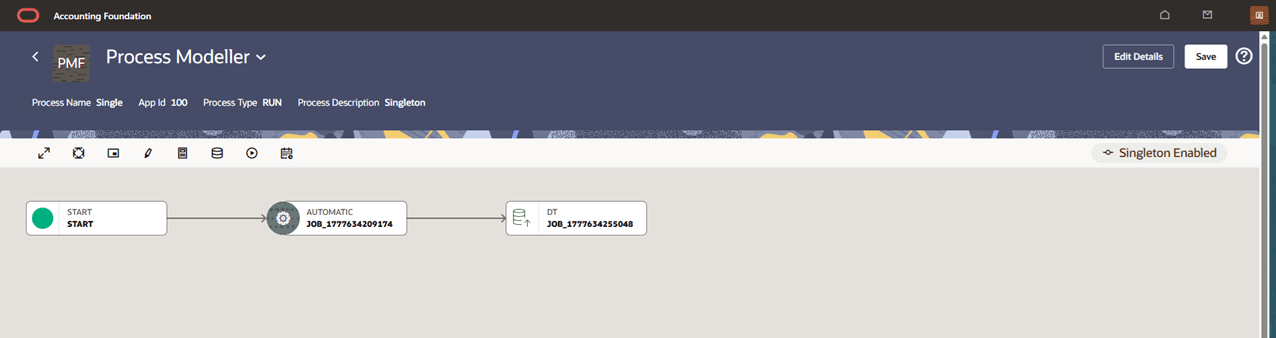
- By default, the START activity appears on the canvas indicating the beginning of the process.
- Click + icon from the Start node to add components from the available list. You can add service tasks, sub pipeline, gateways, and widgets on the canvas.
- To connect one component with another existing component, then click + icon, select the source component and choose Start Link. Next, click on the destination component and click End Link.
- Proceed to link all the components per your requirement.
Figure 17-6 Singleton Enabled in Process Canvas for a Run Pipeline
- Click Save. The Save in Progress window is displayed.
Once the process is complete, the Process is saved successfully message is
displayed.
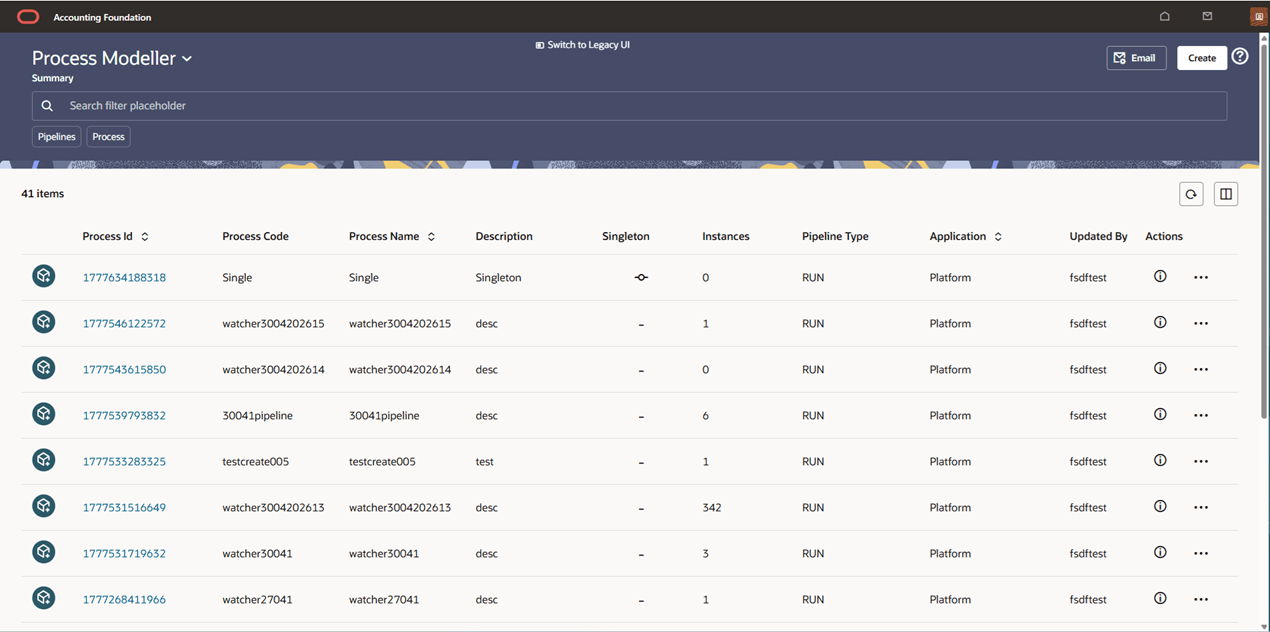
Figure 17-7 Singleton Process Modeller Summary Page
For more information on modifying, copying, viewing and deleting pipelines, see Additional Functionalities.
Edit Singleton Process Details
- From the Process Modeller page, select the required process that you wish to edit.
- Click the Process ID link and the Process canvas relevant to the run pipeline is displayed.
- Click Edit Details and disable the Singleton
option.
Figure 17-8 Edit Run Pipeline

- Click Save.