17.5.5 Executing Run Pipeline from the New User Interface
After creating your Run pipeline, your next step is to execute it. To execute a Run pipeline, complete the following steps:
- From the Process Modeler Summary page, click the Actions button corresponding to Run pipeline you want to execute and select Execute Run. The Execution window is displayed.
- Select the Execution Type, enter the required fields and click Execute.
Figure 17-12 Execute a Run pipeline using New UI
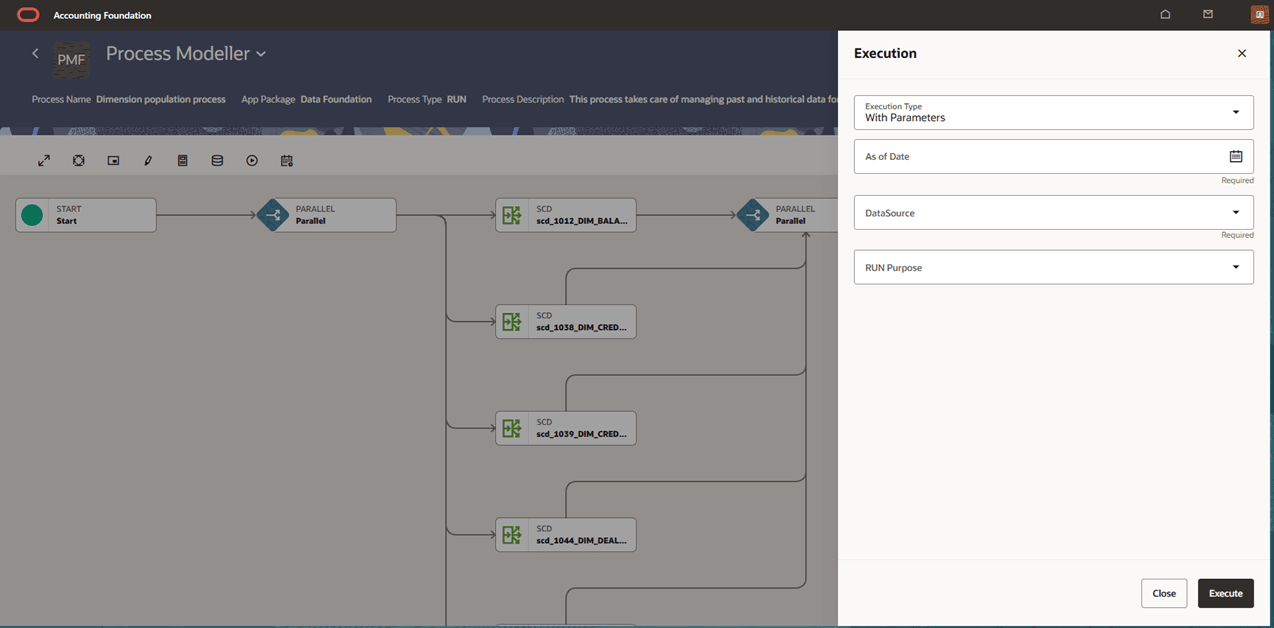
The execution is triggered using the selected FIC MIS DATE. The RUNSKEY is generated and inserted into the “DIM_RUN” table. For the RUNSKEY generated, the corresponding user-selected parameters are inserted into the “RUN_EXE_PARAMETERS” table.
You can use the Process Flow Monitor to view the status of the execution as the Run pipeline is executed.
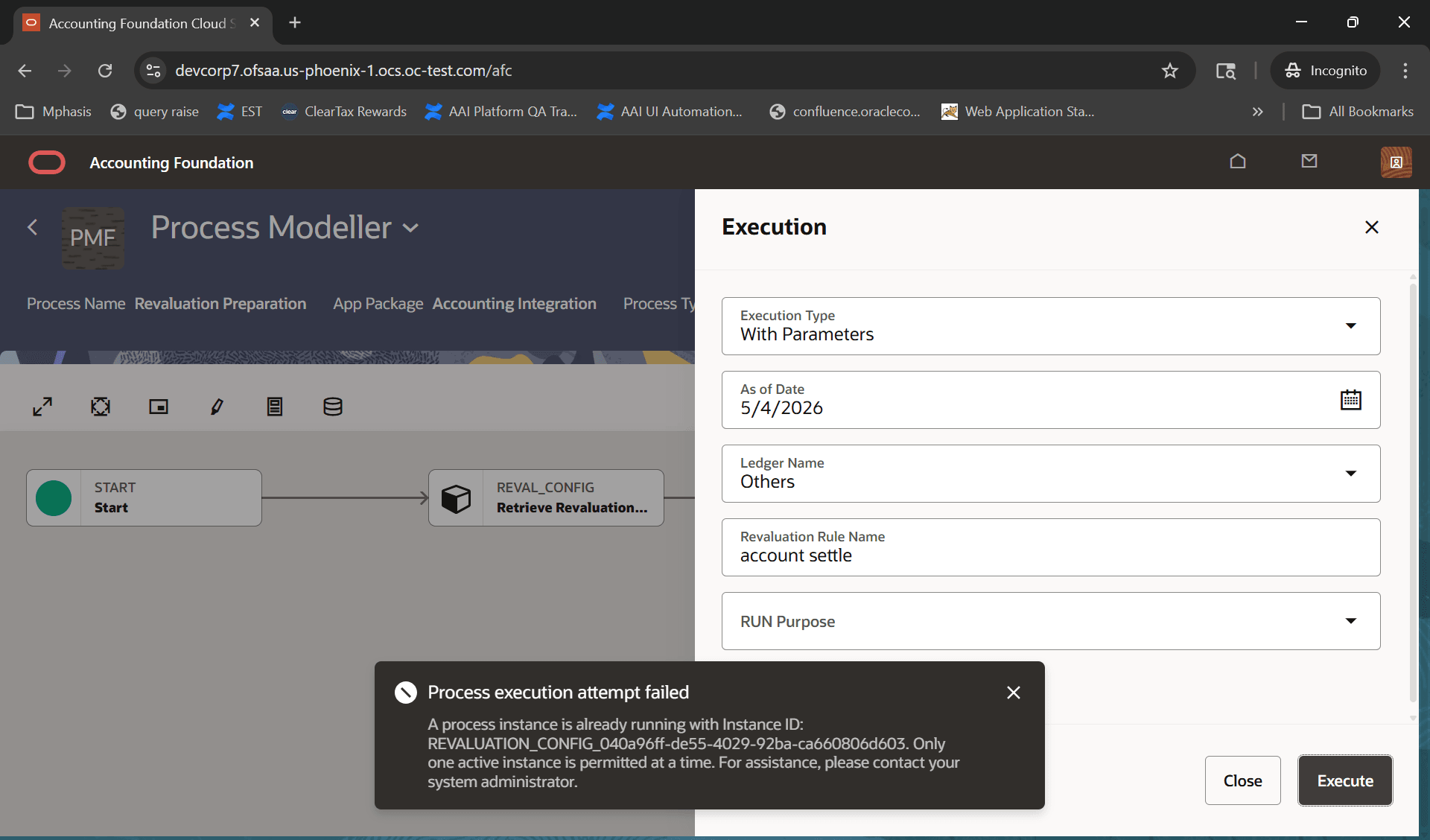
If the Run pipeline is enabled as Singleton, then users will not be able to run multiple instances of that pipeline and the following message is displayed.
Figure 17-13 Re-execution Error of a Singleton Pipeline