17.5.3.1 Creating a Run Pipeline in the New User Interface
- Proceed to link all the components per your requirement.
Figure 17-6 Singleton Enabled in Process Canvas for a Run Pipeline
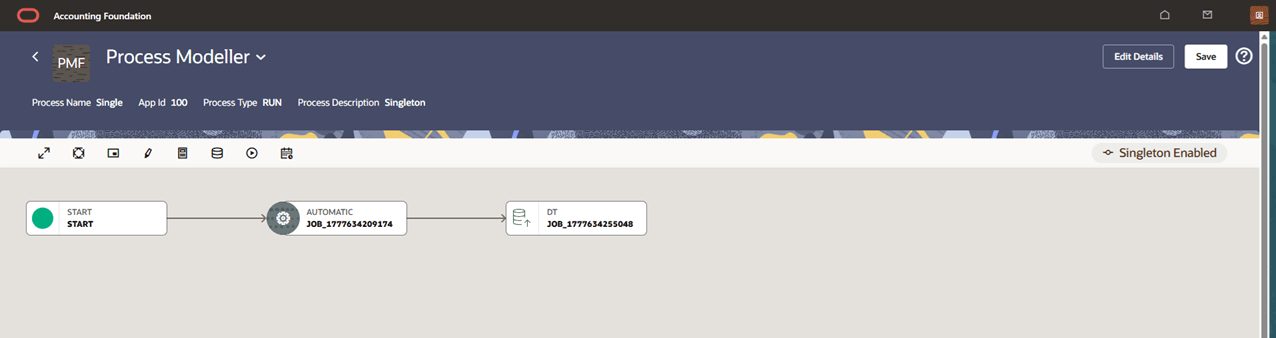
- Click Save. The Save in Progress window is displayed.
Once the process is complete, the Process is saved successfully message is
displayed.
Figure 17-7 Singleton Process Modeller Summary Page
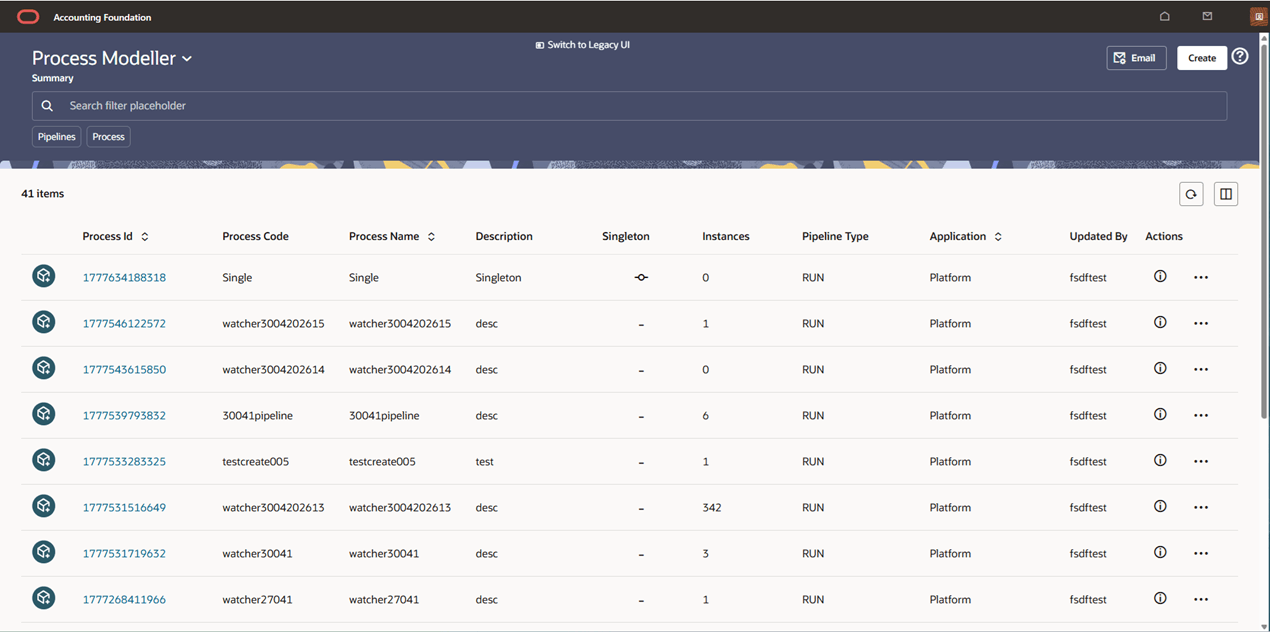 For more information on modifying, copying, viewing and deleting pipelines, see Additional Functionalities.
Edit Singleton Process Details
- Click Edit Details with Singleton- Only if Process ID matches option. Click Apply and Save.
Figure 17-8 Singleton if process ID matches
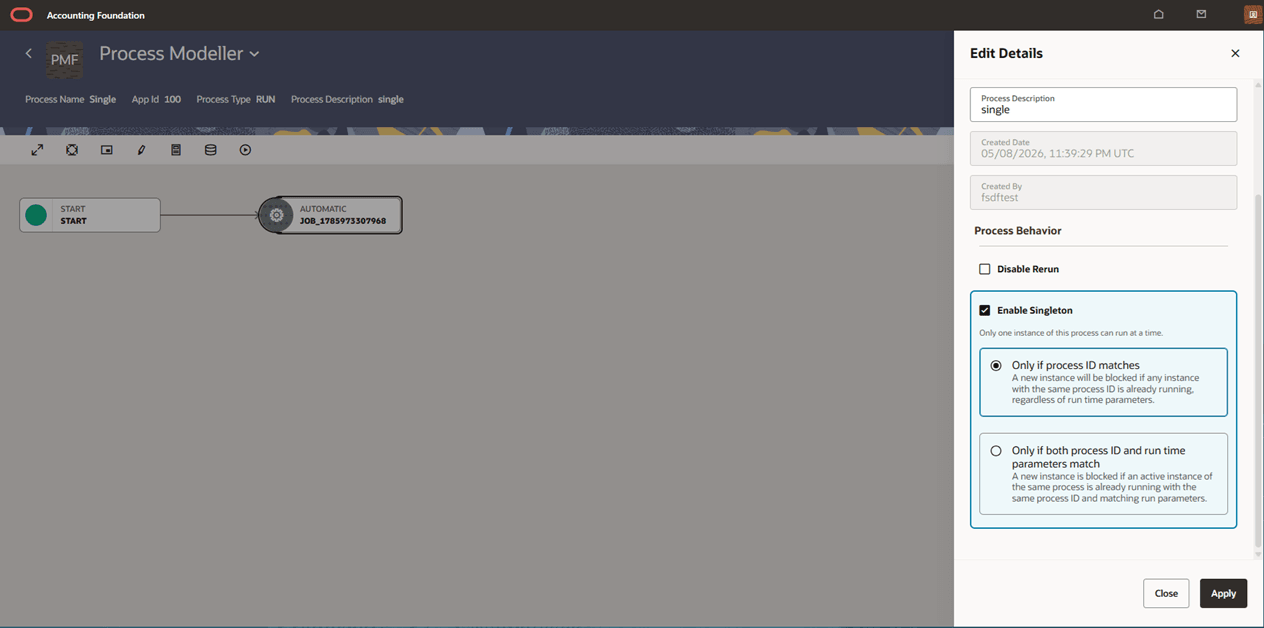 If an attempt to execute an already running process is done, the following message is displayed: "Singleton Constraint Violation: A process is already running with Instance ID <Instance ID> enabled. Only one active instance is permitted at a time. For assistance, please contact your system administrator".
 - Click Edit Details with Singleton -Only if both Process ID and run parameters matches option. Click Apply and Save.
Figure 17-9 Singleton Only if both Process ID and Run parameters match
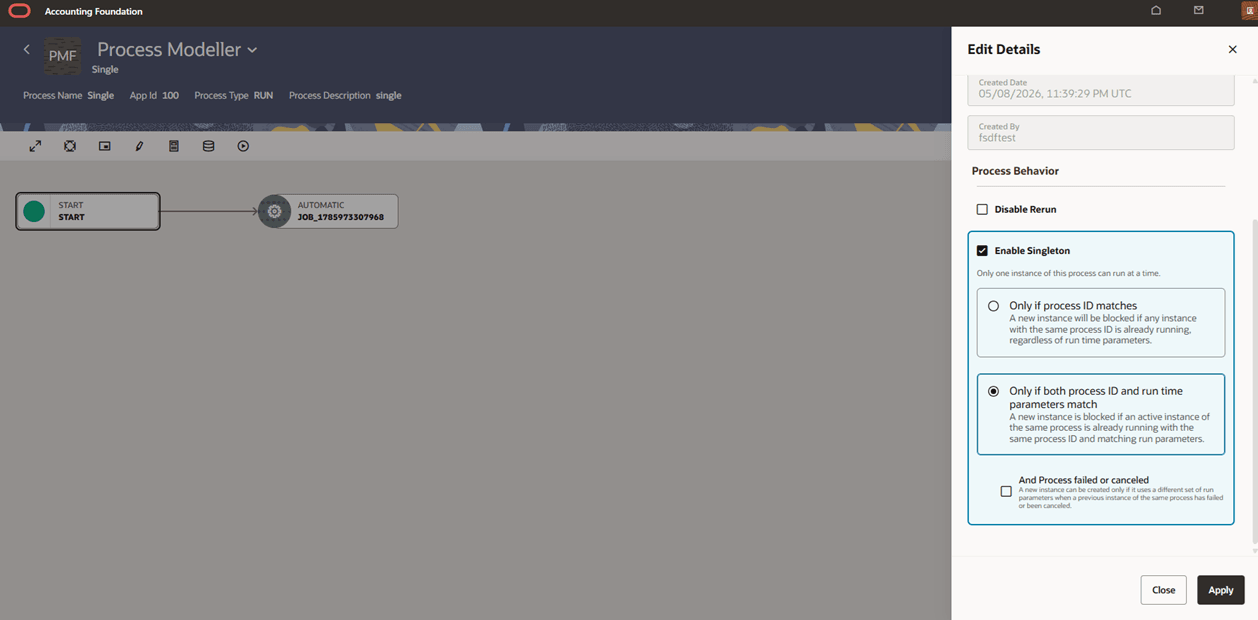 If an attempt to execute an already running process with the same parameters is done, the following message is displayed: "Singleton Constraint Violation: A process instance is already running with the same run parameters with Instance ID <Instance ID> enabled. Only one active instance with the same run parameters is permitted at a time. For assistance, please contact your system administrator".
Note:
"Run Purpose" run time parameter will be excluded from the above check during execution. - Click Edit Details with Singleton Only if Process ID and run parameters match along with process ID failed or canceled option. Click Apply and Save.
Figure 17-10 Singleton Only if Process ID and run parameters match along with process ID failed or canceled
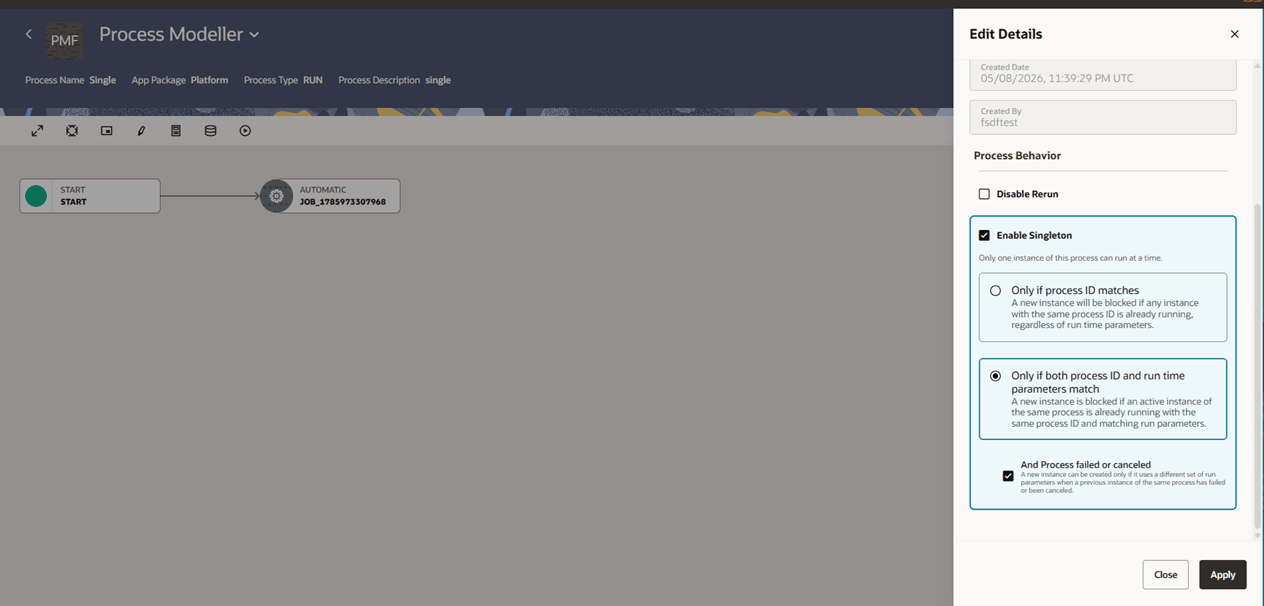 If an attempt to execute an already running process with the same parameters is done, the following message is displayed: "Singleton Constraint Violation: A process instance is already instantiated with the same run parameters with Instance ID <Instance ID> enabled. Only one instance is permitted. For assistance, please contact your system administrator".Process can only be resumed.
 - Click Edit Details with Disable Rerun option. Click Apply and Save.
Figure 17-11 Disable Rerun
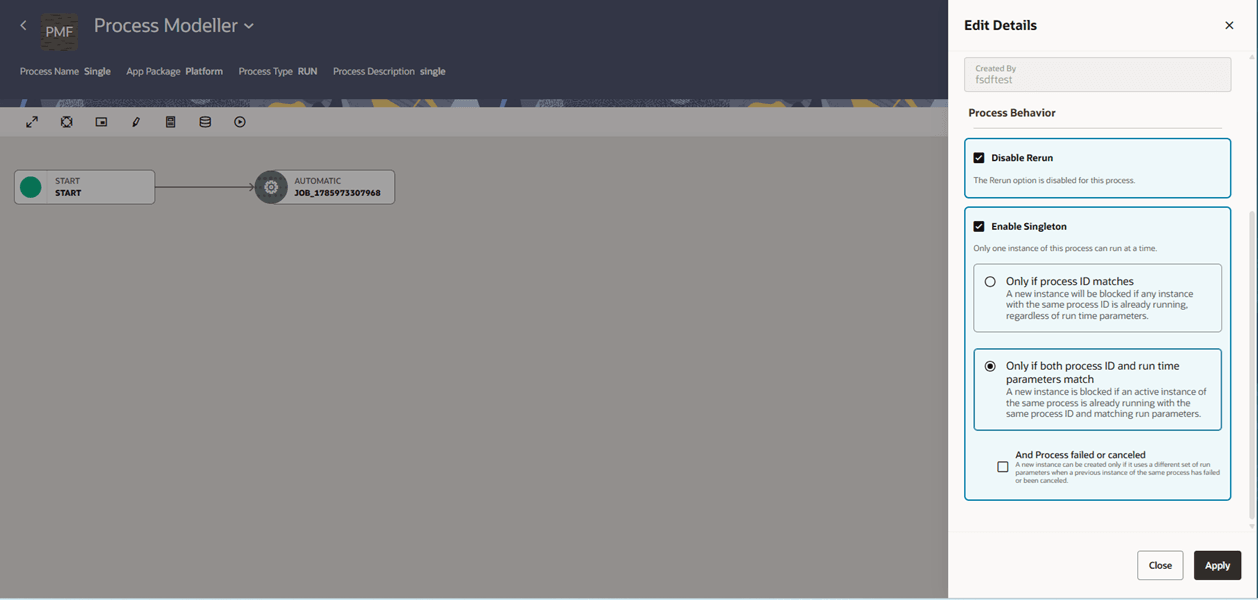
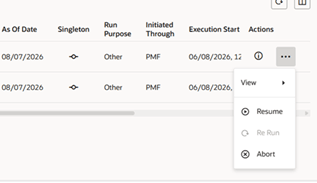
- On the Process Monitor page, the rerun option for the process is disabled.
Figure 17-12 Process Rerun Disabled option