13.6.3 Ledger Configuration for an SLA Using New User Interface
You must perform ledger configuration each time a change to ledger assignment is done.
The ledger configuration can be defined only for the following conditions:
- The SLA should be in Configured or Available status.
- There should be more than one ledger selected during ledger assignment in the SLA.
- Only distinct attributes used in ledger assignment will be available in the ledger configuration UI.
After configuring the ledger, the SLA can be executed and based on the ledger configuration specified, records will be assigned with ledger name.
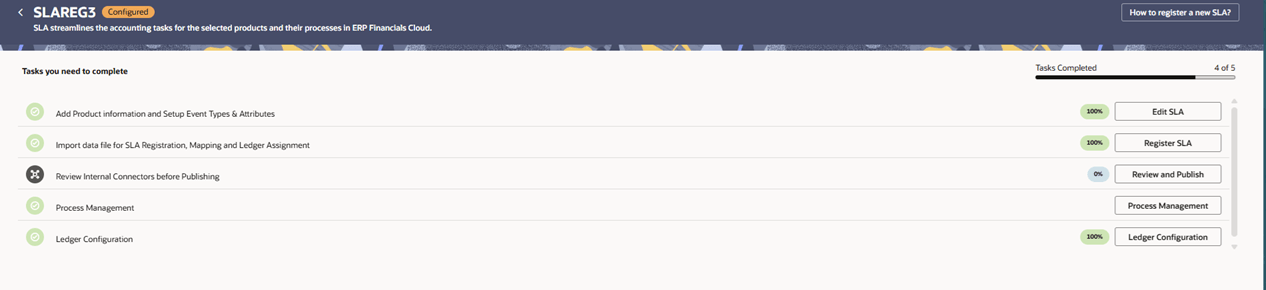
- Navigate to the where the Ledger configuration must be done. Click the Ledger Configuration button.
Figure 13-7 Subledger Configuration Step1
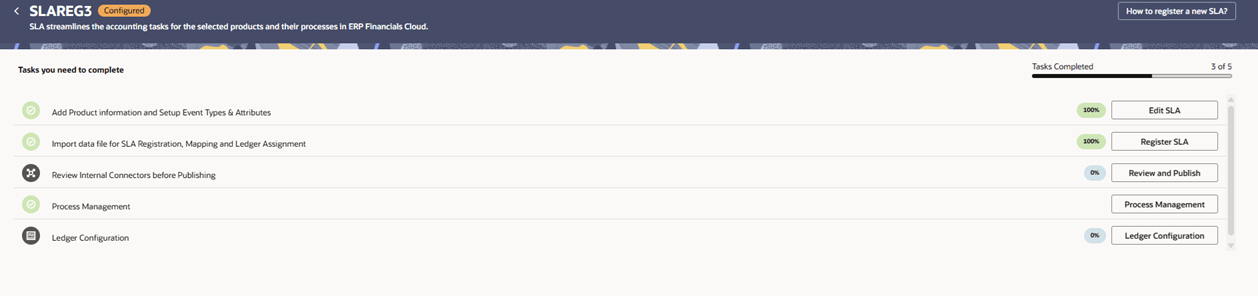
- On the Ledger Configuration UI, click Add Ledger Assignment Condition button and enter values for attributes for the second combination.
You can select a maximum of 30 attributes per combination and an unlimited number of combinations.
Figure 13-8 Subledger Configuration Step2
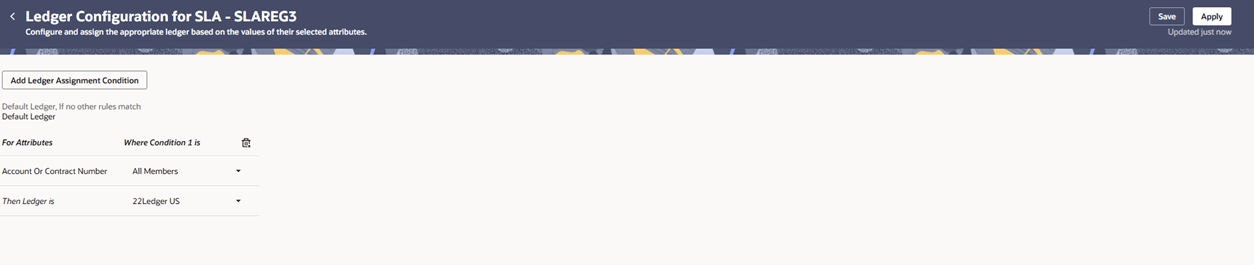
- Repeat step 3 for as many combinations as you require.
Figure 13-9 Subledger Configuration Step3
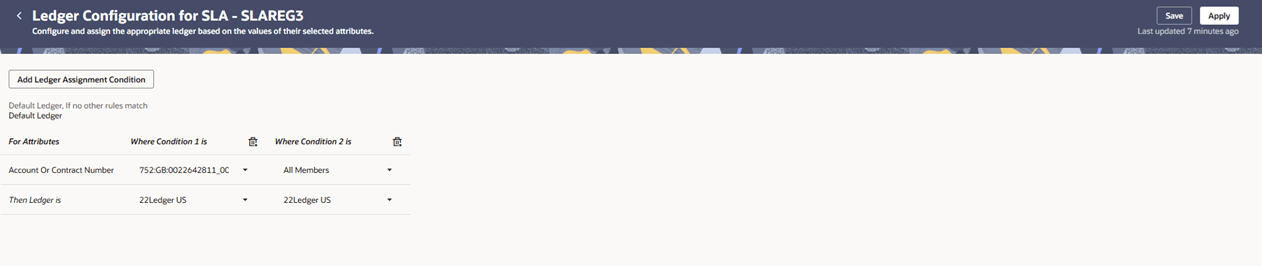
- Click Save. Validations are performed and the added combinations are saved.
- If you are a member of the AFCSAPVRGRP, you can click Apply to apply the changes. While the changes are being applied, ledger configuration status is shown as 75%.
- After all the changes are applied, the ledger configuration status shows 100%.
Figure 13-10 Subledger Configuration Step 4