Data File Specification
The PBSM Cloud Services use following categories of data:
- Account or Instrument
- Management Ledger
- Transaction Summary
- Dimensions and Hierarchies
- Market data like Interest Rate, Currency Exchange Rate
The following illustration depicts the process of loading data from your systems into the Cloud Services:
Figure 4-9 Loading External Data
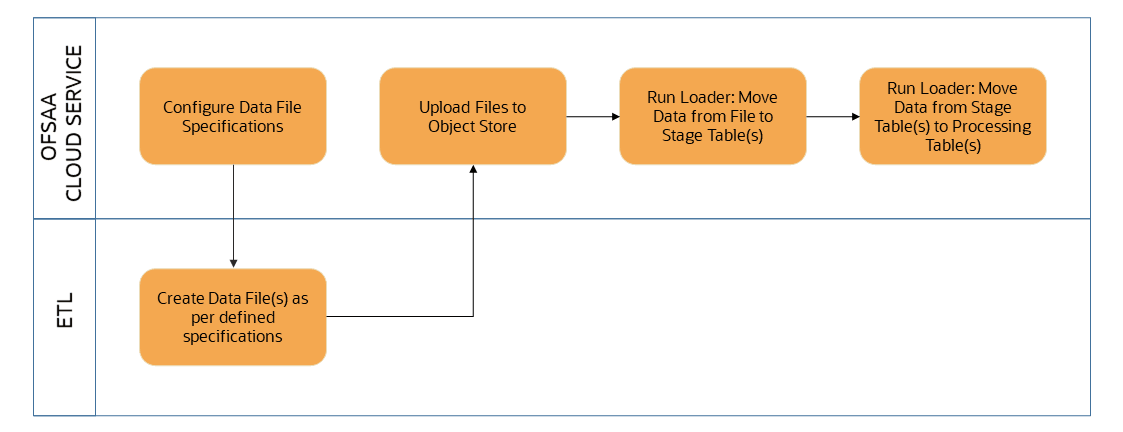
Oracle Cloud Services uses Oracle’s Object Store service to transfer data between your machine/laptop and its databases. Object Storage service allows storing the files as objects in a highly secure, scalable, and durable way. Files can be uploaded through a web console; however, it is possible to do so only with files up to 1 GB.
Uploaded data files are temporarily stored in the Object Storage for data loaders to read and move them to the corresponding database tables for further use by the individual services.
Before the files can be created and uploaded, format, column order and other properties must be defined using data file Specifications user interface. This chapter discusses the supported formats and contents of the data file that is being imported into the Object Storage.
For information on uploading files, see the File Upload and Download section. For information on running the Data Loaders, see the Data Loaders section.
The three supported formats for the data files are TXT, DAT, and CSV. These files contain the name of the table for which the specifications are being created.
Ensure that there are no duplicate records in a single data file. If there are duplicate records, then the data file upload results in a failure.
To open the Data File Specification window, navigate to the Data Management Tools, select Data File Administration, and then select Data File Specification to display the Data File Specification summary page.
Figure 4-10 Data File Specification summary screen
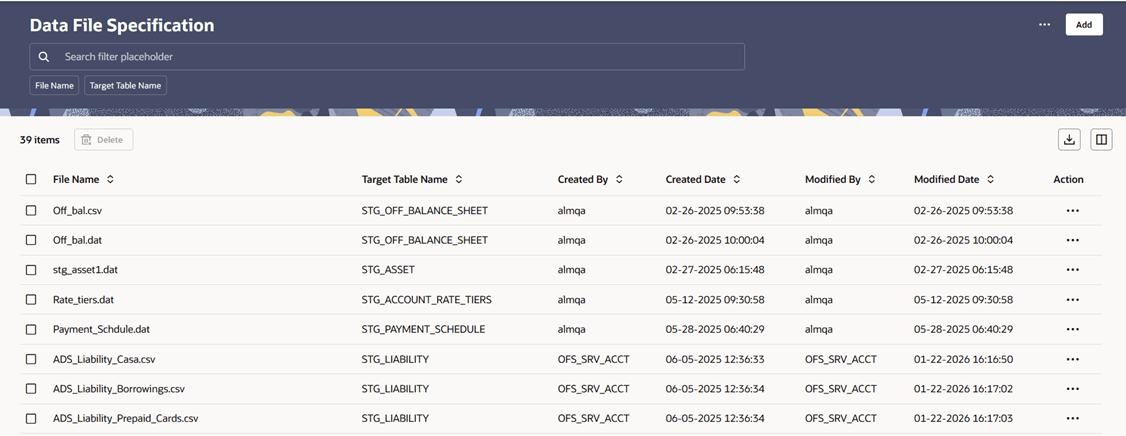
The summary page of Data File Specification displays the Search Criteria pane, Specific Search pane, and the already created data files and their details.
The Data File Specification Summary page displays the following information:
Add: Click the Add icon on the page header to build a new Data File Specification rule.
Actions: Enables you to perform following tasks.
- Refresh: Retains the selected filters and refreshes the summary page with latest status.
- Reset:Clears the selected filters and refreshes the summary page.
- Help: Redirects you to latest documentation.
Delete: Enables you to select and delete one or multiple rules in the table simultaneously.
Pin/Unpin: Enables you to pin/unpin the selected rule.
Export: Enables you to download the summary page details in .CSV format.
Columns: Allows you to view the summary page data using a customized list of columns.
The Data File Specification Summary table displays the following information:
- Data File Name:The name of the data file.
- Target File Name:The target file name.
- Created By:Displays the name of the user who created the data file.
- Created Date:Displays the date and time at which the data file was created.
- Modified By:Displays the name of the user who last modified the data file.
- Modified Date: Displays the date and time at which a data file was last
modified.
- Click on the Actionicon against the Data File Name to do further actions as follows:
- View:Click View to view the contents of a data file in read-only format.
- Edit:Click the Edit icon to modify a previously saved data file. Note that you cannot change the file name.
- Save As:Click Save As to create a copy of the selected data file.
- Delete:Click Delete to delete the selected data file.