Account Summary Load Configuration

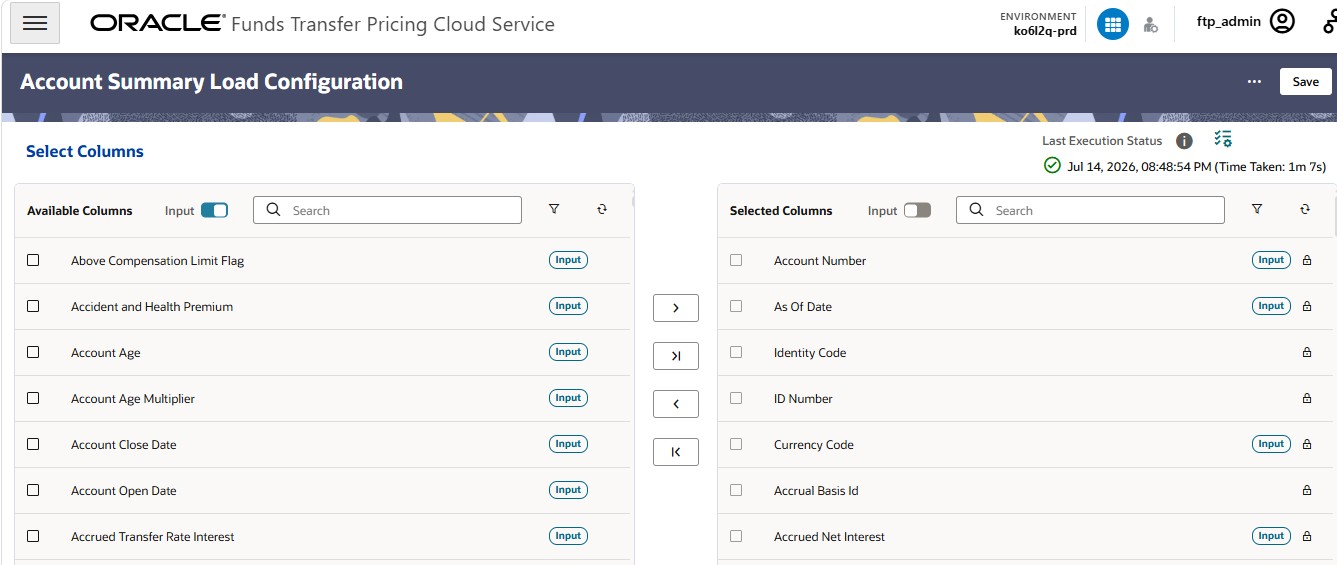
The Account Summary Load Configuration screen allows you to select the columns that must be populated into the Account Summary table from the Portfolio table class. Columns are grouped into two categories: Mandatory columns, which are populated out-of-the-box, and User-selected columns, which you choose from the Available Columns list. You can also select the dynamic output columns generated from FTP, PFT, or other rule executions, to include in the Account Summary table.

To configure the Account Summary Load Configuration:
  1. From the LHS menu, select Maintenance, and then select Account Summary Load Configuration.

    Figure 4-96 Account Summary Load Configuration Screen

    Account Summary Load Configuration

  2. From the Account Summary Load Configuration page, review the Available Columns list on the left.
    Columns marked with an Input tag identify the input columns for convenient selection — this lets you select all input columns at once. To add one or a few more columns beyond the tagged ones, use the Input toggle to switch and view the full column list.
  3. Use the Search field above the Available Columns list to locate a specific column by name.
  4. Use the shuttle controls to move columns between the Available Columns and Selected Columns lists:

    Table 4-33 Available Columns and Selected Columns lists

    Control Action

    Figure 4-97 Move icon


    Move icon

    Moves the selected column(s) to the Selected Columns list

    Figure 4-98 Move All icon


    Move All icon

    Moves all columns to the Selected Columns list

    Figure 4-99 Remove icon


    Remove icon

    Removes the selected column(s) from the Selected Columns list and returns them to Available Columns

    Figure 4-100 Remove All icon


    Remove All icon

    Removes all columns from Selected Columns and returns them to Available Columns
  5. Review the Selected Columns list on the right. This list displays the columns that will be included in the load, in the order they were added.
    Columns marked with a lock icon are mandatory system columns (for example, Account Number, As Of Date, Identity Code) and cannot be removed.
  6. Use the Search field above the Selected Columns list to locate a column already added to the configuration.
  7. (Optional) To clear the filter or search, click the Refresh icon. This clears any search text and sort order currently applied to the list.
  8. Click Save to save the load configuration.
  9. To run the configuration immediately, click the Actions icon (...), and then select one of the following:
    • Execute – Runs the Account Summary load using the saved column configuration.
    • Execution Logs – Displays the log history for previous load executions.
    • Help – Opens contextual help for this page.