Registering Columns
There exists two types of Placeholder Columns available for PBSMCS Data Model - Instrument Columns and Transaction Summary Columns. These are further categorized under the different domains to be used for different purposes. Users can use the Instrument Columns to register a placeholder column for the Instrument tables whereas they can use the Transaction Summary Columns to register a placeholder column for the Transaction Summary tables.
- Date
- Rate
- Volume
- Char
- Long Description
- Flag
- Balance
- Rate
- Volume
- Long Description
- Flag
- Balance
The procedures to register the listed Columns are similar. To register a column:
- Navigate to the Summary screen, and click a Column tile to display the Column Summary screen.
Figure 4-5 Column Summary screen
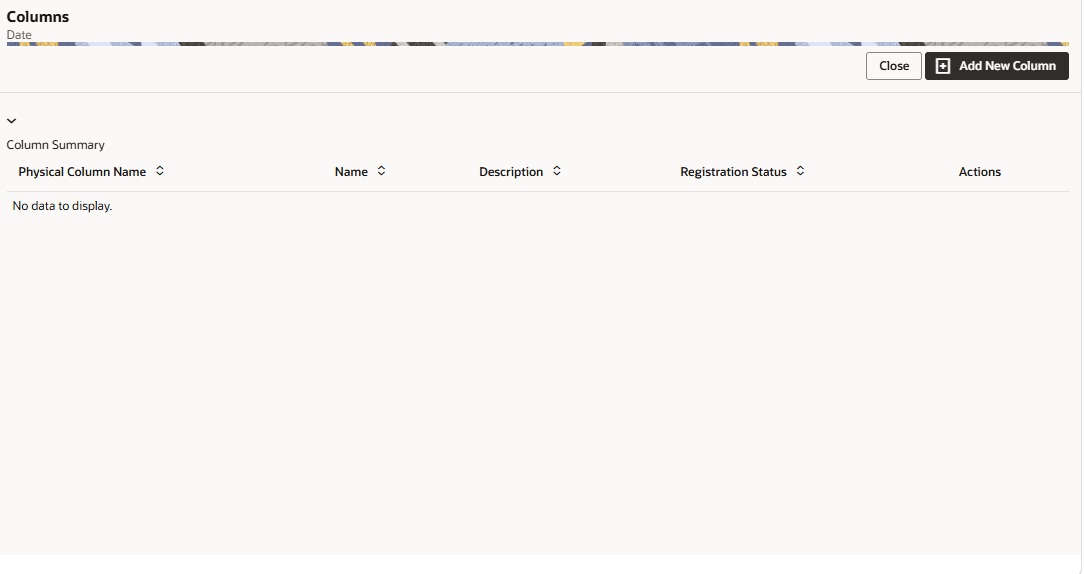
The summary screen displays the summary of existing Columns with the details Physical Column Names, Name, Description, Registration Status, and Actions icon.
The registration of a Column happens after the Column is approved.
- Click Add New Column to collapse the Column Summary and to display the Column Details.
When you click Add New Column, the UI displays the Save and Submit for Approval buttons.
Figure 4-6 Add Column Screen
Note:
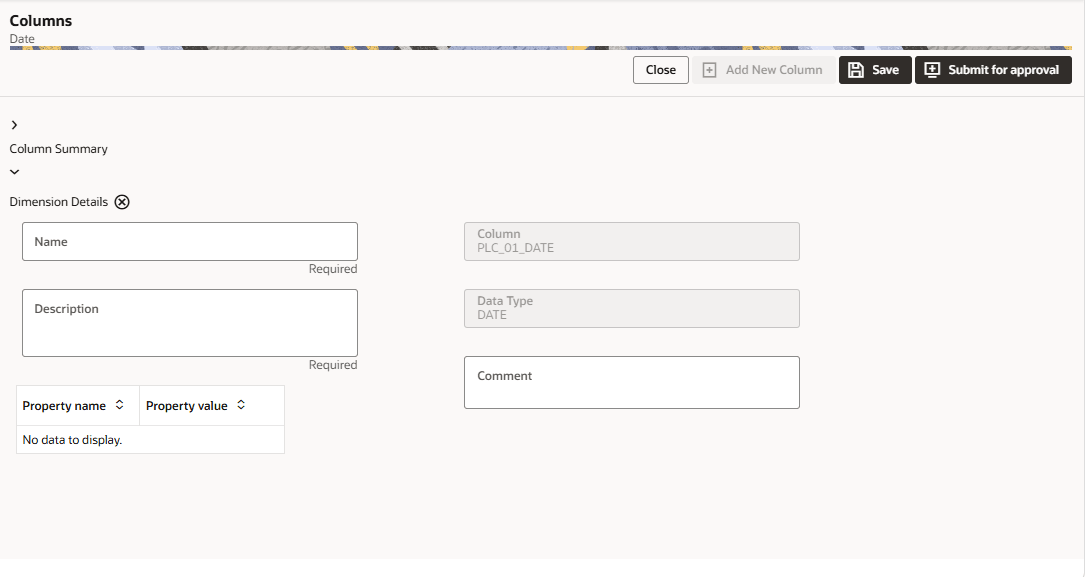
- Enter the following details:
- Name: This is mandatory. Specify the required logical name of the column.
Note:
Special characters (*, &, newline, double quote) are not allowed, and the maximum length is 150 characters. - Description: This is a mandatory field. Specify the required description of the column.
- Data Type: Displays the data type of the underlying physical column, for example, NUMBER(30,11). This field is read-only and is shown for reference.
- Required: Select this check box if the column must be mandatorily populated when data is loaded.
- Property Name: This is an optional field used to select a relevant Property from the drop-down list, as applicable to the Column.
For example, for a Rate column, the available Property Name values include TRANSFER_PRICING_OUTPUT, OPTION_COST_OUTPUT, and OTHER_ADJ_SPREAD_OUTPUT, used to flag the column as a specific Funds Transfer Pricing calculation output.
- Property Value: Double click to display a drop-down where you can select Yes if it is applicable to the Column.
- Comment:Specify any maker/approver comment. Note that
special characters *, newline, and double quotes are not allowed.
The Details section displays the Physical Column and Data Type Information that the column uses for user reference. As and when a registration takes place successfully and the Physical Column is utilized, the next registration process proceeds to take the next-in-numerical-order physical column available for registration.
- Name: This is mandatory. Specify the required logical name of the column.
- Click Save. The details are saved as a Draft and are displayed on the Summary screen. You can change the Name, Description, and Comments later by double clicking the details.
- Click Submit for Approval to send the column
details for approval.
OR
Select a Name from the list and click the Actions icon to View, Edit, Submit for Approval, or Delete the Column. Editing, Submitting for Approval, or Deleting procedures are similar to Dimension Edit, Submit for Approval, or Delete procedures.
Note:
- You can delete a registration when it is in Draft state.
- If the selected Column is in Approved state, then the Actions menu displays only View, Edit, and Submit for Approval actions.
Domain Types
The below domain types are available for each of the Cloud Service:
Table 4-1 Domain Types
| Profitability and Balance Sheet Management Cloud Service Domain Types | Accounting Standards Cloud Service Domain Types | Climate Change Analytics Cloud Service Domain Types |
|---|---|---|
|
|
|