User Profile
This topic provides information about functionality of users in ASC.
Post Provisioning
In case you encountered errors during the provisioning process, perform the following steps:
- Log in as an Administrator.
- From the home page, click Business Process, click Batch Administration, and then click Scheduler Service to open the Scheduler Service, Scheduler Service Dashboard.
- On this page, click the Define Batch tab.
- Click the Create icon to open the Create Batch window.
.
Figure 2-1 Create Batch Window
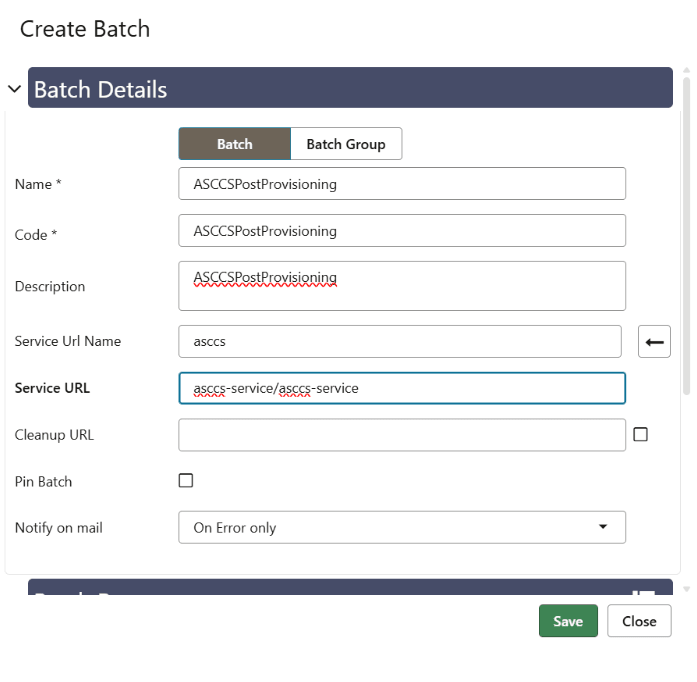
- Populate the create batch form as tabulated, you can also use the above image as an example of populating the fields:
Table 2-1 Create Batch Form
Field Description Name Enter the name as ASCCSPostProvisioning. Code Enter the code as ASCCSPostProvisioning. Description Enter the description as ASCCSPostProvisioning. Service URL Name The service URL name must only be asccs. Service URL Enter the service URL as asccs-service/asccs-service. Cleanup URL You can leave this field blank. Pin Batch Click this check box if you want to pin the batch. Notify on Mail Select the On Error only option from the drop-down list. - Click Save after filling in the details.
- Click the Define Task tab to open the Create Task window.
Figure 2-2 Create Task
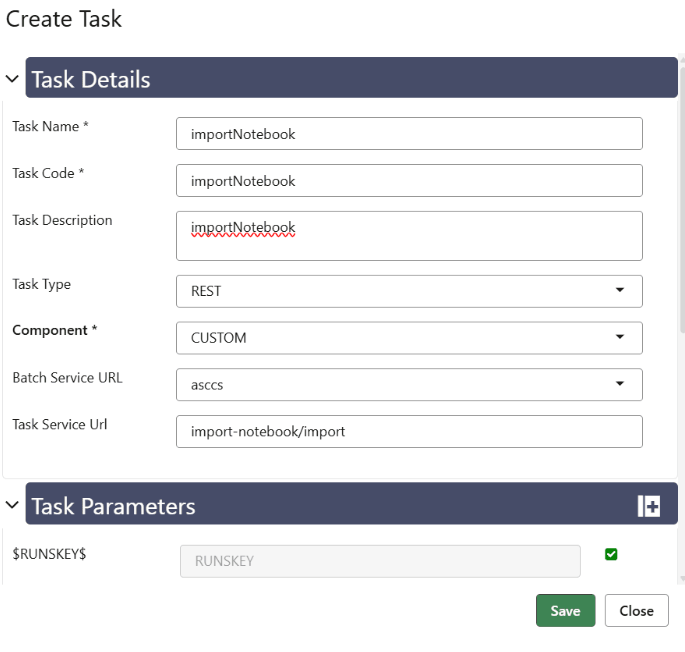
- Populate the create task form as tabulated, you can also use the above image as an example of populating the fields. You must create the following tasks with the corresponding details in this window:
Table 2-2 Create Batch Form
Field Description Task Name Enter the following names for the tasks: - pushFilesToObjectStore
- updateCondaMemory
- createWorkspace
- createObjective
- importNotebook
- createDatastore
Task Code Enter the following codes for the tasks: - pushFilesToObjectStore
- updateCondaMemory
- createWorkspace
- createObjective
- importNotebook
- createDatastore
Task Description Enter the following descriptions for the tasks. - pushFilesToObjectStore
- updateCondaMemory
- createWorkspace
- createObjective
- importNotebook
- createDatastore
Task Type Select REST as the task type from the drop-down list. Component Select the component as Custom from the drop-down list. Batch Service URL Enter the service URL. Task Service URL Enter the respective task service URLs that correspond to the created tasks: - push-files/push (For task pushFilesToObjectStore)
- update-conda-memory/update(For task updateCondaMemory)
- workspace/create(For task createWorkspace)
- objective/create(For task createObjective)
- import-notebook/import(For task importNotebook)
- datastore/create(For task createDatastore)
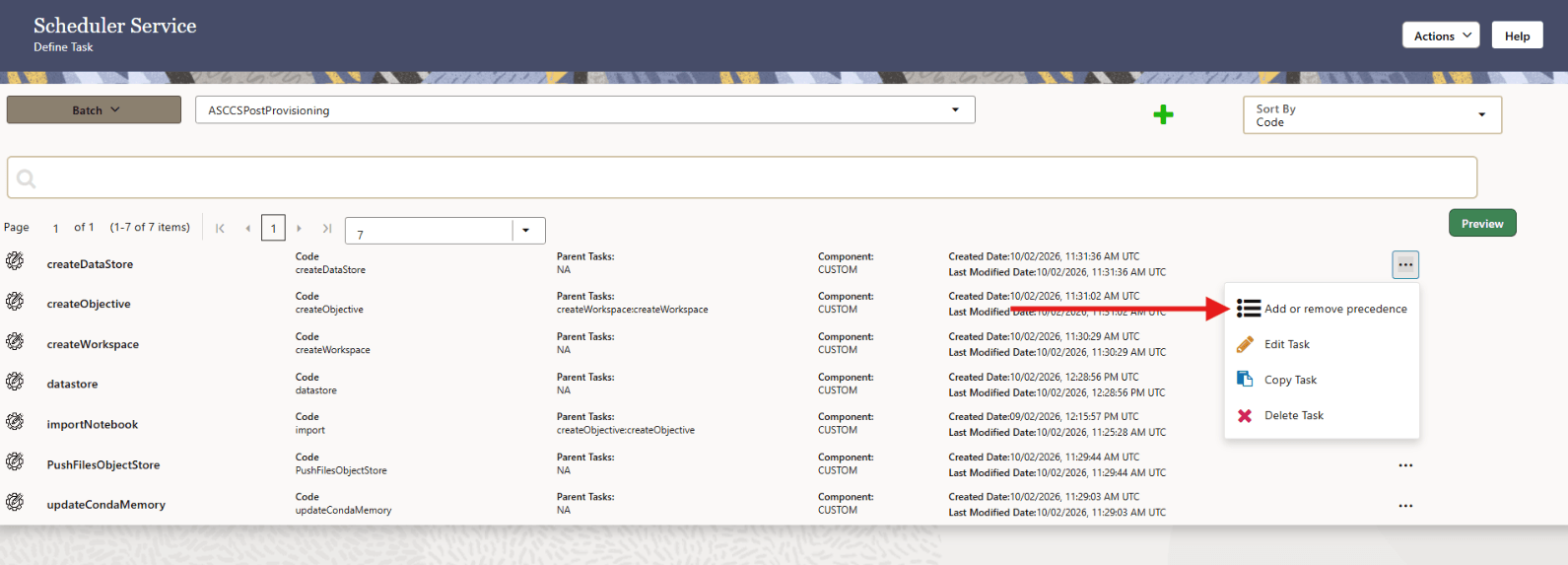
Notify on Mail Click this check box if you want to pin the batch. - For the created tasks, click Add or remove precedence to add precedence for importNotebook with the parent as createObjective and for createObjective the parent as createWorkspace.
Figure 2-3 Add or Remove Precedence
- Click the Schedule Batch tab and run the newly created batch.
- Click the Monitor Batch tab to monitor the batch.
- Click the Home icon.
After completing the post provisioning steps, you can log in and proceed with using the application.
Admin User (Graph Studio Administrator)
To create the Conda environment:
- Log in as an Administrator.
- On the home page, click Application Administration, and then click Automated Scenario Calibration.
- On the Dashboard page, click Modeling, and then click Pipelines.
- Navigate to the notebook by clicking ASC and then Conda to view the Conda notebook.
If you have upgraded from an older version to the latest version of the application, then multiple Conda notebooks will be present. You must run the latest notebook
- Click Notebook and then click the Run Paragraphs button to execute all the pre-seeded paragraphs in the notebook to create the conda environment.
Analyst User (ASC Analyst User)
An Analyst user is mapped with ASC workspace to automate and simplify the scenario tuning process. For Analyst action, see the following sections: