Q Removing OFSAA
This section describes how to uninstall the OFSAA Infrastructure, EAR files in WebSphere, EAR files in WebLogic, and WAR files in Tomcat.
Uninstalling OFSAA Infrastructure
This section will guide you through the necessary steps to uninstall the OFSAA Infrastructure product.
Before you start the uninstallation process, ensure that no open connections exist to the OFSAA Infrastructure Config and Atomic Schemas and Infrastructure services are brought down.
- Log in to the system as non-root user.
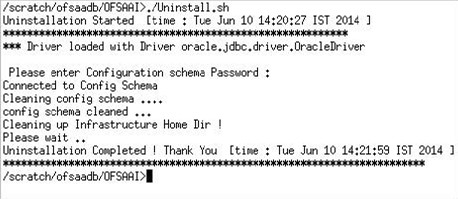
- Navigate to the $FIC_HOME directory and execute the command: ./Uninstall.sh.
- Enter the password for OFSAAI Configuration Schema when prompted as shown in
the following image.
Figure Q-1 Uninstalling OFSAA Infrastructure
Note:
- Uninstallation does not remove the Infrastructure application from the Web application server. This has to be done manually.
- The entries in the .profile file will have to be removed manually.
- The files/ folders under the file system staging area (ftpshare) have to be deleted manually.
- All the Database objects from Atomic Schemas have to be dropped manually.
Uninstalling EAR Files in WebSphere
- Open the URL in the browser window: http://<ipaddress>:<Administrative Console Port>/ibm/ console (https if SSL is enabled). The Login window is displayed.
- Log in with the user ID with administrative privileges.
- Expand Applications > Application Types > WebSphere
enterprise applications from the LHS. The Enterprise Applications window
is displayed with all the deployed applications.
Figure Q-2 Enterprise Applications and their Status
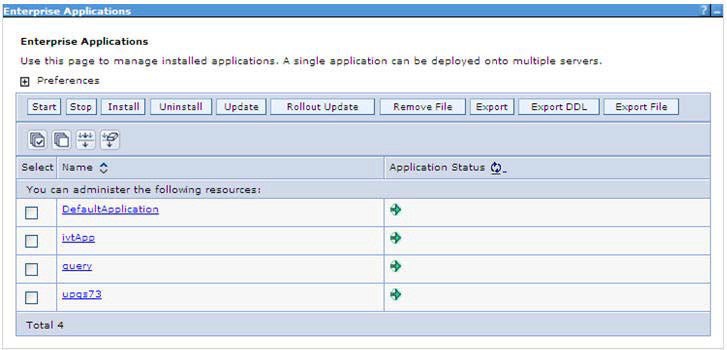
- Select the checkbox adjacent to the application to be uninstalled and click Stop.
- Click Uninstall. The Uninstall Application window is
displayed.
Figure Q-3 Uninstall Application
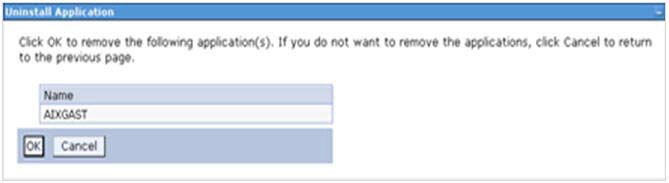
- Click OK to confirm.
- Click Save to save the master file configuration.
Uninstalling EAR Files in WebLogic
- Open the URL in the browser window: http://<ipaddress>:<admin server port>/console (https if SSL is enabled). The Login window of the WebLogic Server Administration Console is displayed.
- Login with the WebLogic user credentials having administrator privileges.
- From the Domain Structure LHS menu, click Deployments. The
Summary of Deployments screen is displayed.
Figure Q-4 Summary of Deployments
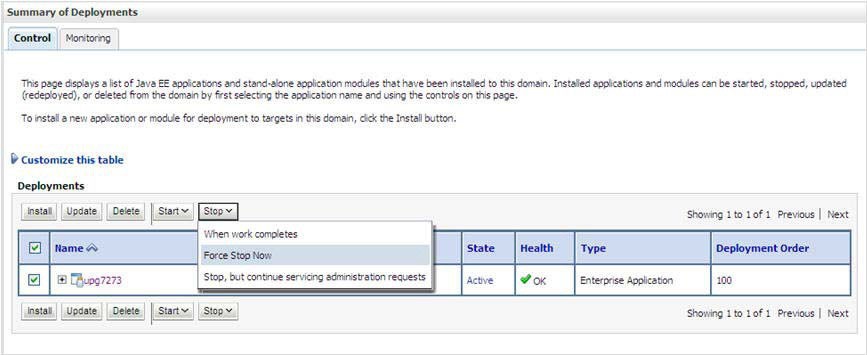
- Select the checkbox adjacent to the application to be uninstalled and click Stop and then Force Stop Now.
- Click Yes in the confirmation dialog to stop the selected deployment.
Figure Q-5 Summary of Deployments- Messages
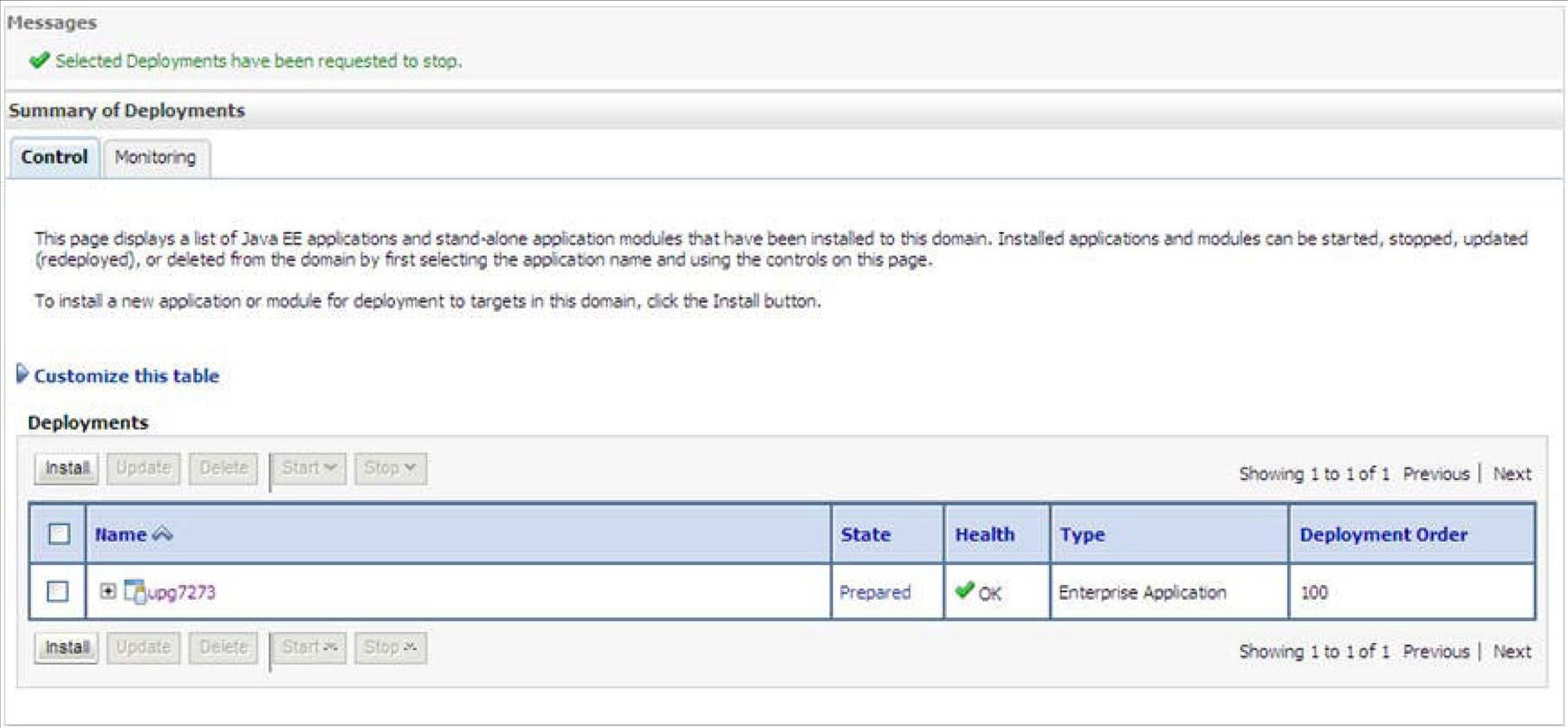
- Select the checkbox adjacent to the application and click Delete to delete the selected deployment.
- Click Yes in the confirmation dialog to remove the selected deployment from the domain configuration.
Uninstalling WAR Files in Tomcat
- Comment out Context path section from server.xml file in $CATALINA_HOME/conf
directory to avoid conflict during un-deploy and re-deploy of the WAR file.
Place comment <!-- -- > in between the context path section.
For example:
<!--
<Context path ="/pr2test"docBase="/home/perfuser/tomcat-7.0.19/webapps/pr2test" debug="0" reloadable="true" crossContext="true">
<Resource auth="Container" name="jdbc/PR2ATM" type="javax.sql.DataSource" driverClassName="oracle.jdbc.driver.OracleDriver" username="pr2atm" password="pr2atm" url="jdbc:oracle:thin:@10.184.74.99:1521:PERFTEST" maxActive="100" maxIdle="30" maxWait="10000"/>
</Context>-->
- Restart the Tomcat service by doing the following:
- Login to the Unix server through a terminal emulator.
- Navigate to $catalina_home/bin directory.
- Stop the Tomcat services using the command ./shutdown.sh.
- Start the Tomcat services using the command ./startup.sh.
- Open the URL in a browser window: http://<IP address>:<Tomcat server port>. (https if SSL is enabled). The Tomcat home window is displayed.
- Click the Manager App. The Connect to window is displayed.
- Login with the user credentials having admin rights.
The Tomcat Web Application Manager window is displayed with the list of all applications deployed in Tomcat.
Figure Q-6 Tomcat Web Application Manager
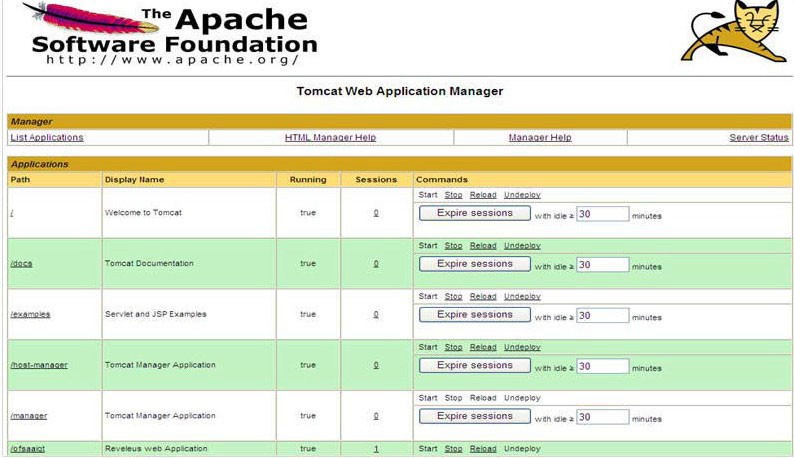
- Click the Undeploy link against the deployed Infrastructure application. A confirmation message is displayed on the Application/Infrastructure being uninstalled.