I.3 Configuring Internet Explorer Settings
This section describes how to configure Internet Explorer settings.
Note:
OFSAAI supports only default zoom setting in Internet Explorer, that is, 100%. Cookies must be enabled.- Open Internet Explorer.
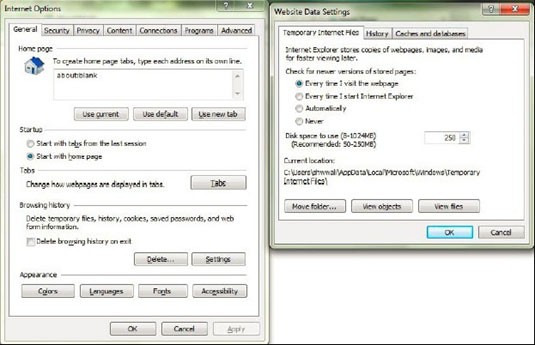
- Go to Tools and then select Internet Options. The Internet Options window is displayed.
- Click Settings. The Settings window is displayed.
- Select Every time I Visit the webpage and click OK.
Figure I-1 Internet Options
- In the Internet Options window, select the Security tab and select the Internet option under Select a zone to view or change the security settings.
- Click Default Level under Security level for this zone.
Figure I-2 Internet Options - Security Tab
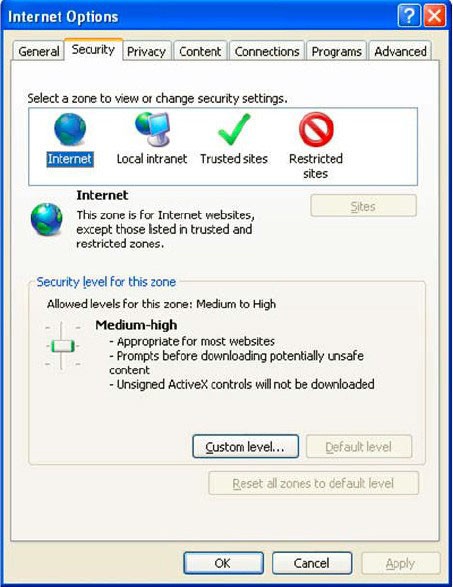
- Click Apply to save.
- Click Internet Explorer > Tools > Compatibility View Settings.
- Enter the OFSAA setup URL in the Add this website field.
- Click Add.
- Ensure the URL is listed under Websites you've added to Compatibility View.
- In the Internet Options window, select the Privacy tab and
select the Turn on Pop-up Blocker option under Pop-up
Blocker settings.
Figure I-3 Internet Options- Popup Blocker Settings
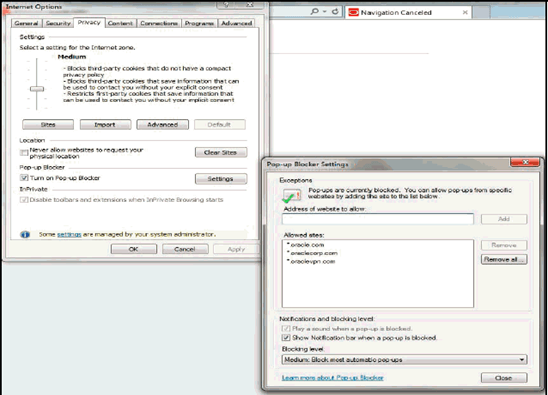
- Click Settings. The Pop-up Blocker Settings window is displayed.
- Enter the URL of the OFSAA Application in the Address of website to allow: field.
- Click Add. The OFSAA URL is displayed in the Allowed sites section.
- Click Close.
- Click OK in the Internet Options window.