7.5 Deploying Analytic Reports and Threshold Analyzer
This section describes how to deploy Analytics on Oracle Business Intelligence Enterprise Edition (OAS 5.9) and integrate Analytic Reports and Threshold Analyzer in the OFSBD UI.
Installing Oracle Analytic Server (OAS) 5.9
To install the ORACLE ANALYTIC SERVER (OAS) 5.9, download the software from ORACLE ANALYTIC SERVER (OAS) 5.9 Server. After installation, get the Enterprise Manager URL, Username, Password, and ORACLE ANALYTIC SERVER (OAS) 5.9 installed directory from the system administrator.
Installing ORACLE ANALYTIC SERVER (OAS) 5.9 Windows Administration Client
Download and Install OAS client tool for 5.9.
Disabling the Cache Feature in Oracle Analytic Server (OAS) 5.9
Log in to the Enterprise Manager and perform the following steps:
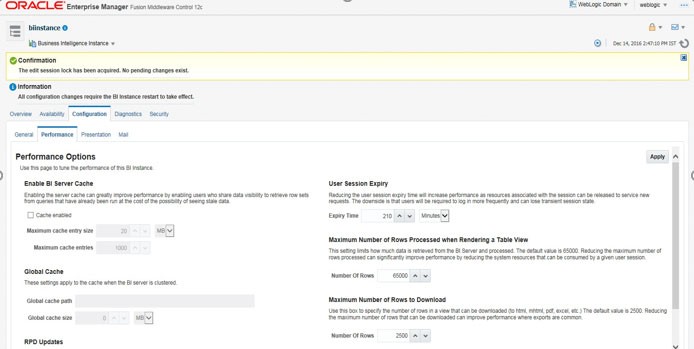
- Click the Target navigation icon.
- Expand the Business Intelligence section and then click biinstance.
- Click the Configuration tab.
- Click the Lock icon and then click Lock & Edit to enable the Cache Enabled checkbox.
- Under the Performance tab, in the Enable Bi Server Cache section, de-select the Cache Enabled checkbox and make the required changes.
- Click the Lock icon and click Release Configuration to save the
Cache Enabled changes.
Figure 7-1 Disabling the Cache Feature in Oracle Analytic Server (OAS) 5.9
Change Default Repository Password
Copy FCCM81.rpd from $FIC_HOME/OBIEE/Repository to the Windows machine where the OAS Windows administration client is installed.
To change the default password for the repository, follow these steps:
- Open the Repository using the OAS Windows administration client from Windows machine.
- From the File menu, select Open and click Offline.
- Browse to the Repository on Windows machine.
The Oracle BI Administration Tool - FCCM81.rpd windows is displayed.
- Enter default Repository password: FCCM$810.
- To change the default password, follow these steps:
- From the File menu, choose Change Password.
- Enter the new password and click OK.
Configuring ORACLE ANALYTIC SERVER (OAS) 5.9 Connection Pool
To configure the Connection Pool of the repository, follow these steps:
- Open the same Repository (as in the previous step) on the Windows machine.
The Oracle BI Administration Tool - FCCM81.rpd window is displayed.
- Expand the FCCM folder in the Physical section.
- Double-click on the Connection Pool to open the Connection Pool Properties window.
- Enter the following in the Data Source Name text box of the Connection Pool
Properties window after
modifying
<Database Server Host Name> and <Database Name> Data Source Name = (DESCRIPTION=(ADDRESS=(PROTOCOL=TCP)(HOST=<Database Server HostName>)(PORT=1521))(CONNECT_DATA=(SERVER=DEDICATED) (SERVICE_NAME=<Database Name>))) - Enter the Atomic Schema user in the User name textbox.
- Enter the Atomic Schema user password in the Password textbox.
- Click OK.
- Expand the folder and test connection for any one table name (right click and then select View Data).
- Perform similar changes in the Connection Pools for all remaining folders in the
Physical Layer by providing the following schema details for all Connection
Pools:
- KYC Analytics >Atomic Schema
- UIC_73 > CaseMng connection pool ->Atomic SchemaUIC_73 > Security connectionpool->Atomic Schema
- TA > Atomic Schema
- CTRBI-> Atomic Schema
- ORCL->Atomic Schema
- FCCM > Atomic Schema
- From the File menu, click Save.
The following message is displayed: Do you want to check global consistency?
- Click Yes.
The following message is displayed: Consistency check did not find any errors, warning or best practices violations.
- Click OK.
Deploying OFS FCCM Report Analytics
To deploy Analytic Reports, follow these steps:
- Login to System Settings using the below URL:
http://<oas server name>:<oas analytics port number>/analytics/systemsettings/ (for example: http://testserver:9502/analytics/systemsettings/)
- Search for Evaluate in the search box.
- Select Level 2 from the Evaluate Support Level drop-down.
- Search for HTML in the search box.
- Enable Allow HTML Content.
- Click Restart.
- Update the instanceconfig.xml file available in the <Oracle Analytic Server (OAS) 5.9_home>/user_ projects/domains/bi/config/fmwconfig/biconfig/OBIPS location as detailed here.
- Replace the following
script:
<Security>
This Configuration setting is managed by Oracle Enterprise Manager Fusion
Middleware Control-->
<ClientSessionExpireMinutes>210</ClientSessionExpireMinutes>
</Security>
With the following:
<Security> <!--This Configuration setting is managed by Oracle Enterprise Manager Fusion Middleware Control--> <ClientSessionExpireMinutes>210</ClientSessionExpireMinutes> <InIFrameRenderingMode>allow</InIFrameRenderingMode> </Security> - Deploy BAR(CATALOG)
- Navigate to $FIC_HOME/OBIEE/catalog.
- Copy FCCM_ANALYTICS.bar to the working location of OAS server.
- Copy FCCM81.rpd into the working location of OAS server.
- Go to the <OAS 5.9 Home directory>/Oracle_Home/user_projects/domains/bi/bitools/bin path.
- Execute the
command:
./importarchive.sh ssi <working location>/FCCM_ANALYTICS.bar encryptionpassword='<pwd>'Note:
pwd is the same as RPD (Repository) password.
- Deploy FCCM81.rpd.
- Navigate to the working directory and execute the following
script:
<Oracle Analytic Server (OAS) 5.9_home>/user_projects/domains/bi/ bitools/bin/datamodel.sh uploadrpd -I FCCM81.rpd -SI ssi -U <user> -P <password> - Restart Oracle Analytic Server (OAS) 5.9 from Enterprise Manager by
following these steps:
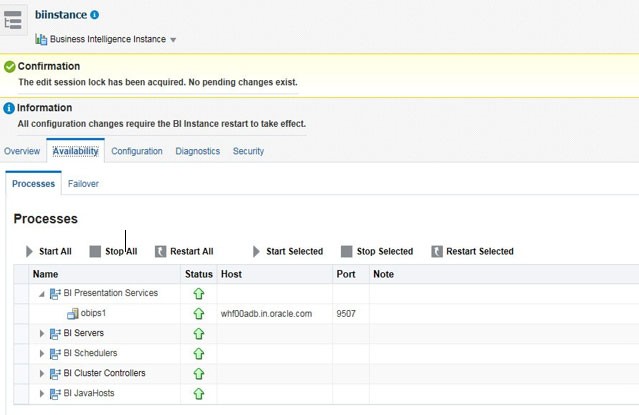
Figure 7-2 Restarting Oracle Analytic Server (OAS) 5.9
- Click the Target navigation icon.
- Expand the Business Intelligence section and then click biinstance.
- Click the Availability tab.
- Click Stop All.
- Click Start All.
- Navigate to the working directory and execute the following
script:
Configuring TreeMap Graph
To configure the TreeMap Graph, follow these steps:
- Login to Oracle Analytic Server (OAS) 5.9.
- Navigate to ORACLE ANALYTIC SERVER (OAS) 5.9 Home.
Note:
ORACLE ANALYTIC SERVER (OAS) 5.9 Home is the ORACLE ANALYTIC SERVER (OAS) 5.9 installed path. - Execute the command:
.cd <Oracle Analytic Server (OAS)5.9_home> - Execute the command to find the available treemap-canvas.js:
.find -name treemap-canvas.js - Four different files, all named treemap-canvas.js are displayed.
- Back up these four files.
- Edit window.top.console to console in these four files and save.
Disable Single Sign On
<Oracle Analytic Server (OAS) 5.9_Home>/oracle_common/common/bin/wlst.sh
        disableBISingleSignOn('<Oracle Analytic Server (OAS)5.9_Home>/user_projects/ domains/bi').
Enabling Table Authentication feature in OAS 5.9
To enable Table authentication, follow these steps:
- Go to the following location and open or create the .properties
file.
<DOMAIN_HOME(OAS Server Domain home)>/config/fmwconfig/biconfig/OBIPS/incubation.properties (if the file does not exist, create it).
- Add/update the oracle.bips.auth.nextGenAuth=false line in the file.
- Restart the OBIPS process(es).
For example:
- <DOMAIN_HOME>/bitools/bin/stop.sh -iobips1
- <DOMAIN_HOME>/bitools/bin/start.sh -iobips1.